...
Save - the ability to post transactions from schedule list. (ONLY after clicking the "Forecast" button)
Перенести - возможность перенести услугу или оплату на другой карман в выбранном счете либо перенести только услугу (с оплатой это сделать не возможно) на выбранный карман в счет другого гостя.
Отменить проведение - возможность отмены проведения запланированных к начислению транзакций.
Удалить - возможность удаления услуги до того момента, как произошло сохранение счета.
Печать - печать гостевого счета.

Печать Счета
При нажатии кнопки "Печать" всплывает следующее окно:
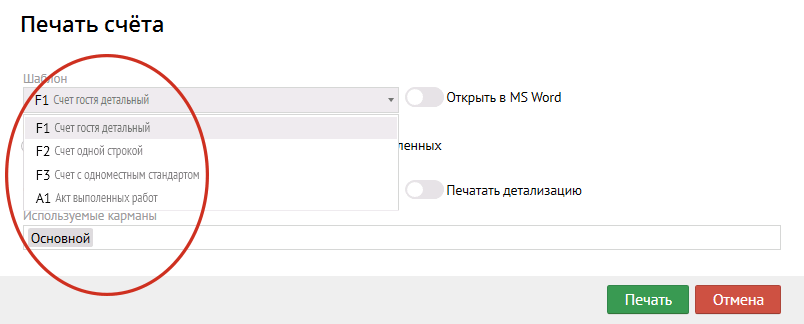
Счет гостя детальный - детальное отображение услуг.
Счет одной строкой - группирует все услуги в одну с общей суммой.
Акт выполненных работ (опционально) - бухгалтерский акт.
Счет гостя на одноместный стандарт (опционально) - счет с данными, которые невозможно редактировать.
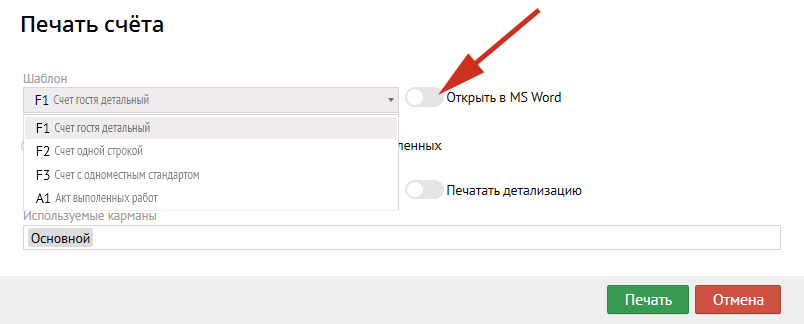
Также во вкладке "Печать" есть кнопка "Открыть в MS Word", позволяющая открыть счет в ворде:
Также Вы можете выбрать то, что необходимо напечатать, для этого нужно отметить один из 3х пунктов:
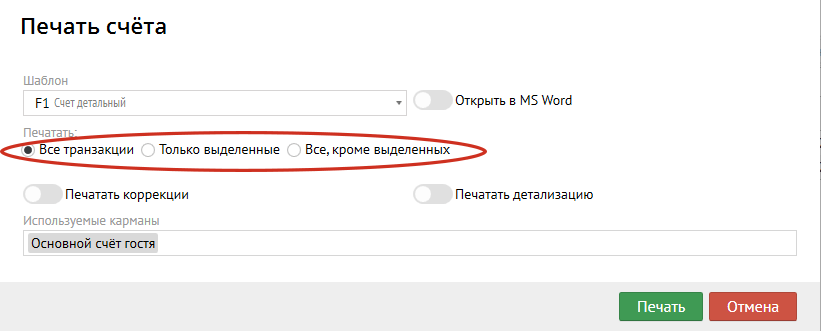
- Все транзакции - печатает все, что есть в счете;
- Только выделенные - печатает все, что помечено галочкой;
- Все, кроме выделенных - печатает все, что не выделено галочкой.
Кнопка "Печатать коррекции" - распечатать счет с коррекциями услуг в счете.
Кнопка "Печатать детализацию" - распечатать счет с детализацией услуг (например, с позициями мини-бара)
Transfer - the ability to transfer a posted service or payment to another sub-folios in the selected reservation folio. Transfer only a posted service (it is impossible to do this with payment) to the selected sub-folios to the account of another guest reservation (Guest profiles).
Revert posted transactions - the ability of canceling scheduled accrual transactions.
Add discount - the ability to make a discount to the posted transaction..
Delete - the ability to delete a posted service until the moment the reservation card was saved.
Print - printing guest folio invoice.
When you click the "Print" button, the following window pops up:
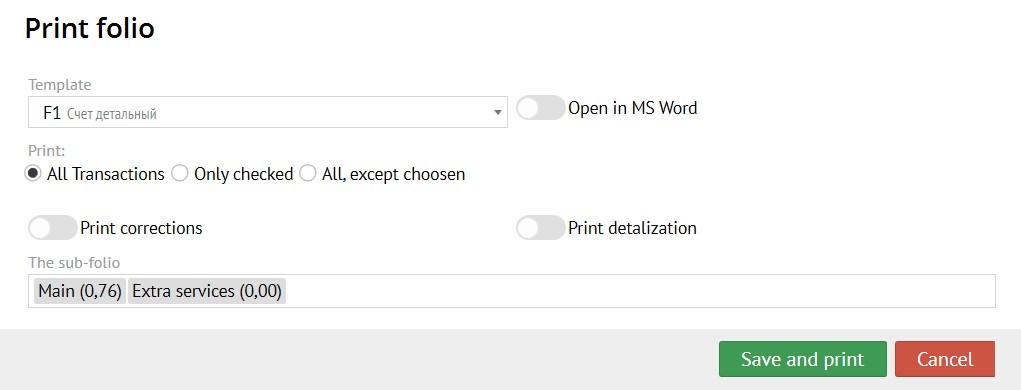
You can choose different template from pop-up window.
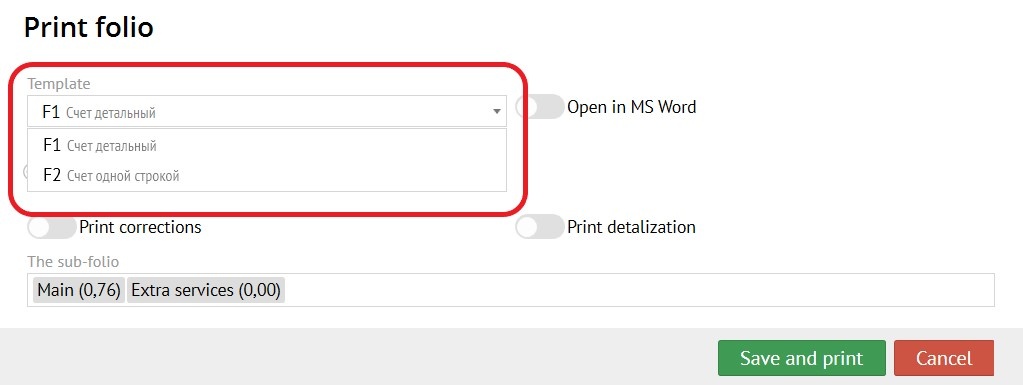
It can be detailed invoice, invoice with only one transaction, some special acts or etc.
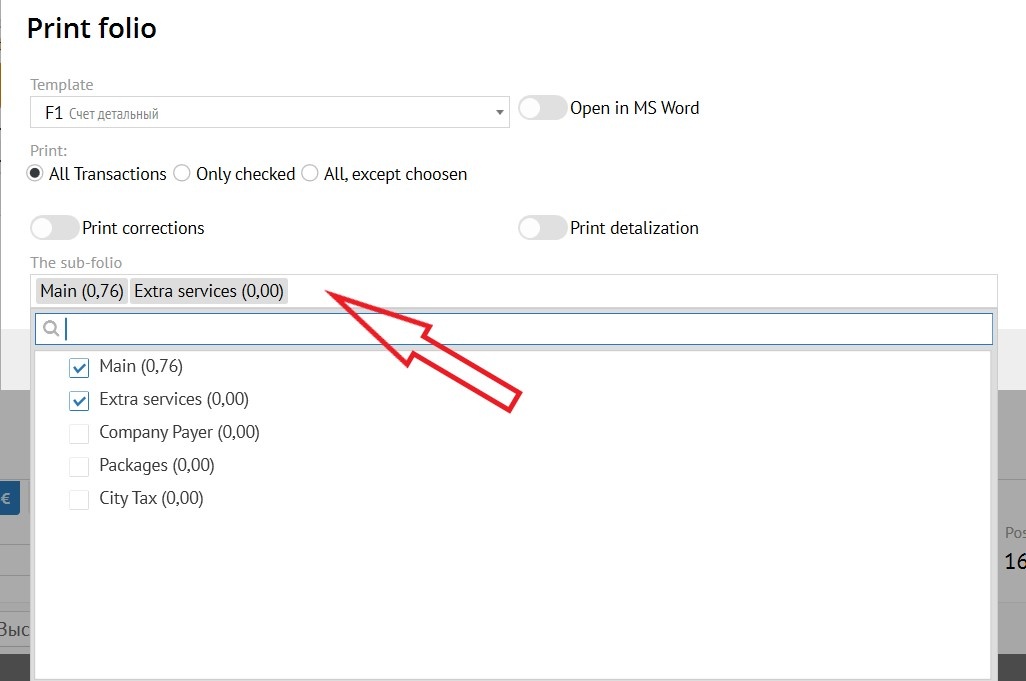
In another pop-up window you can choose required sub-folios to print.
Also in the "Print" tab there is a button "Open in MS Word", which allows you to open an invoice in Word:
You can choose what you want to print, for this you need to mark one of 3 points:
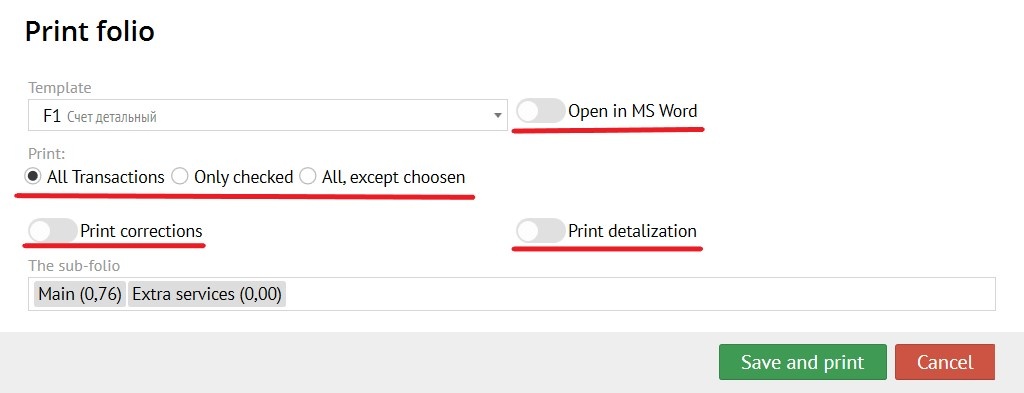
- All Transactions - prints everything in the folio;
- Only checked - prints everything that is ticked;
- All, except choosen - prints everything that isn't ticked.
"Print corrections" button - prints invoice with corrections of services in it.
"Print detalization" button - prints an invoice with details of posted services (for example, with the positions of a minibar)Кнопка "Используемые карманы" - выбор необходимого кармана счета, который Вам необходимо отобразить в документе.
Начисление
При нажатии кнопки "Начислить" выпадает окно со следующими полями:
...