...
Plan a transaction posting - if you need the transaction to be posted on a certain date, you must click on this button and select a date (this option requires the user to have the “Post scheduled transactions" permission).
Quantity - quantity of posting transactions.
Discount - if you need to make a discount to this transaction click this gap and in pop-up window choose percent of discount.
...
To post the transaction click "Post charge"
To post and pay immediately click "Charge and pay"

Оплата
При нажатии кнопки "Оплатить" выпадает окно со следующими полями:
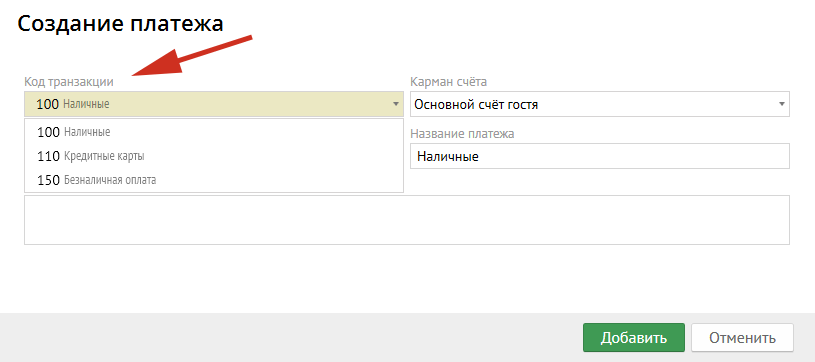
Код транзакции - уникальный код платёжной транзакции, который нужно выбрать из выпадающего списка:
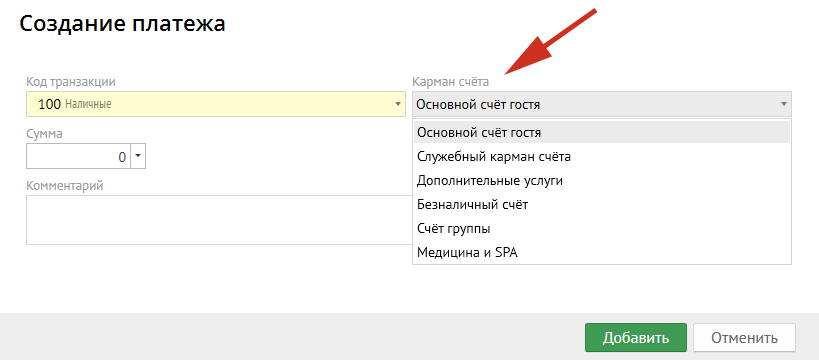
Карман счета - после нажатия этой кнопки необходимо выбрать из меню нужный Вам карман:
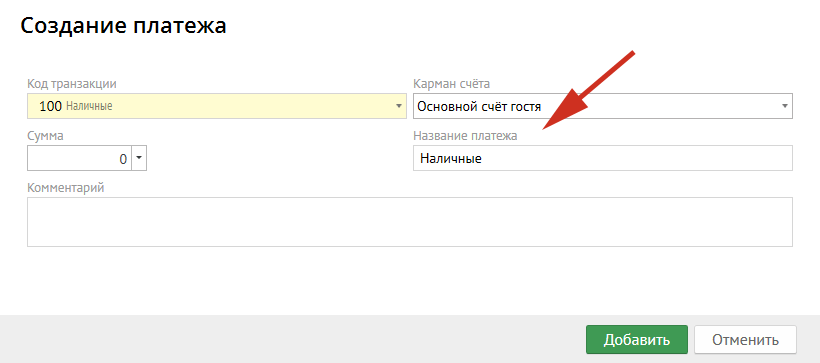
Название платежа - заполняется автоматически после выбора "Кода транзакции":
Add payment
When you click the "Add payment" button, a pop-up window appears:
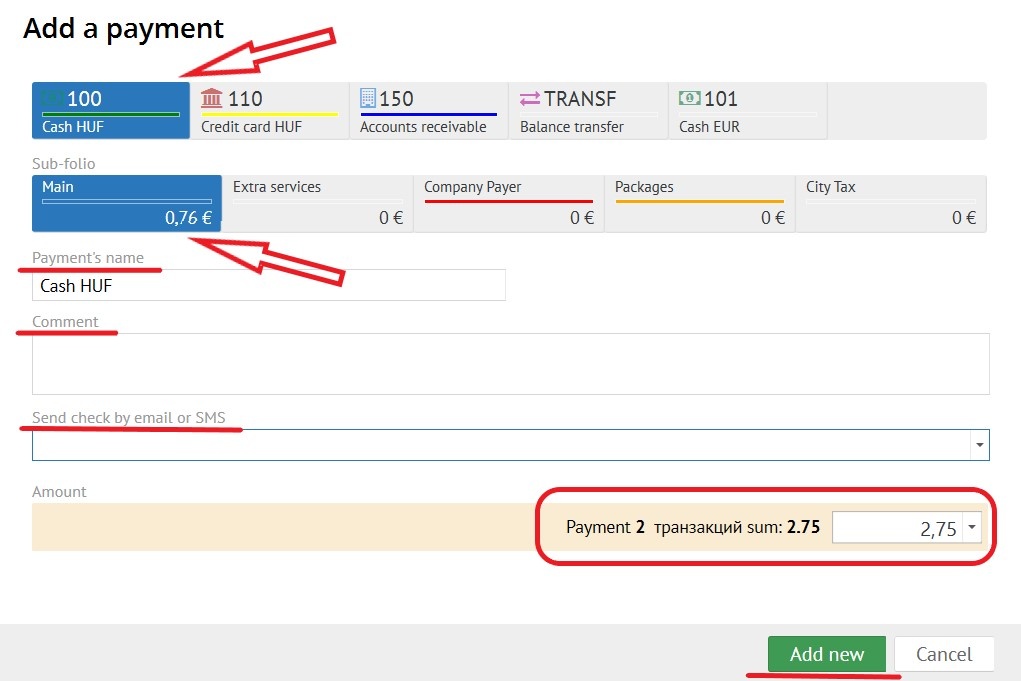
Type of payment - Choose the transaction code for payment (credit card, cash or etc.)а:
Sub-folio - choosing the right sub-folio for payment.
Payment's name - filled in automatically after selecting "Transaction Code". (can be changed if needed)
Send check by email or SMS -
Комментарий - сюда можно вписать необходимые Вам комментарии.
Сумма - в Сумма - в это поле необходимо вбить сумму либо она автоматически будет заполнена из настройки.Комментарий - сюда можно вписать необходимые Вам комментарии.
Далее необходимо нажать кнопку "Добавить" и услуга будет оплачена.
...