...
Click the Groups tab to start working with "Groups":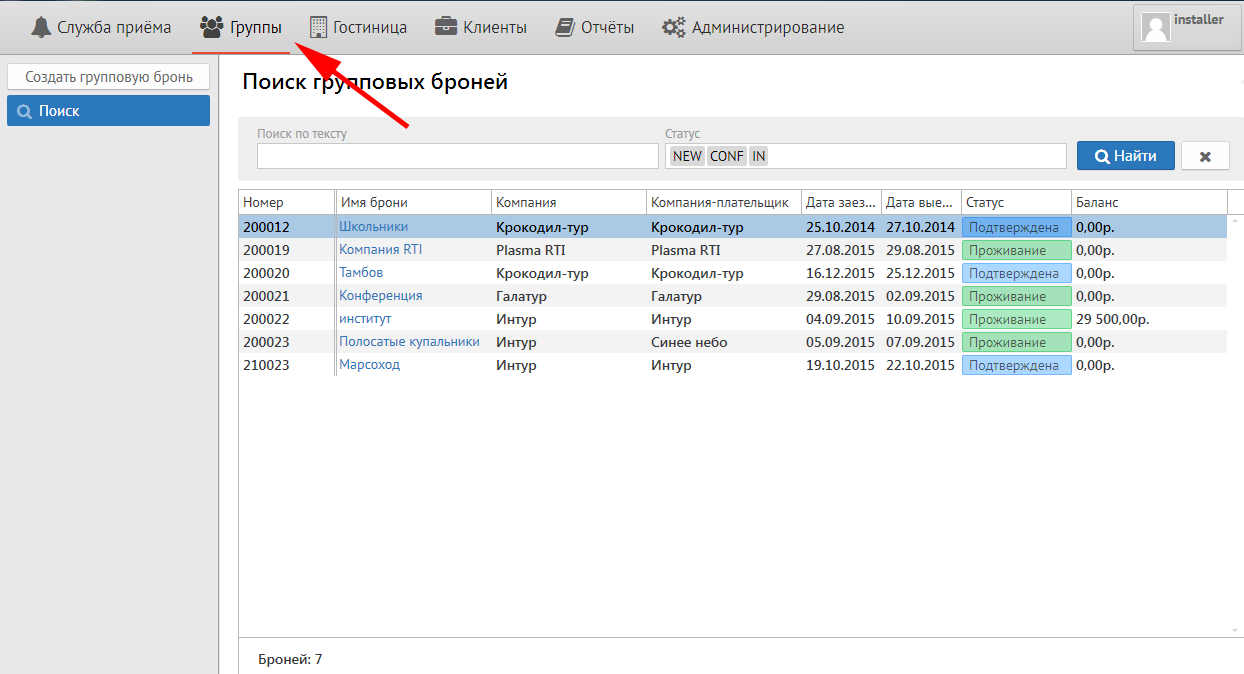

After that from the left will be three buttons:
...
2) Search (This button follows to search group reservation with any status)
3) Blocks under pickup

2. To make a new group reservation
To make a new group reservation press the button "New group reservation". You will see the next screen:
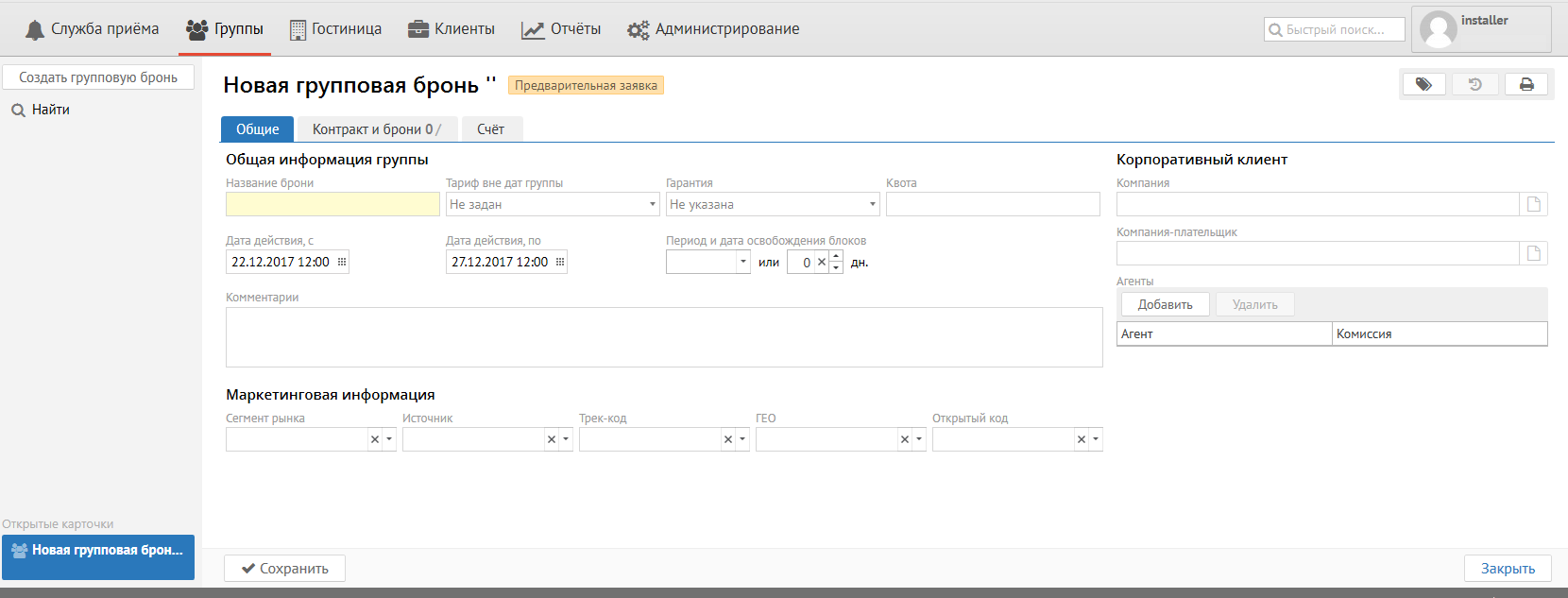
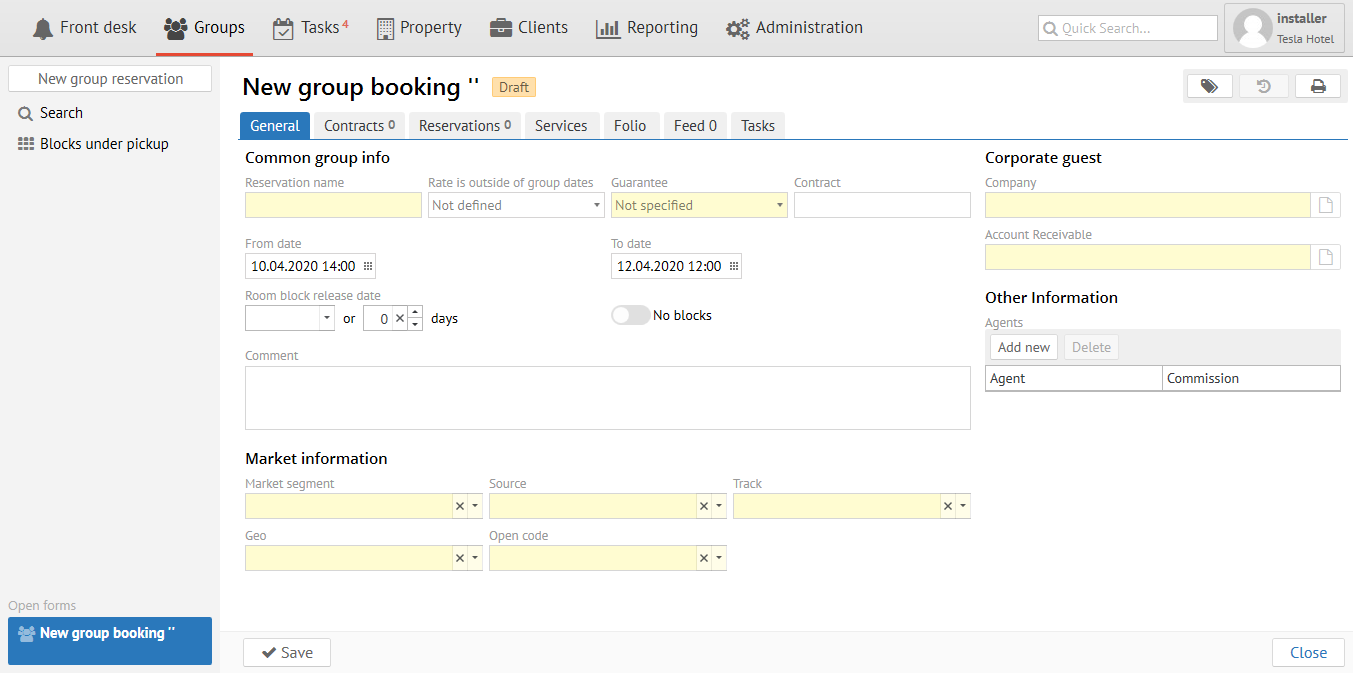
General It shoud be fill in the next fields in "General" tab:
Reservation name - Any name for group identification.
...
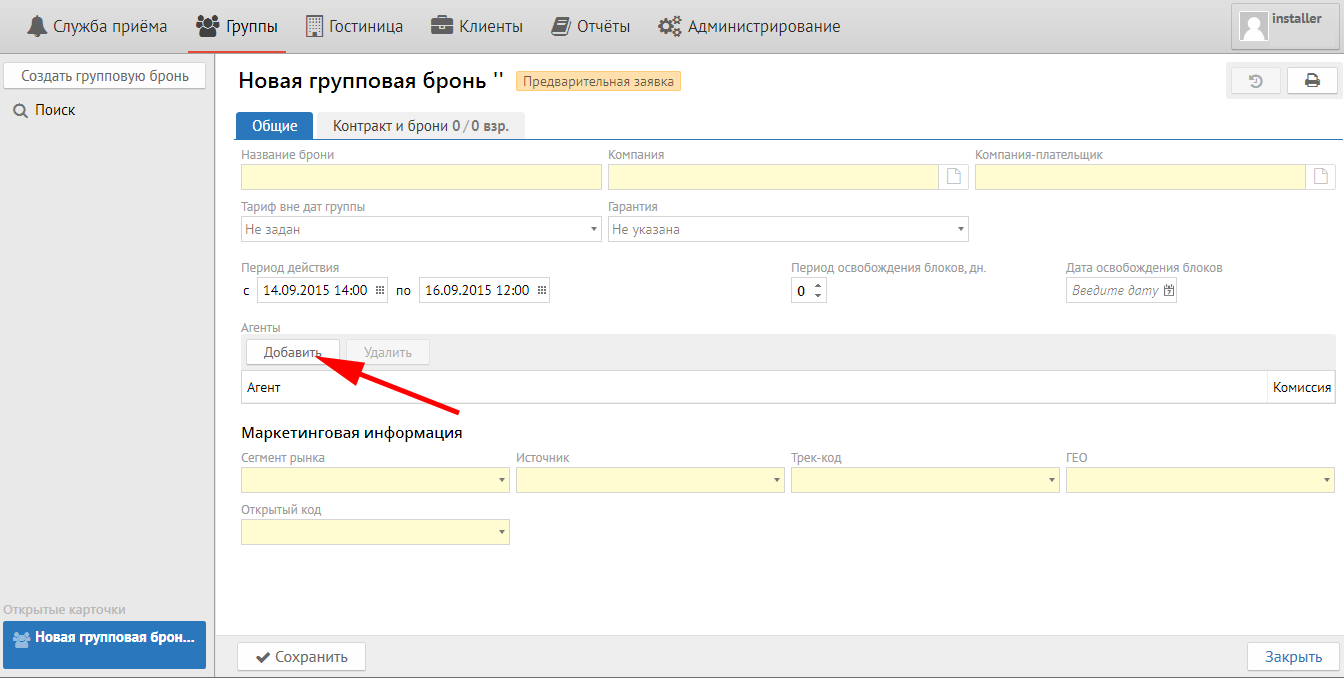
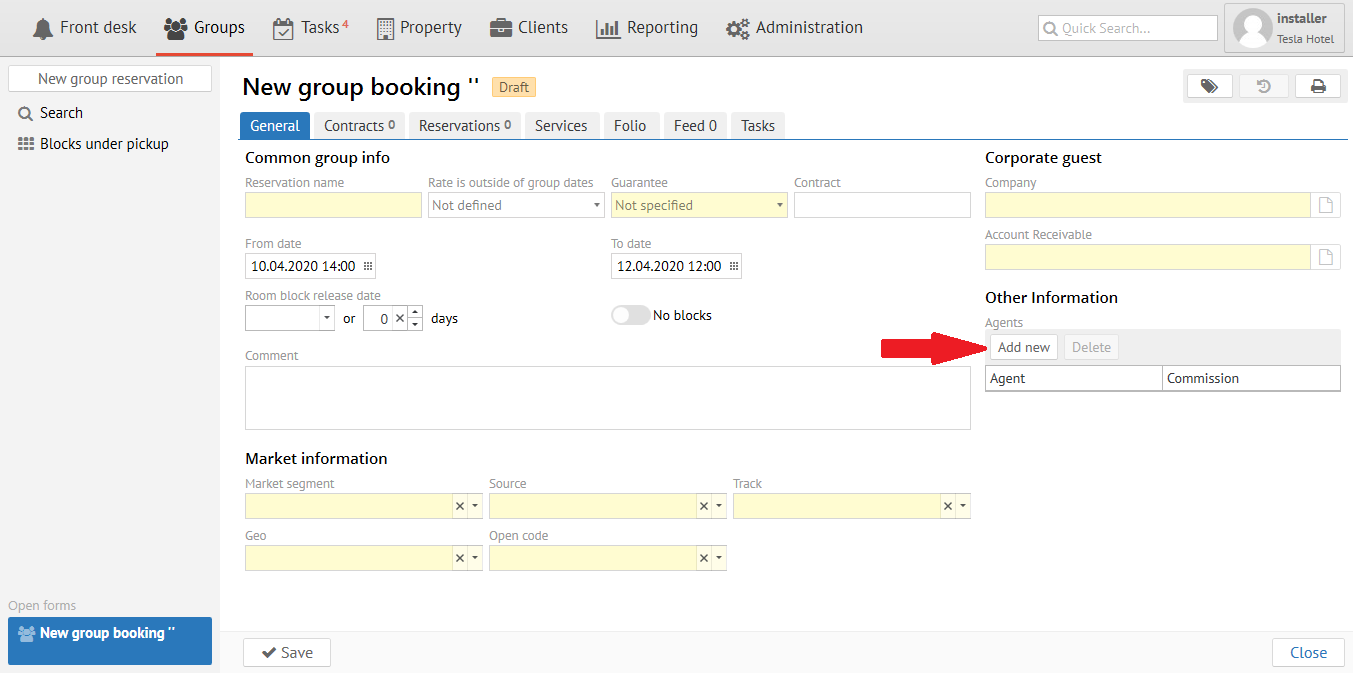
Click "New" button and choose Agent from the list in special field in case of Group come from Travel Agency and you should pay comission.
Market information:
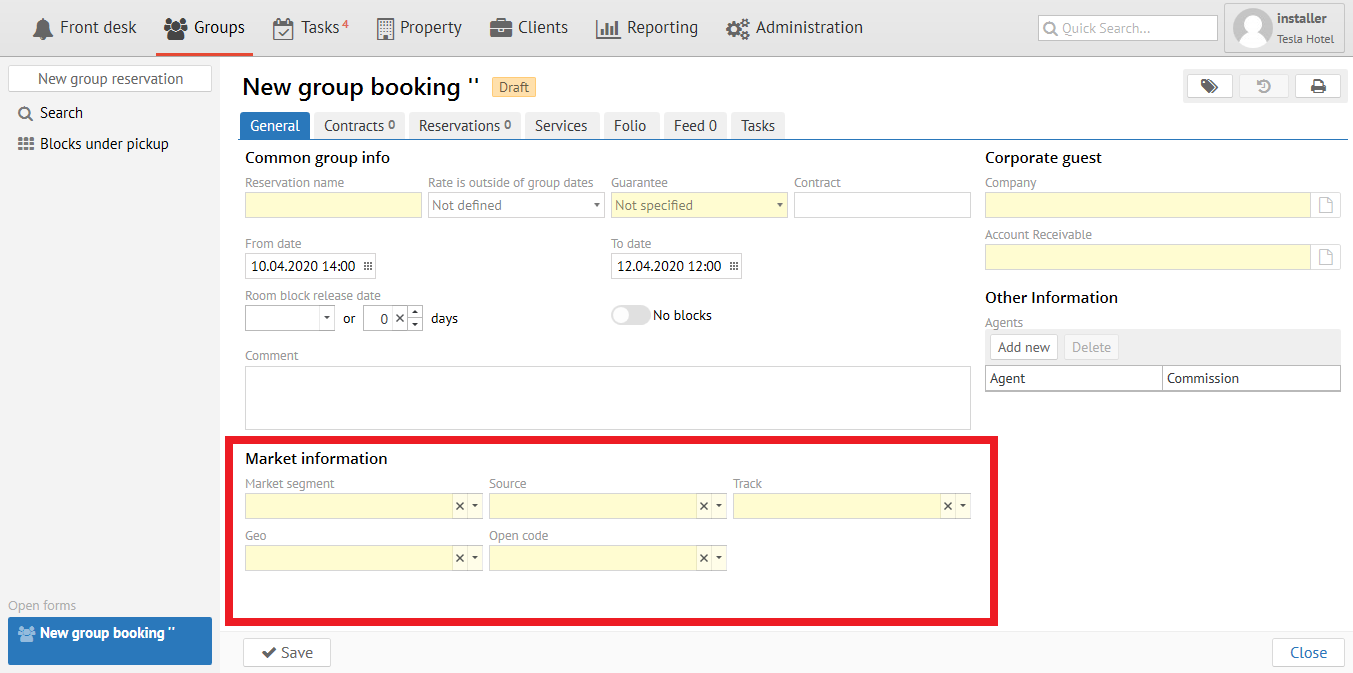
Market segment - segment of bussines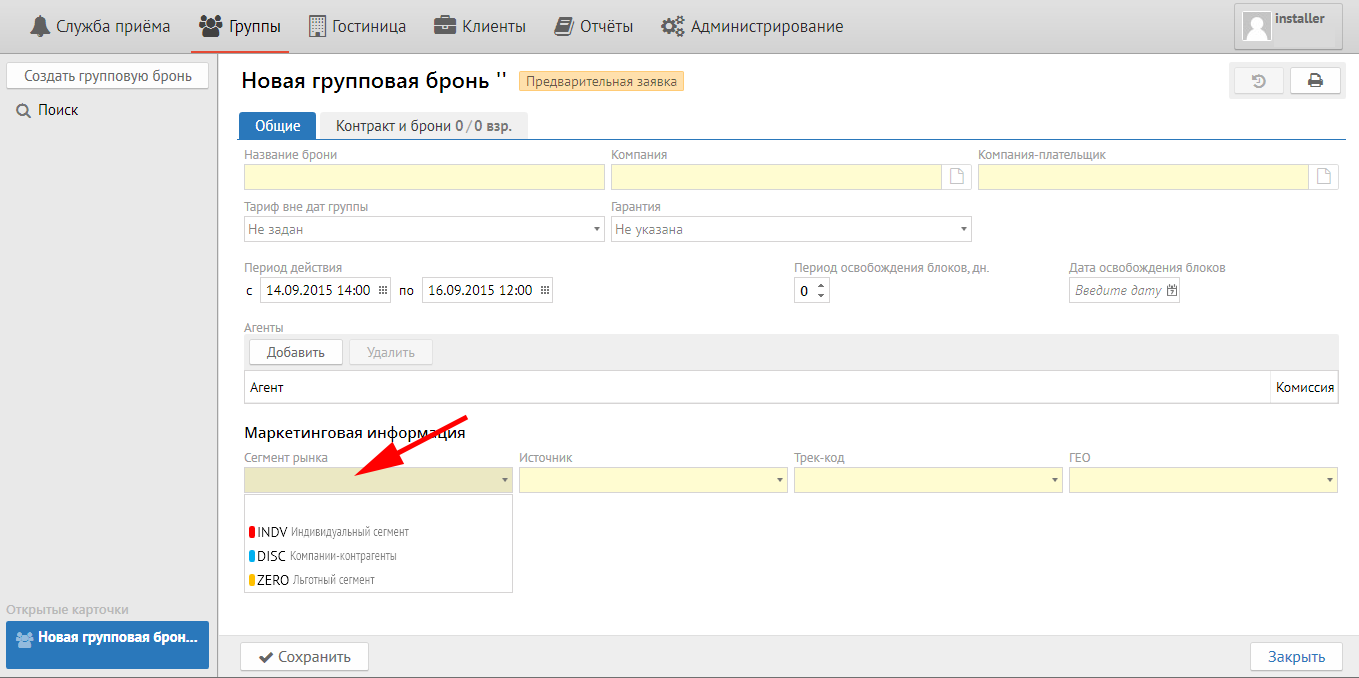
Source - source of reservation: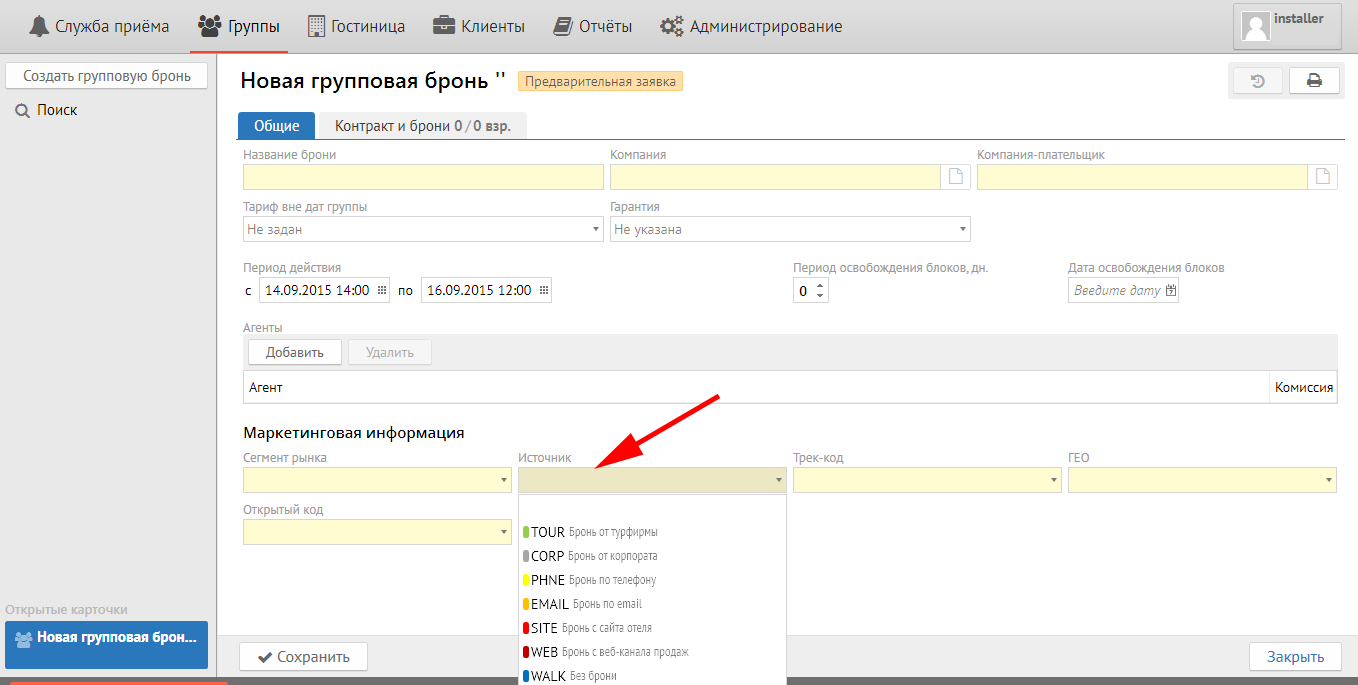
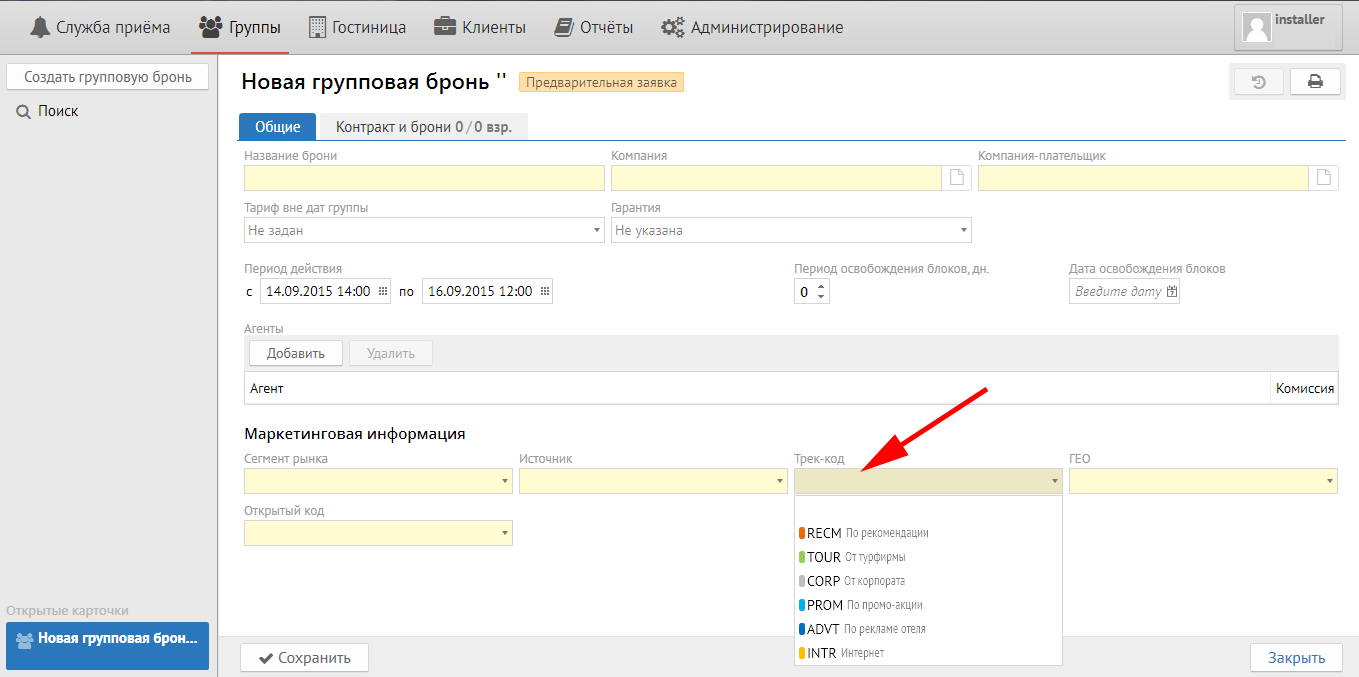
Track - purpose of visit at the hotel:
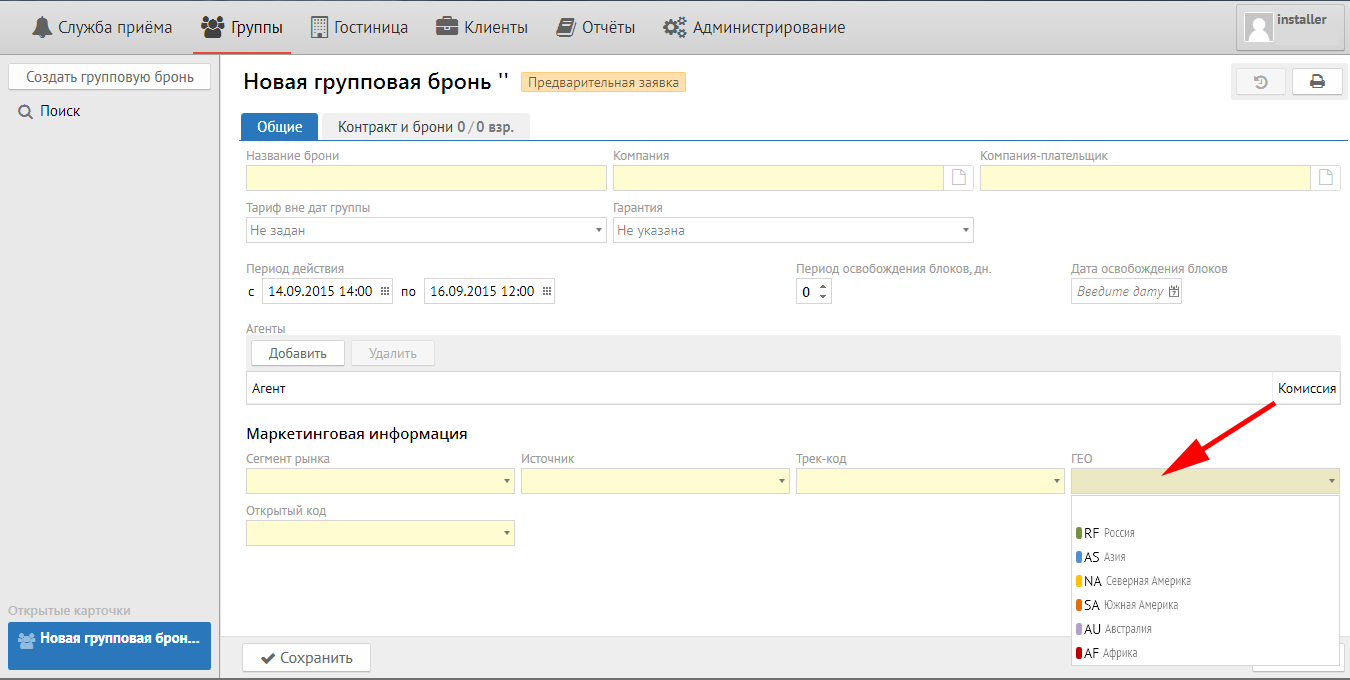
Geo- geografy of guest (country, region or city):
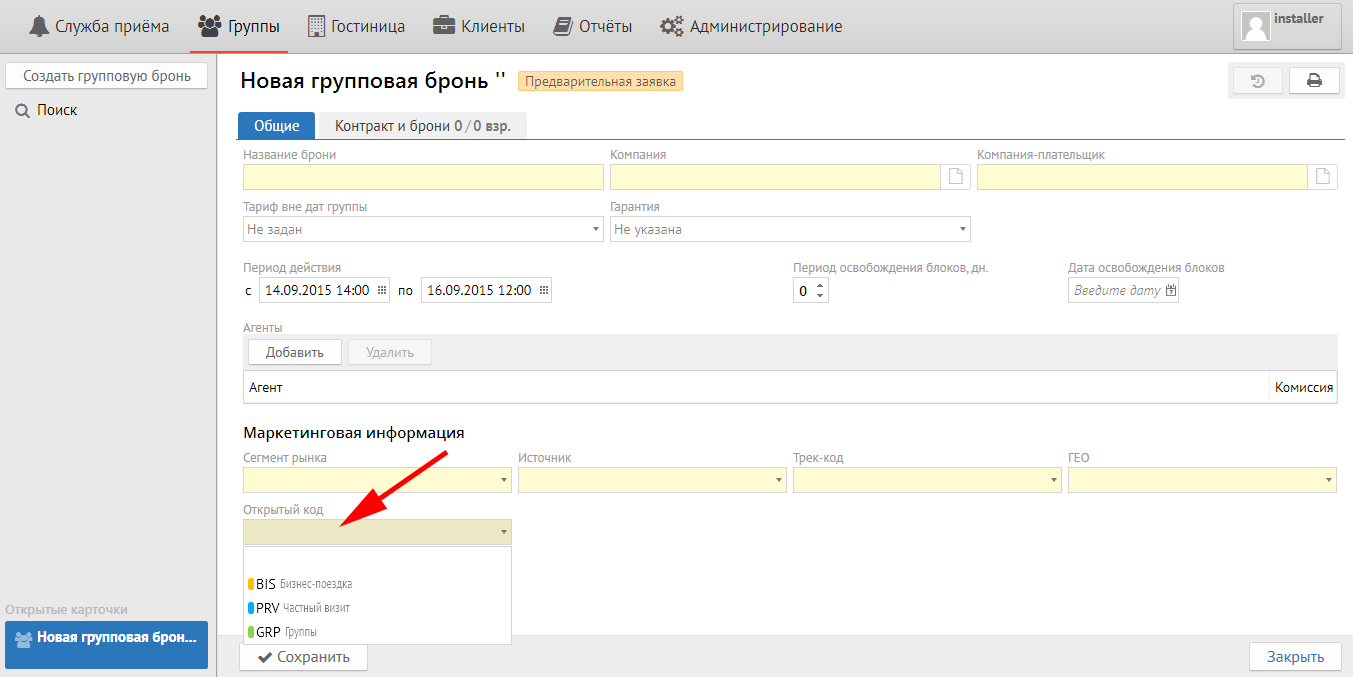
Open code - any information neccessary for hotel from Open code setup (purpose of visit, type of advertizing, company legal name, etc.):
Contract Contracts tab
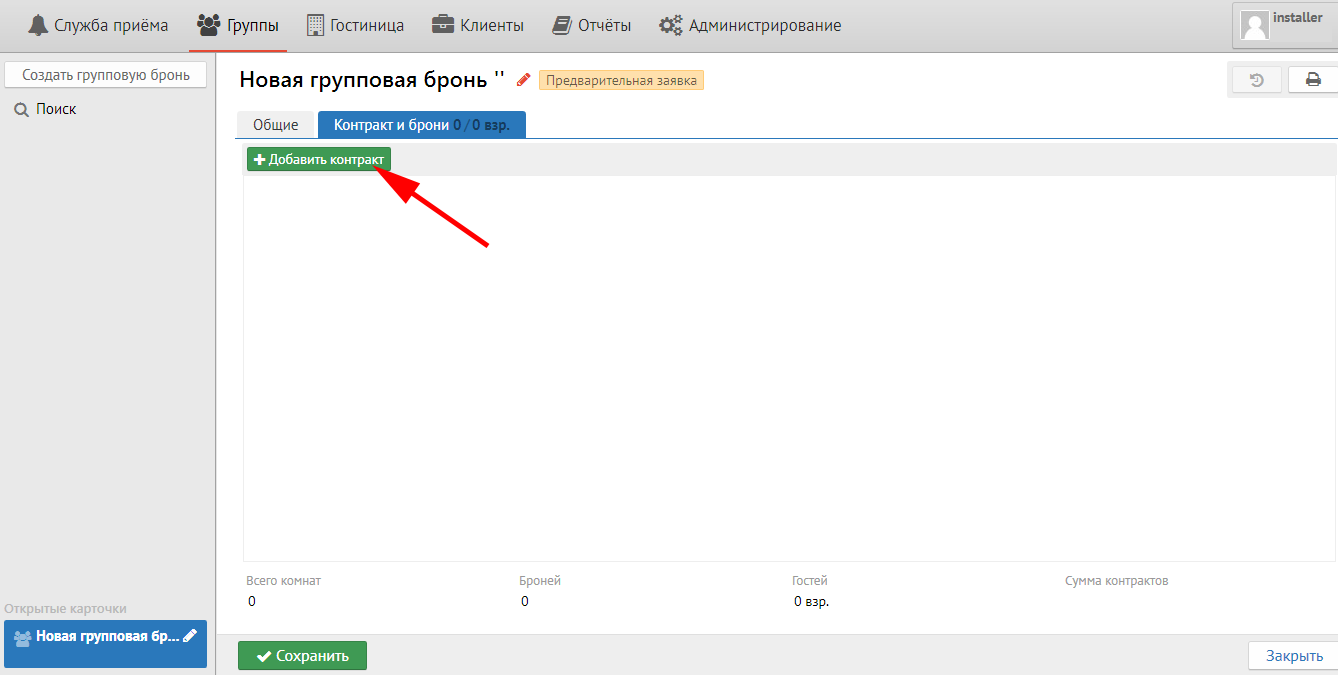
Press "New contract" button for adding contract.
Important: quantity of accommodation variants is equal to quantity of contracts.
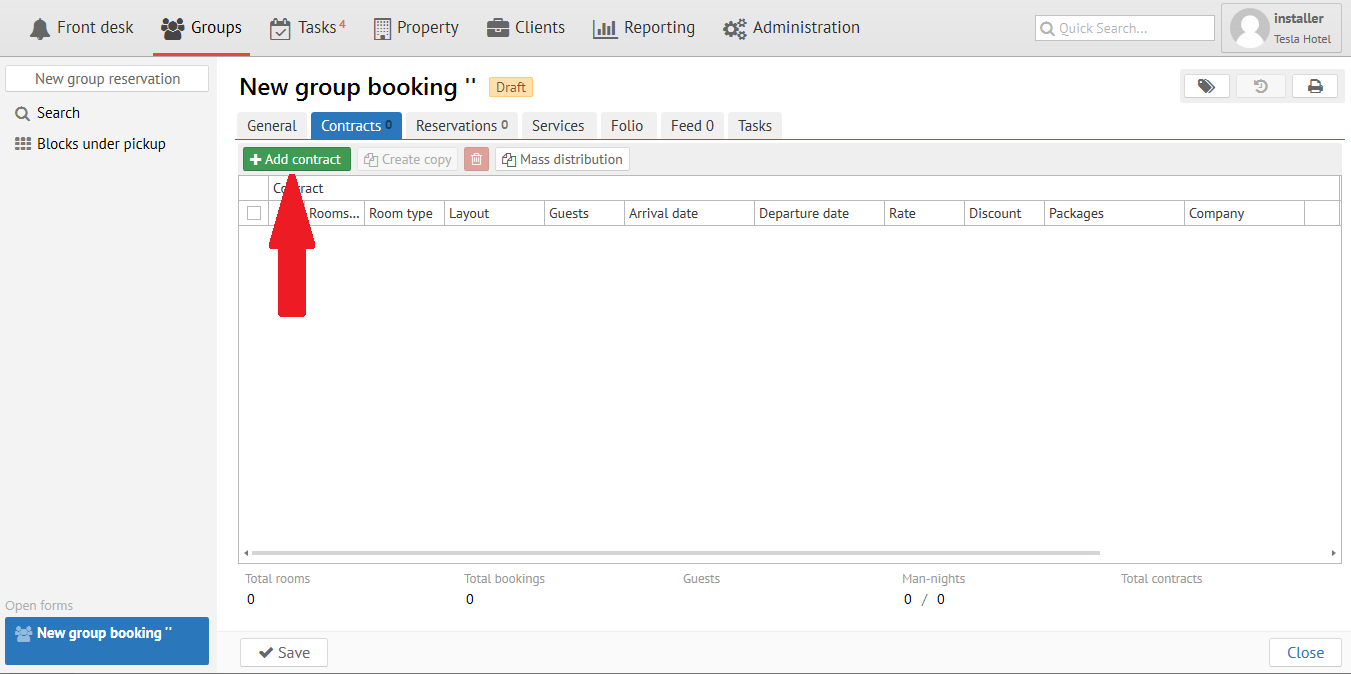
Then you will see the next sceen:
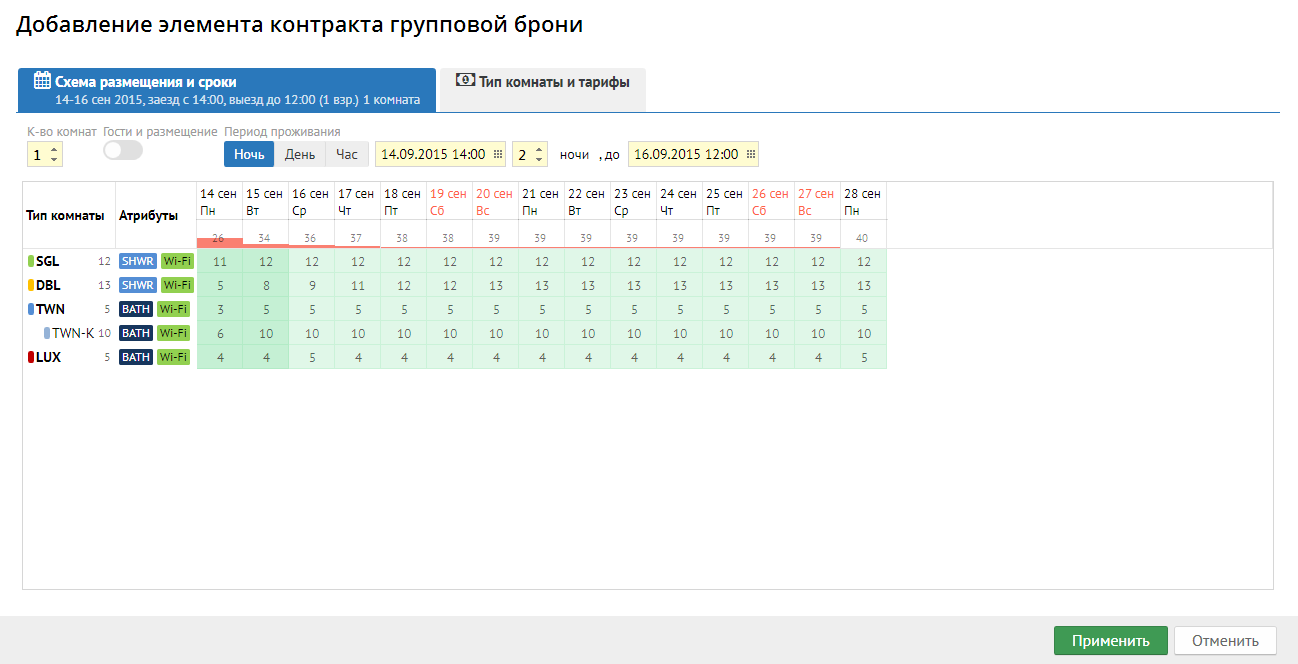
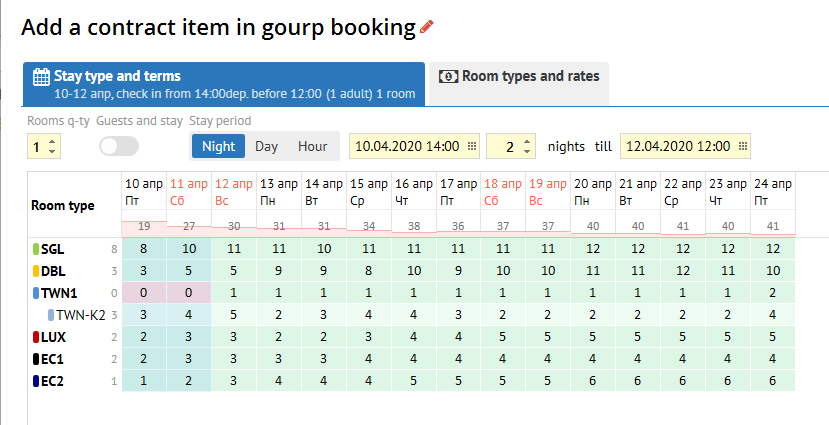
Stay type and terms tab:
...
Room types and rates are inherited from Rate setup.
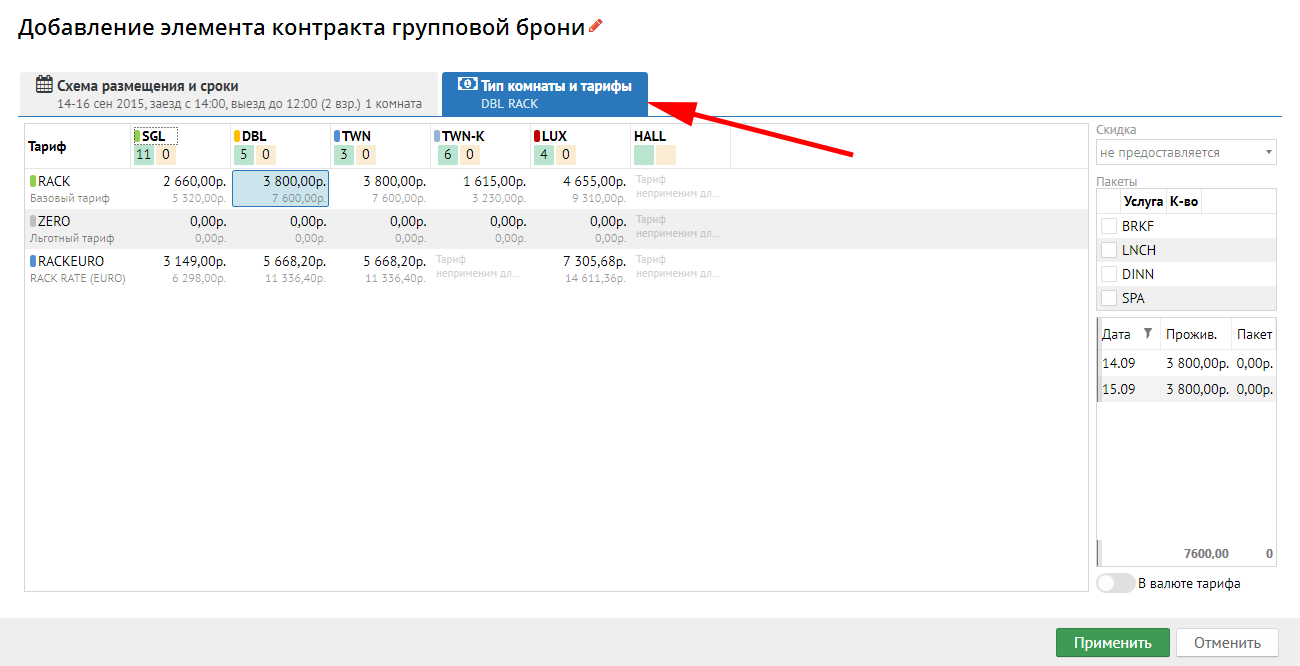
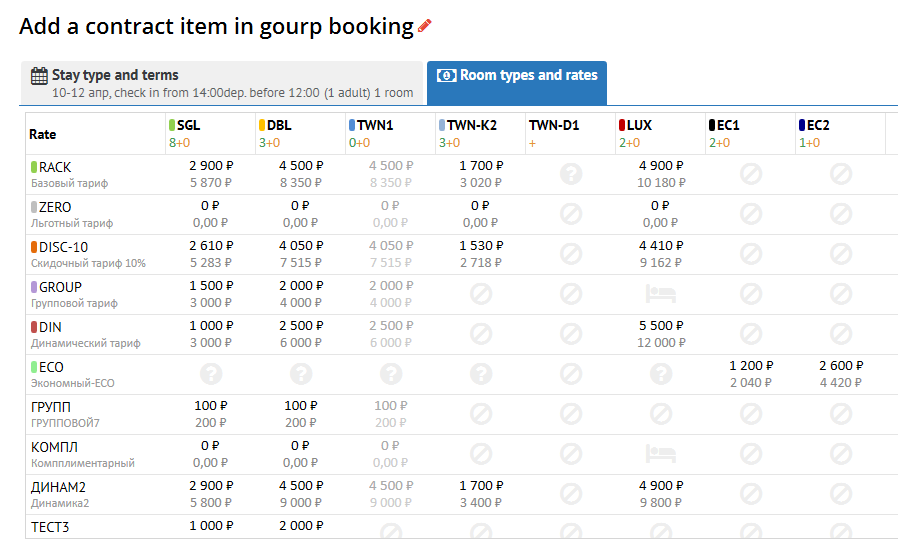
Then press "Apply":
Your contract will be added:
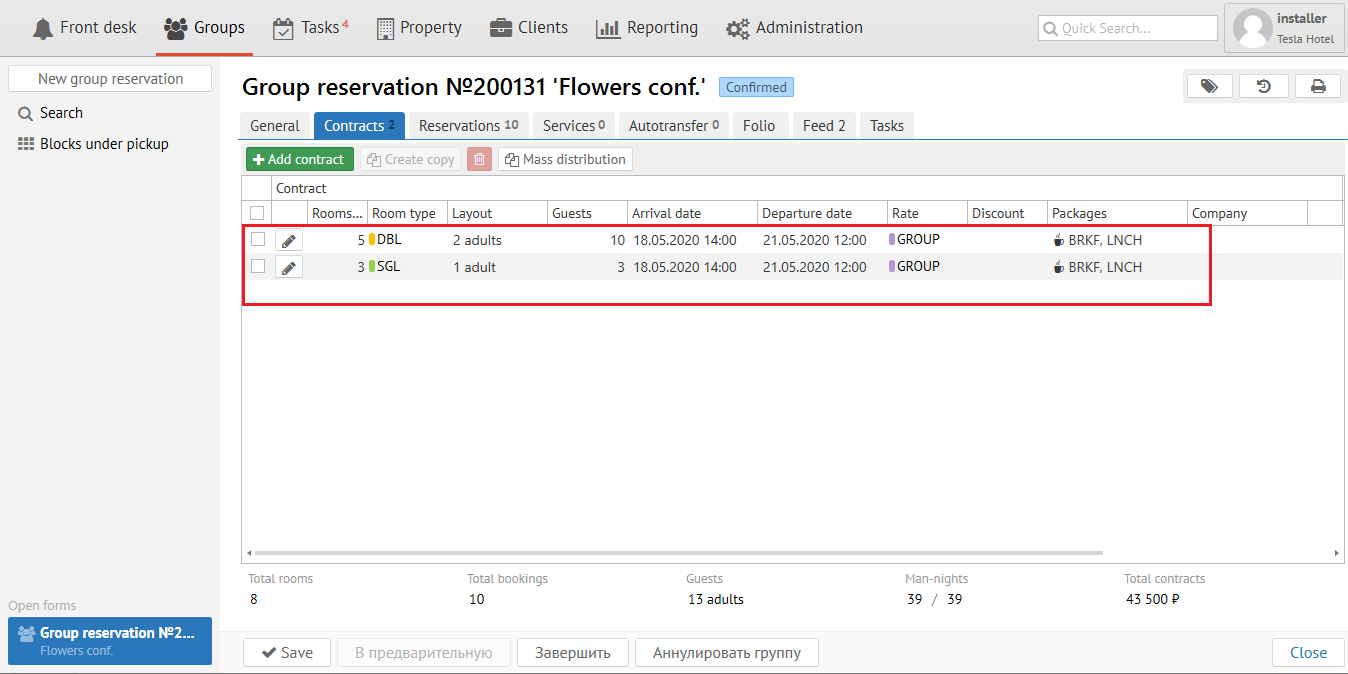
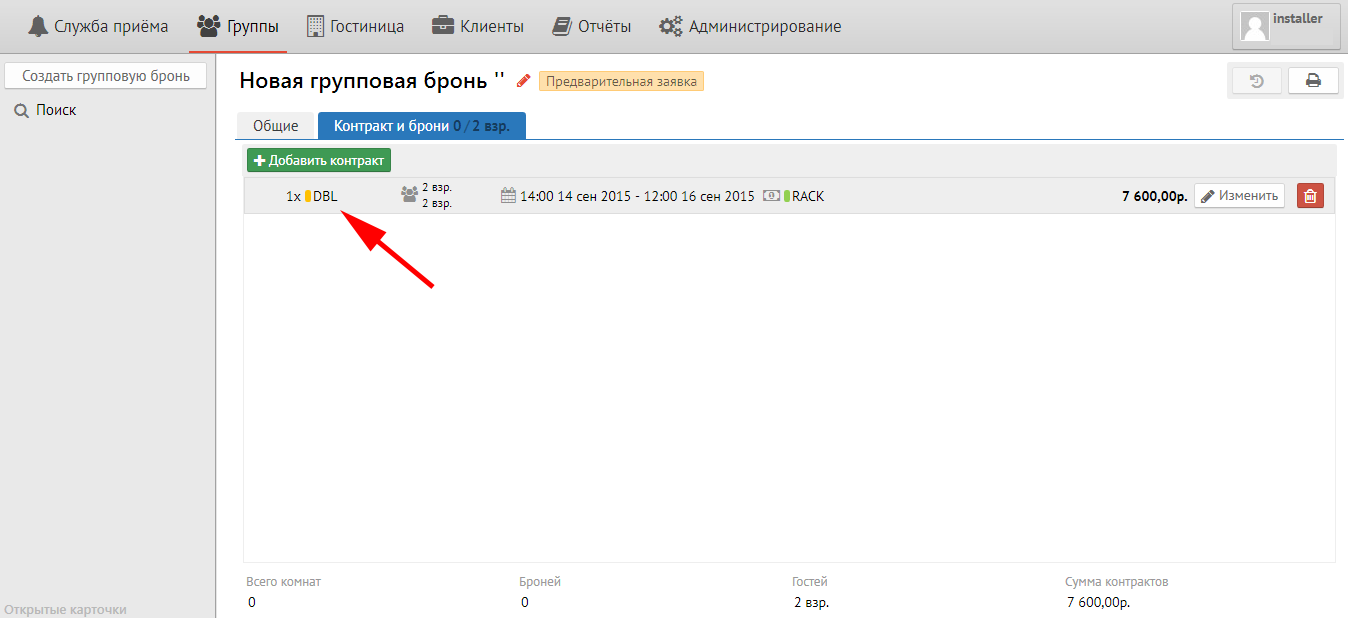
You can change contract if you click to  or highlight the contract
...
It is necessary to press "В предварительную" button for turning Contract to Block (change status for Confirm contract). After that necessary quantity of rooms (blocks) will be "frozen" for this Group.
"Add conract " button allows to add new contract.
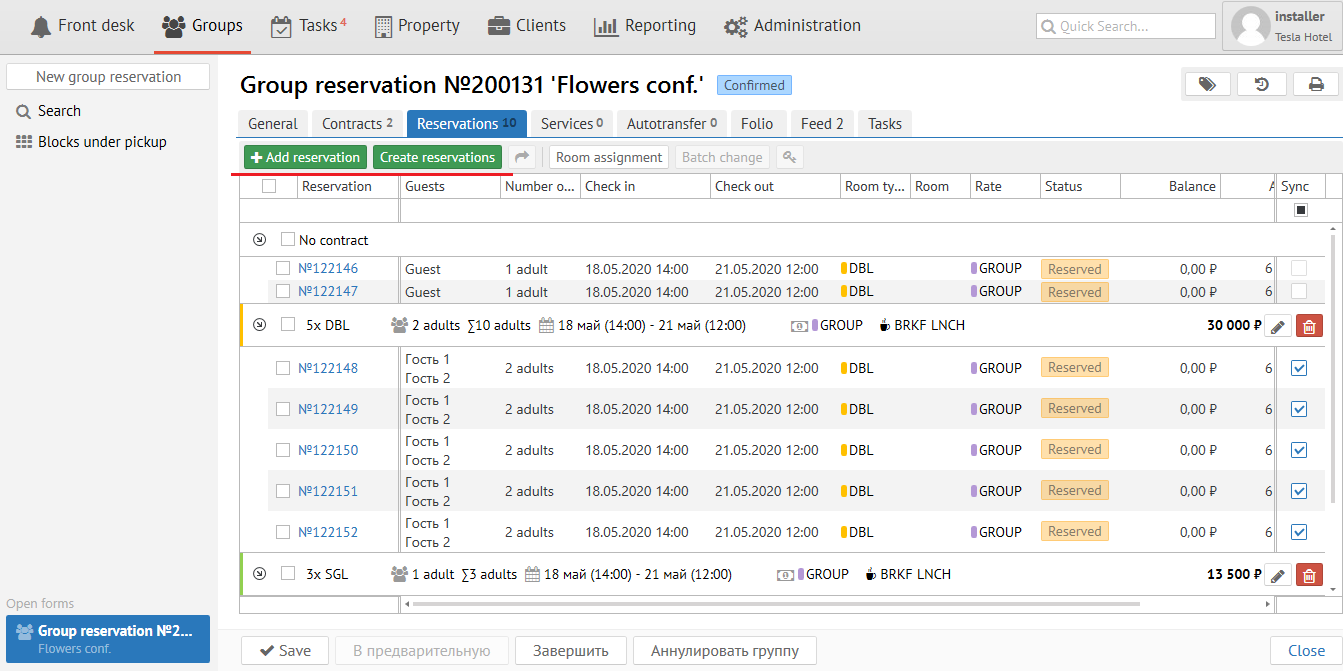
Reservations tab:
It is necessary to press "Create Add reservaton" to turn block to make new reservation.
It is necessary to press "Add Create reservaton" to make new turn block to reservation.
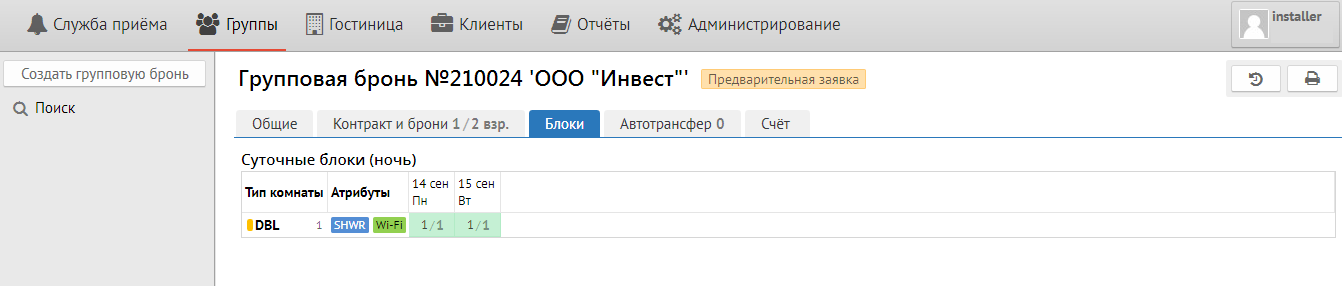
Room blocks tab:
Services tab:
For add any new service click to "Add service" and you will see the next screen: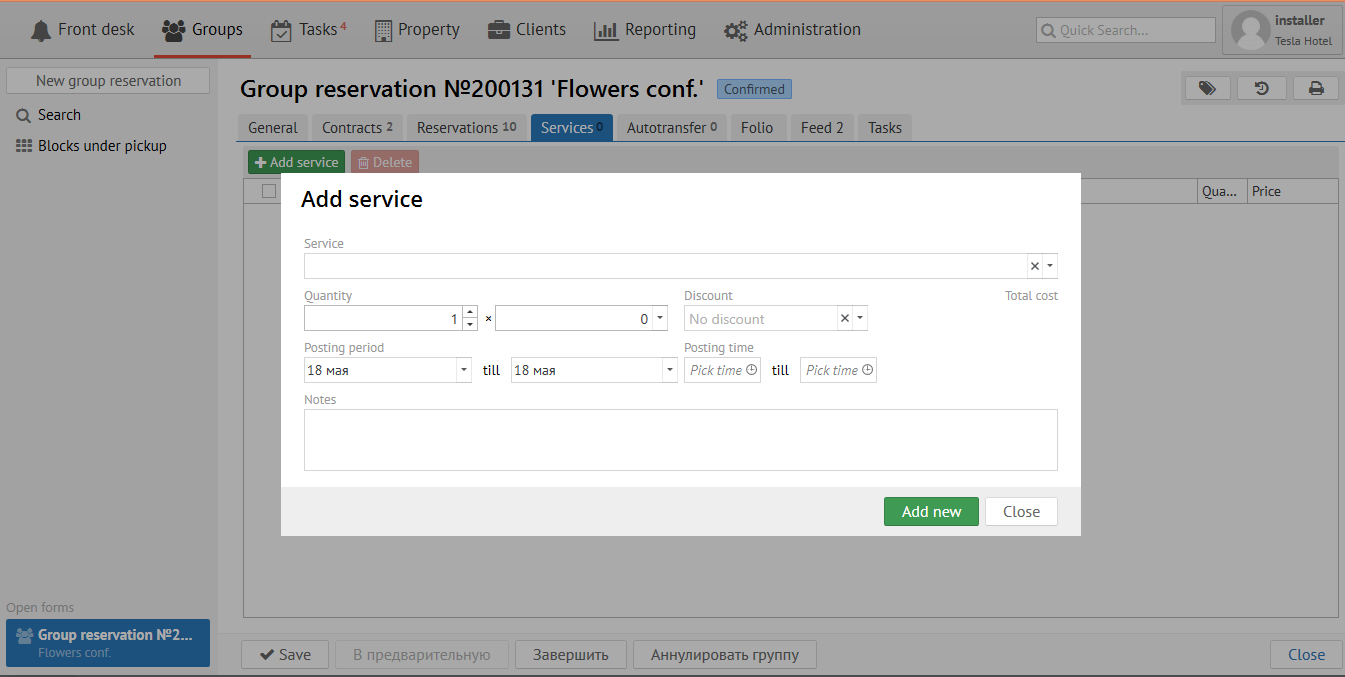
Choose any service from the list.Services tab:
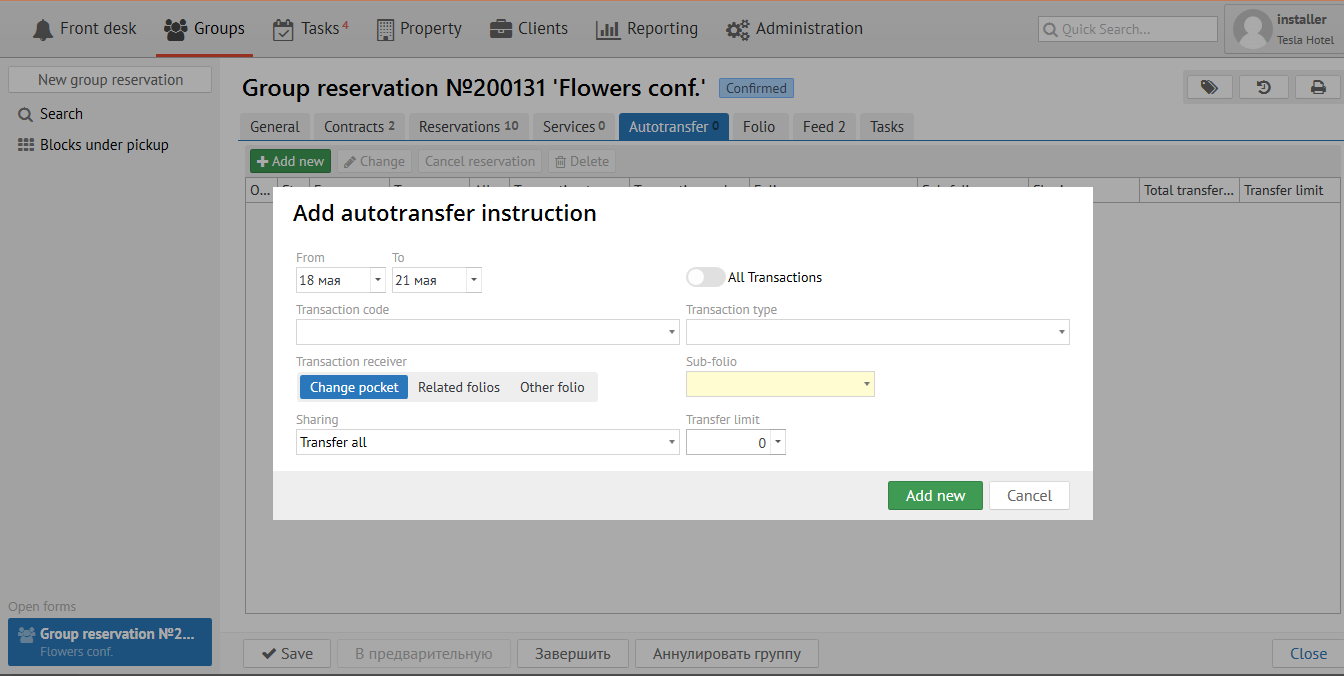
Autotransfer tab:
It is used for making instruction for posting any services for group folio (bill).
For adding autotransfer press "Add new" button . and you will see the next screen:
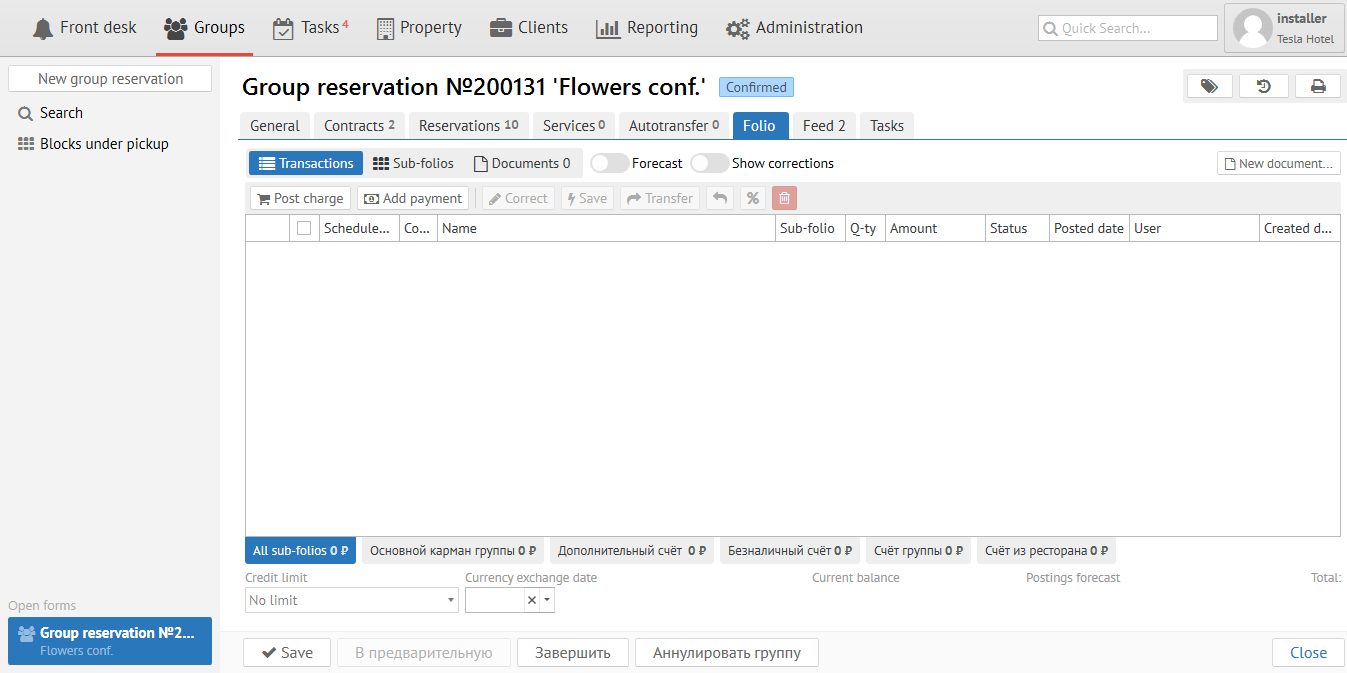
"Folio" tab - group folio (bill) where transactoins appear after Autotransfer setup.
Reservation tab
...
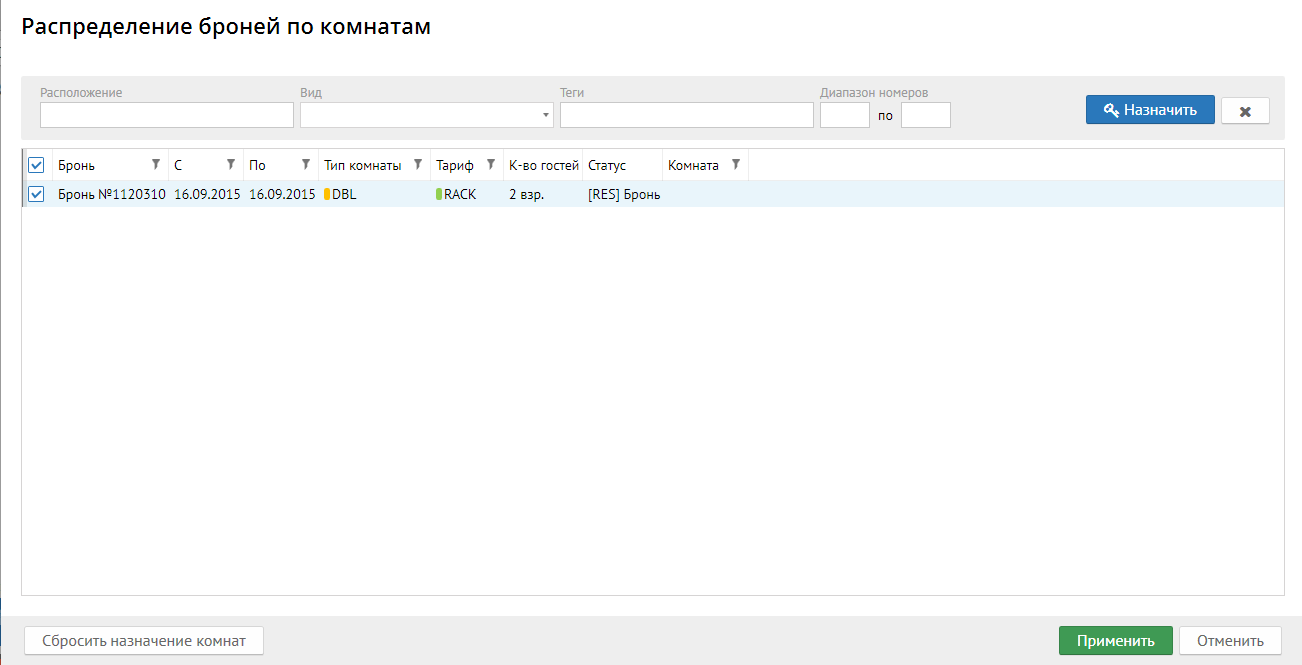
Press "Room assignment" button, then you will see the next screen:
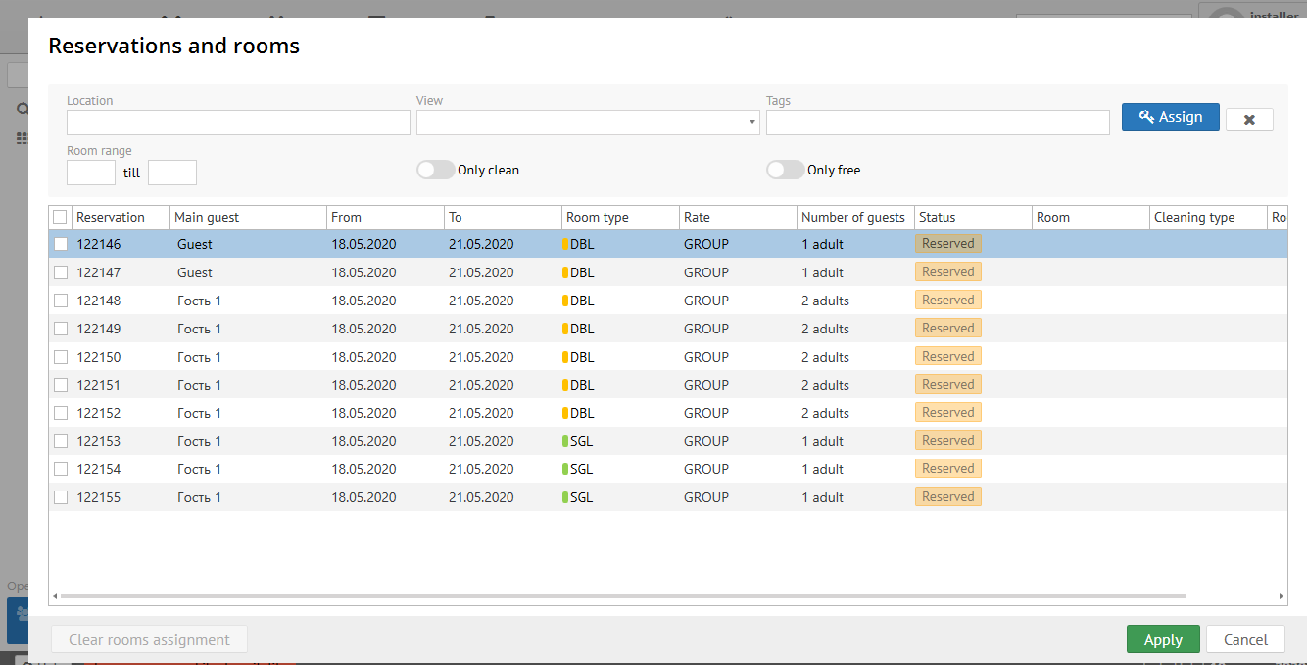
"Location" field- it is floor or building.
...
"Batch change" button follows the next:
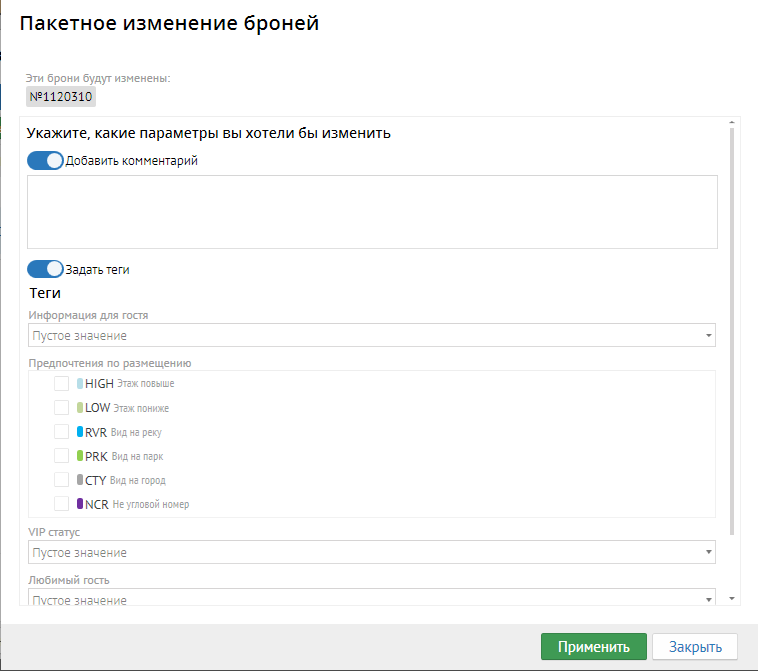
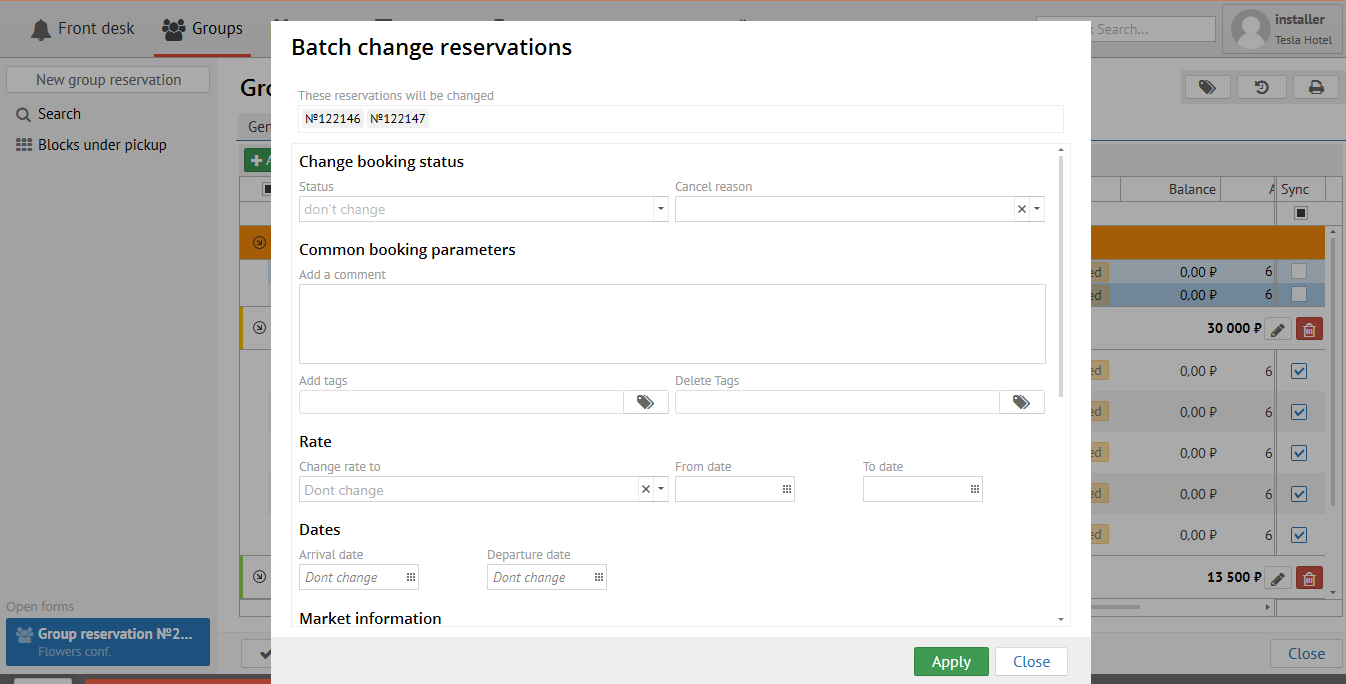
Change Booking status - allows to change booking status
...
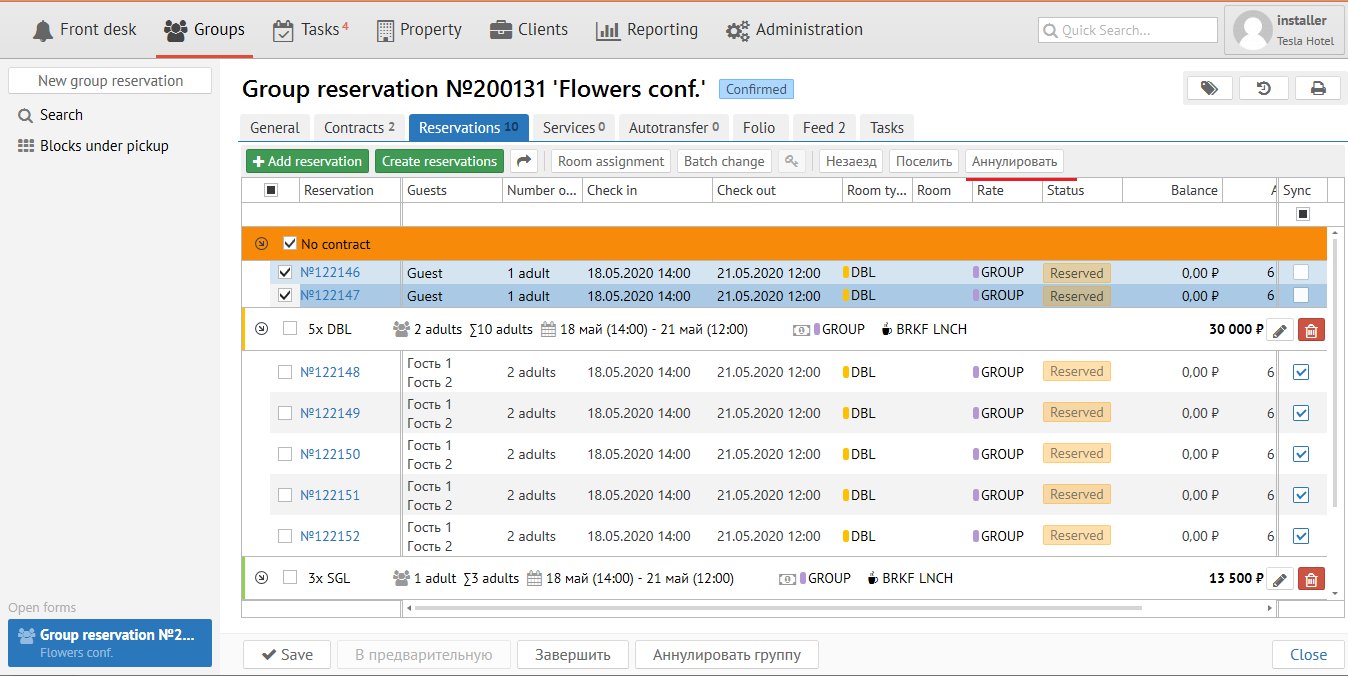
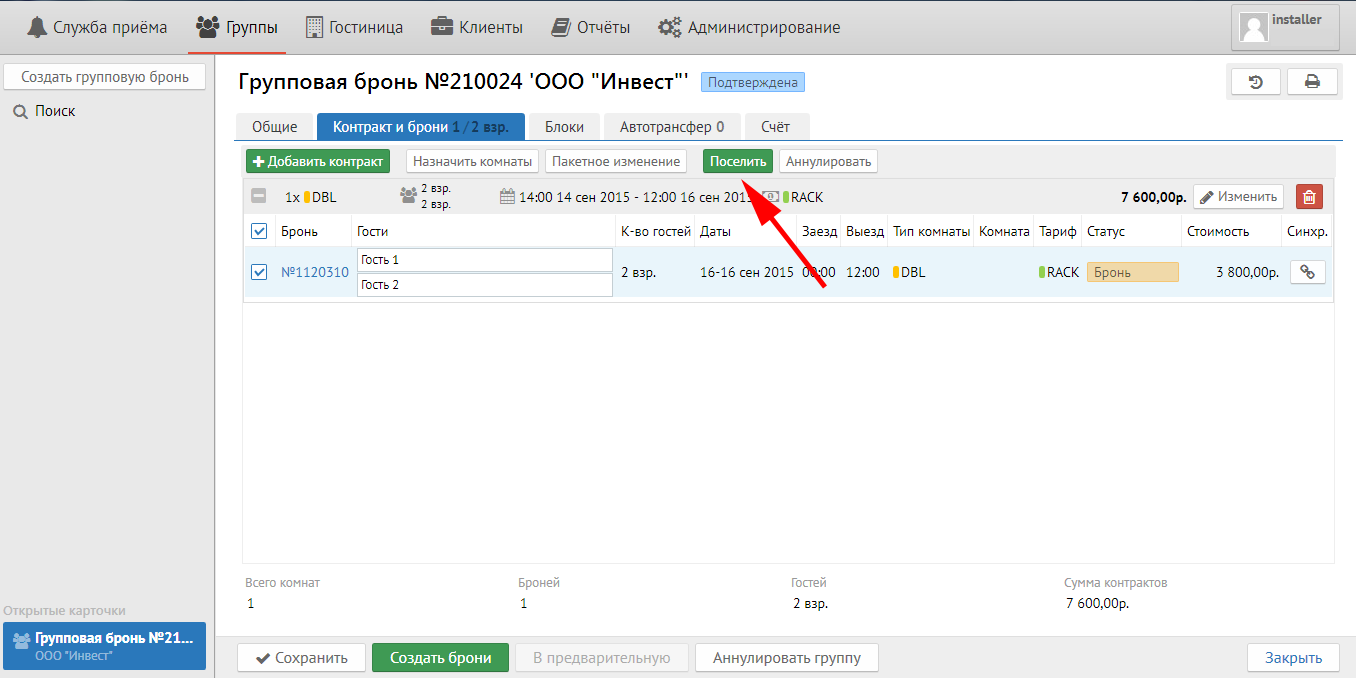
"Check in" button - allows to check in selected/ all reservations.
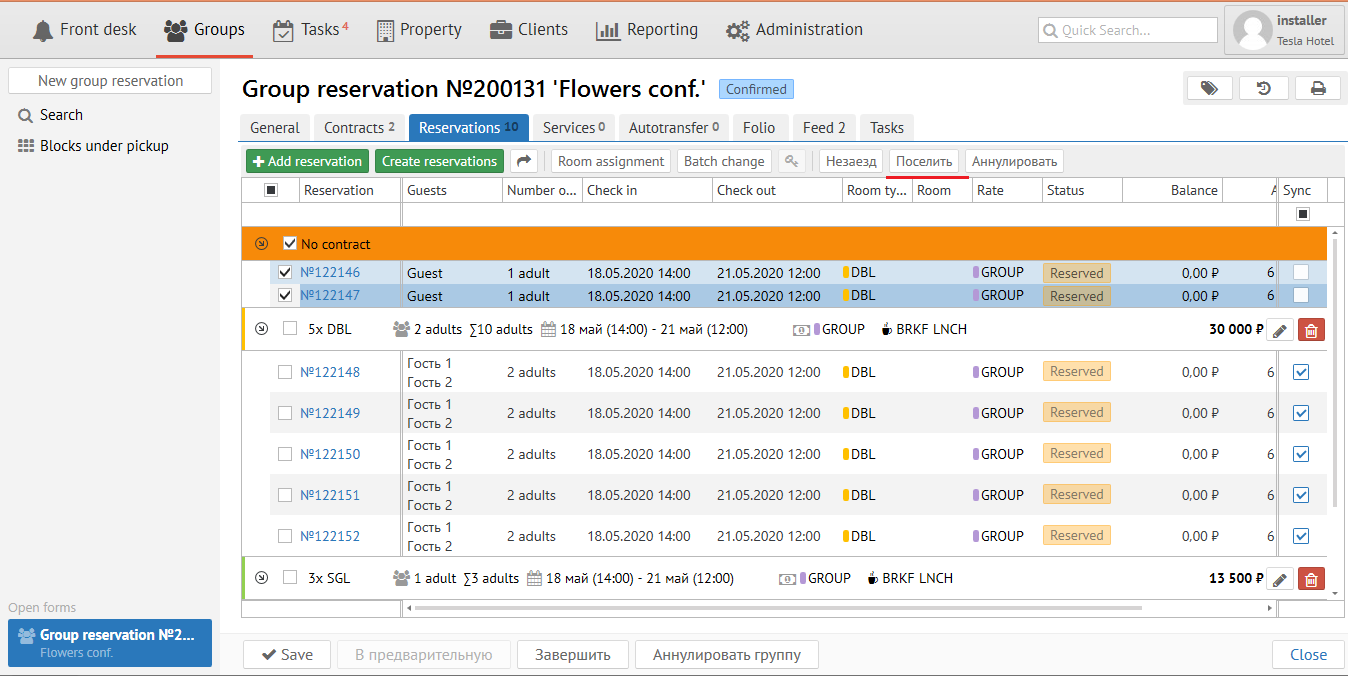
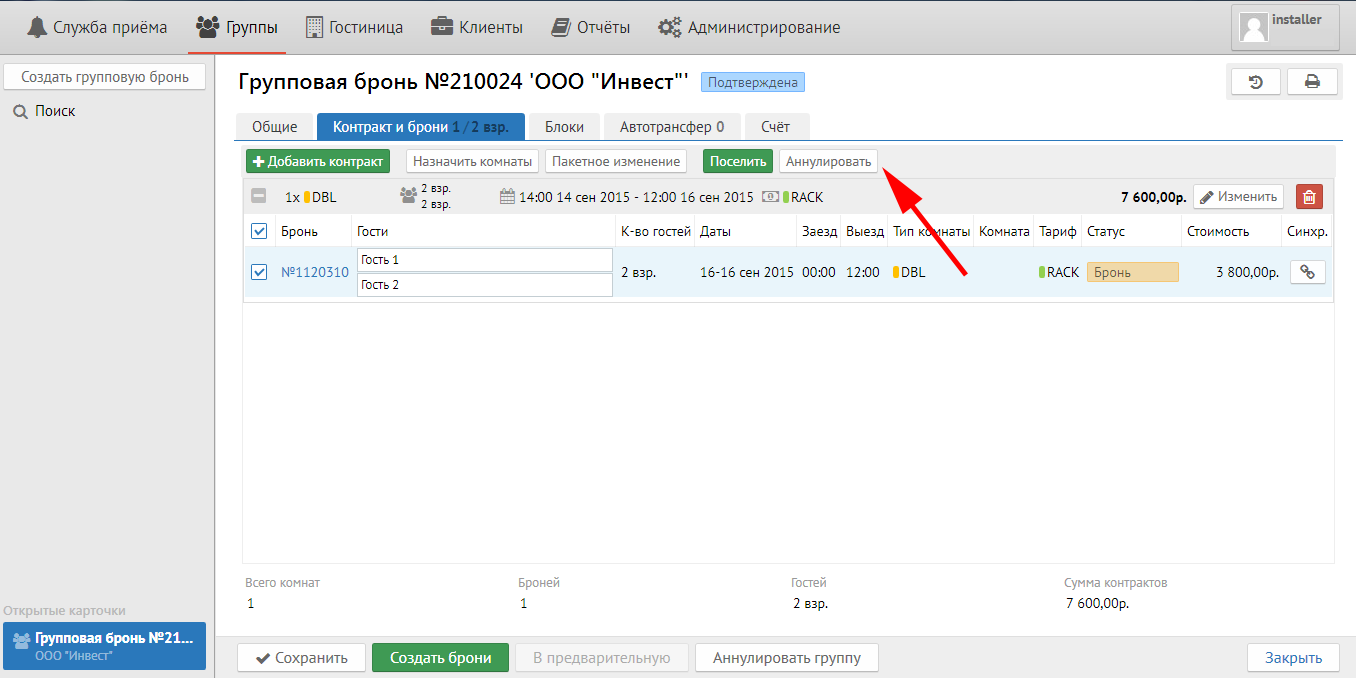
"Cancel" button - allows to cancel selected/ all reservations.