...
- To calculate preliminary cost
- To make blocks
- To make mass reservations and mass batch changes.
| Warning | ||
|---|---|---|
| ||
Quantity of contracts is equal to quantity of accommodation variants |
Press "Add new" button for new contract.
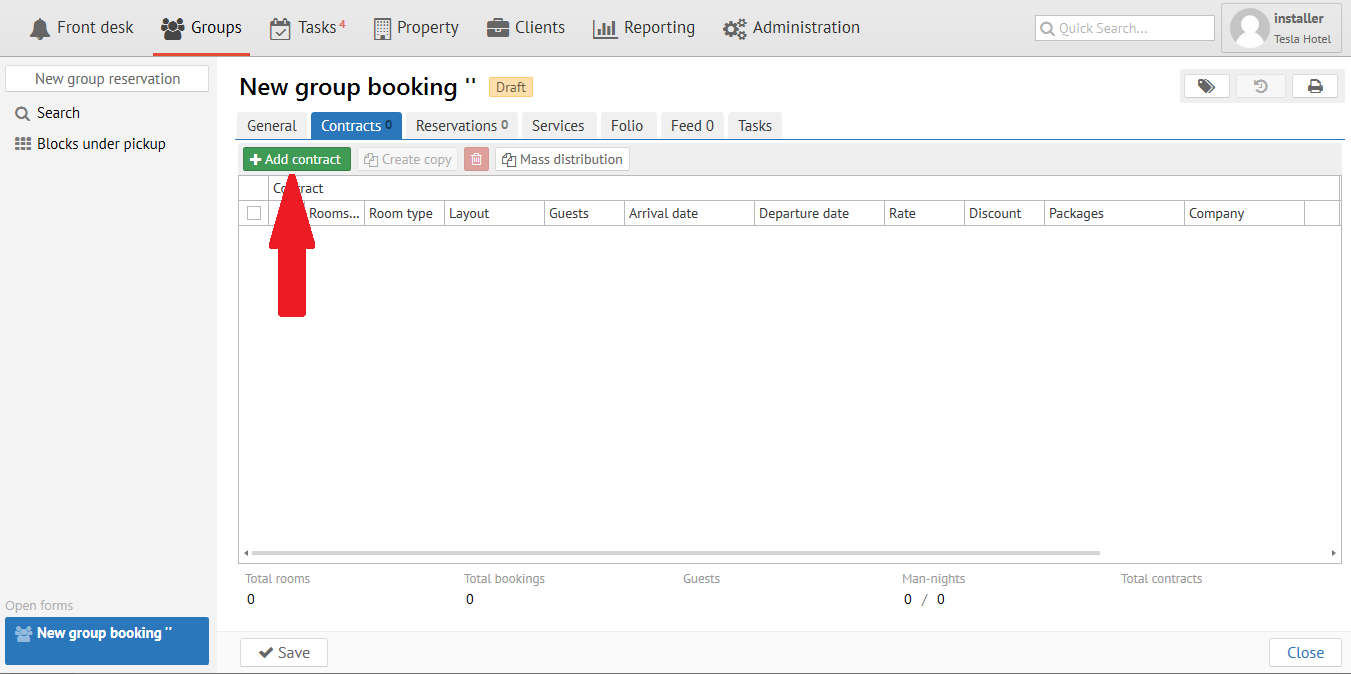
Stay type and terms
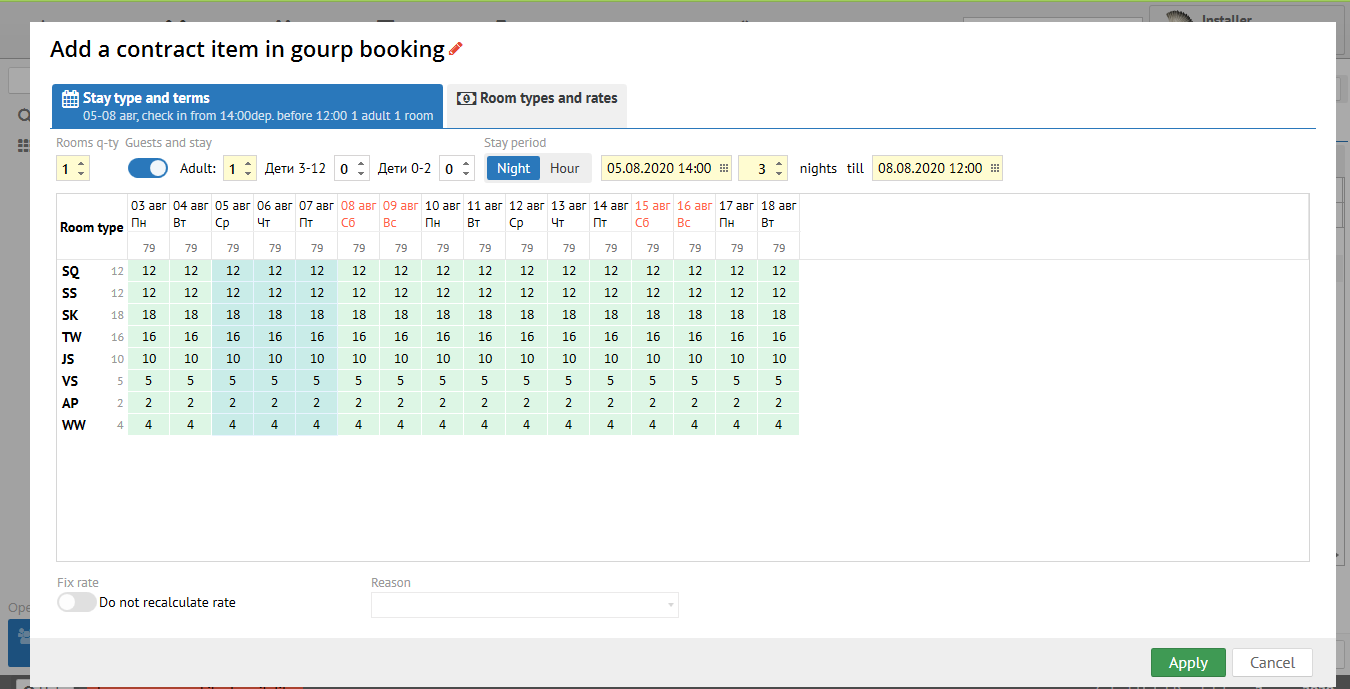
| Field | Description |
|---|---|
| Rooms q-ty | Rooms quantity |
| Guests and stay | Quantity of quests in one room (adults and children) |
| Stay period | Stay period: night/day/hour and arrival/ departure date. |
| Availability | Rooms type availability with due regard for Rooms q-ty, Guests q-ty and Stay period |
Room types and rates
There are field "Discount" and field "Packages" at the right side. You can add any personal discount from the list and choose package if it is necessary.
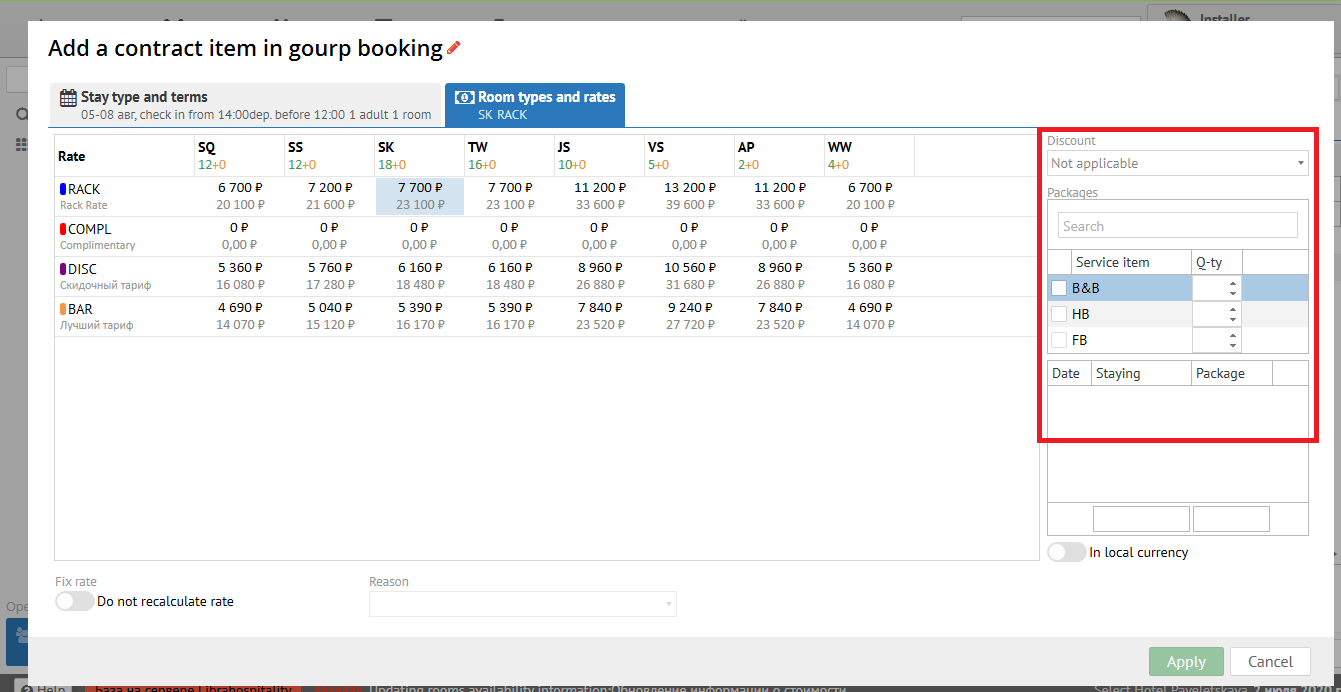
Press "Apply" button, then "Save".
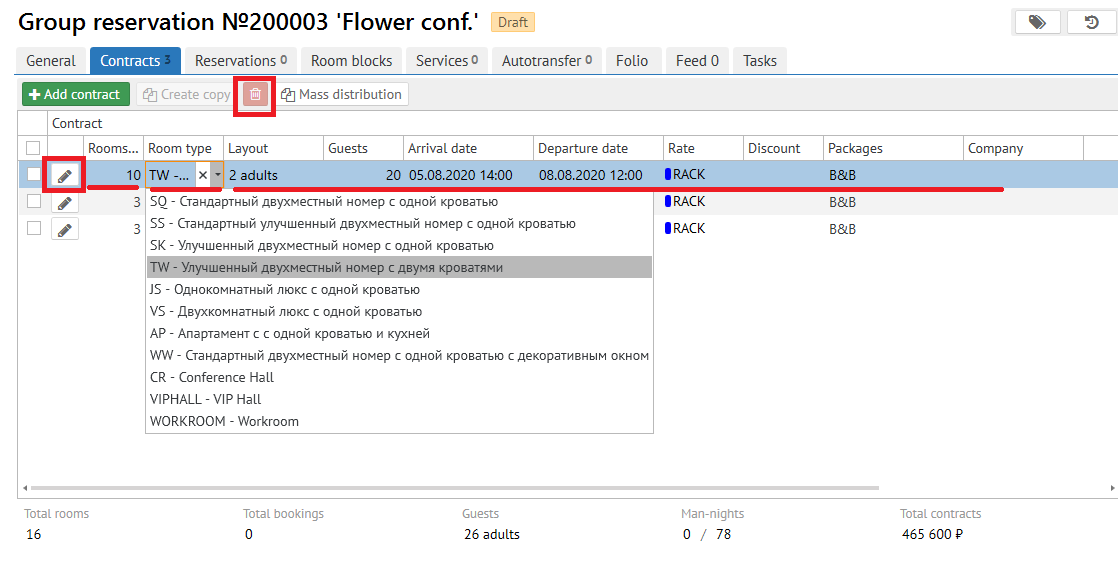
You can change contract if you click to  or highlight the contract
 - delete the contract.
Then click «Save» button.
| Info | ||
|---|---|---|
| ||
It is necessary to press "Confirm" button for turning Contract to Block (change status for Confirm contract). After that necessary quantity of rooms (blocks) will be "frozen" for this Group. |
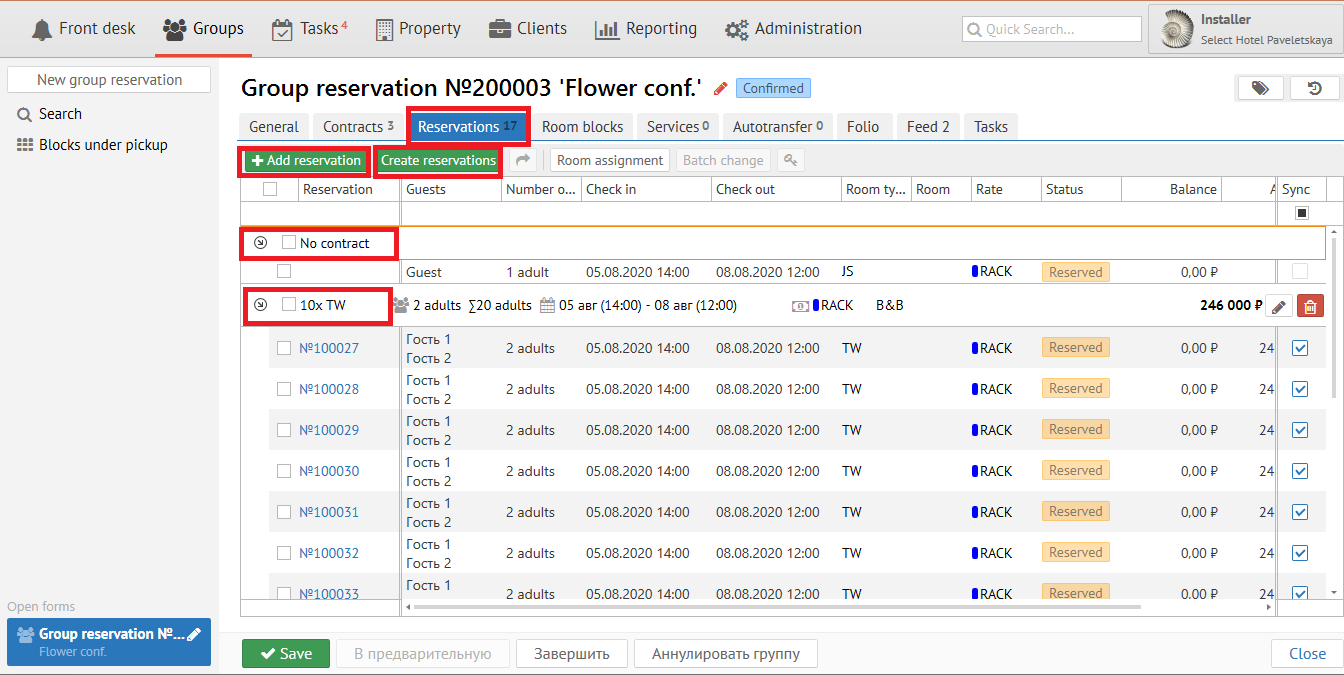
Reservations tab
Opportunity appears to make reservations when Contract became "Confirmed".
Also you can add reservations out of contract.
| Warning | ||
|---|---|---|
| ||
You should create reservations at the next cases:
|
| Expand | ||
|---|---|---|
| ||
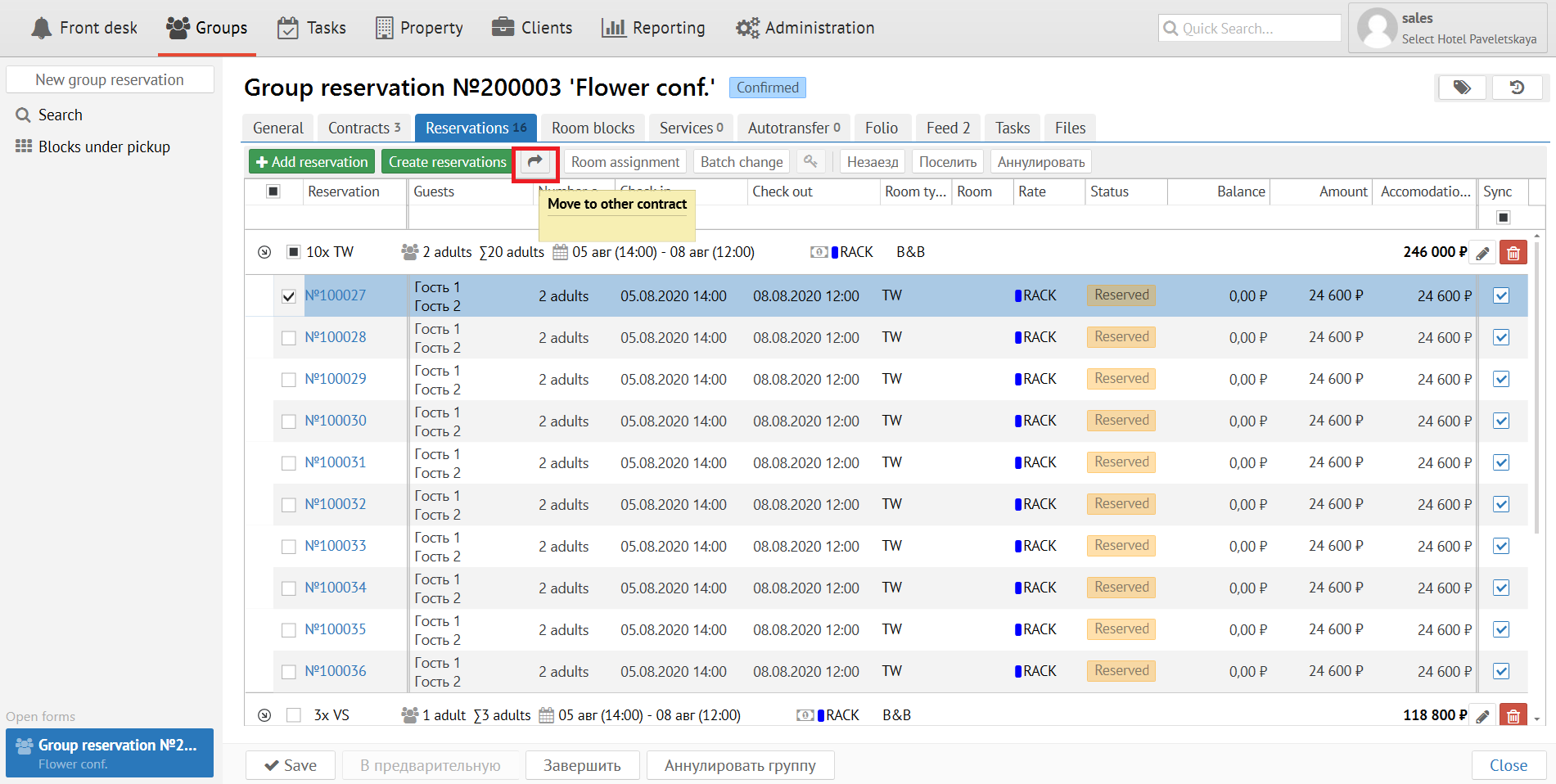
You can move reservation to other contract
|
| Expand | ||||||||||||
|---|---|---|---|---|---|---|---|---|---|---|---|---|
| ||||||||||||
Group has the next statuses:
Important: Contracts play most important role on NEW (draft) and CONF (confirmed) stages. After creation reservations contracts are meaningless. There is no need to manually maintain compliance with contracts and reservations, the easiest way will be to set the release date of blocks, and then you can work only with individual reservations only. For example, guest decides to change room from double to suite. You can do it throught Reservations, Logus evens reservations to blocks by itself. |
| Expand | ||
|---|---|---|
| ||
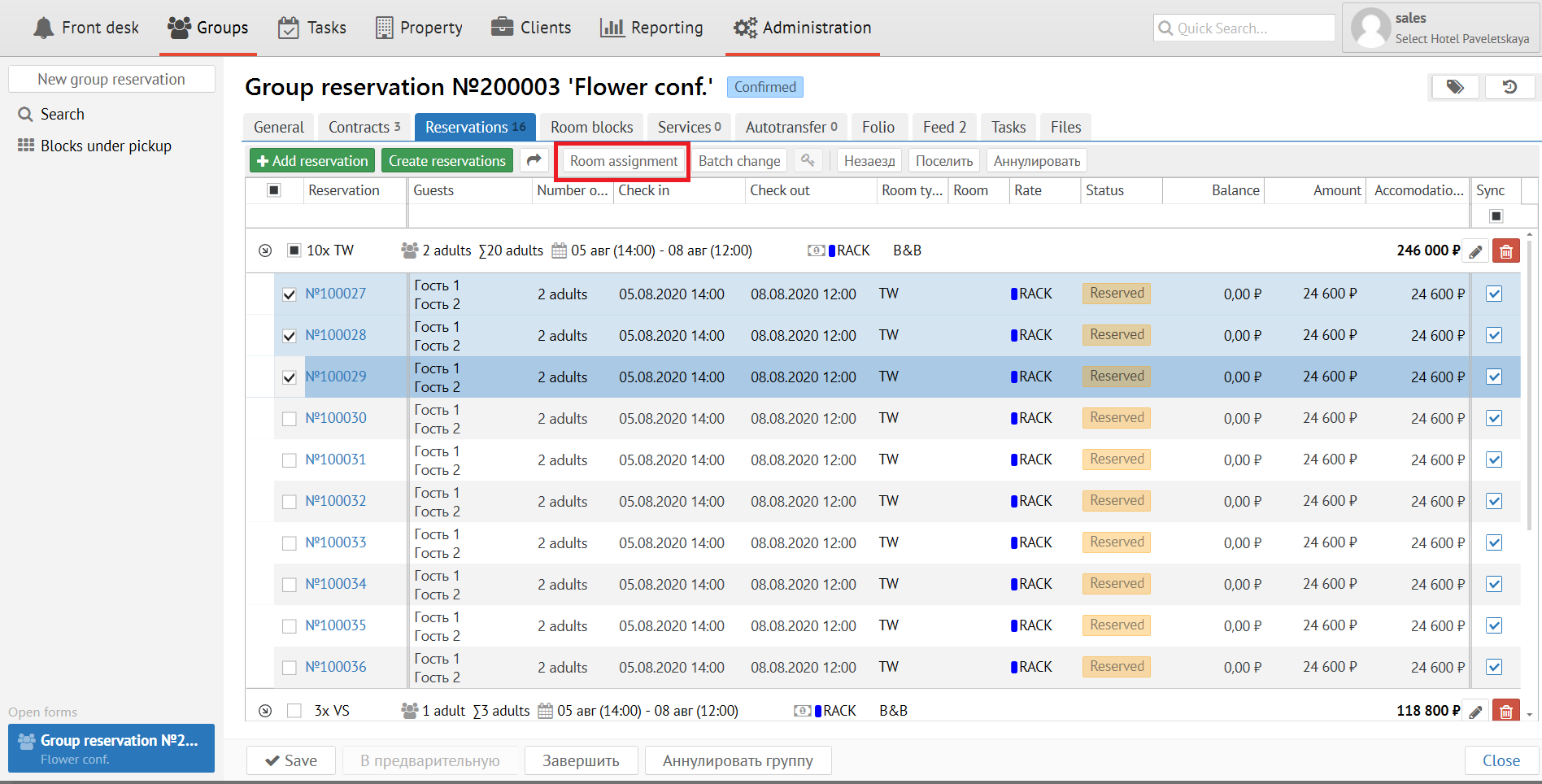
"Room assignment" button allows to pick up the rooms.
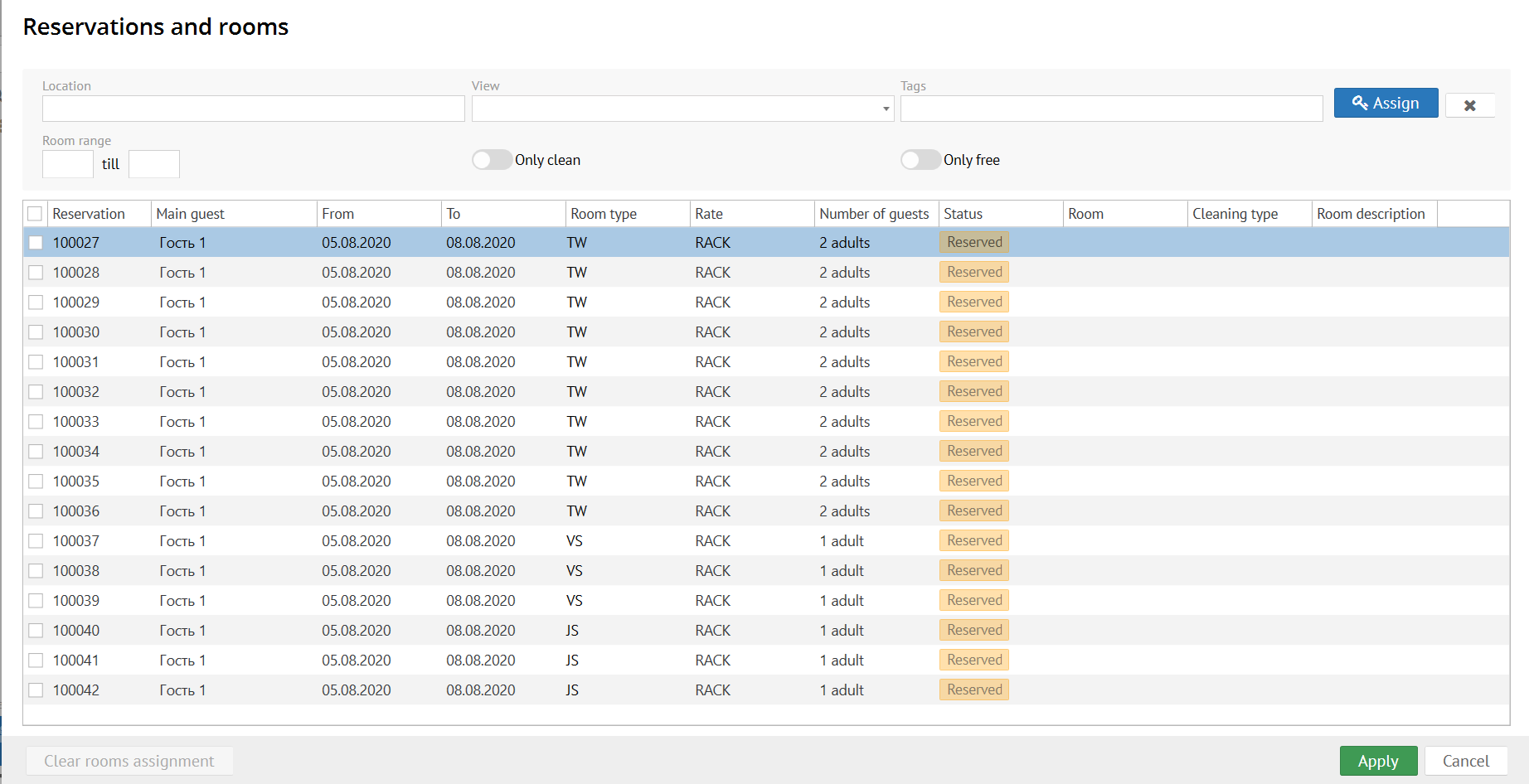
Press "Room assignment" button and you will see the next screen:
"Location" field- it is floor or building. "View" field - Room view. "Tags" field - Room's tags that important for room assignment. "Room range" - allows to assign certain rooms. "Only clean" - only clean rooms at present moment. "Only free" - only free rooms at present moment. |
| Expand | ||
|---|---|---|
| ||
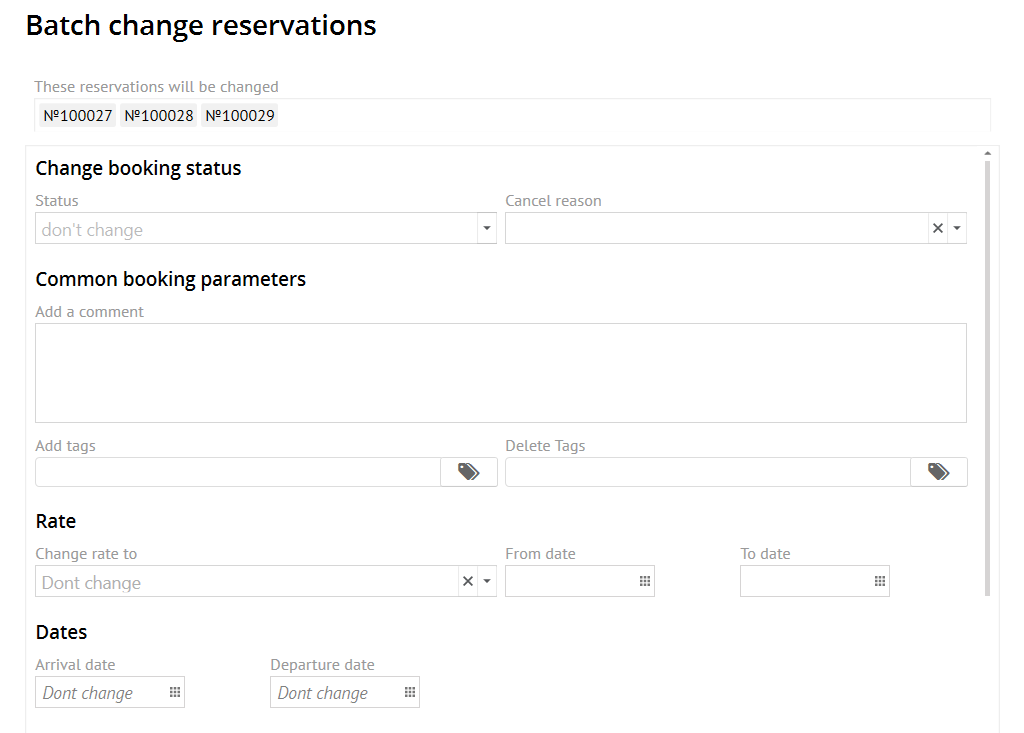
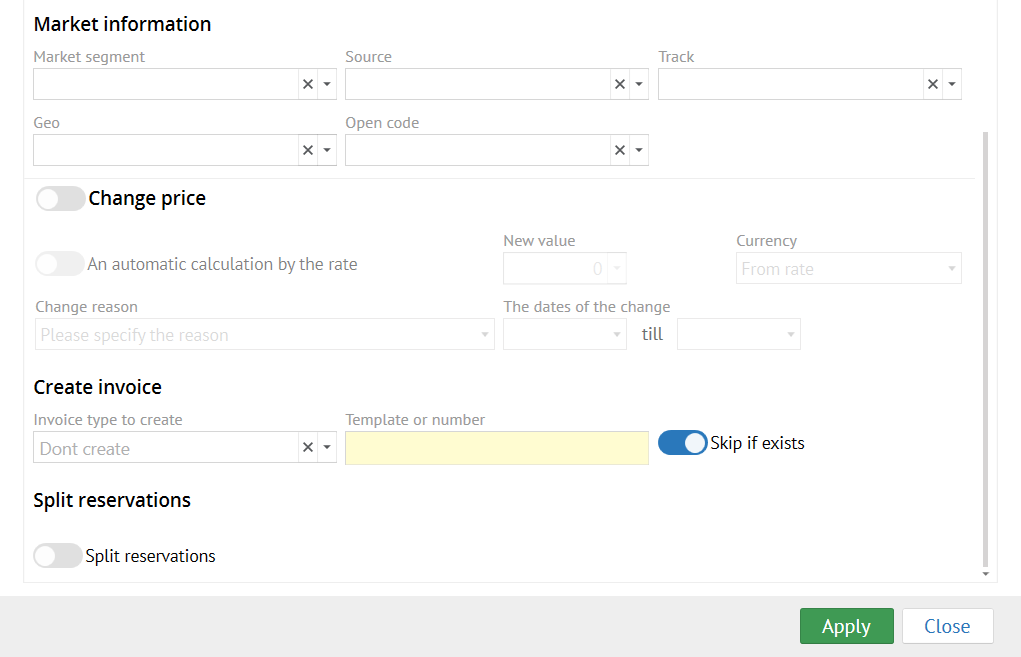
"Batch change" allows the next:
Press "Batch change" button:
Change Booking status - allows to change booking status Common booking parameters as is: Add a comment -allows to add comment inselected/ all reservations Add tags - allows to add tags in selected/ all reservations Dates - allows to change dates in selected/ all reservations Market information - allows to change any market information in selected/ all reservations Change price - allows to change price in selected/ all reservations (setting uniqe group price) Split reseravtion - allows to split selected reservations |
Rooms in blocks are are equal to contracts at the beginning. After room reservation blocks could be not equal to contracts.
Quantity rooms in blocks can be other then quantity rooms in contracts in next cases only: block expansion and block release.
| Warning | ||
|---|---|---|
| ||
It is necessary to press "Confirm" button for turning Contract to Block (change status for Confirm contract). After that necessary quantity of rooms (blocks) will be "frozen" for this Group. |
...