| Page properties | ||||
|---|---|---|---|---|
|
Для создания брони необходимо нажать кнопку "Создать бронь"
Мастер бронирования
Шаг 1: "Схема размещения и сроки"
Во вкладке "Схема размещения и сроки" необходимо заполнить информацию по гостю:
В поле "Гость (ФИО)" необходимо указать ФИО заселяемого гостя. Если гость уже когда-то проживал в Вашем объекте, то в поле "Гость (ФИО)" появится всплывающее окно с именем и фамилией этого гостя. После нажатия на него вся информация по гостю будет автоматически заполнена для создания брони.
В поле "Компания" необходимо выбрать Компанию-клиента из предложенных справочником. Для этого необходимо начать вводить первые несколько символов наименования компании и Logus HMS сам предложит Вам выбрать существующую компанию из раздела "Клиенты".
Поле "Компания-плательщик" заполняется, когда бронь предварительно оплачена по безналичному расчету. Для этого необходимо начать вводить первые несколько символов наименования компании и Logus HMS сам предложит Вам выбрать существующую компанию из раздела "Клиенты".
| Page properties | ||||
|---|---|---|---|---|
|
Поле Квота/группа заполняется, если бронирование производится в рамках имеющейся квоты либо требуется добавить бронирование в существующую группу.
Заполняя схему размещения в графе "Гости и размещение" необходимо указать количество взрослых гостей и детей. Также в поле "Период проживания" необходимо выбрать вариант схемы размещения (Ночь\День\Час) и ввести даты бронирования. Для удобства ввода дат бронирования можно воспользоваться календарем.
После ввода всех необходимый поле во вкладке "Схема размещения и сроки" Мастер бронирования покажет вам таблицу наличия номеров на ближайший период. Для выбора необходимого типа комнаты и тарифа откройте следующую вкладку, как показано в шаге 2.
Шаг 2. "Тип комнаты и тарифы"
Во вкладке "Тип комнаты и тарифы" установите курсор в ячейке на пересечении нужного типа комнаты и выбранного тарифного плана.
Примечание: система выделяет цветом тарифный план, рекомендуемый для выбранной компании.
В правой части располагается поле "Скидка", где можно добавить персональную скидку (5%, 10%, 15% и т.д.), и поле "Пакет", где можно выбрать услугу (BRKF, LNCH, DINN, SPA и т.д.). Logus автоматически рассчитает общую стоимость бронирования с учетом изменений тарифного плана.
Также есть возможность рассчитать общую стоимость бронирования в валюте, включив кнопку "В валюте тарифа".
Шаг 3. "Комната"
Во вкладке "Комната" необходимо заполнить поля для присвоения комнаты гостю. Но мы настоятельно рекомендуем не присваивать комнату при бронировании, а присваивать ее только непосредственно перед заселением гостя!
Но если же все таки вы решили ее присвоить заранее, то в поле "Расположение" из предложенных вариантов Вы выбираете нужный Вашему гостю номер, например, на 3 этаже.
В поле "Вид" Вам необходимо выбрать нужный Вашему гостю вид из окна комнаты, например, на реку:
В поле "Теги" необходимо выбрать нужный Вашему гостю комнату, например, с ванной и Wi-Fi.
Если на момент создания брони у Вас нет свободной комнаты или гость не уверен, сможет ли он приехать в гостиницу, мы можем поместить гостя в лист ожидания, активировав кнопку "В лист ожидания" рядом с кнопкой "Создать бронь", назначив ему необходимый приоритет (высокий, средний).
Для завершения бронирования нажмите кнопку "Создать бронь" внизу экрана.
Шаг 4. Дополнительная информация
Как только у вашего бронирования появился номер - карточка бронирования сохранена в системе.
Необходимо заполнить во вкладке "Бронь" информацию о госте:
Телефон - вводится в любом формате.
E-mail - электронная почта для связи с гостем.
Комментарий - дополнительная информация по гостю.
Далее необходимо выбрать в поле "Гарантия" (гарантия оплаты, т.е. каким образом гость будет оплачивать свое проживание) необходимый Вам способ оплаты (Безналичная оплата, Наличная оплата и т.д.):
Сумма - сумма депозита (зависит от гарантии оплаты).
Внести до - дата, до которой необходимо внести депозит (зависит от гарантии оплаты)
Маркетинговая информация:
| Page properties | ||||
|---|---|---|---|---|
|
Сегмент рынка - глобальный тип бизнеса (в брони почти никогда не заполняется, заполняется в настройке тарифа).
Источник - источник бронирования, отображает откуда физически пришла бронь:
Трек-код - информация, обозначающая то, откуда гость узнал про Вашу гостиницу (возможно другое использование кода, например, конкретный тип рекламы - газета, сайт или Facebook):
ГЕО - география, показывает откуда Ваш гость (страна, регион, город и т.д.):
Открытый код - обозначает цель визита гостя в гостиницу:
Корпоративный клиент (панель справа):
Компания - название и № компании от которой приехал гость.
Компания-плательщик - заполняется только для броней с безналичным расчетом. (Нет в Logus The Box)
Прочая информация:
Код CRS - заполняется автоматически в бронях, которые пришли к Вам онлайн.
Агенты - заполняется в том случае, если с данной брони необходимо выплатить комиссию. (Нет в Logus The Box)
Внизу находятся несколько кнопок, которые работают в любой вкладке карточки брони:
Кнопка "Сохранить" - сохраняет все сделанные изменения в брони. Если нажать кнопку "Сохранить", удерживая SHIFT на клавиатуре, карточка бронирования не закроется автоматически.
Кнопка "Поселить" - поселяет бронь (поселить бронь можно ТОЛЬКО если дата заезда брони совпадает с датой в программе (внизу справа). В противном случае дата заезда будет изменена на текущую.
Кнопка "В лист ожидания" - переводит бронь в лист ожидания.
Кнопка "Аннулировать" - отменяет бронь (бронь невозможно аннулировать, если после поселения уже прошёл ночной аудит)
|
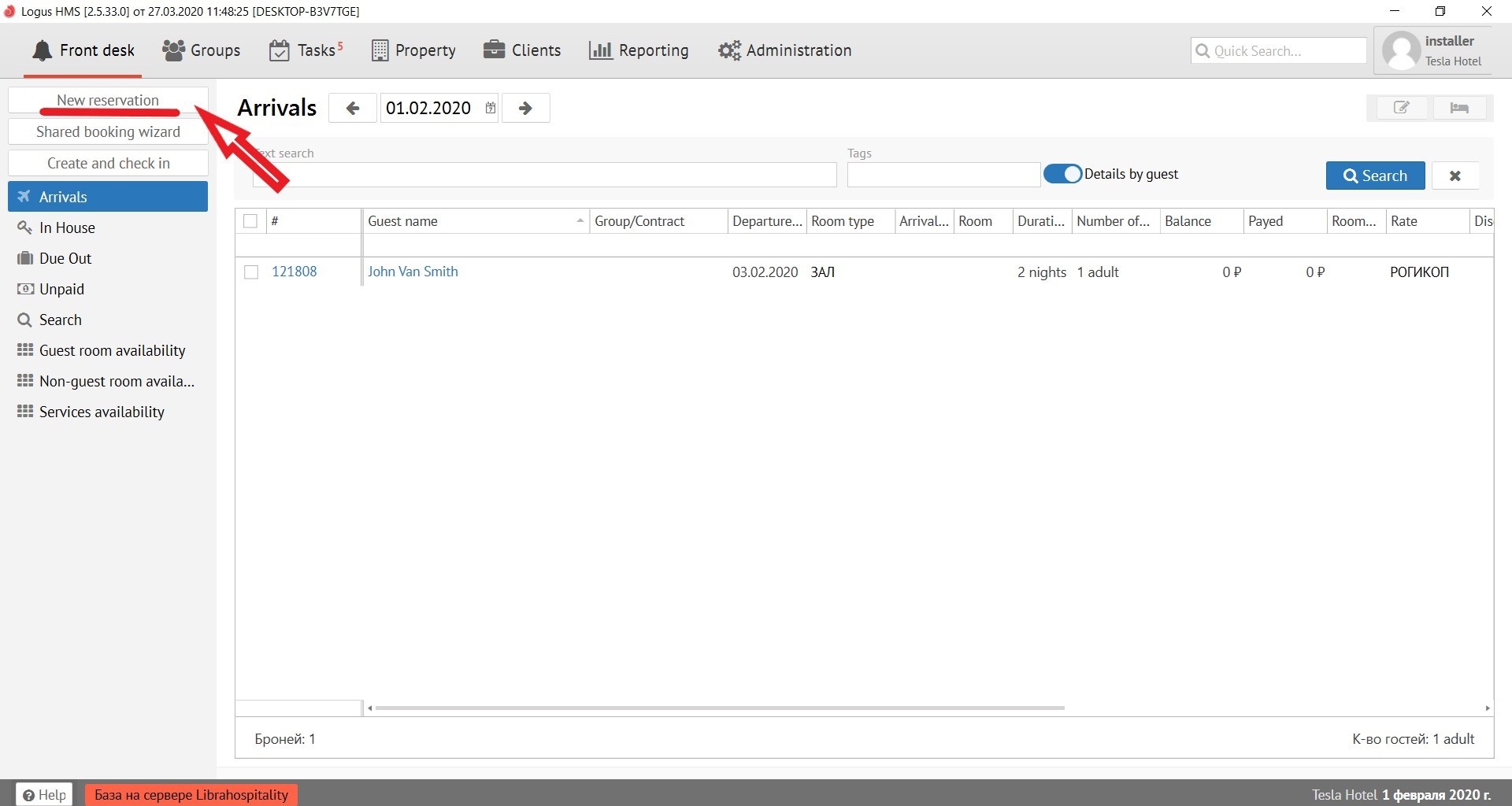
To make a reservation, click the "New reservation" button.
Booking Wizard
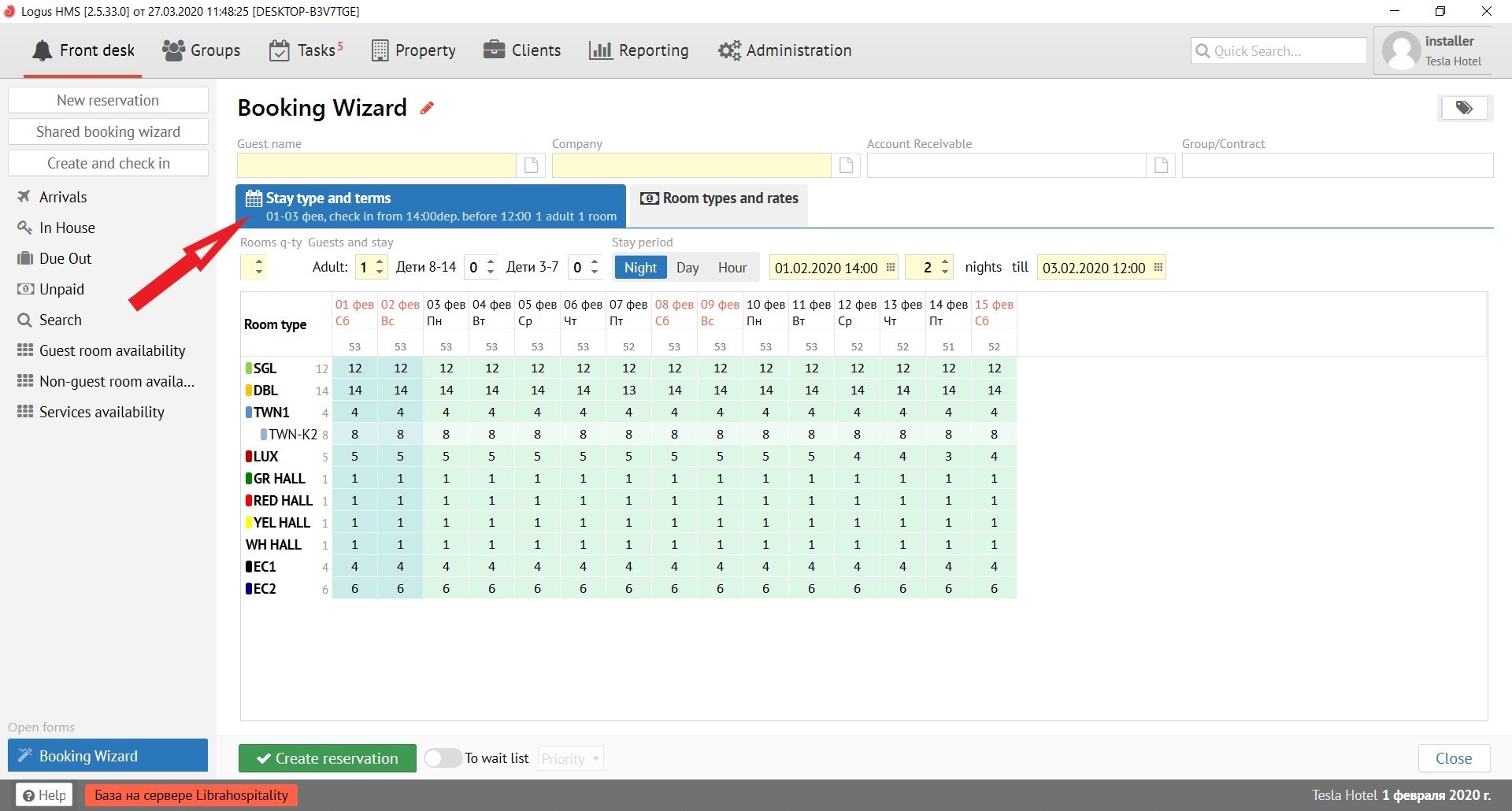
Step 1: "Layout and terms"
In the tab "Stay type and terms», it is necessary to fill in the information on the guest:
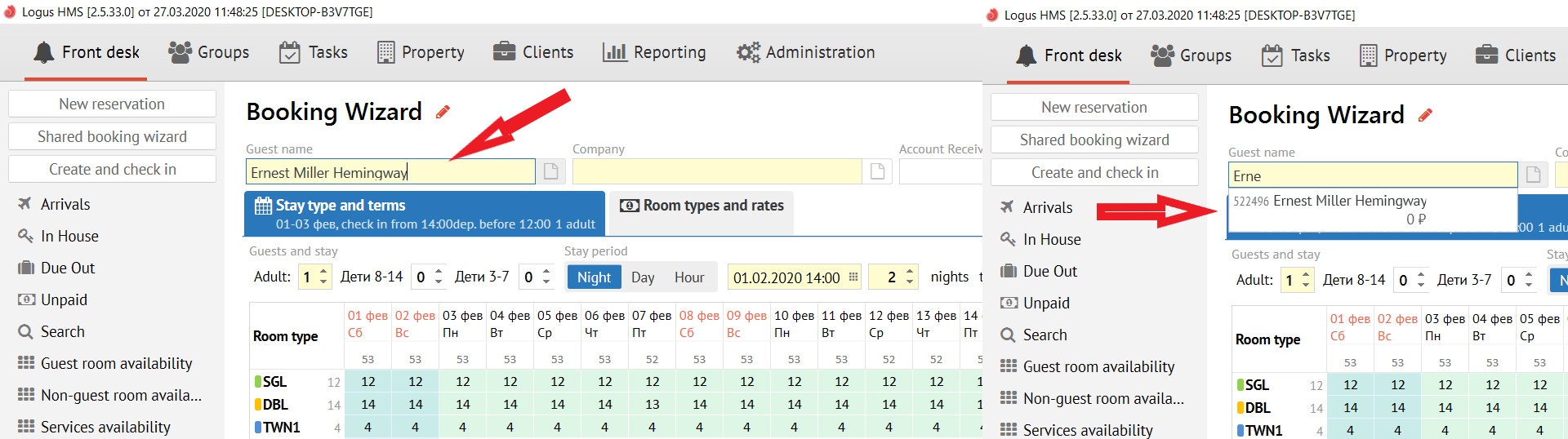
In the field "Guest name", it is necessary to type the name of the guest. If the guest has already lived in your property, a pop-up window will appear in the "Guest name" field with the name and surname of this guest. After clicking on it, all guest information will be automatically filled in to create a reservation.
In the "Company" field, you must select the Client-company from the pop-up menu, whom offered from the list. To do this, you need to start typing the first few letters of the company name and Logus HMS will offer you to choose an existing company from the "Clients" section by itself.
The field "Payer Company" is filled in when the reservation is prepaid by bank transfer. To do this, you need to start typing the first few letters of the company name and Logus HMS will offer you to choose an existing company from the "Clients" section by itself.
| Page properties | ||||
|---|---|---|---|---|
|
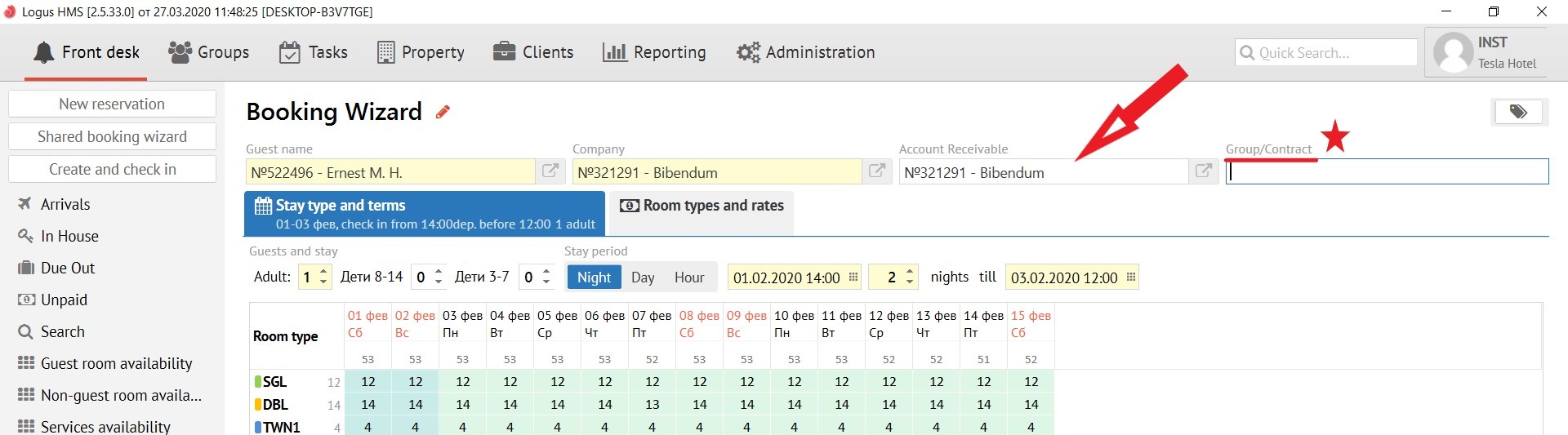
* The “Group/Contract” field is filled in if the reservation is made within the existing quota or if you want to add the reservation to an existing group.
Filling out the accommodation scheme in the column "Guests and stay" you must specify the number of adult guests and children. In addition, in the "Stay period" field, you must select the accommodation scheme option (Night/Day/Hour) and enter the reservation dates. For the convenience of entering reservation dates, you can use the calendar
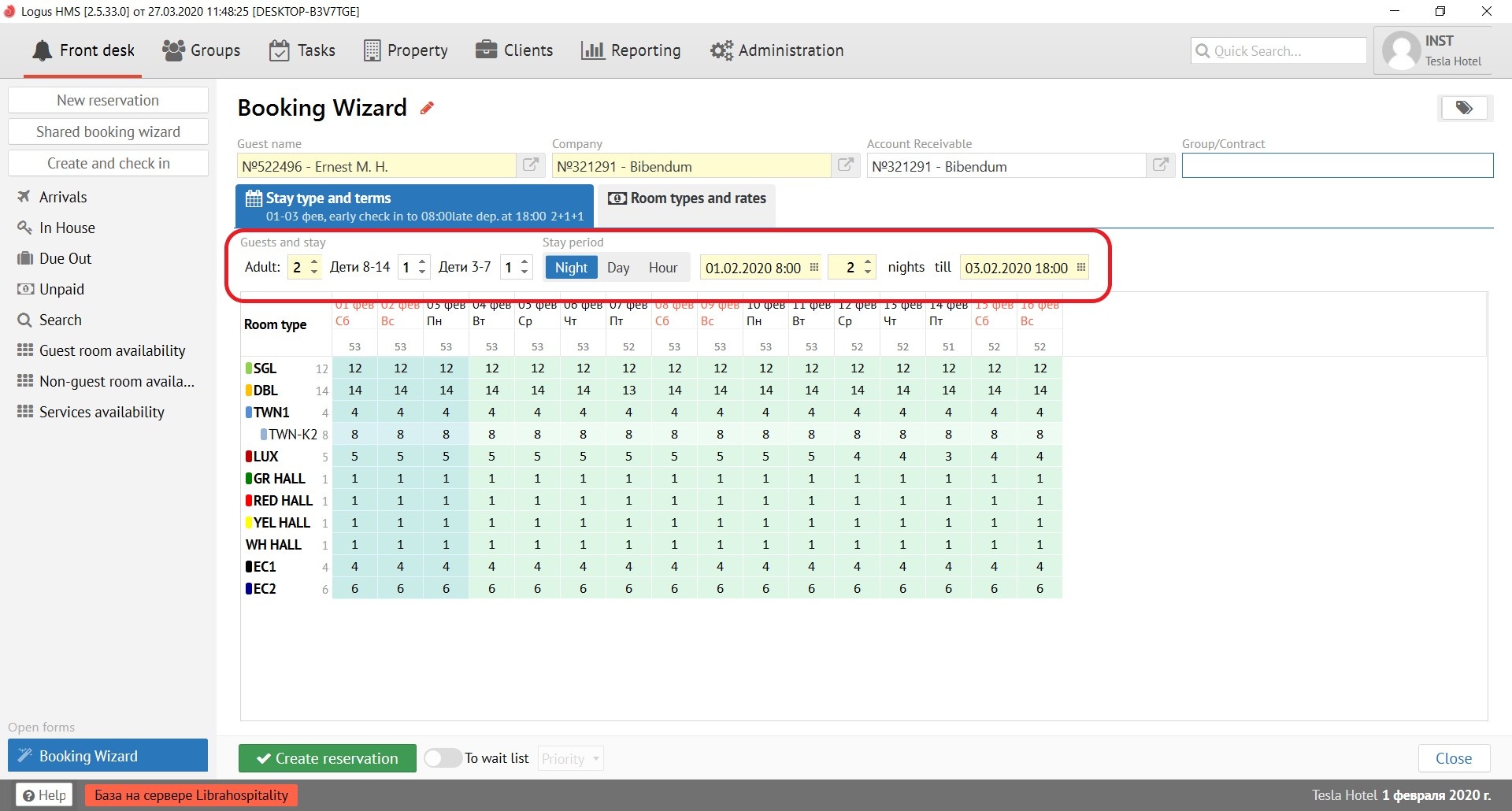
After entering all the necessary fields in the "Stay type and terms” tab, the Booking Wizard will show you a table of availability for the next period. To select the desired room type and rate, open the next tab, as shown in step 2.
Step 2. "Room Type and Rates"
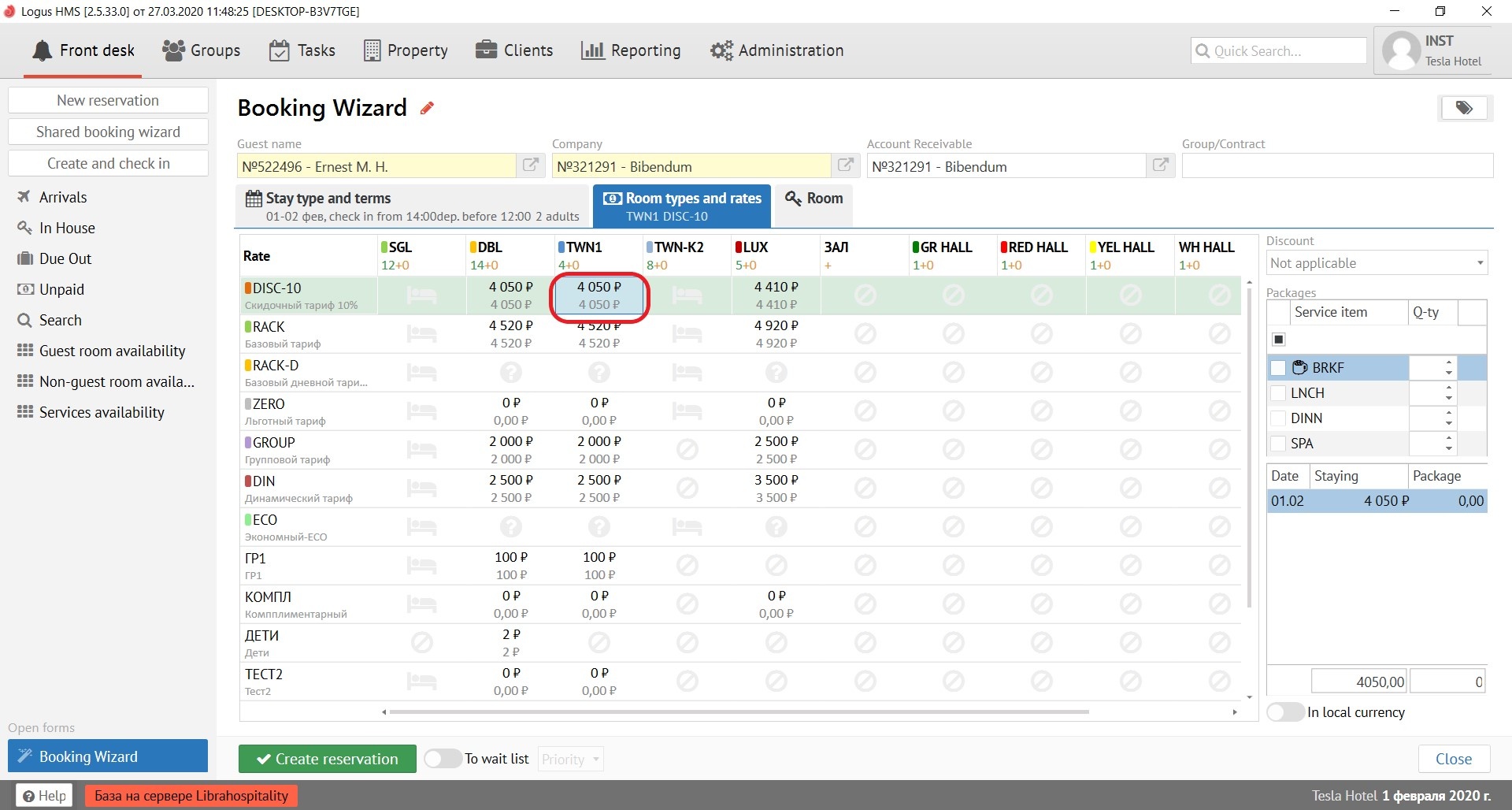
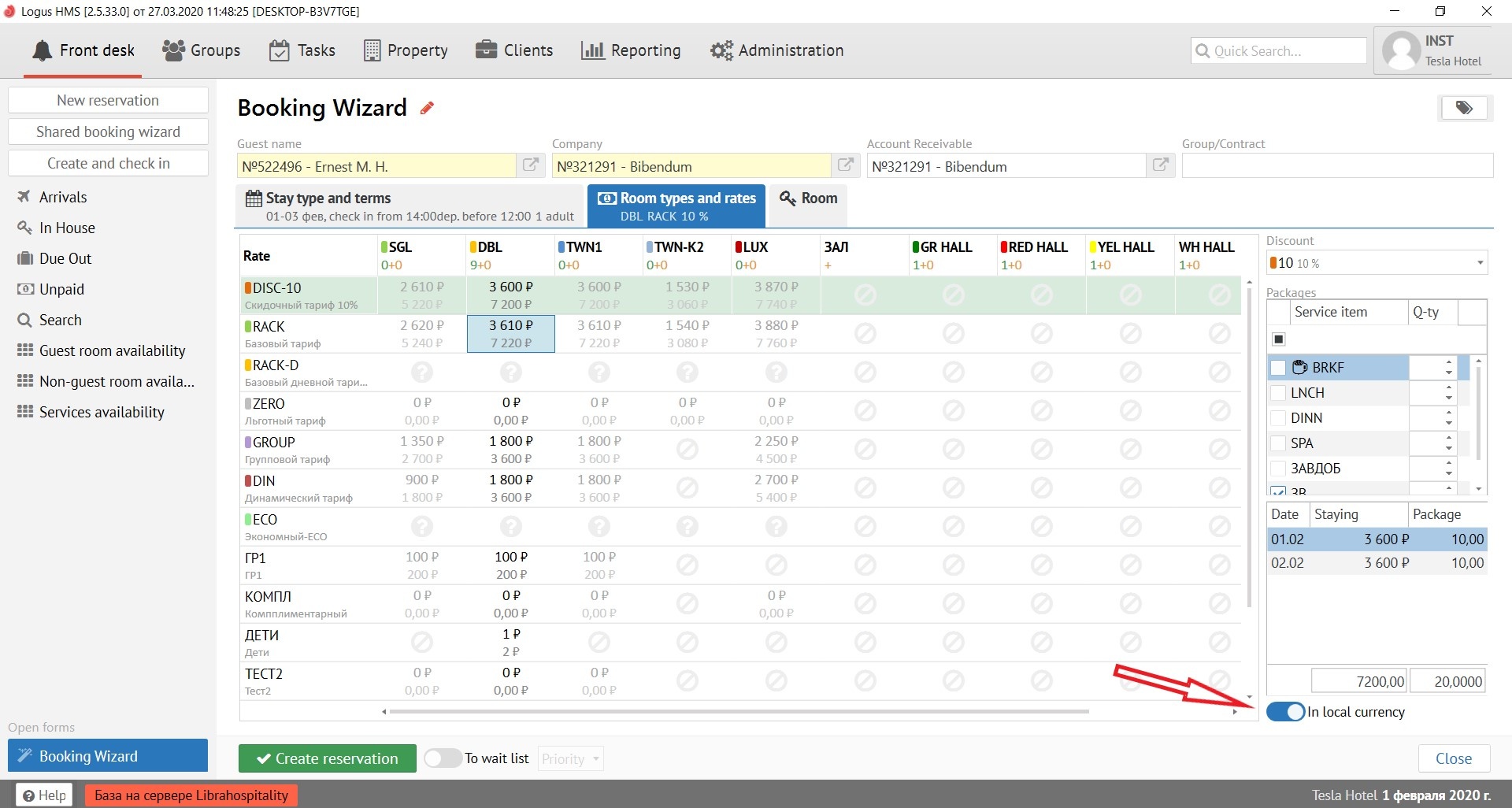
In the "Room Type and Rates" tab, press left mouse button in the cell at the intersection of the desired room type and the rate.
Note: the system highlights the rate recommended for the selected company.
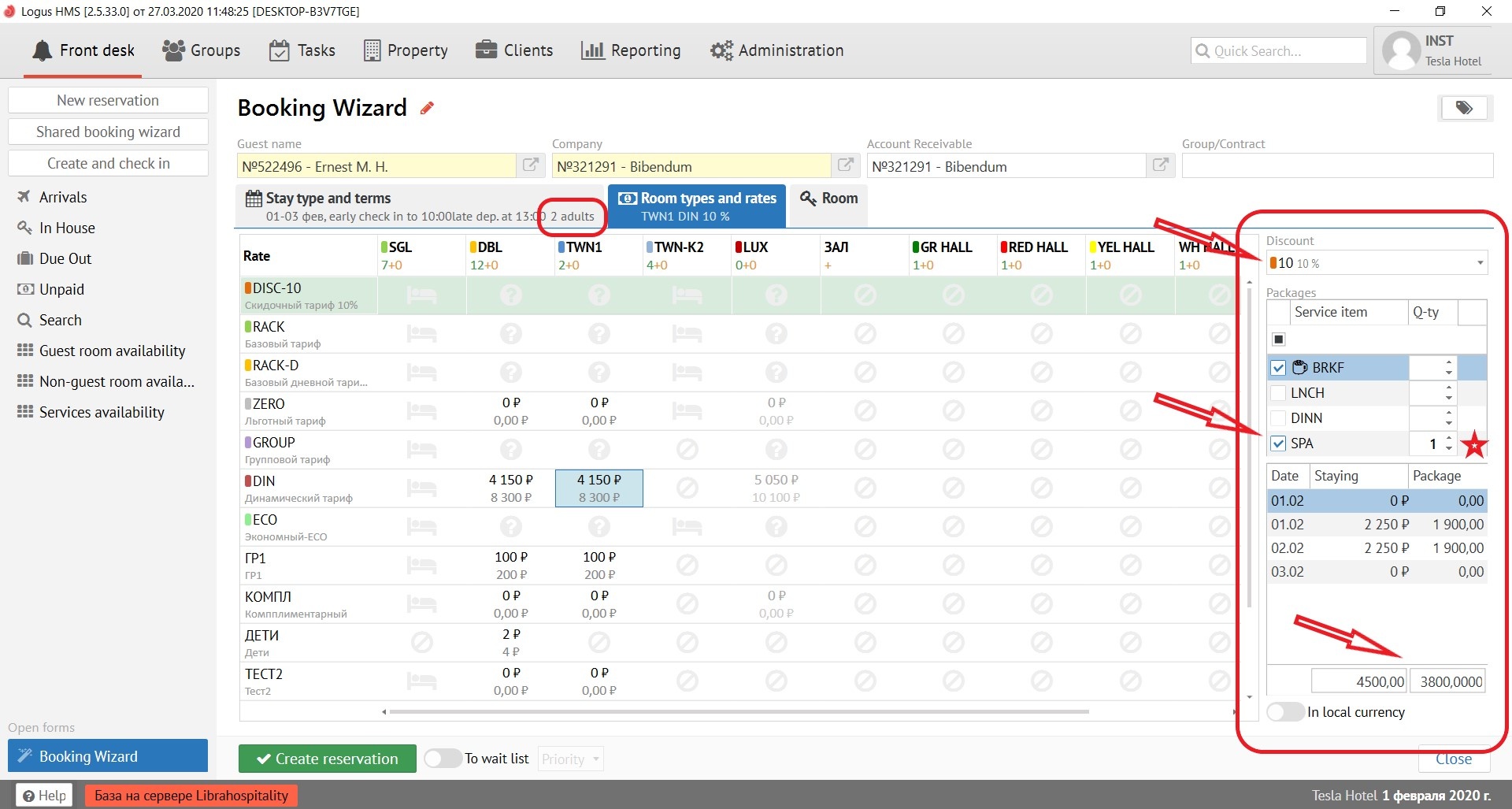
On the right side is the “Discount” field, where you can add a personal discount (5%, 10%, 15%, etc.), and the “Package” field, where you can choose a service (BRKF, LNCH, DINN, SPA, etc.). Logus will automatically calculate the total cost of the reservation based on changes in the rate.
* If you leave field "Quantity" in "Package" blank, Logus will count the quantity of packages according the number of adult guests and children in "Guests and stay". If not Logus will count the quantity of packages according the number in this field.
Two fields with prices show you the price of accommodation and the price for extra charge "Package"
It is also possible to calculate the total cost of the reservation in currency by turning on the "In local currency" button.
Step 3. "Room"
In the "Room" tab, fill in the fields to assign a room to a guest. It’s recommend not to assign a room when booking. Assign it only immediately before checking in a guest!
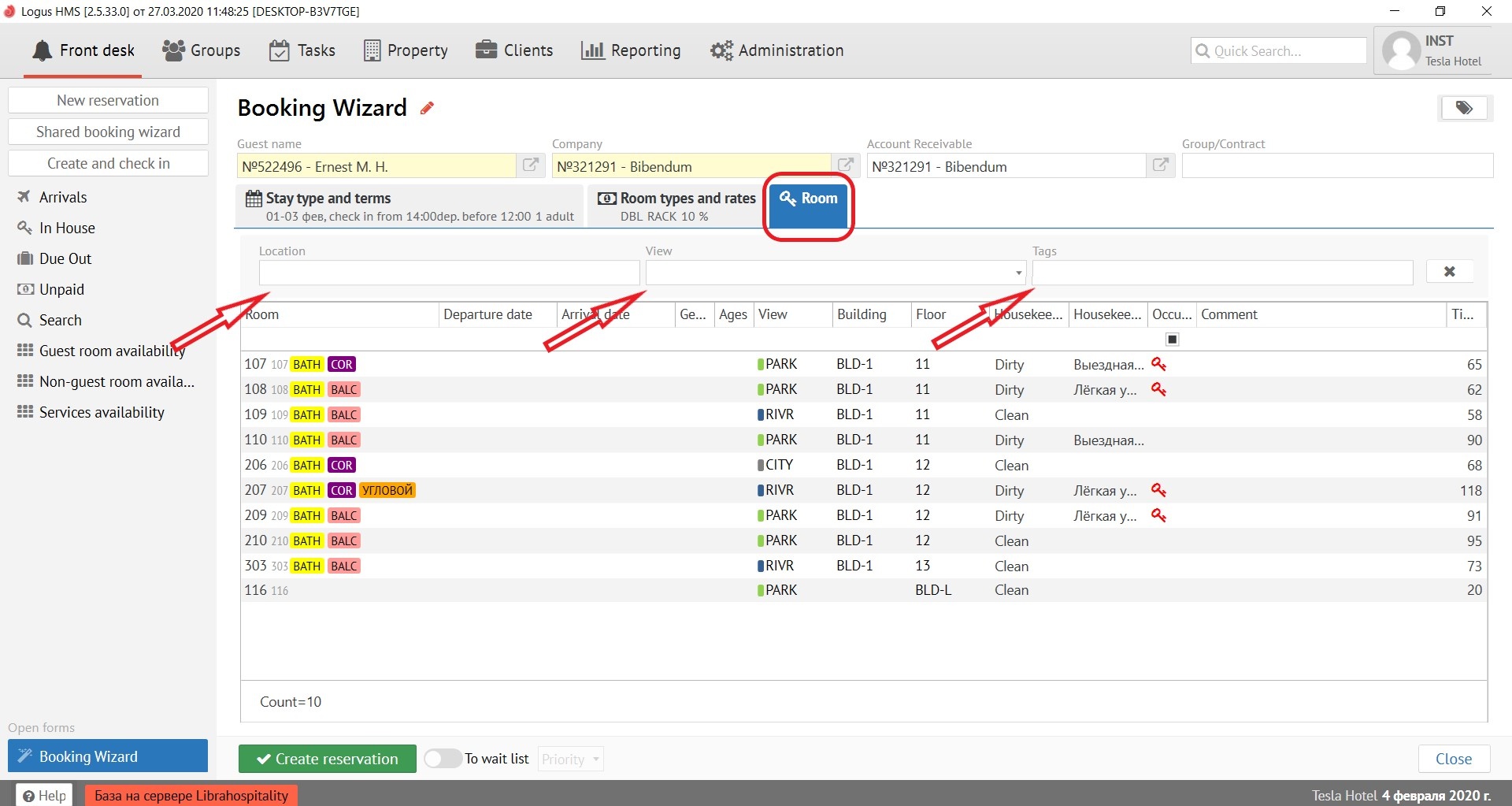
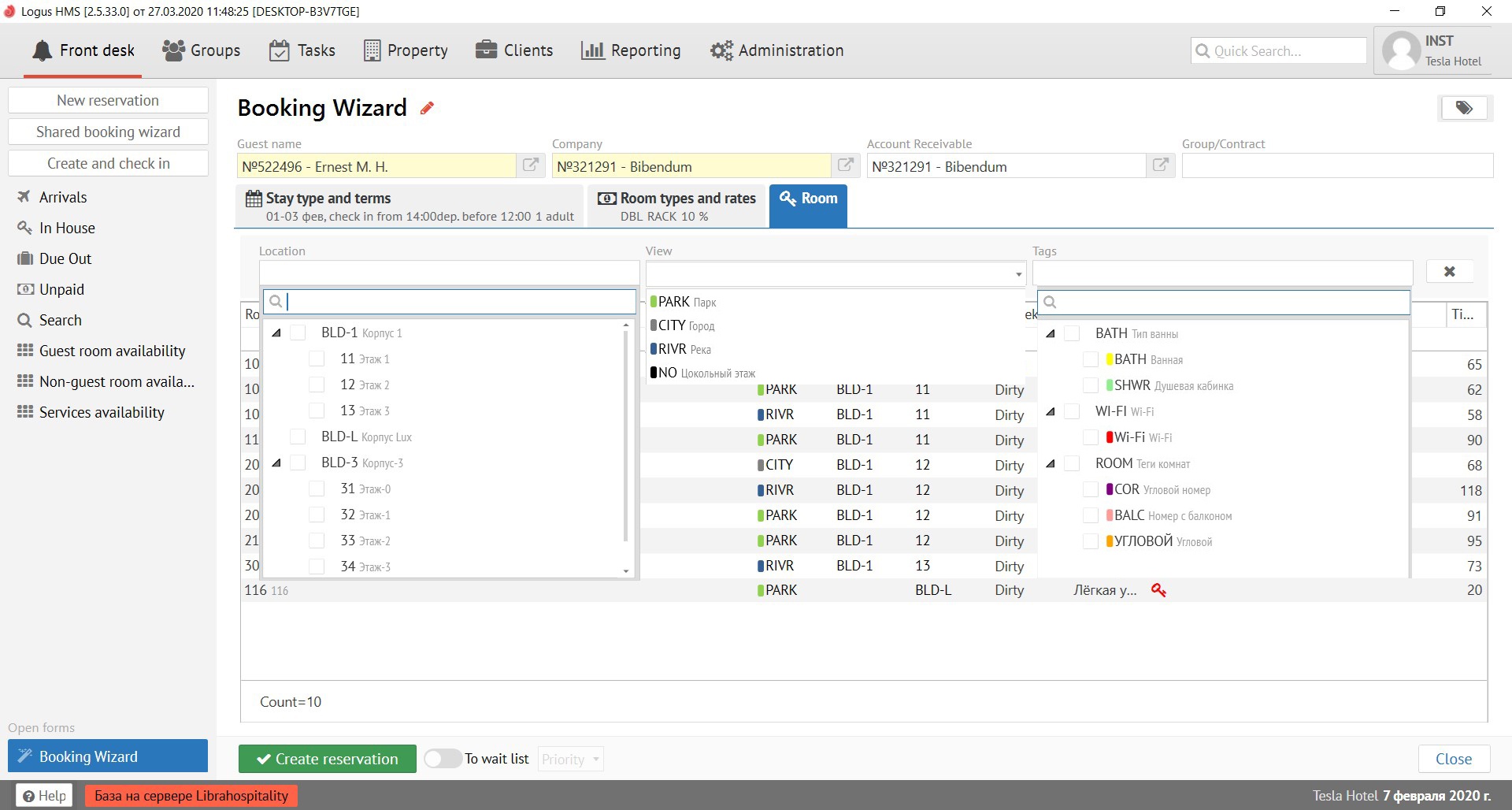
But if you still decided to assign it in advance, then in the "Location" field from the proposed options, you select the number your guest needs, for example, on the 3rd floor.
In the "View" field, you need to select the type of your guest’s view from the room’s window, for example, on the river.
In the "Tags" field, you need to select the room’s tags your guest needs, for example, bathroom.
If at the time of making the reservation you do not have a free room, or the guest is not sure whether he will be able to come to the hotel, we can put the guest on the waiting list by activating the "To wait list" button next to the "Create reservation" button, assigning him the necessary priority (high, medium).
To complete the reservation, click the "Create Reservation" button at the bottom of the screen.
Step 4. Additional Information
As soon as your reservation has a number - the reservation card is saved in the system.
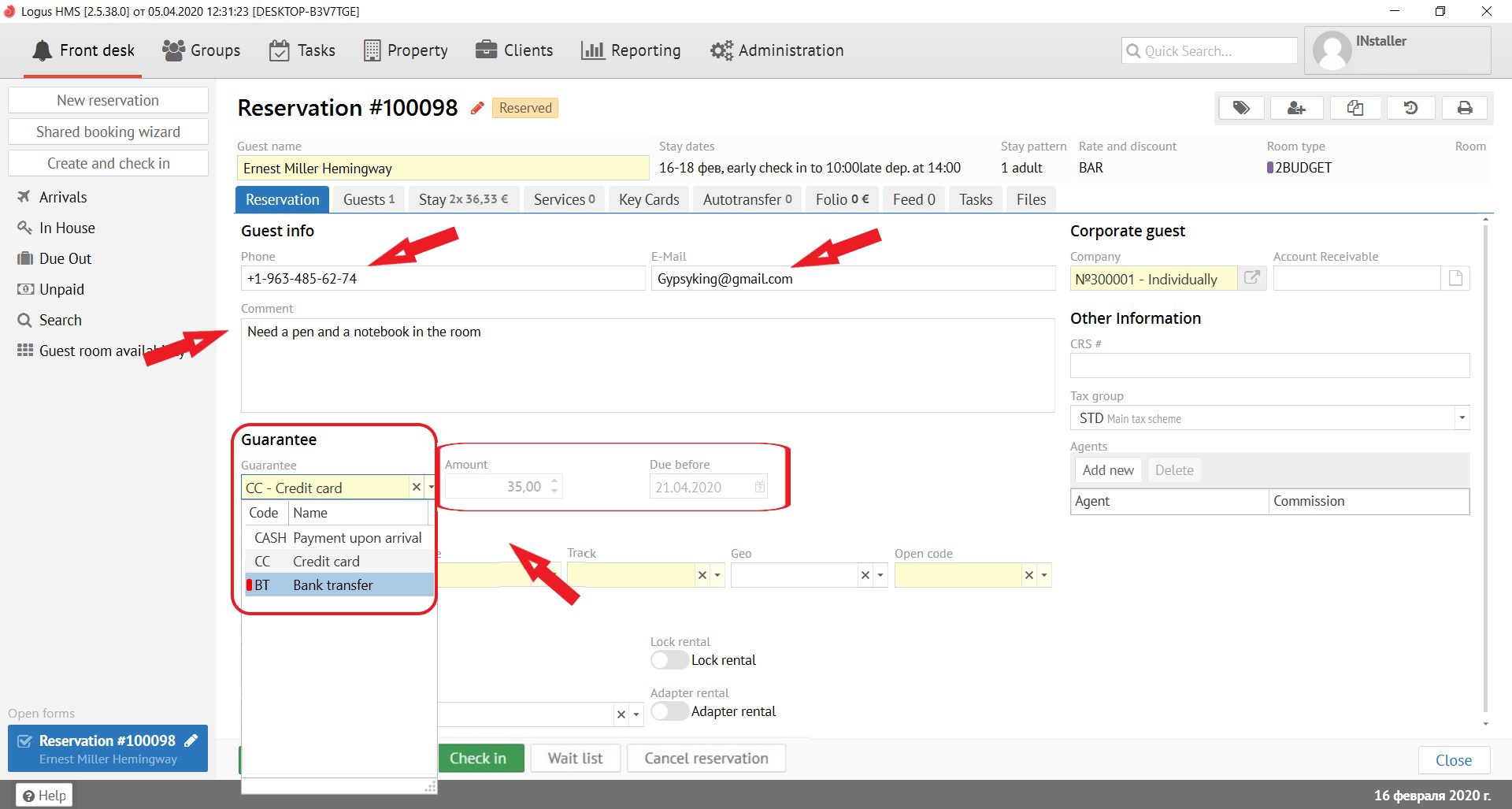
It is necessary to fill in the information about guest in the "Reservation" tab:
Phone - entered in any format.
E-mail - e-mail for communication with the guest.
Comment - additional information about guest.
Next, you need to select in the "Guarantee" field (guarantee of payment, means how the guest will pay for his stay) the method of payment you need (Credit card payment, cash payment, etc.):
Amount - deposit amount (depends on the type of guarantee).
Due before - date by which a deposit is due before (depends on the type of guarantee)
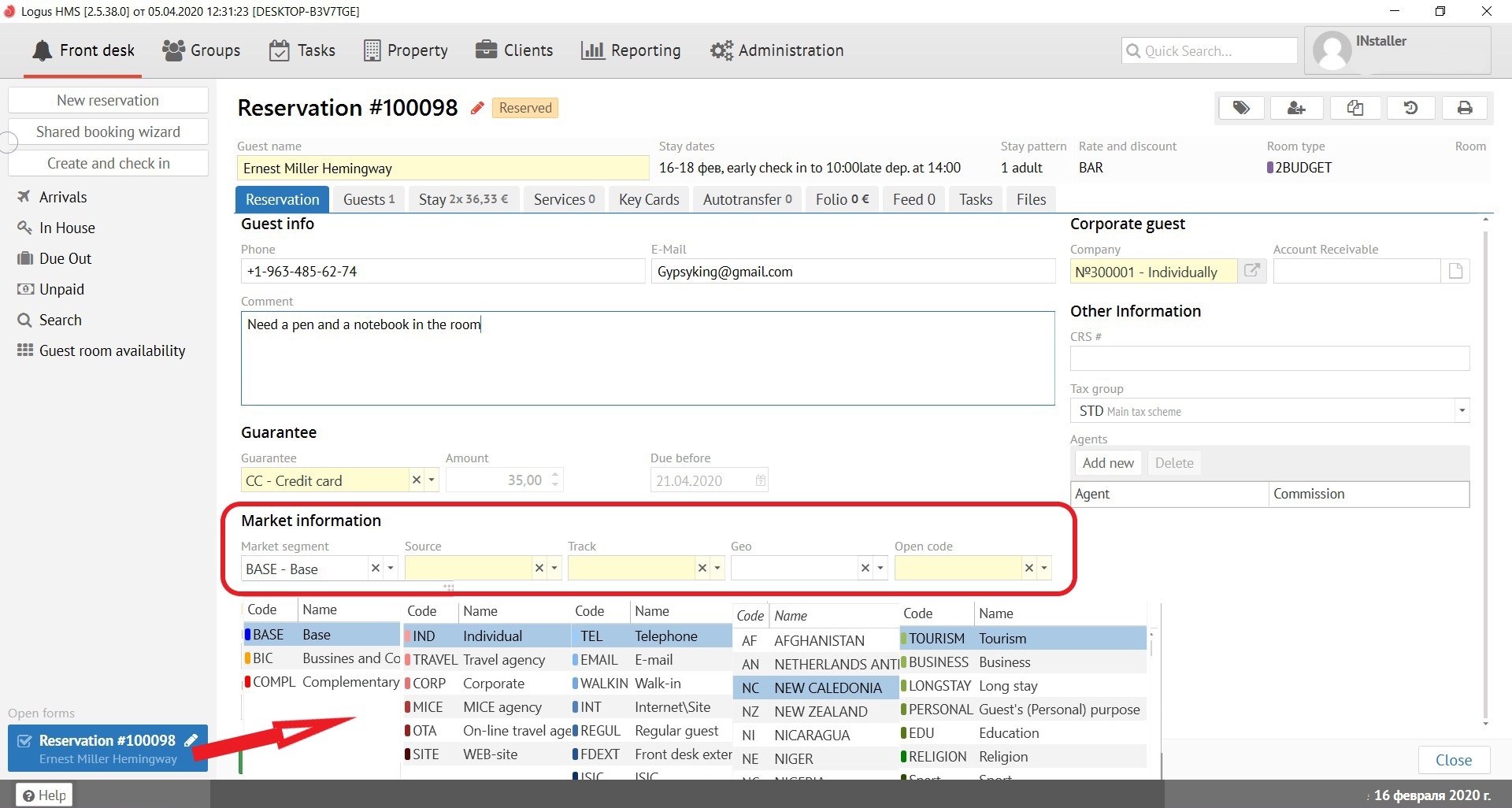
Market information:
| Page properties | ||||
|---|---|---|---|---|
|
Market segment - is a global type of business (it is almost never filled in the reservation, it is filled in the rate setting).
Source - the source of the reservation, displays where the reservation came from.
Track - information show how the guest found out your hotel (another use of the code is possible, for example, a specific type of advertising - newspaper, website, Facebook, etc.).
GEO - geography, shows where your guest from (country, region, city, etc.).
Open code - the purpose of the guest's visit to the hotel.
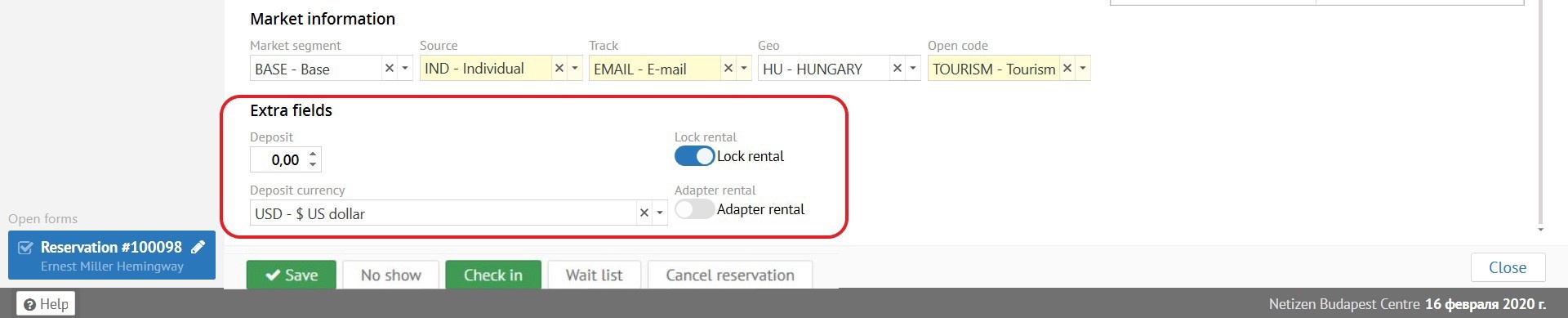
Extra Fields:
Extra fields are entered upon request of the Hotel staff. It is possible to display field's data in a report.
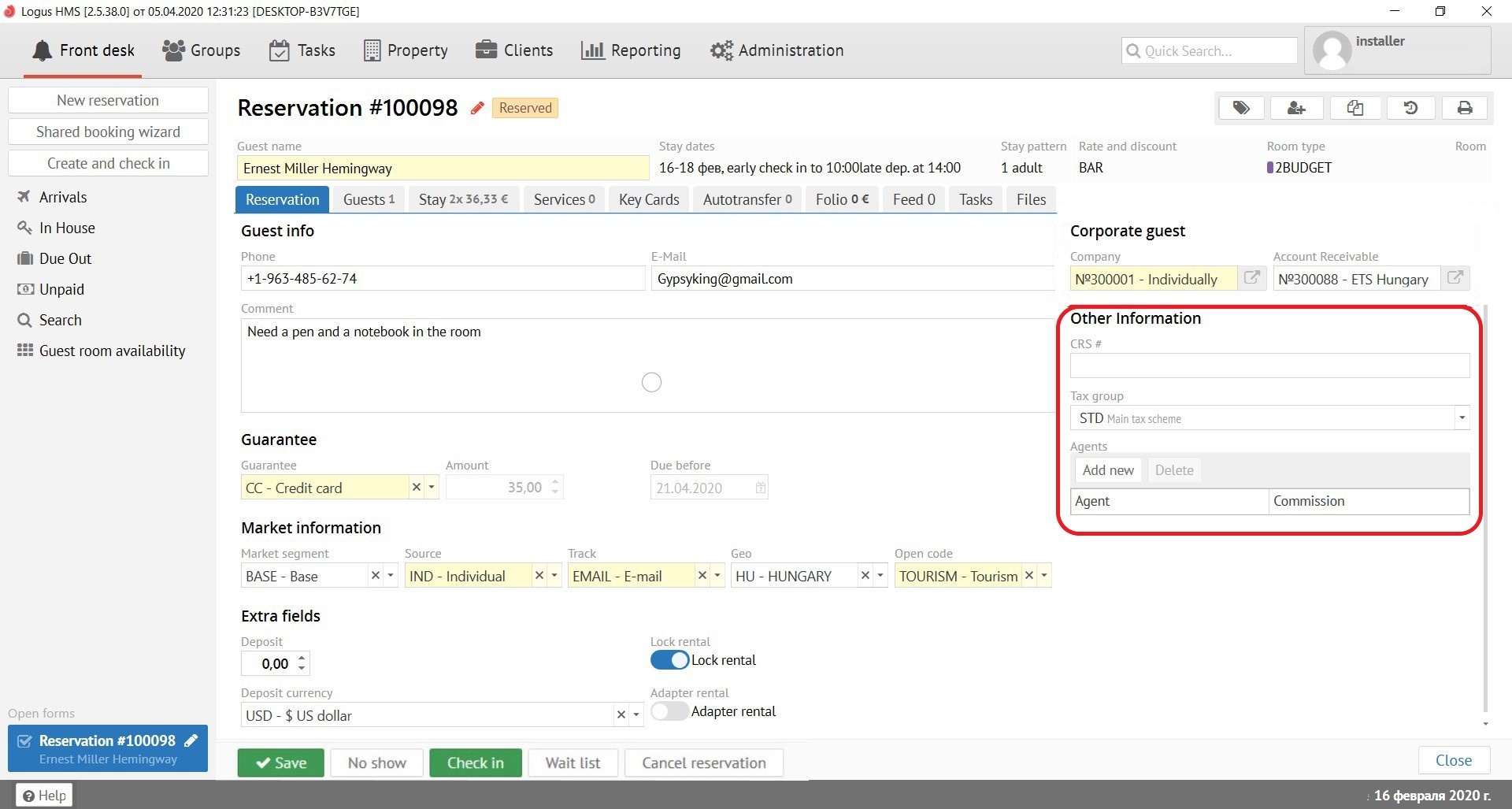
Corporate guest:
| Page properties | ||||
|---|---|---|---|---|
|
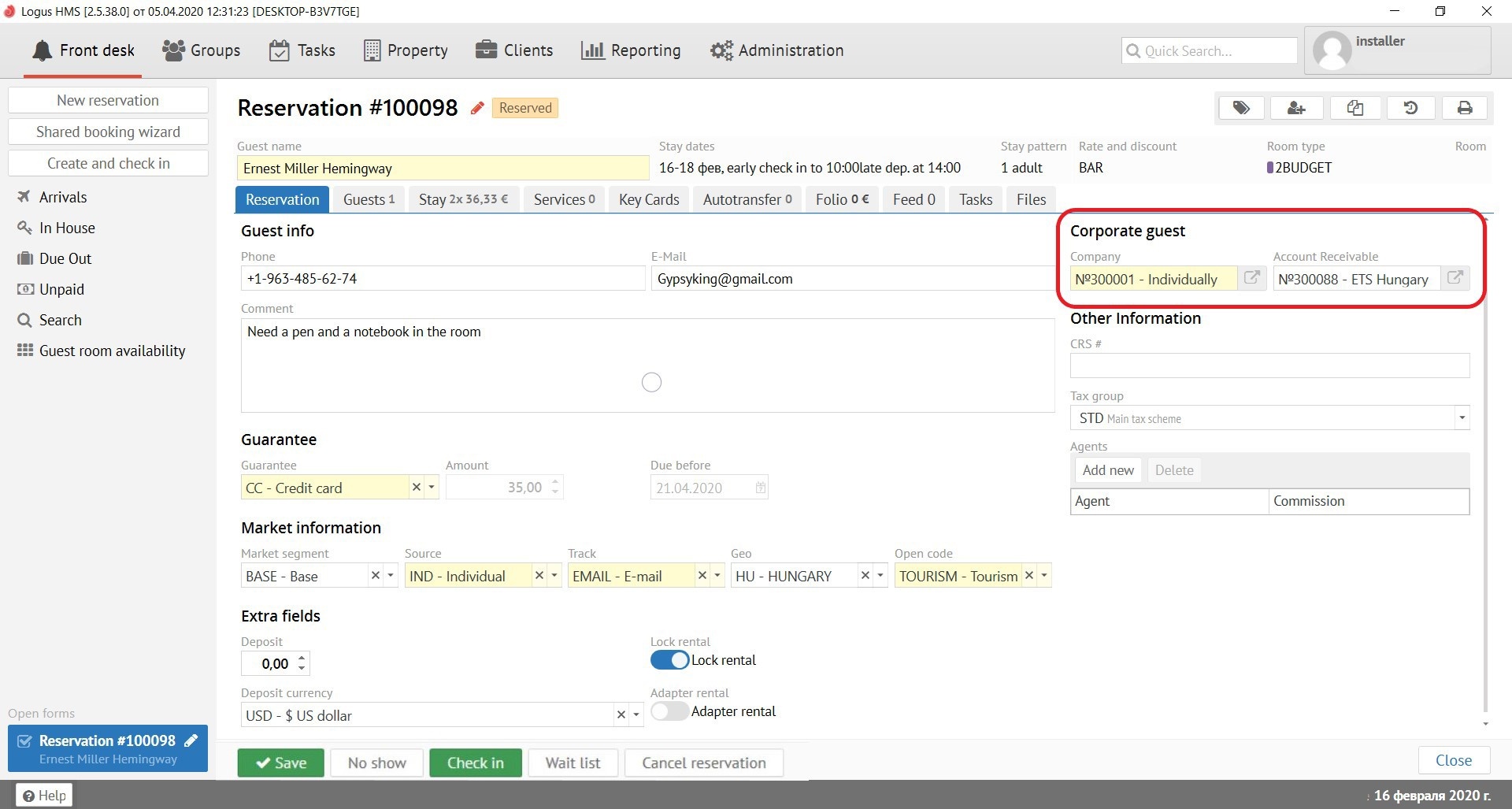
Company - the name and number of the company from which the guest arrived.
Account receivable - to be filled in only for non-cash reservations. (Not in the Logus The Box)
Other information:
CRS # - filled in automatically in the reservation that reserve online.
Tax group - If your property has different type of taxation, choose the correct one for this reservation.
Agents - to be filled in if a commission is required for this reservation. (Not in the Logus The Box)
There are several buttons that work in any reservation card below:
"Save" button - saves all changes made to the reservation. If you press the "Save" button while holding SHIFT on the keyboard, the reservation card will not close automatically.
"No show" button - changing status of the reservation to "No show". You can always check in this reservation during the whole period of stay of this reservation. If you will checked reservation in, Logus post the accomodation charges for missed period.
"Check-in" button - checking-in the reservation (to check in the reservation you can ONLY if the date of arrival of the reservation agree with the date in the program (bottom right). Otherwise, the date of arrival will be changed to the current one.
"To wait list" button - to transfer the reservation to the waiting list.
“Cancel” button - cancel the reservation (reservation cannot be canceled if a night audit has already passed after the check-in).
"Check-out" button - checking-out the guest (it is possible to check-out the reservation ONLY if the departure date agree with the date in the program (bottom right). Otherwise, you will be asked to adjust the length of stay.
 Кнопка "Выселить" - выселяет гостя (выселить бронь можно ТОЛЬКО если дата выезда брони совпадает с датой в программе (внизу справа). В противном случае будет предложено скорректировать сроки проживания.