| Page properties | |||||
|---|---|---|---|---|---|
Версия
Да | |
Шахматка - инструмент работы в программе Logus, который используется для присваивания номера комнаты при бронировании (Внимание! Мы не рекомендуем использовать шахматку для присвоения номеров комнатам, т.к. при этом возникает фрагментация, что, в свою очередь, влечет к потере прибыли).
Для того, чтобы зайти в шахматку необходимо нажать кнопку "Шахматка":
Вверху панель поиска с различными полями для сортировки:
Поле "Тип комнаты" - поиск по типу комнаты (Одноместный, Двухместный и т.д.).
Поле "Расположение" - поиск по расположению комнаты (1 корпус, 5 этаж и т.д.).
Поле "Вид уборки" - поиск по виду уборки комнаты (Легкая уборка, Генеральная уборка и т.д.).
Поле "Занятость комнаты" - поиск по занятости комнаты (свободна или занята).
Поле "Состояние комнаты" - поиск по состоянию комнаты (грязная или чистая).
Поле "Теги" - поиск по тегам (Ванная, Душевая, Wi-Fi).
Шахматку можно раскрыть в разрезе Дня, 2 Недель или Месяца, переключаясь на синей панели:
Также на этой синей панели находится кнопка выбора необходимой Вам даты для просмотра шахматки:
Обозначения в таблице шахматки:
Номер комнаты - Тип комнаты - Занята\свободна - Грязная\чистая
Статус «бронь» обозначается в синей рамке.
Статус «проживание» обозначается в желтой рамке.
Статус «выехал» обозначается в серой рамке.
Статус «выехал» обозначается в зеленой рамке.
Внизу шахматки есть следующие кнопки:
Кнопка "На удержание" - позволяет поставить комнату на удержание (мелкий ремонт, показ комнаты)
Кнопка "На ремонт" - позволяет поставить комнату на полноценный ремонт.
Кнопка "Состояние уборки" - позволяет вручную изменить статус комнаты с грязного на чистый.
Кнопка "Создать бронь" -позволяет в шахматке выделить и протащить даты на конкретной комнате, тем самым сделав бронь.
|
Summery by Property
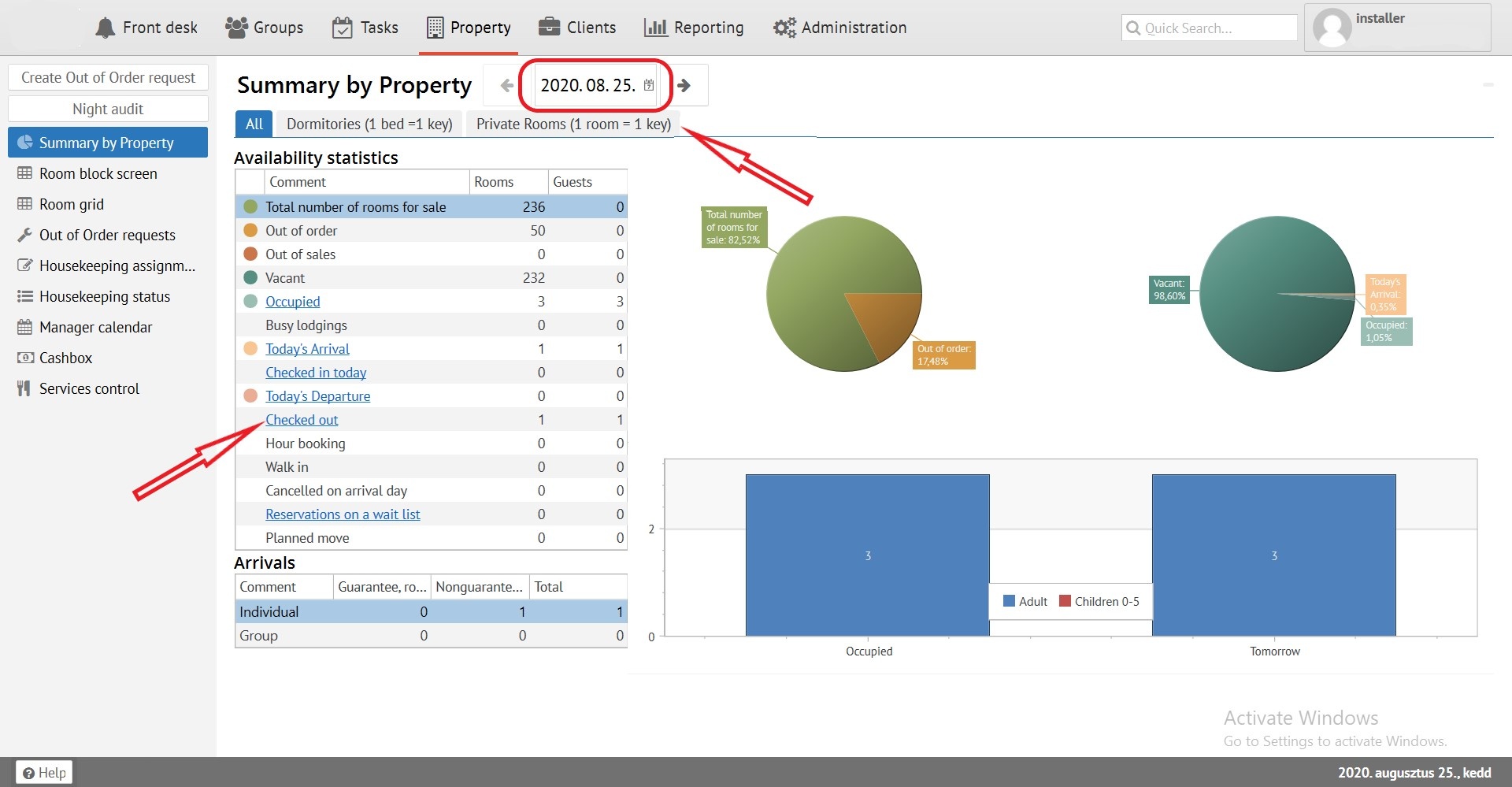
An operating information about your property. Contains hyperlink to another sections of "Front desk". It can be displayed by different room category types or in all. Also it has dates filter.
Room block screen
It's a tool for working in the Logus, it is used to assign a room number for reservation (Attention! We do not recommend using checkerboard to assign room numbers, as this creates fragmentation of rooms, which leads to profit loss).
To see it, press the "Room block screen" button:
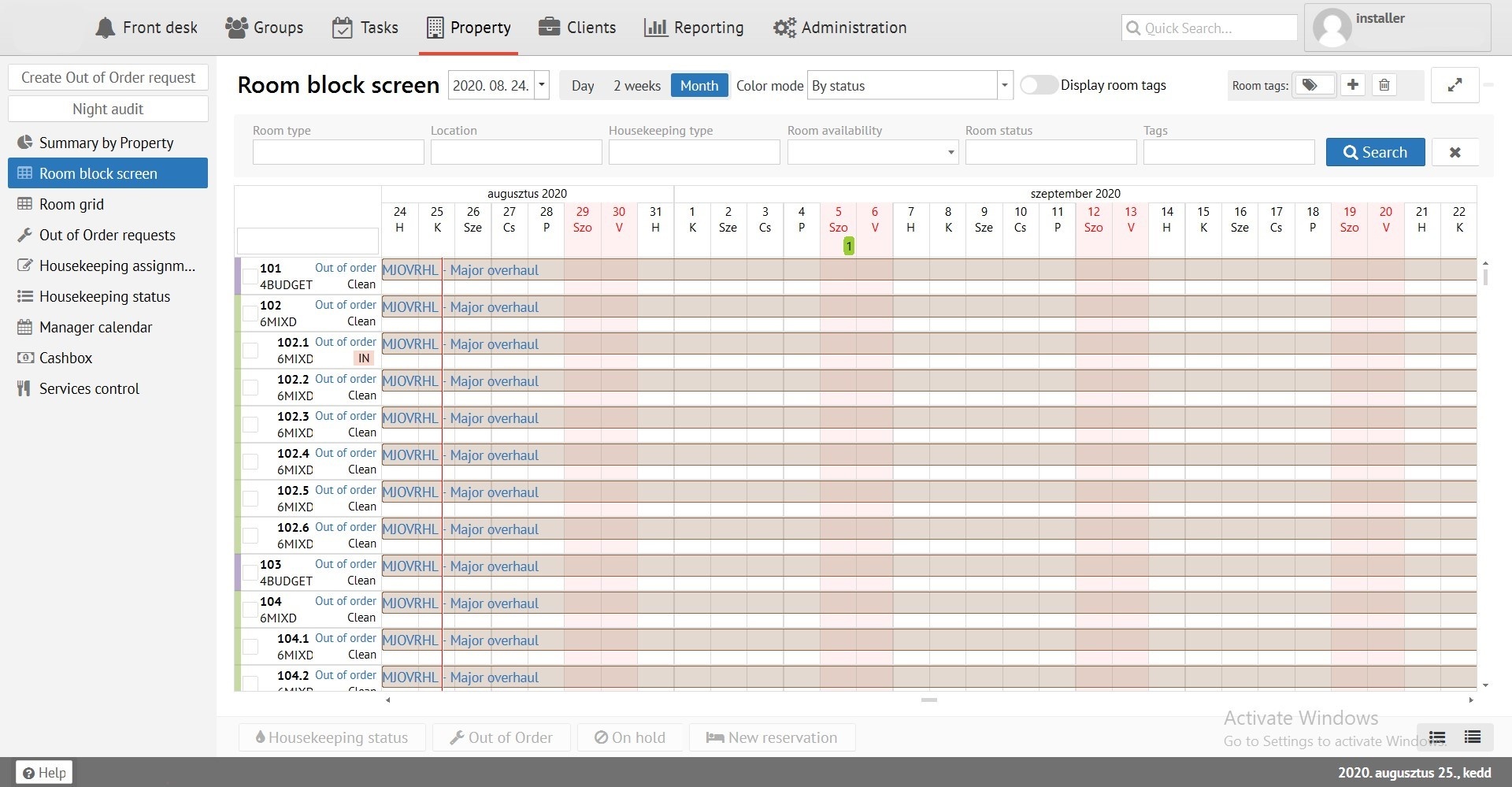
At the top you can find board with various sorting fields:
"Room type" - search by room type (Single, Double, etc)
"Location" - search by room location (1st building, 5th floor, etc)
"Housekeeping type" - search by type of room cleaning (Light cleaning, General cleaning, etc)
"Room availability" - search by room availability (available or occupied)
“Room status” - search by room status (dirty or clean)
"Tags" - search by tags (Bathroom, Shower, Wi-Fi)
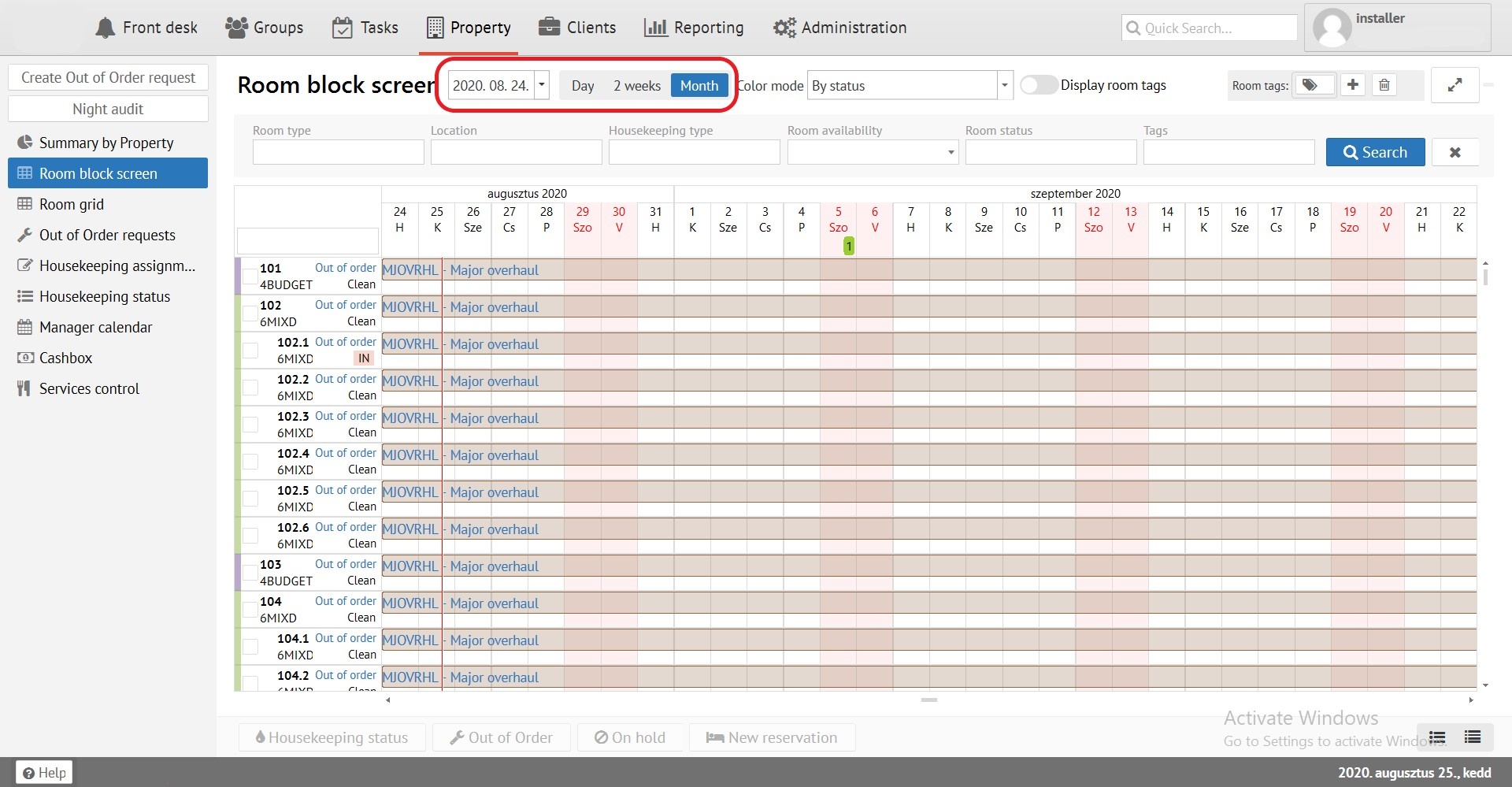
"Room block screen" can be displayed for Day, 2 weeks and Month. You can switch on blue tab. Also you can see button for choosing a date range to view the "Room block screen".
Reservations can be coloured by different colours, it depends on parameters, selected in "Color mode" filter. If you need to display rooms tags near the room number, press "Display room tags". You can also choose one or several rooms tags in filter.
Signs in "Room block screen":
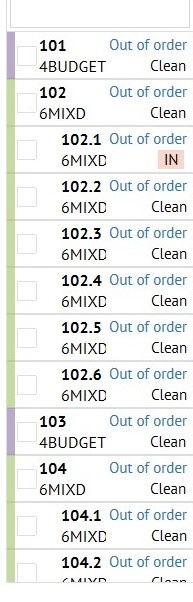
Room number - Room type - Available or Occupied - Dirty / clean. (Tags. Optionaly)
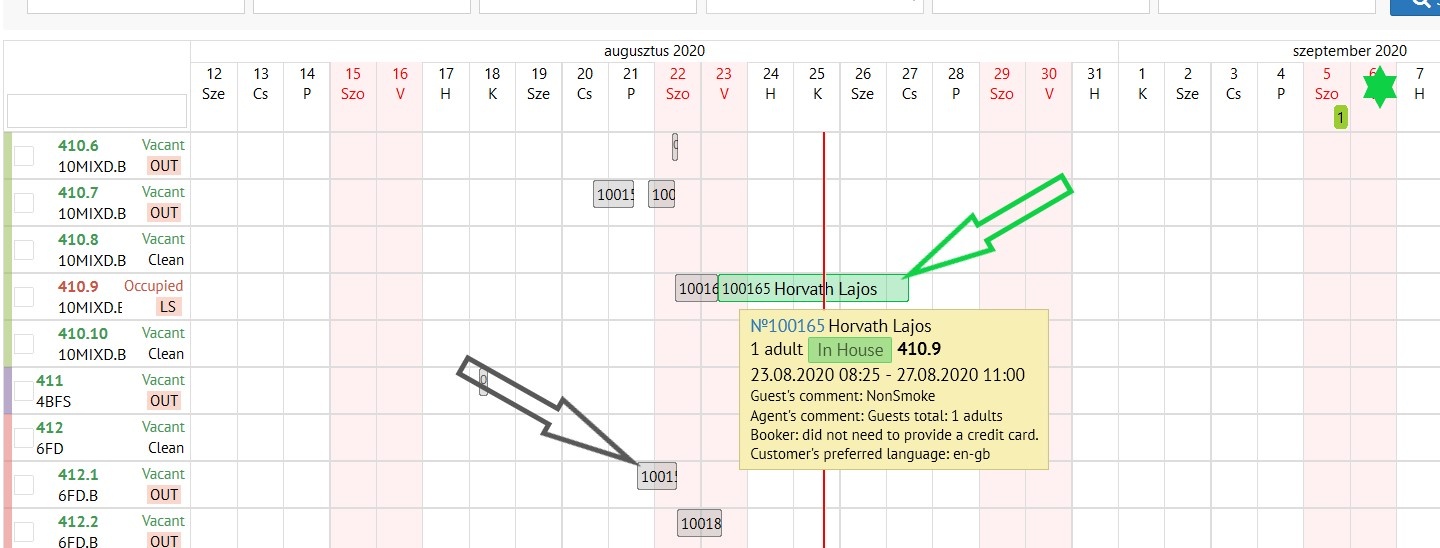
"Reservation" status is indicated in yellow.
"Check in" status is indicated in green.
“Checked out” status is indicated in gray.
Down "Room block screen" you can see following buttons:
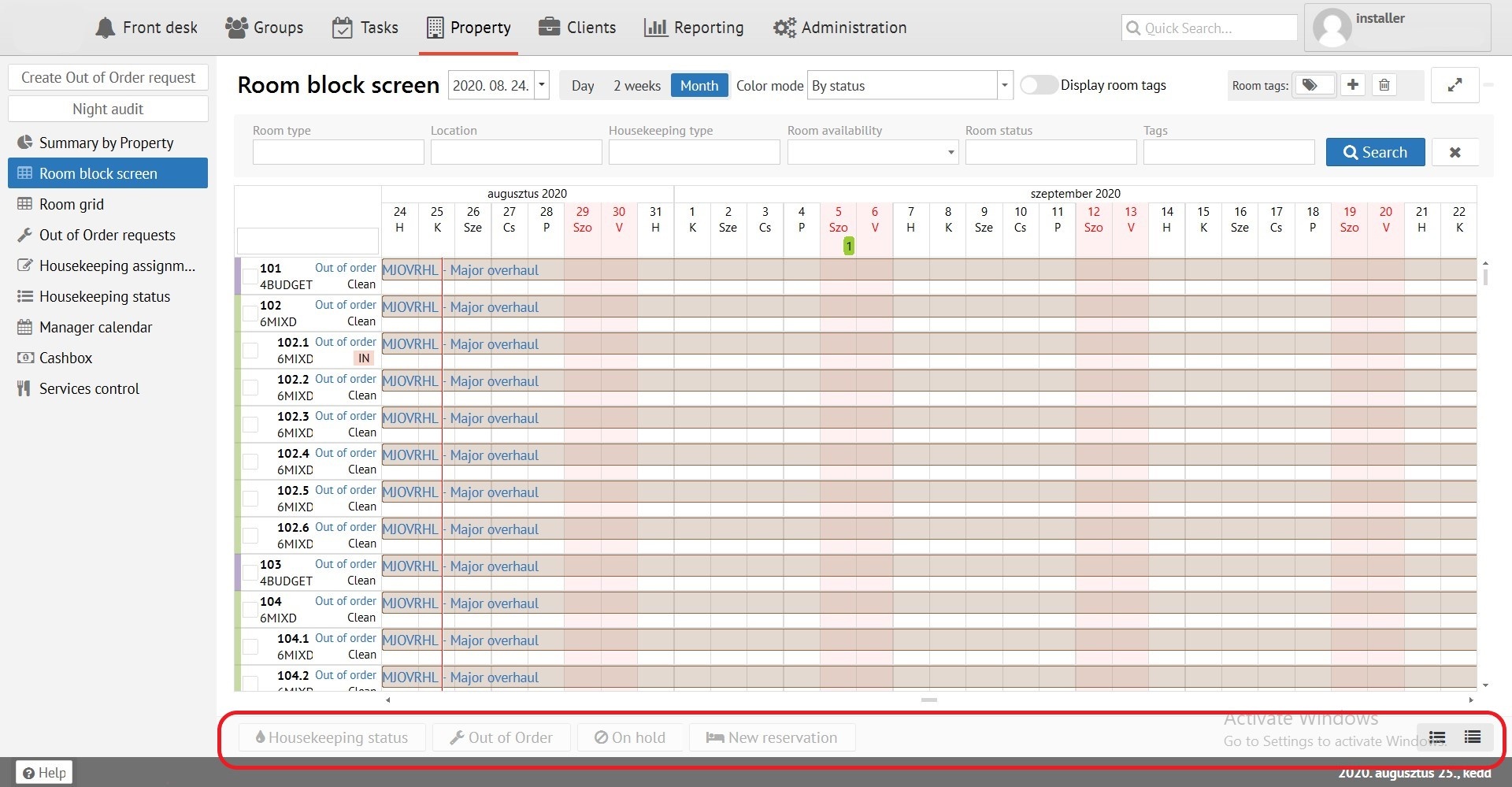
“Housekeeping status” - allows you to manually change the room status from dirty to clean.
"Out of Order" - allows you to put a room for a full renovation.
"On Hold" - allows you to set a room on hold ( repairs, room show).
"New reservation" - allows you to select and scroll dates for specific room and reserve.
 - Change line width of "Room lock screen"
Room grid
Room grid allows you to see actual status of rooms (Available or Occupied - Dirty / Clean - Status of cleaning). Also you can operate this division like a "Room block screen" in "Housekeeping, Out of Order, On hold".
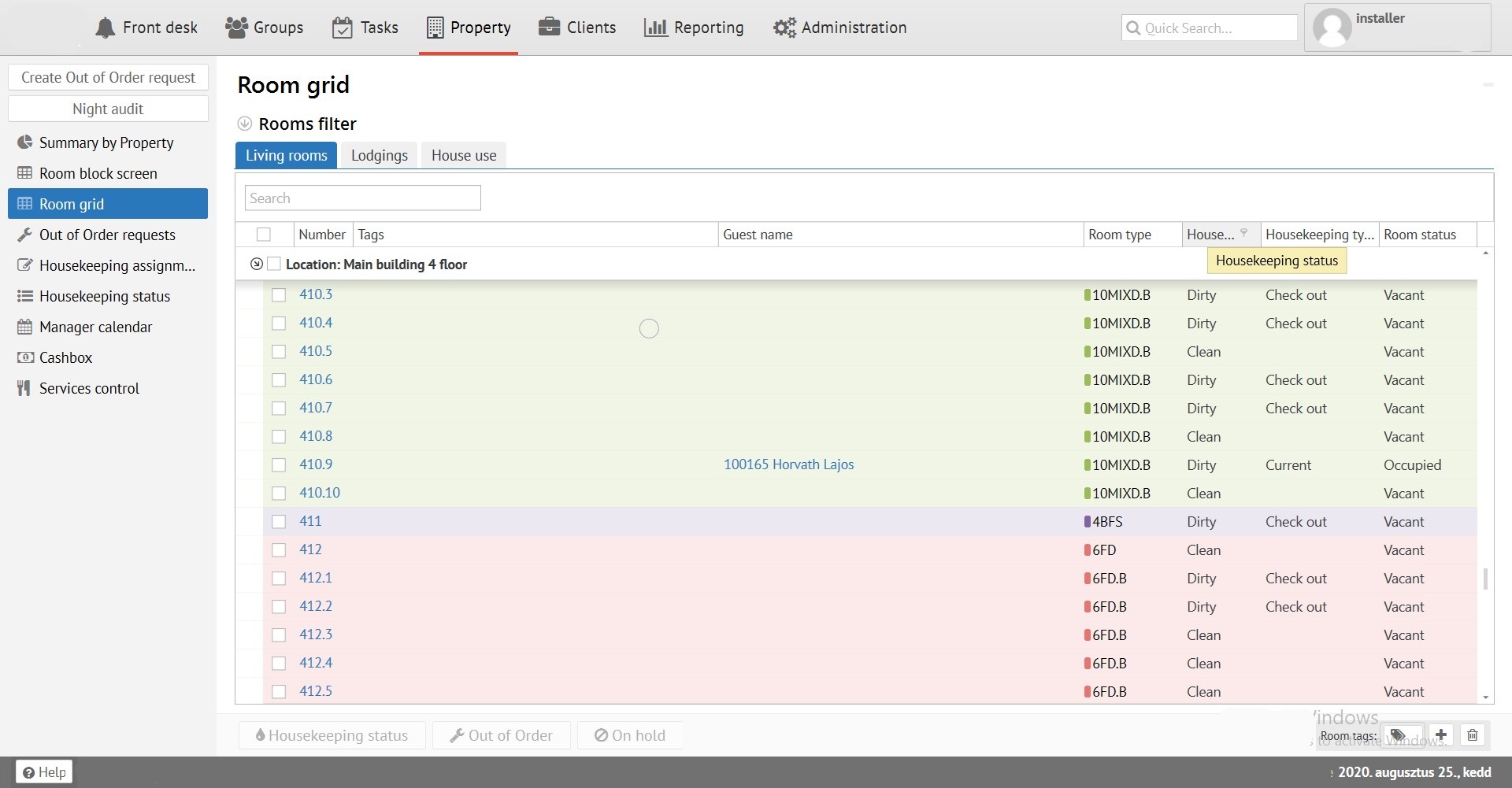
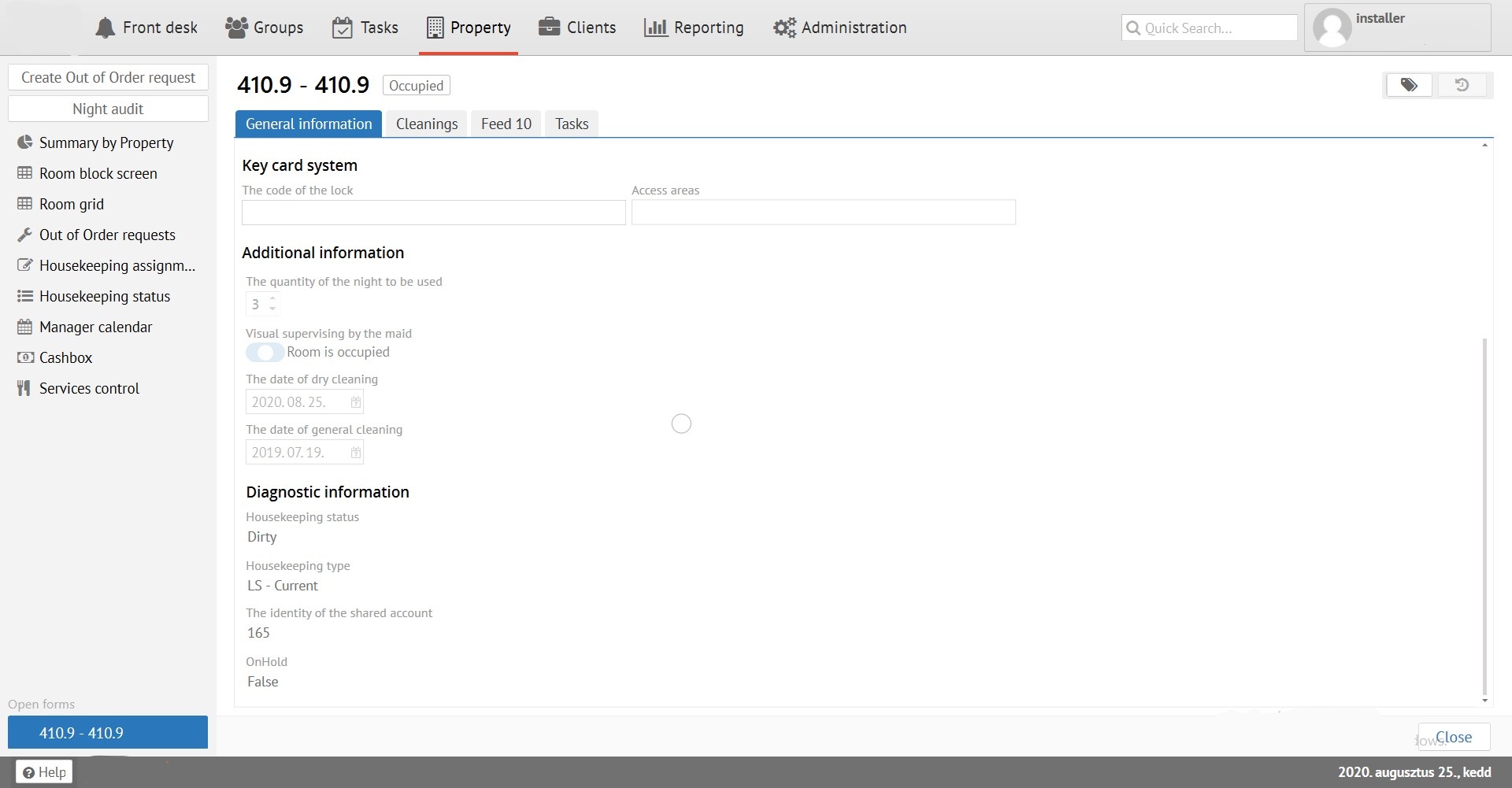
Clicking on hyperlink "Room number" you can open "Room card" to see more details about:
"General information" - Room settings and information about status.
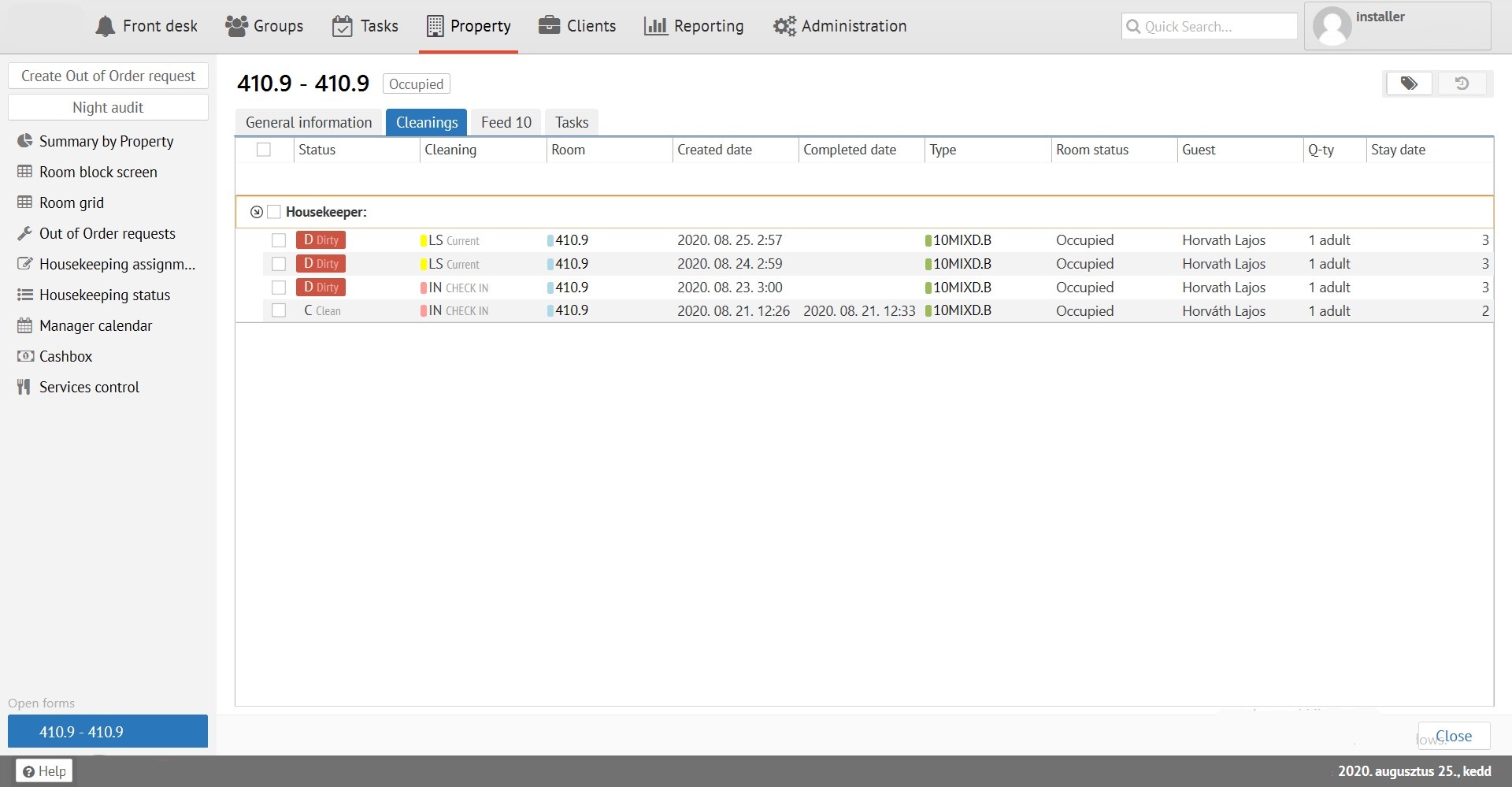
"Cleanings" - Information about cleaning the room. Dates, Housemaids and etc.
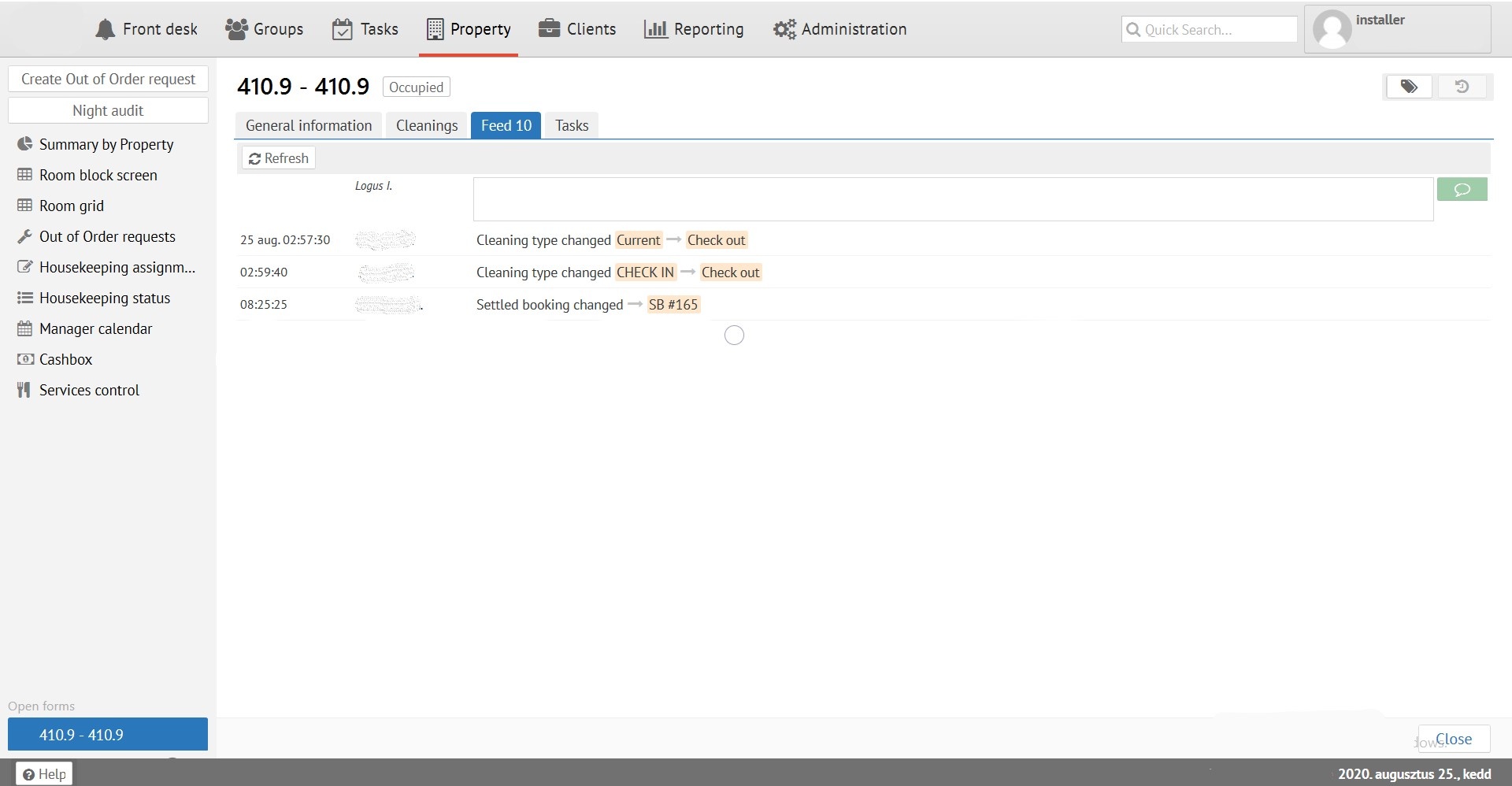
"Feeds" - history of room status changes.
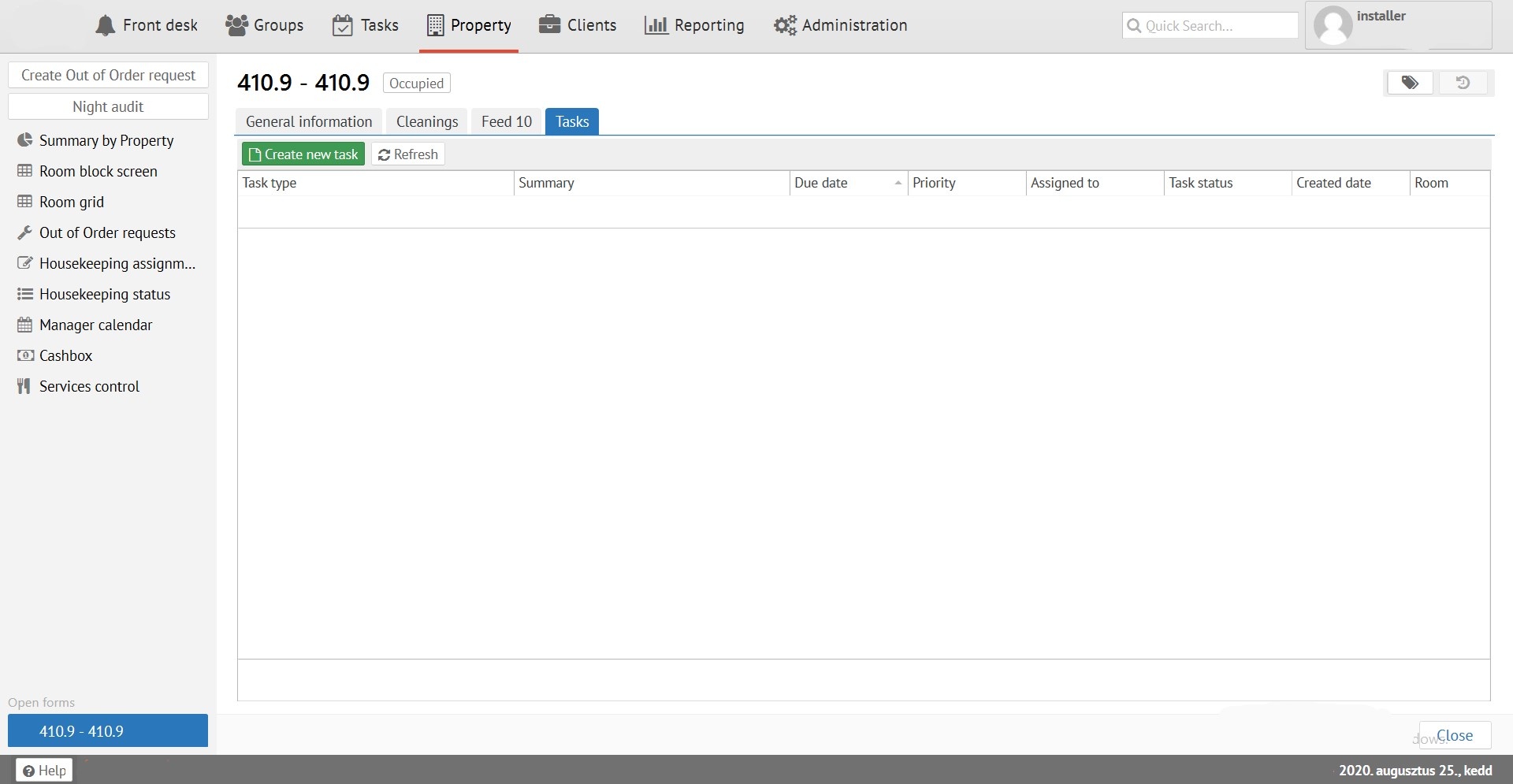
"Tasks" - tasks linked between this room number and the "Tasks" section.