| Page properties | |||||
|---|---|---|---|---|---|
Версия
Да | |
| Table of Contents |
|---|
Тарифы
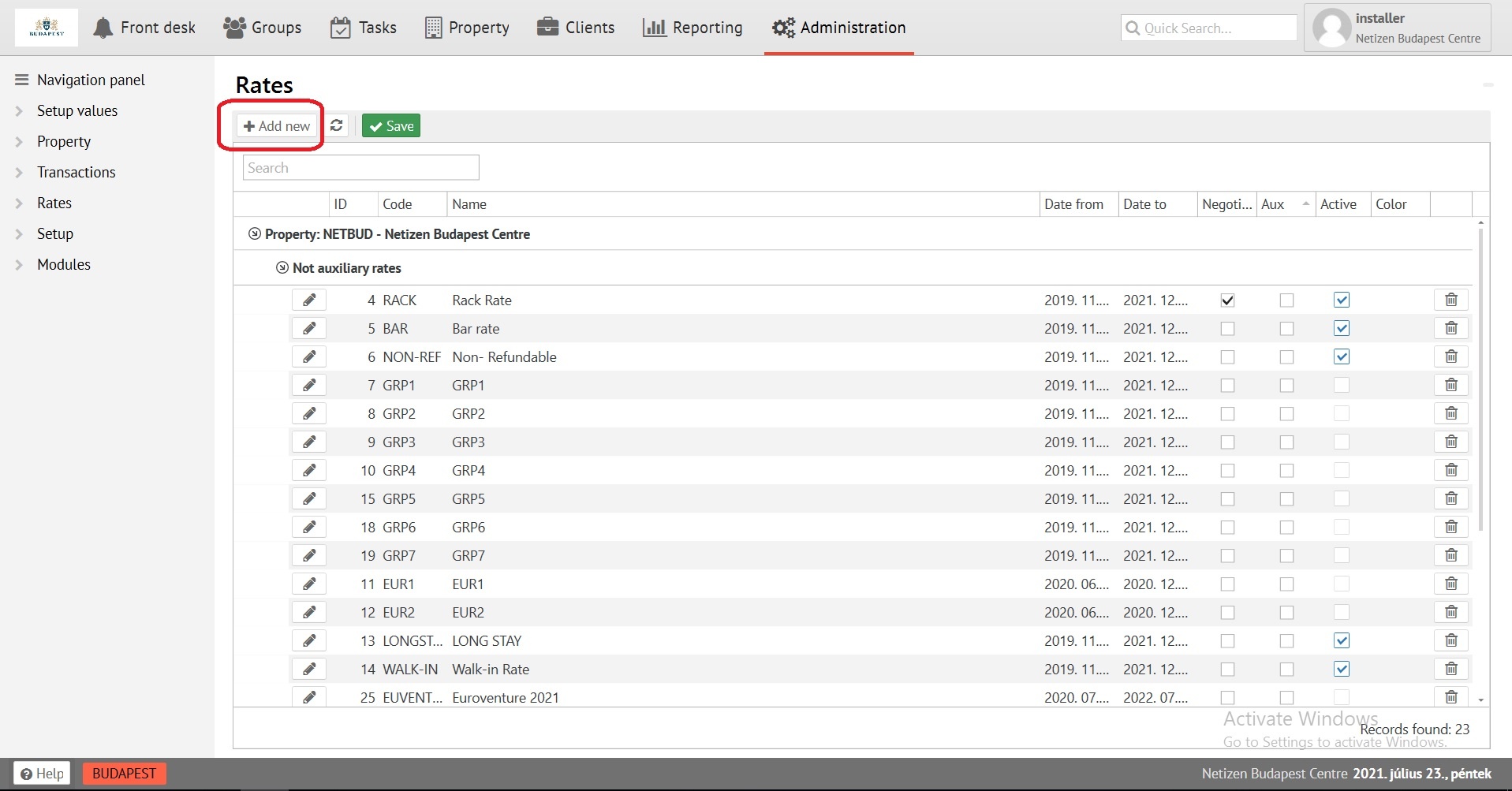
Тарифы - указывается период действия тарифа, код транзакции за проживание, доступные типы комнат и пакеты, указывается, скидочный тариф и/или комиссионный, а также стоимость. Для того, чтобы добавить новый тариф, необходимо нажать кнопку "Добавить":
У вас появится следующее окно:
После заполнения всех необходимых полей необходимо нажать кнопку "Сохранить".
| Warning |
|---|
При первом сохранении тарифа следует деактивировать признак "Активно". Его можно будет активировать после сохранения при последующем добавлении вариантов тарифа. |
После сохранения тарифа у вас появится следующее окно:
Группы услуг
Группа услуг - группа услуг, в которую входит услуга (столбцы: Название - пишется самостоятельно, код транзакции - выбирается из списка, карман по умолчанию - выбирается самостоятельно, начислять через мастер - возможность добавлять услугу в брони через вкладку «Проживание»). Для того, чтобы добавить новую группу услуг, необходимо нажать кнопку "Добавить" и далее кнопку "Сохранить":
Услуги
Услуги - это услуга (из них может состоять пакет или они могут быть детализацией при начислении транзакции с детализацией)
Время в настройке услуги ставится для тех услуг, которые необходимо переносить на следующие сутки по времени заезда. Это как правило все завтраки (они обычно ранее времени заезда), и ориентируясь на время система перенесёт услугу на следующие после заезда сутки.
Пакеты
Пакеты услуг - настройка пакета (то есть включенных в тариф услуг). Для того, чтобы добавить новый пакет, необходимо нажать кнопку "Добавить" и далее кнопку "Сохранить":
Сегменты рынка
Сегменты рынка - глобальный тип бизнеса (заполняется в настройке тарифа и также является маркетинговым полем). Для того, чтобы добавить новый сегмент, необходимо нажать кнопку "Добавить" и далее кнопку "Сохранить":
Скидки
Скидки - скидки гостя. Для того, чтобы добавить новую скидку, необходимо нажать кнопку "Добавить" и далее кнопку "Сохранить":
Типы дохода
Типы дохода - тип дохода транзакции (заполняется в настройке транзакции). Для того, чтобы добавить новый тип дохода, необходимо нажать кнопку "Добавить" и далее кнопку "Сохранить":
Типы транзакций
Типы транзакций - настройка типов транзакций. Для того, чтобы добавить новый тип транзакции, необходимо нажать кнопку "Добавить" и далее кнопку "Сохранить":
Группы типов транзакций
Группы типов транзакций - глобальная группа для типов транзакций. Для того, чтобы добавить новую группу типов транзакции, необходимо нажать кнопку "Добавить" и далее кнопку "Сохранить":
Налоговые схемы
Налоговые схемы - уже включены в программу. Не изменять без консультации с технической поддержкой.
Налоги
Налоги - НДС включенный или добавочный. Уже включены в программе. Не изменять без консультации с технической поддержкой.
Коды транзакций
Коды транзакций - транзакция (платежная или доходная). Для того, чтобы добавить новые коды транзакций, необходимо нажать кнопку "Добавить" и далее кнопку "Сохранить":
Карманы счета
Карманы счета - кармана счета (окна) гостя. Галочка «Печатать по умолчанию» - показывает в портфолио карман гостя по умолчанию. Галочка «Безналичные платежи» - указывается только в безналичном кармане.
Для того, чтобы добавить новые карман, необходимо нажать кнопку "Добавить" и далее кнопку "Сохранить":
Кредитные лимиты
Кредитные лимиты - настройка, показывающая на какую сумму бронь может уйти в долг.
Типы финансовых документов
Типы финансовых документов - бланки документов, например, путевки. Для того, чтобы добавить новые тип, необходимо нажать кнопку "Добавить" и далее кнопку "Сохранить":
Бланки документов
Бланки документов - настройка бланков документов (статусы «Распечатан» - бланк выпущен, «Новый» - создан, но еще не распечатан, «Испорчен» - при попытке распечатать бланк был испорчен).
|
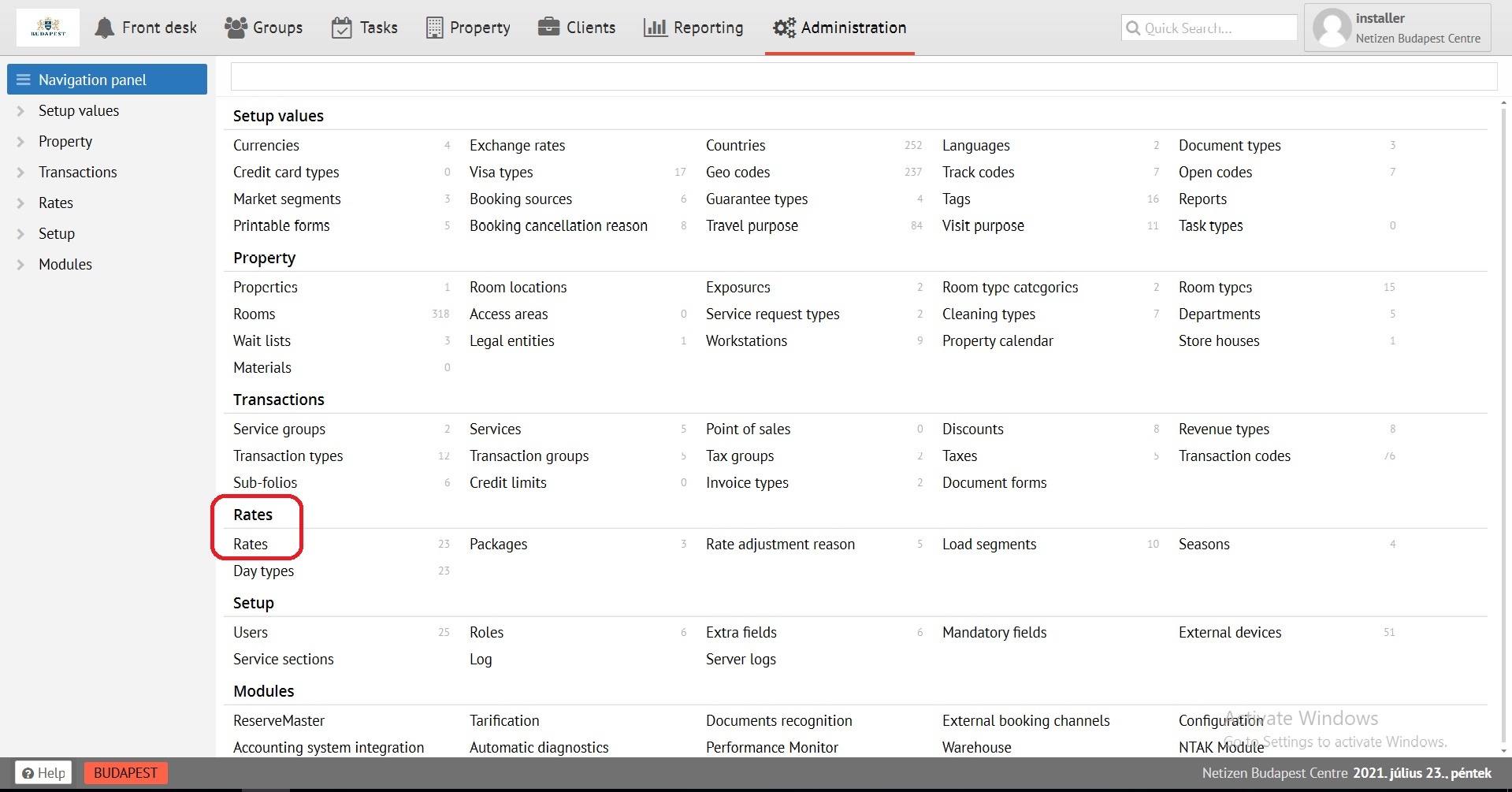
Create a rate using the "Add new" button in Administration, section Rates.
Fill in the first tab of the «General information»
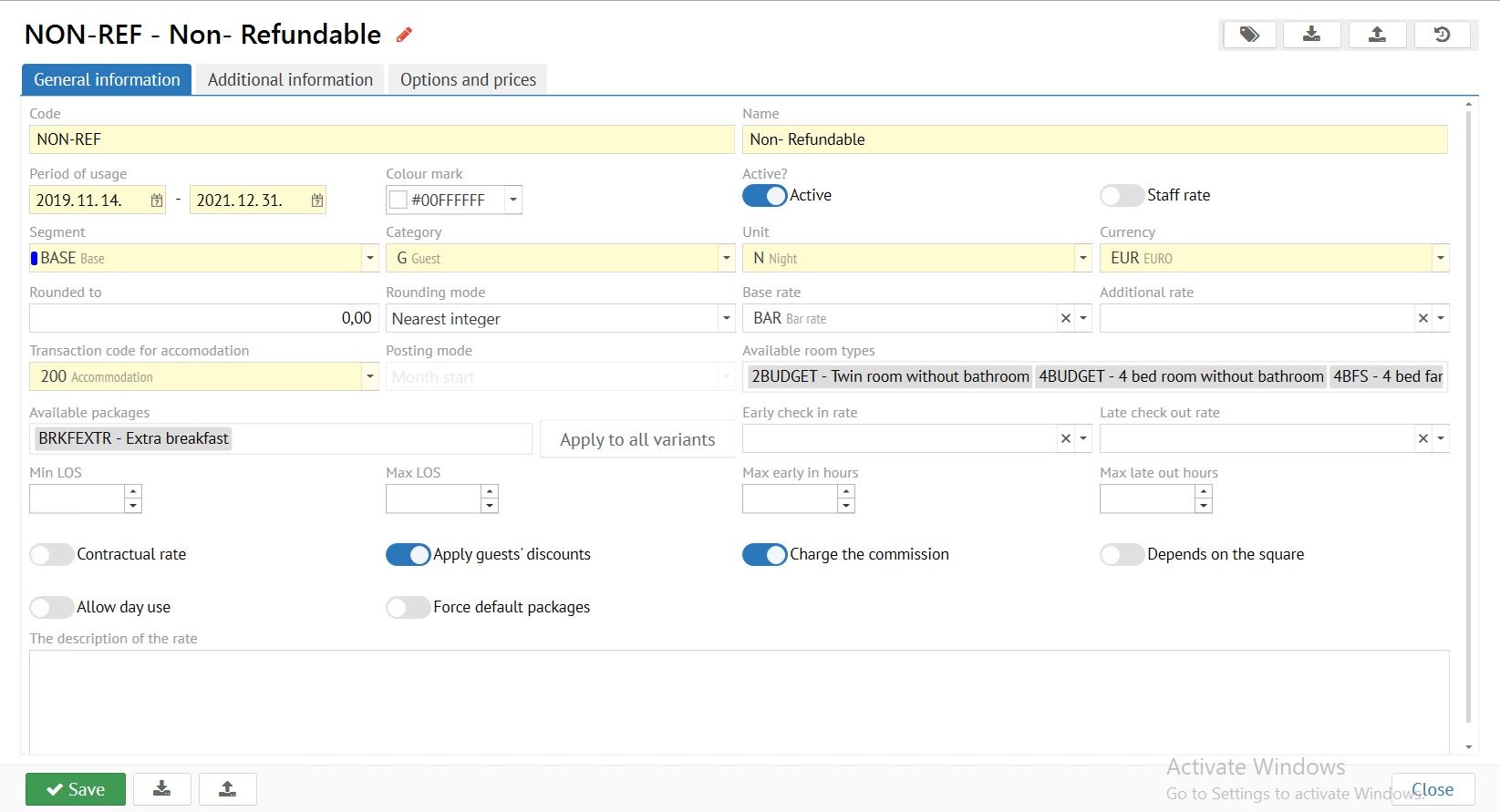
Code - maximum 8 digits, displayed as rate identifier in all cards.
Name - fill in rate name.
Period of usage- period of use of your rate.
Colour mark - rate visual colour.
Active? - DO NOT ACTIVATE TILL THE FIRST SAVING!
Staff rate - enable to restrict access rights.
Segment - marketing information affecting to some reports, from statistics bar.
Category - rate category for Guests, Employees or Preferential. (affecting to "Manager report")
Unit - units of measurement: NIGHT, DAY for standard rate; HOUR, MONTH for rent of premises or apartments. The same rate with the unit of measure HOUR can be used for early Check-in and late Check-out rates.
Currency - EURO, Forint - standard, % - for calculating as a percentage of the maternal rate, applied for early Check-in and late Check-out rates.
Rounded to / Rounding mode - allows rounding of room price in rate.
Base rate - if it is necessary to calculate a rate from the already available, select it for further calculation.
Additional rate - used only in Apartmentsmode.
Transaction code for accomodation - transaction code for room/bed rent - 200. For premises rental rates, choose a lease code (210 in standard base filling) or a code with RENT transaction type.
Posting mode - used only in Apartments mode.
Available room types - select available room types for this rate.
Available packeges - packages that will be available for applying in "Options and prices", "Set options" for use by default. Or packages available for selection when booking at this rate.
Early Check-in rate - rate for automatic calculation early Check-in price to the maternal rate.
Late Check-out rate - rate for automatic calculation late Check-out price to the maternal rate.
Min LOS - used only in Apartments mode.
Max LOS - used only in Apartments mode.
Max early in hours - Limit early Check-in in duration if necessary.
Max late in hours - Limit late Check-out in duration if necessary.
Triggers:
Contractual rate - only applies when adding to the company’s profile, and to the company in Reservation.
Apply guests discounts - applies a specified percentage discount to the sum of the rate.
Charge the commission - charges the commission to the agent on a given rate.
Depends on the square - calculated according to the square of the Room type.
Allow day use - the calculation of the cost of accommodation is a multiple of the quantity of hours in reservations.
Force default packages - will not allow to disable the package from the rate, will fix packages on different variants of the price in "Set options" tab if the reservation lives with the transition on the price variants of the rate, and in them different packages are set.
After all settings save the Rate tab!
| Warning |
|---|
When you save a rate for the first time, fill in the tab "General information" of the rate, the slider "Active" DO NOT turn on!!! |
Fill in the «Additional information» tab, if necessary.
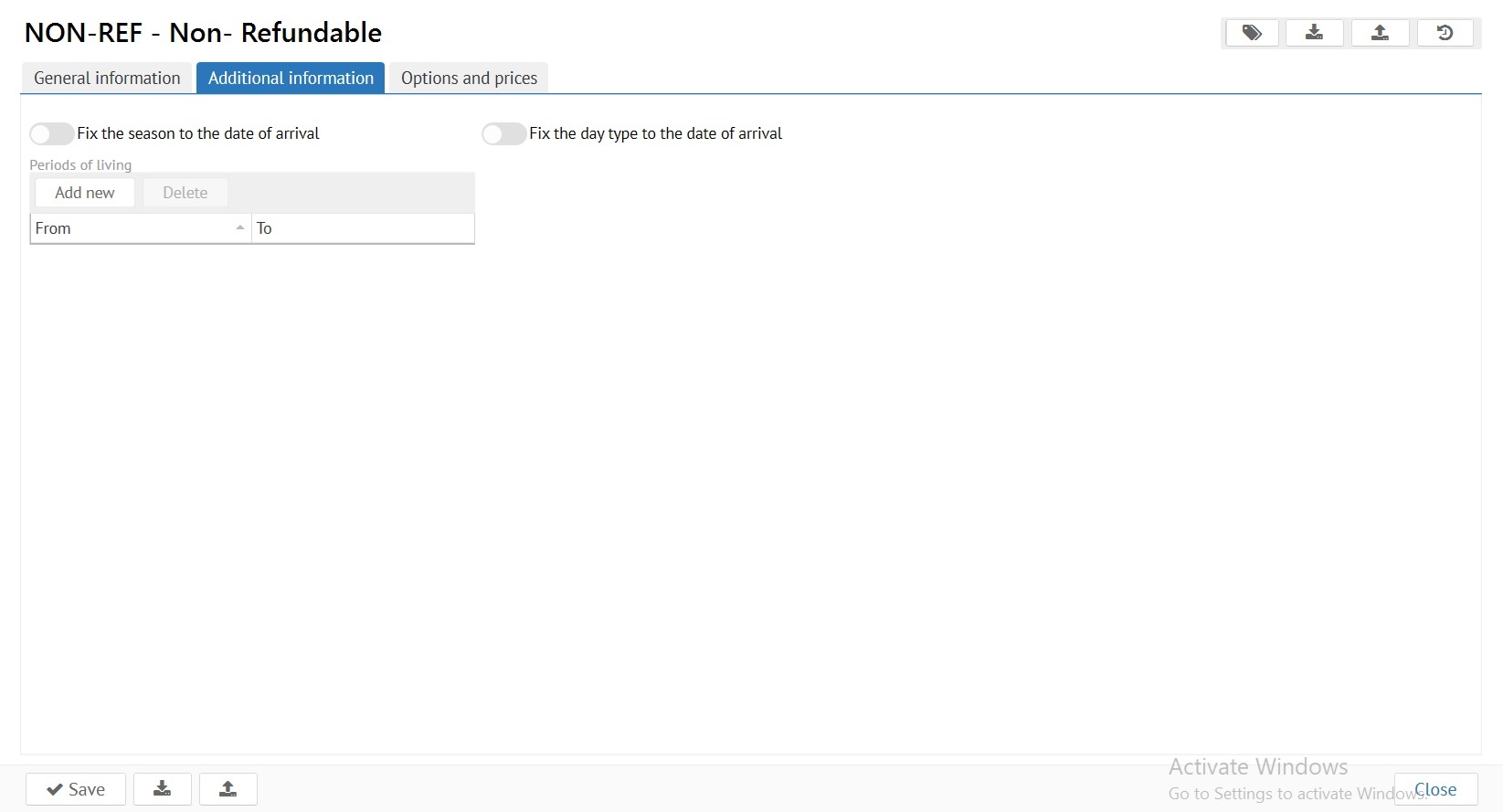
The Additional information tab is used to fine-tune the rate.
Fix the season/day type for date of arrival - It is used to fix the cost of the rate on the day of arrival, if the reservation is staying through different seasons / day types.
Periods of living - a period is considered to be that time period that is added to the tab «General information», «Unit». DAY - the option is regulated, from how many days of stay the rate will be applied in reservation. HOUR - tthe option is regulated, how many hours FROM the time of departure and how many hours BEFORE the time of arrival, early Check-in and late Check-out will be calculated.
In the "Options and prices" tab you can set the room price for different periods. "General information" tab.
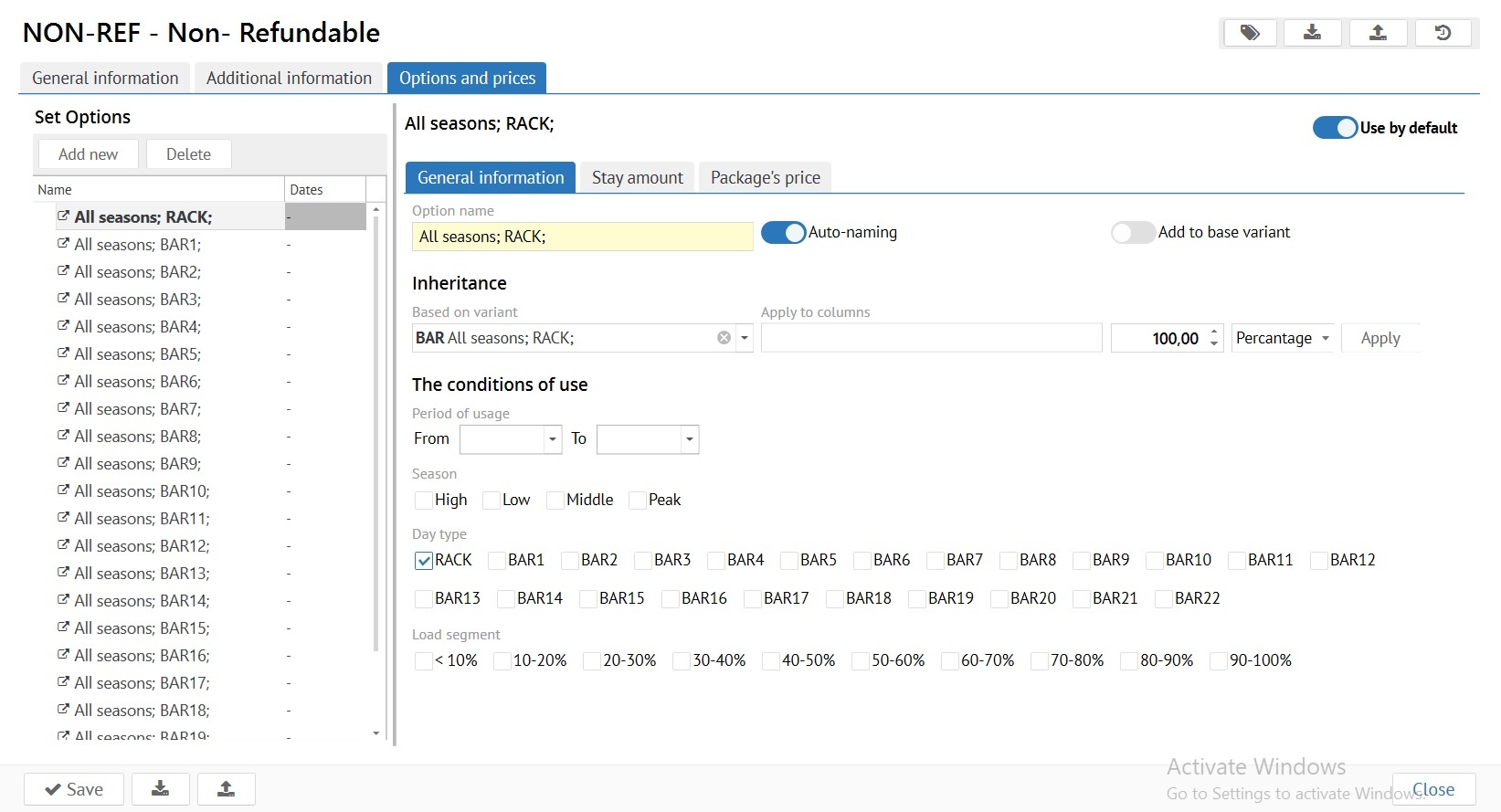
Use by default - One price option has to be set for the use by default. In case of an error in rate settings, this price option will be used when booking.
Add new - add variant of room price.
Delete - delete variant of room price.
Option name / Auto-naming - specify the name of the price variant. Or automatically creates the name of the price variant.
Inheritance:
Based on variant - сreation of a variant of the price on the basis of the another rate applied in tab «General information», «Base rate».
Apply to columns - select the age columns for which inheritance will be carried out.
Amount tab / Inheritance option - calculated either as a percentage or in numbers: 110 percents - 10 percents increase in the base price. 93 percents - 7 percents decrease in the base price. +500 - Increase of the base price for 500 euros. -175 - Decrease of base price for 175 euros.
Inheritance prohibits manual change of the calculated value of the room price.
The conditions of use - Choice of calendar periods, Seasons, Day type or Load segment (Optional) according Property calendar for variante of room price.
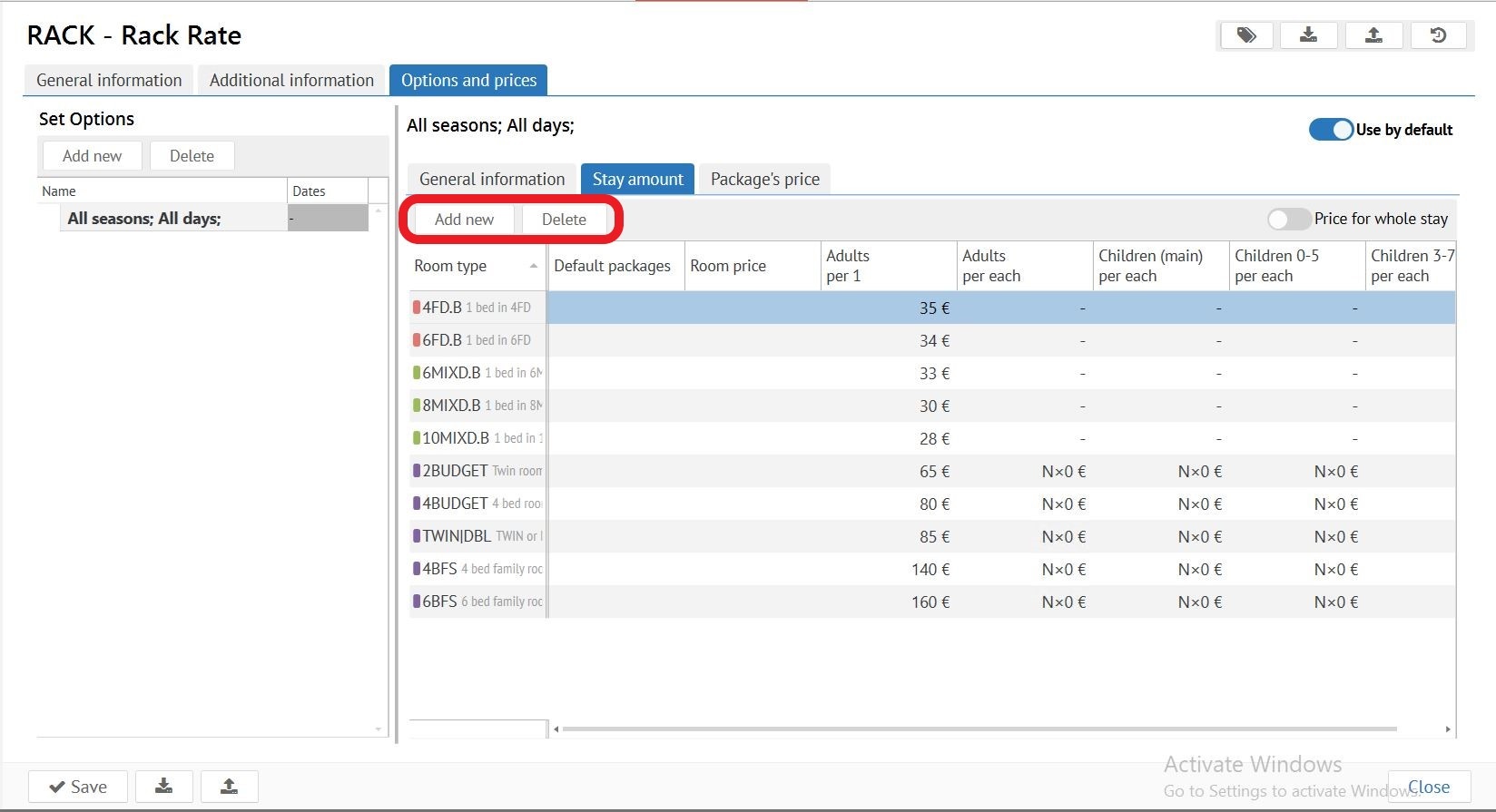
"Stay amount" tab.
A self-contained rate without inheritance has buttons "Add new" and "Delete" that add / remove categories of adults and children (for main and additional places) in the variant of room price. The inherited rate shows the price or formulas for which the calculation was made.
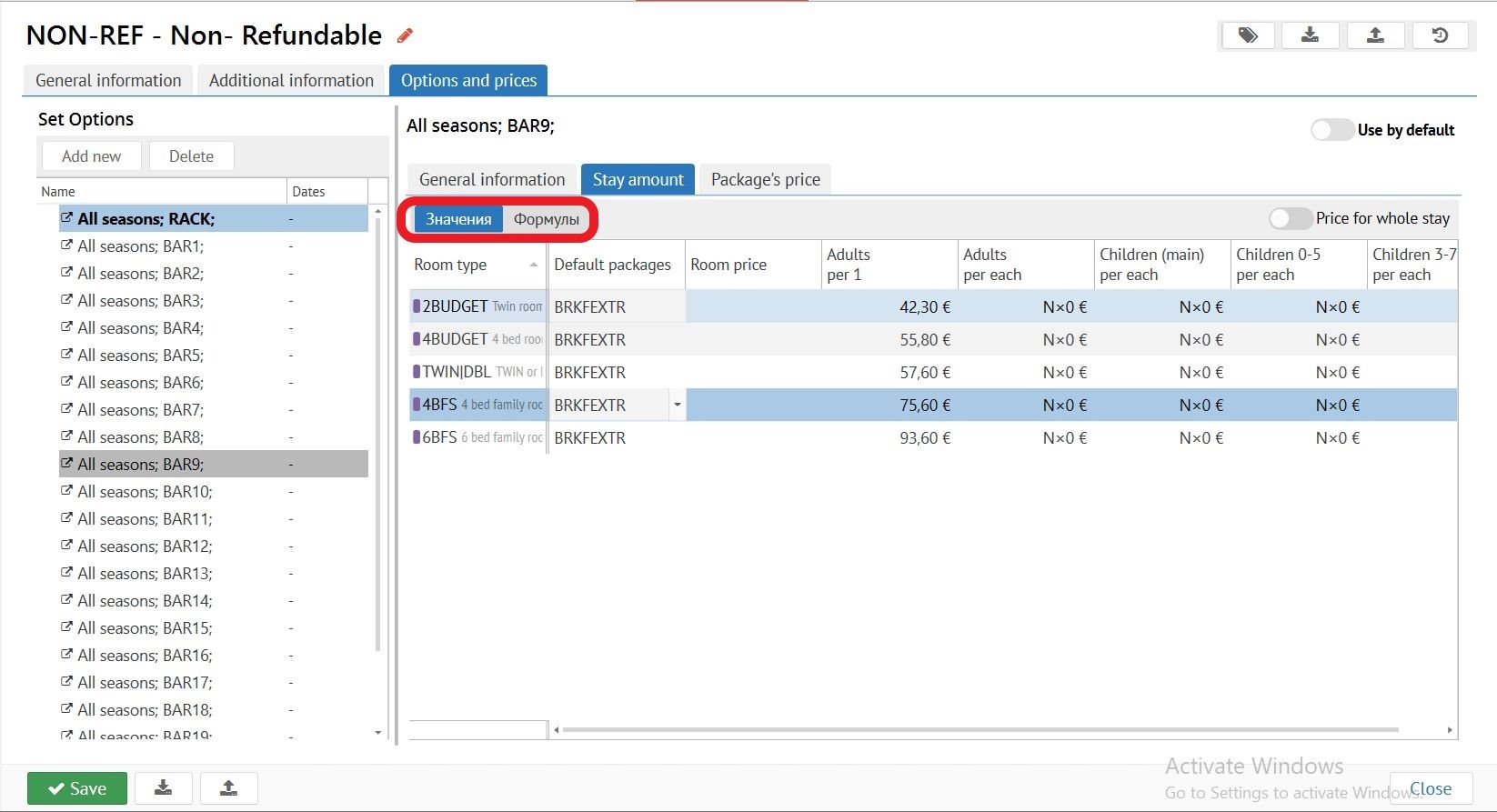
Price for whole stay - the whole period price is applied in early Check-in and late Check-out rates and lease rates for a certain period (for example, price for 3 hours of rent)
Default packeges column- specify packages in this option for the room type you want. This package will apply in the reservation. But still, you will be able to turn off it.
Room price column- price per room per NIGHT/DAY/HOUR, excluding number of guests (cost per one adult must be filled in)
Cost of accommodation by category of guests. When «0» is not added to the price of reservation, when «-» this guest is not applied to the reservation/
Be sure to save after the end of all operations!
Tab «Package's price» do not use.