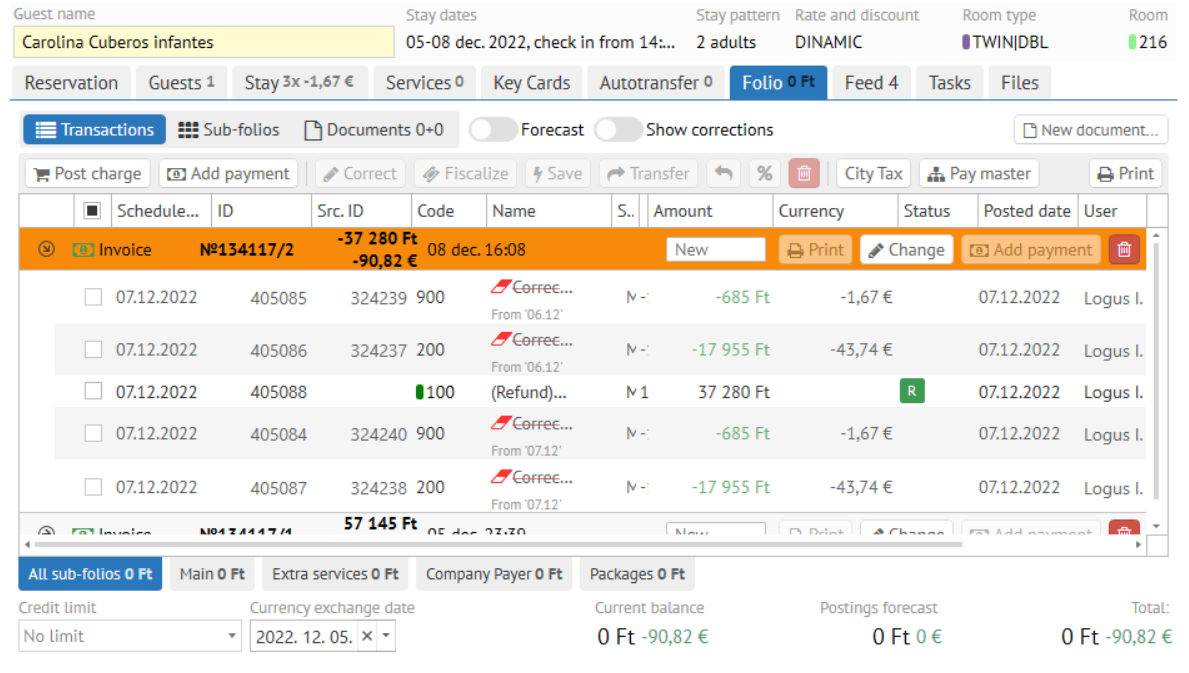
This guide walks you through the process of refunding of previously posted transactions
Please, make sure to follow the instructions below in case you
...
have an invoice that needs to be corrected.
| Note |
|---|
| Be sure to change the Currency exchange date in the folio first. |
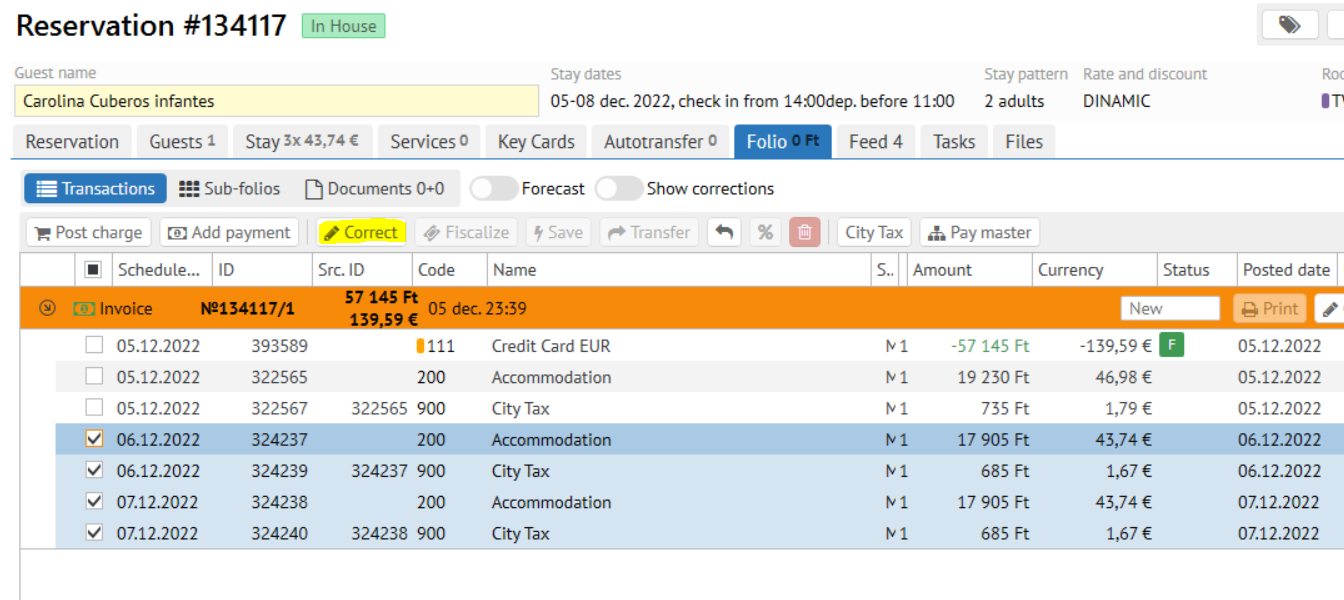
- Go to Folio section
Tick the posted earlier transactions
Open an invoice and mark the required revenue transactions
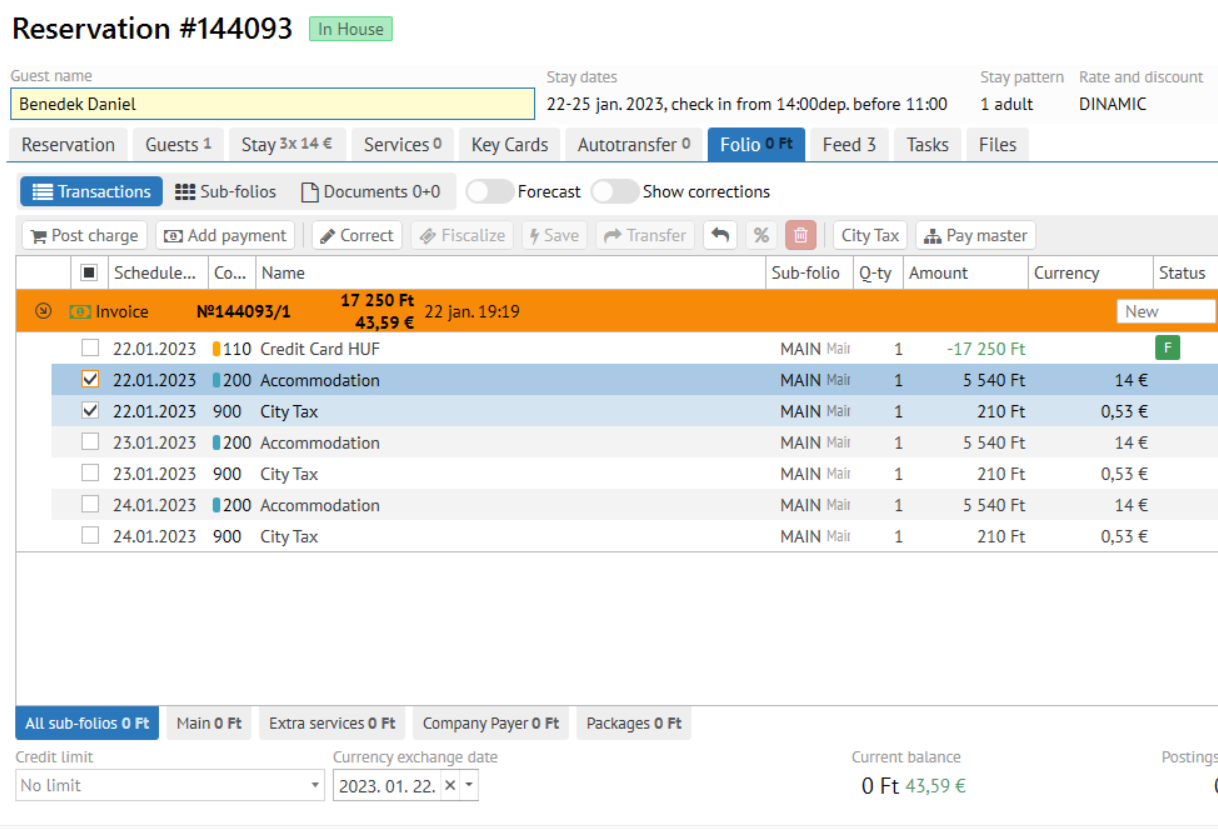
3. Click Correct button
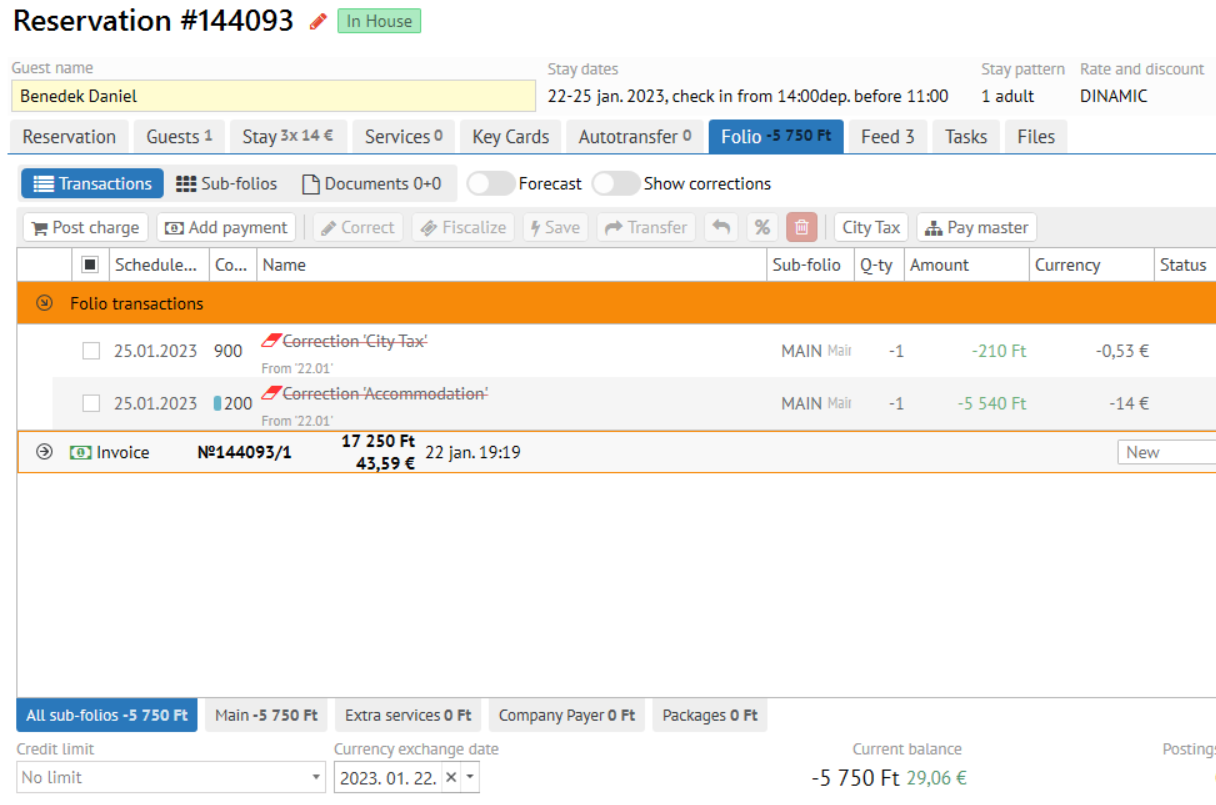
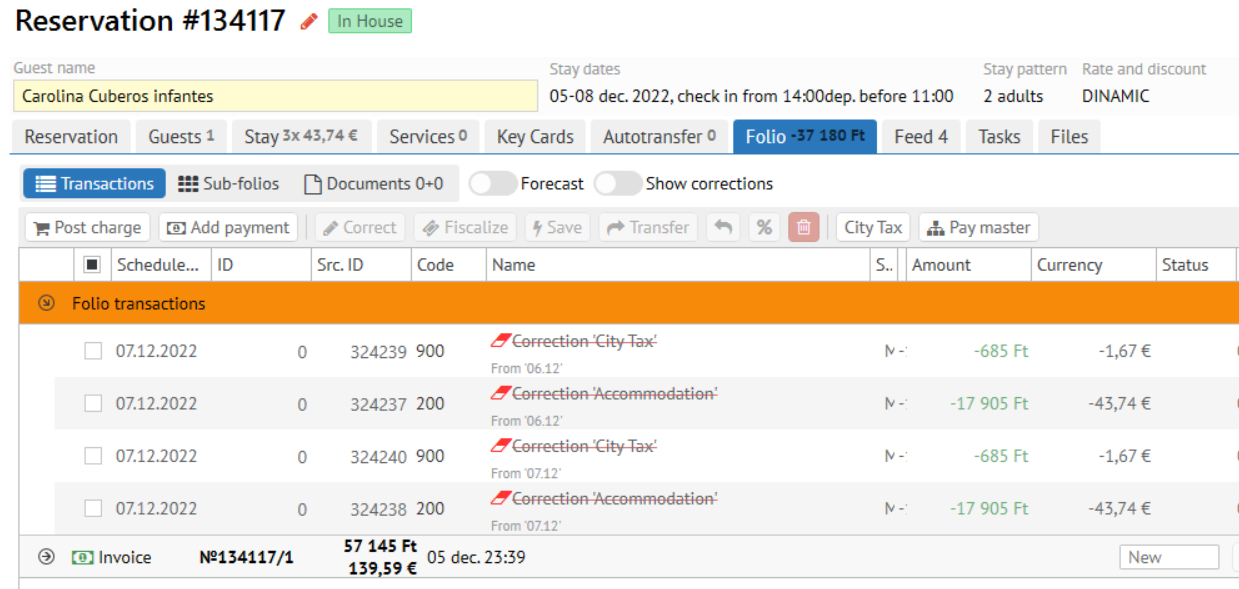
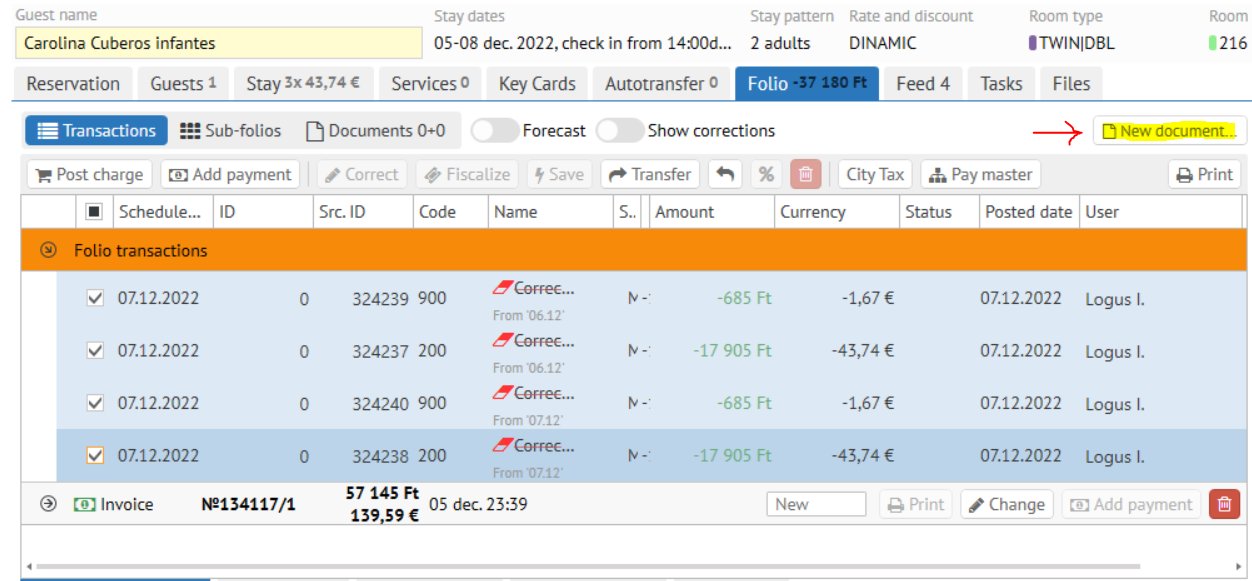
- Tick the corrections
Click New document button - Choose "Invoice"
Include new correction transactions in the invoice
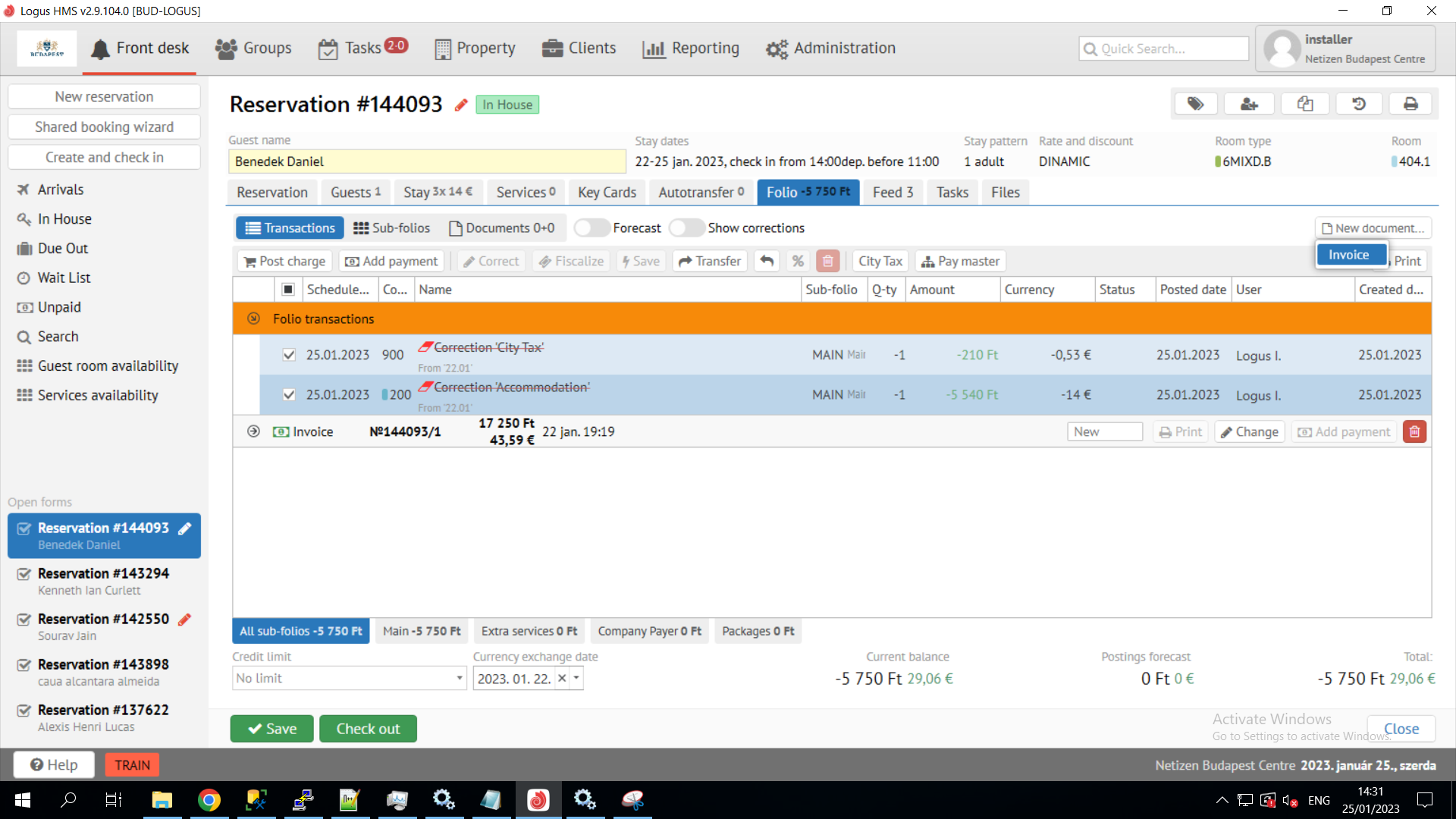
- Make sure the currency exchange date in the invoice is right
- Confirm an Invoice creation
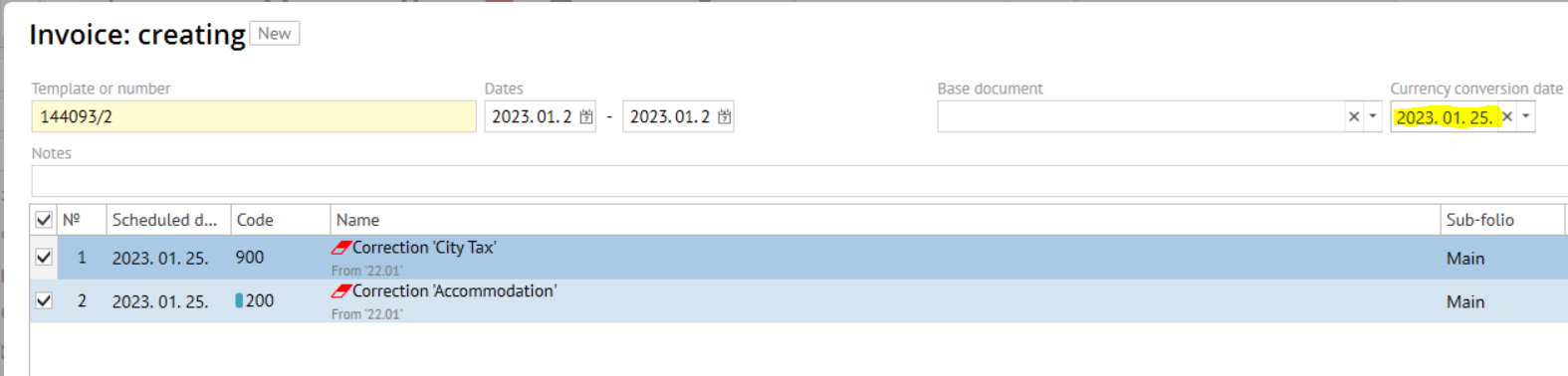
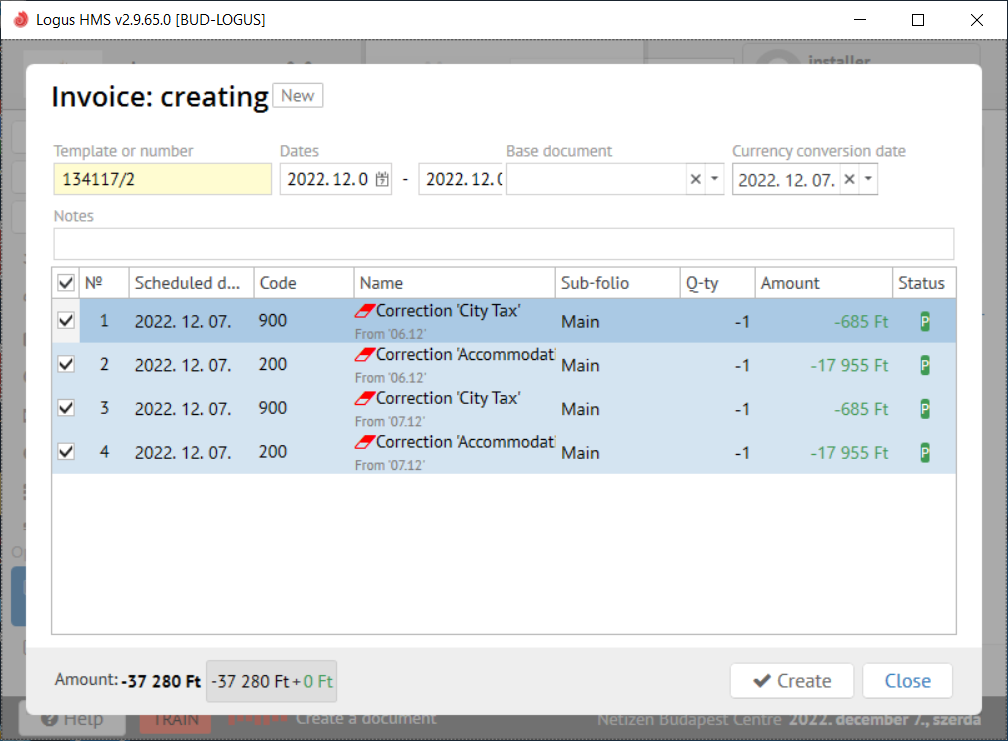
Info Invoice creation will recalculate the local currency amount in the already posted transactionsWhen creating an invoice, the amount in local currency will be recalculated and an exchange rate correction transaction will be added, if necessary.
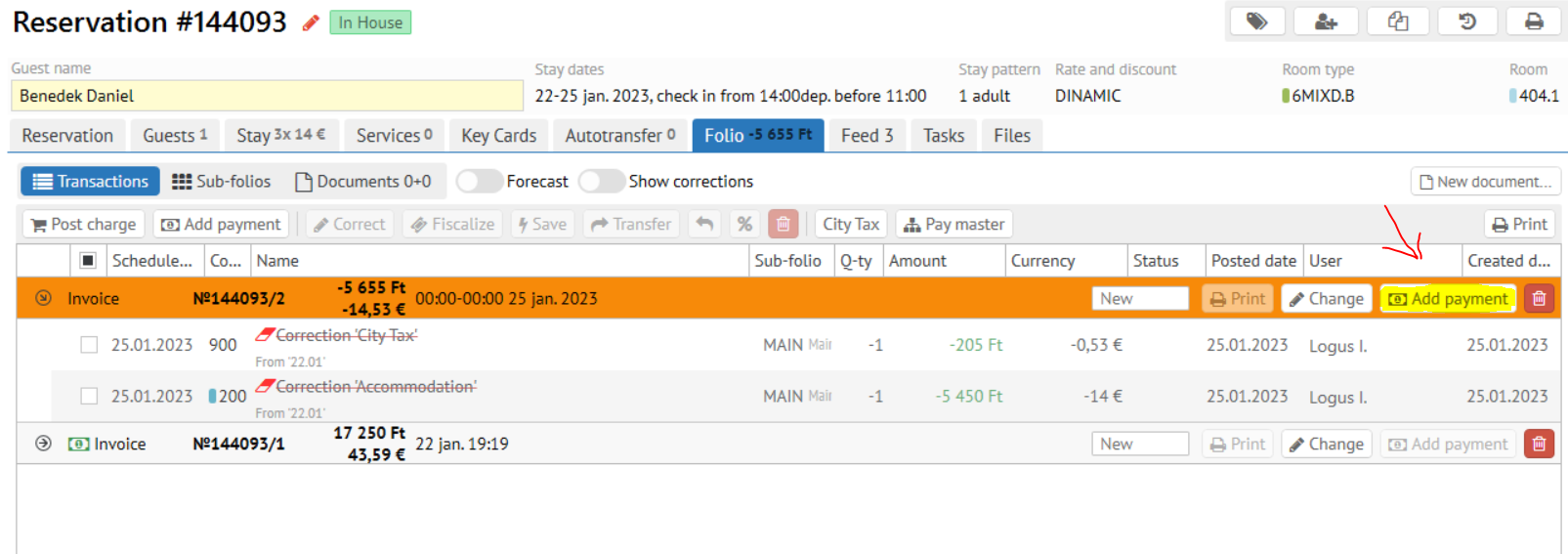
- Now click the "Add payment" button on the invoice generated and select the desired payment method like it shown on the screen below
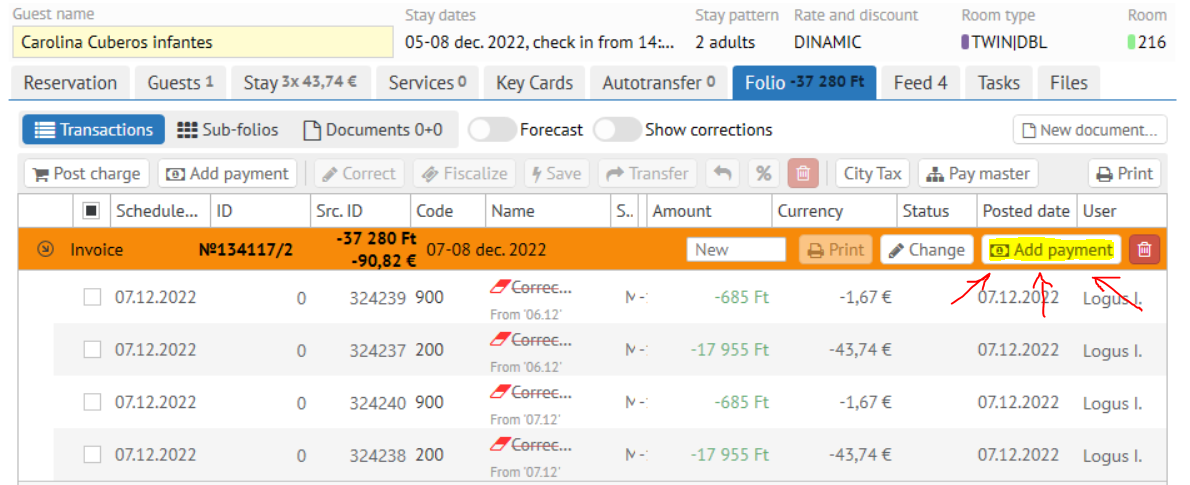
- Pick the necessary HUF payment method / Accept the payment
- Pick the desired invoice fiscalization method
- Confirm the payment fiscalization.