...
In "Tags" bar you can enter tags to reduce reservation list. New reservation list will form according to tags attached to reservations.
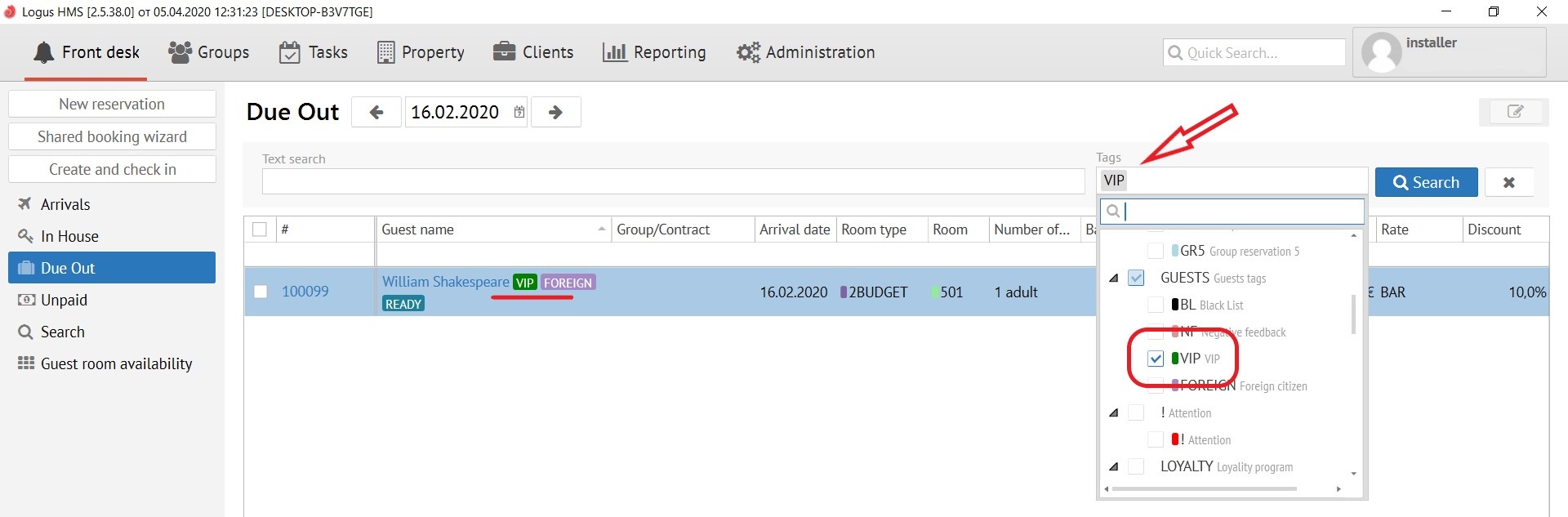
If you need to make changes for several reservations, use "Batch change reservations". To activate this button you should mark by tick several reservations. 
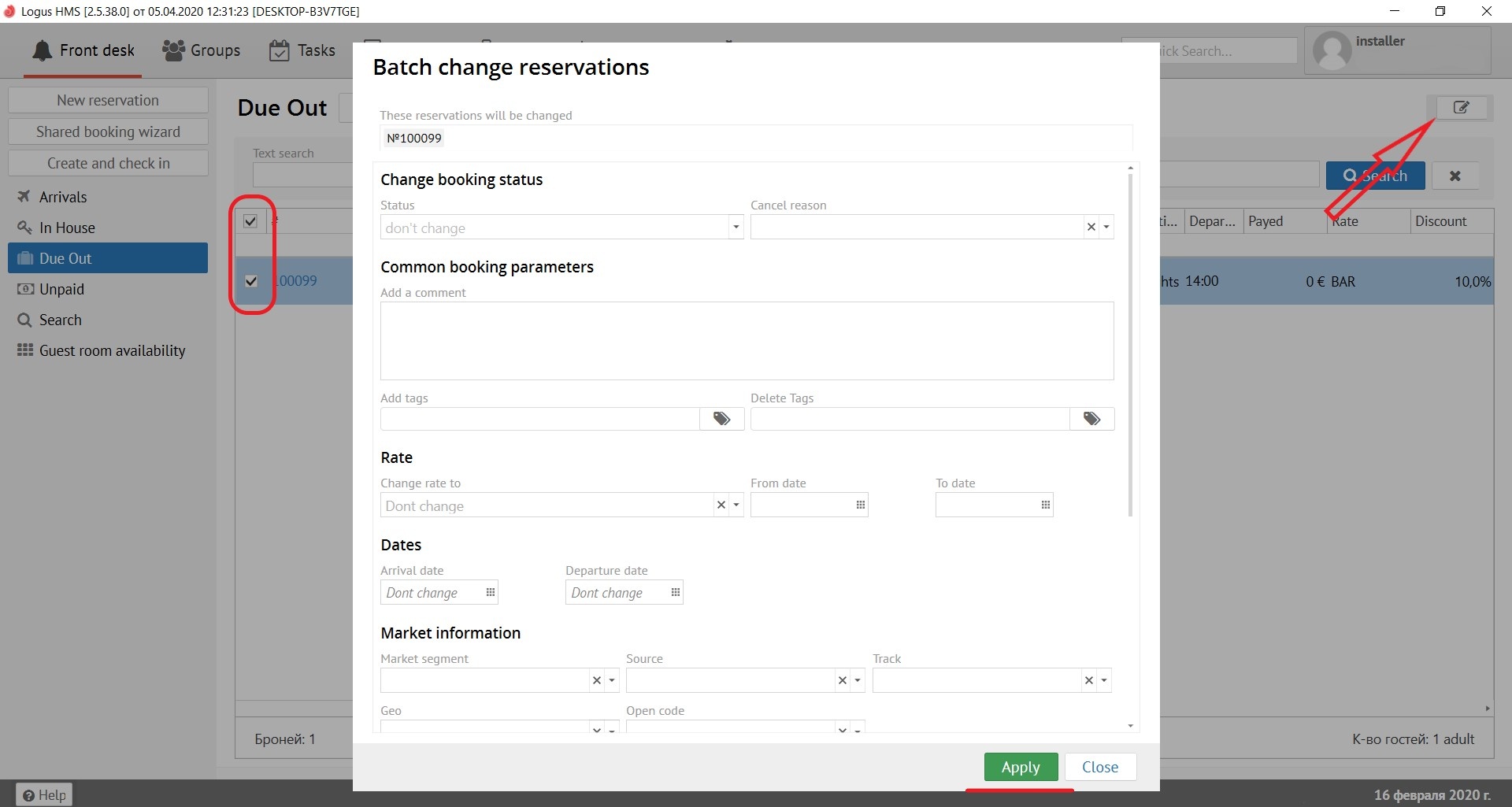
"Change booking status"
Status - change a status of reservation (Check-in, Check-out or Cancel)
Cancel reason - if you choose "Cancel" in previous paragraph, choose the reason of cancelation.
"Common booking parameters"
Add a comment - add a comment to reservations.
Add tags - add a tags to reservations.
Delete tags - delete a tags from reservations.
"Rate"
Change rate to - choose the new rate from list to which you want to change old one.
From date - change the rate from this date.
To date - change the rate till this date.
"Dates"
Arrival date - change arrival date.
Departure date - change departure date
"Market information"
Market segment - change market segment.
Source - change source.
Track - change track.
Geo - change geo.
Open code - change open code.
"Change price" (Notice! It's a button)
An automatic calculation by the rate - calculate the price of accommodation according to the rate.
New value - new price per a night/day
Currency - new currency.
Change reason - the reason of change.
The dates of the change - the period of accepting changes.
"Create invoice"
Invoice type to create - choose the invoice type, which you want to create in reservation's folio.
Template or number - point to the number of template.
Skip if exists - skip if the template is already exist.
"Split reservations"
Split reservations - create a shared reservation.
After all changes press "Apply" button.