...
| Page properties | ||||
|---|---|---|---|---|
|
1. Work with Groups
Click the Groups tab to start working with "Groups":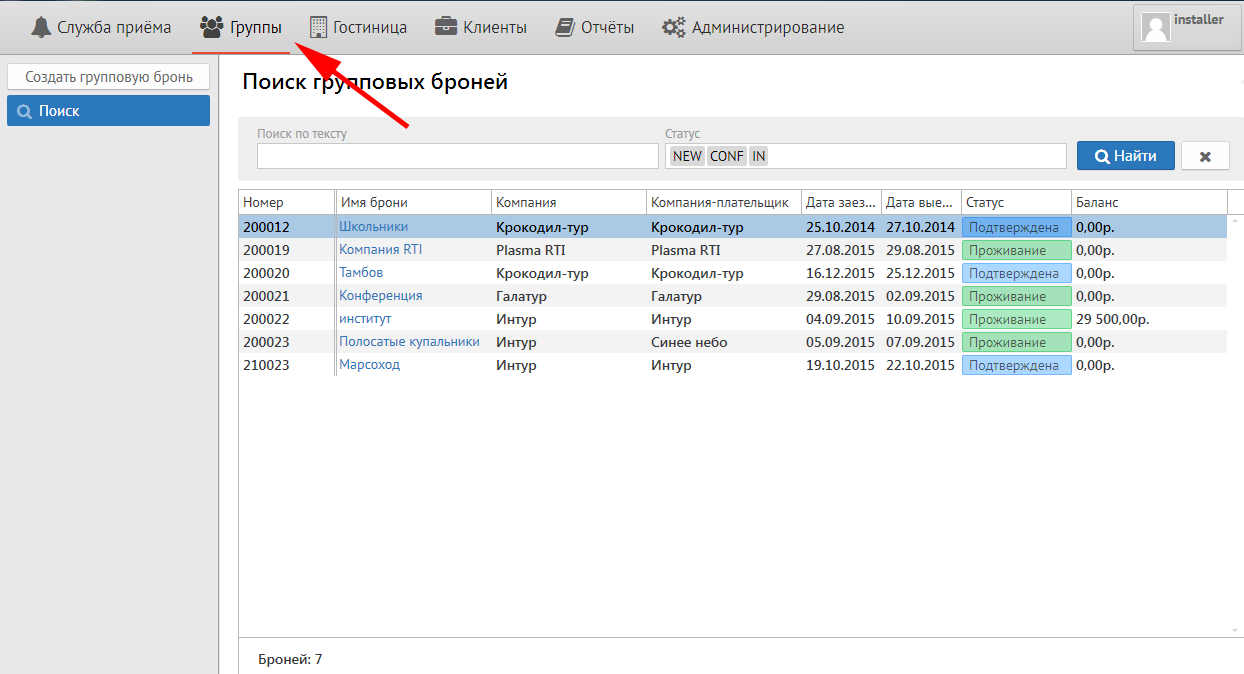

After that from the left will be three buttons:
1) New New group reservation
2) Search (This button follows to search group reservation with any status)
3) Blocks under pickup

2. To make a new group reservation
To make a new group reservation press the button "New group reservation". You will see the next screen:
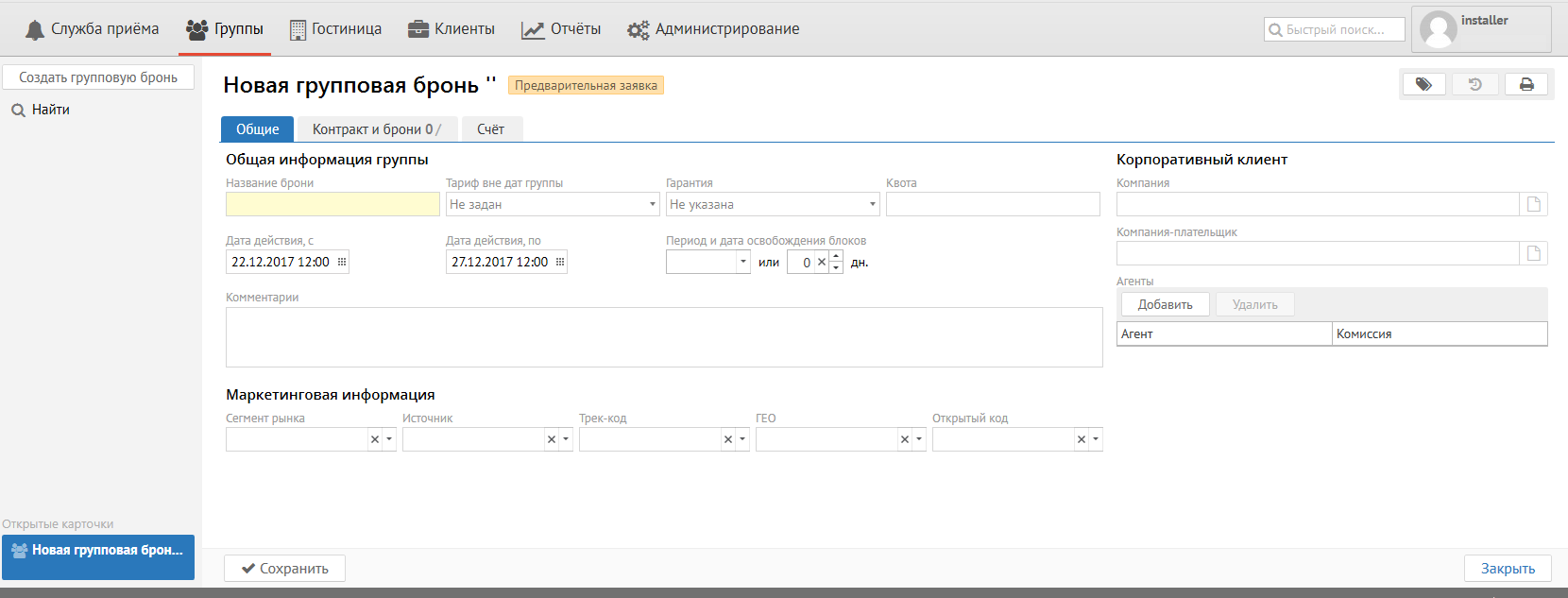
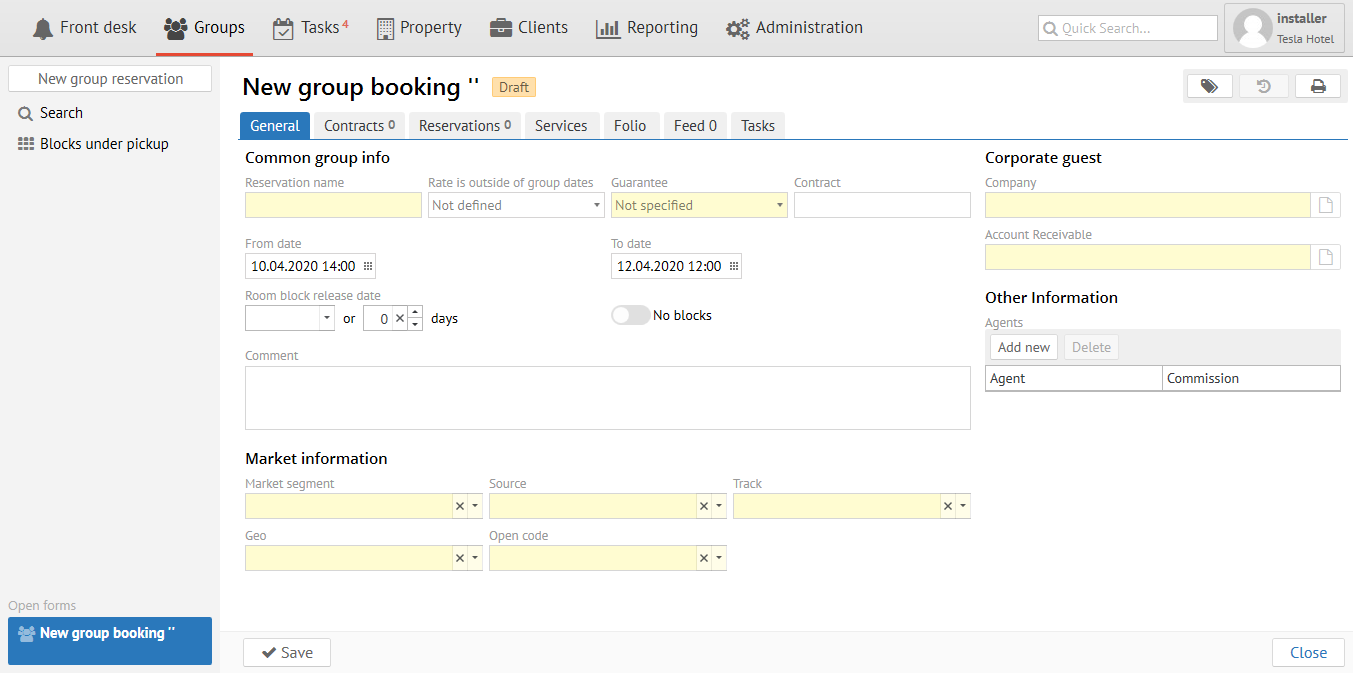
General It shoud be fill in the next fields in "General" tab:
Reservation name - Any name for group identification.
...
Room block release date - Date or quantity of days for release unpickable rooms for sale
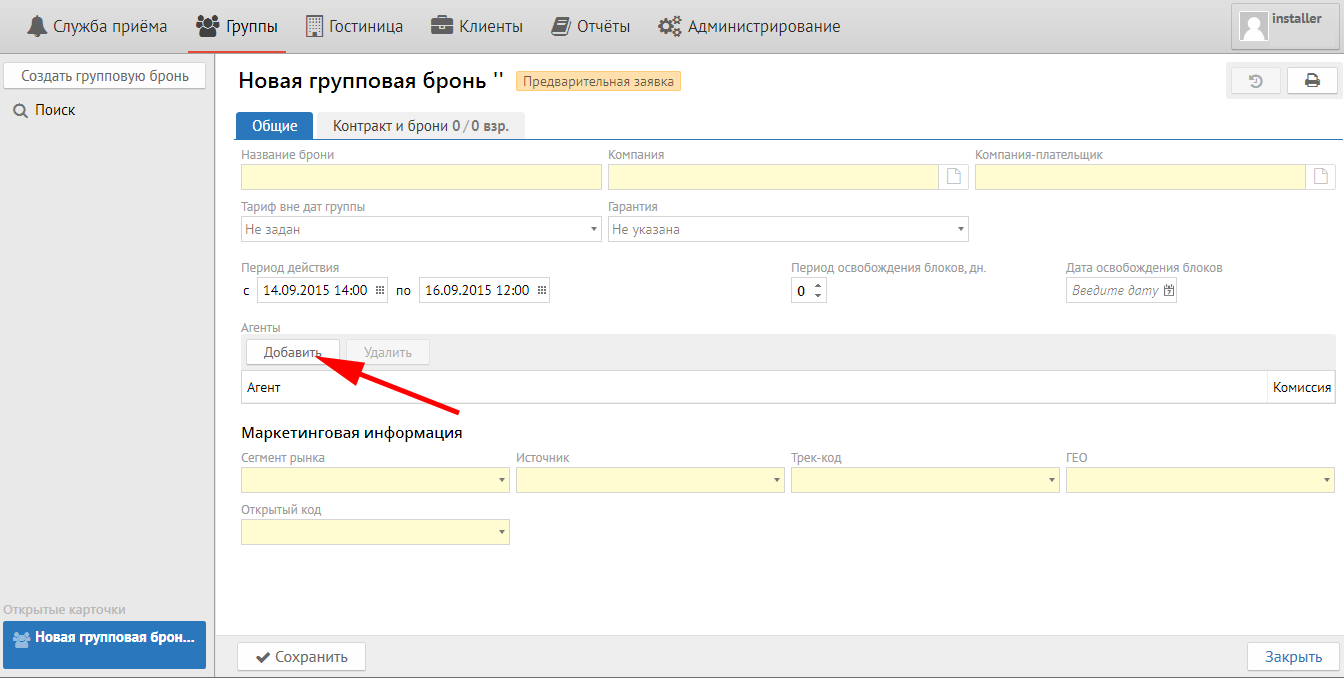
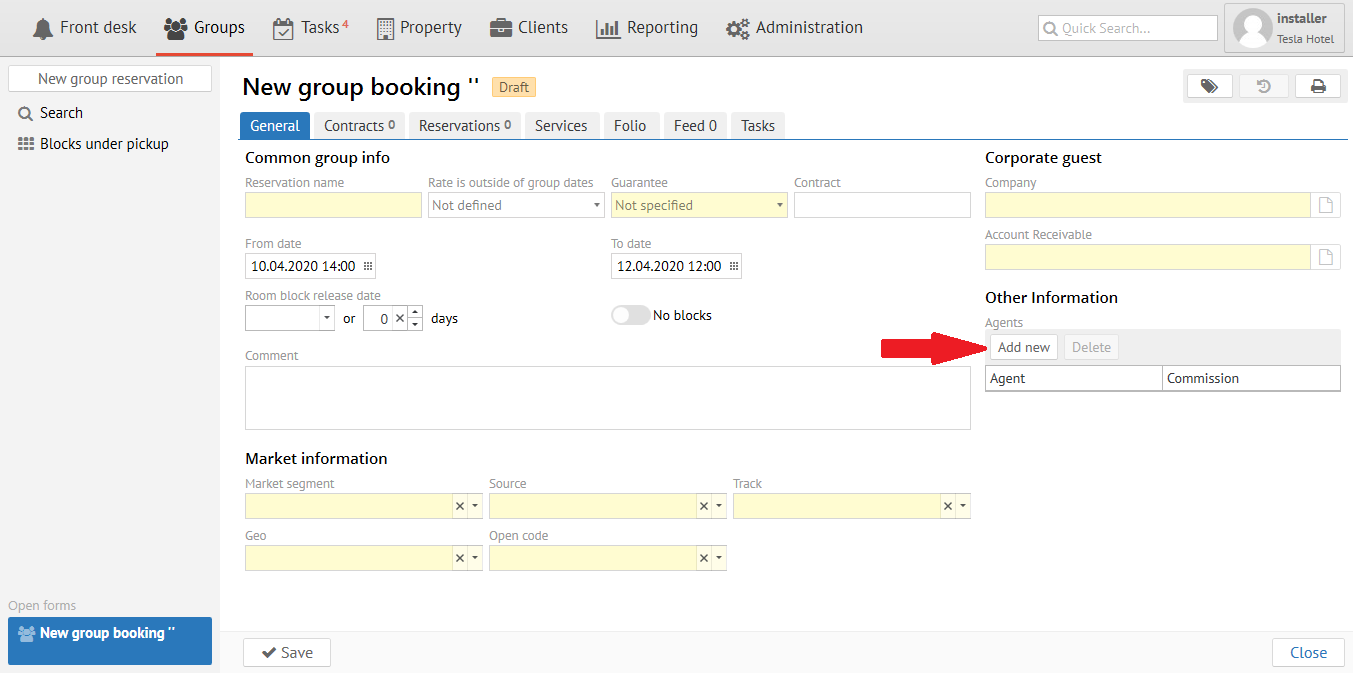
Agents:
Click "New" button and choose Agent from the list in special field in case of Group come from Travel Agency and you should pay comission.
Market information:
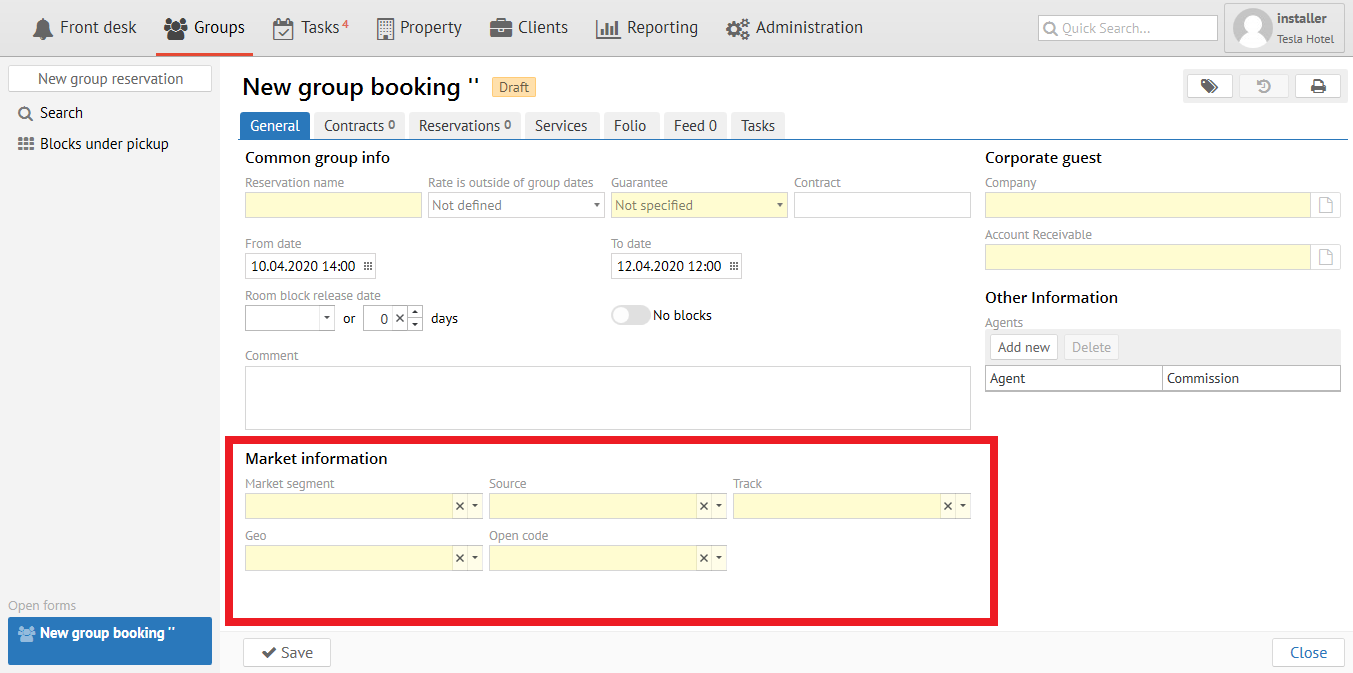
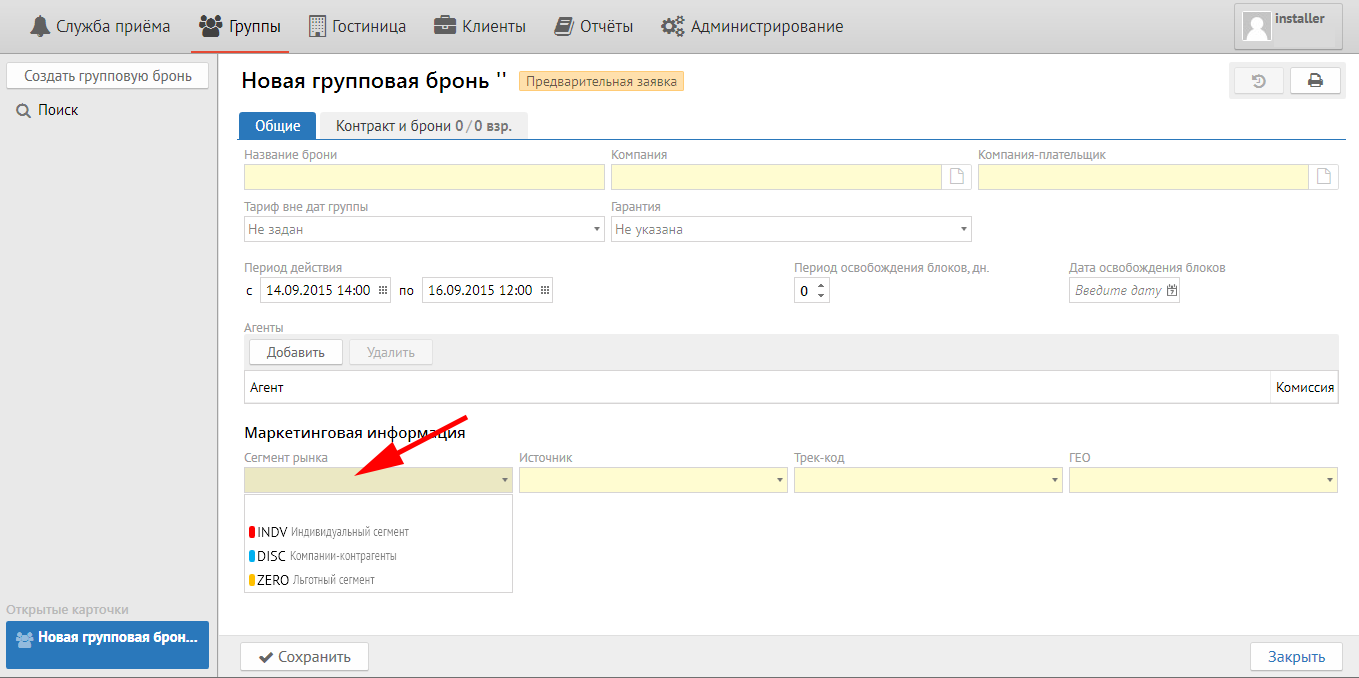
Market segment - segment of bussines
Source - source of reservation: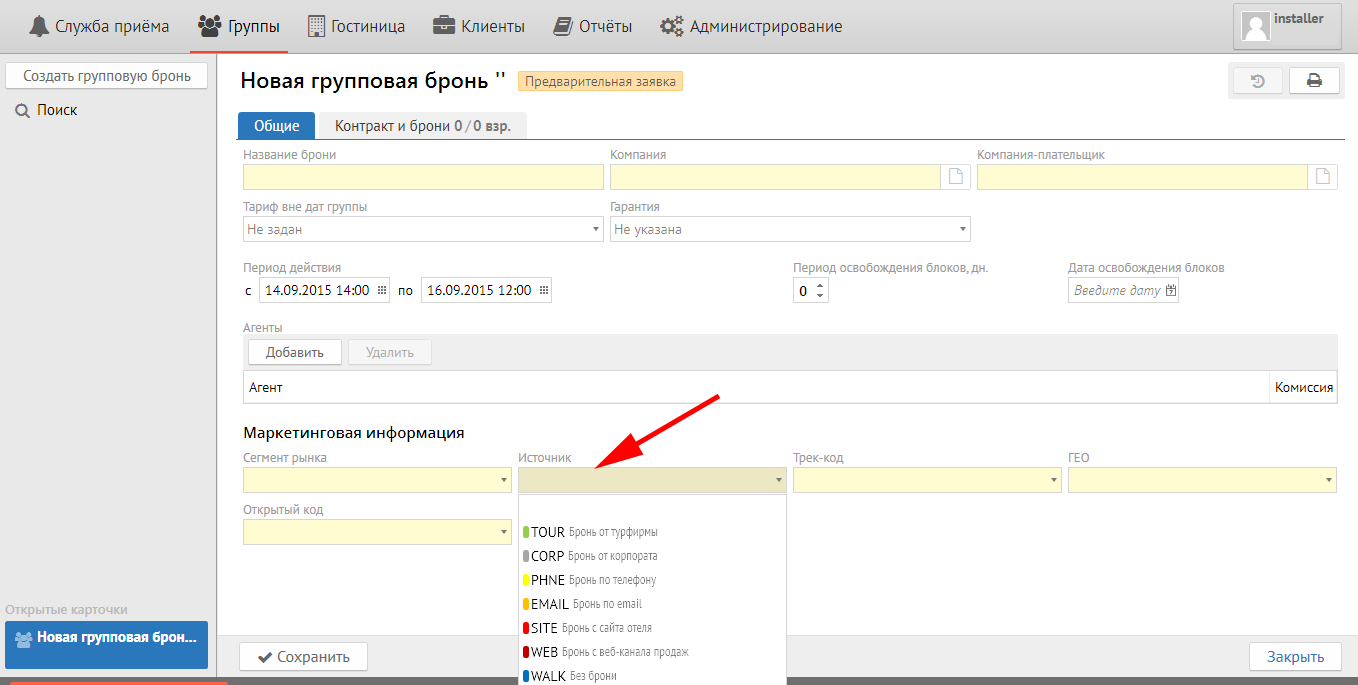
Track - purpose of visit at the hotel: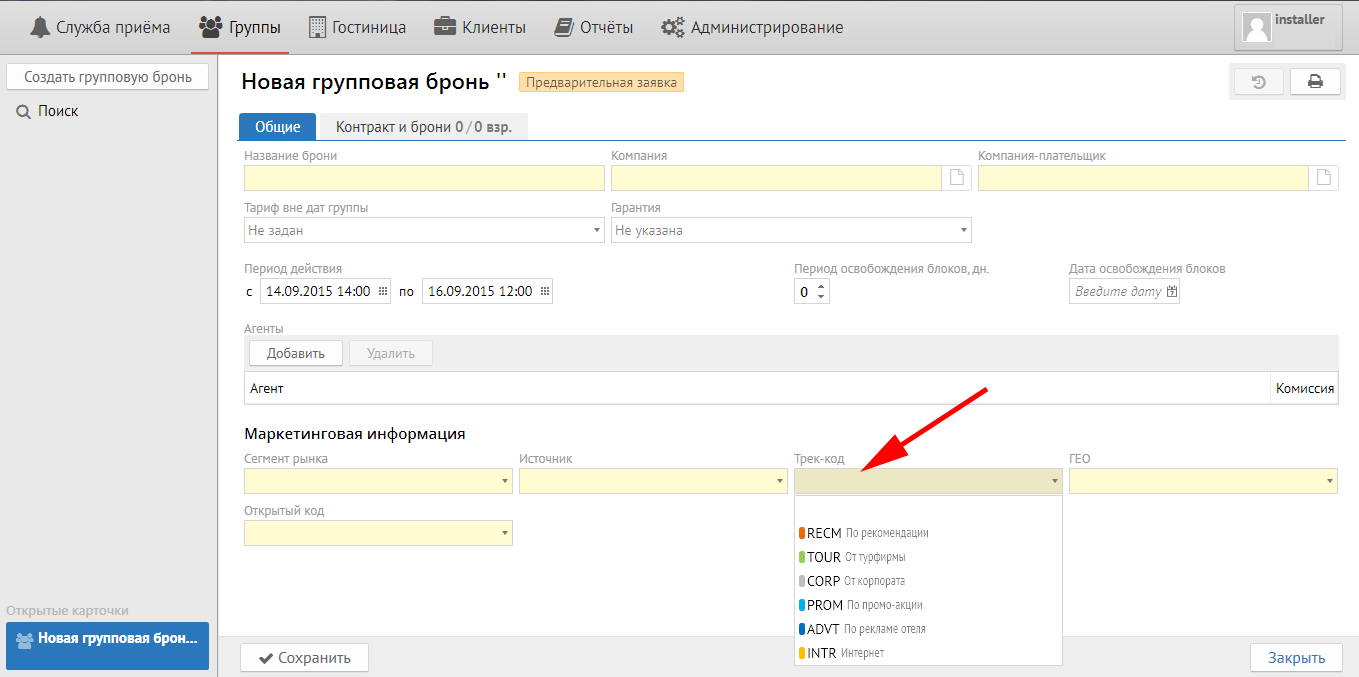
Geo- geografy of guest (country, region or city):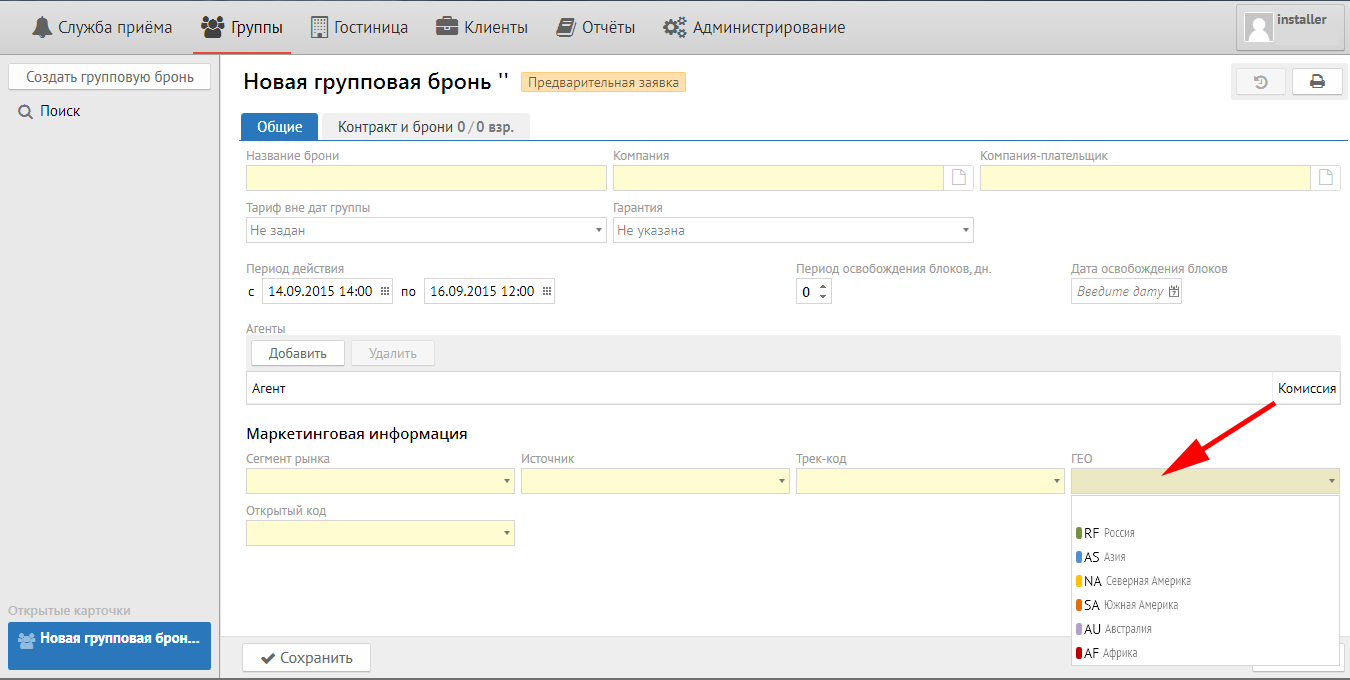
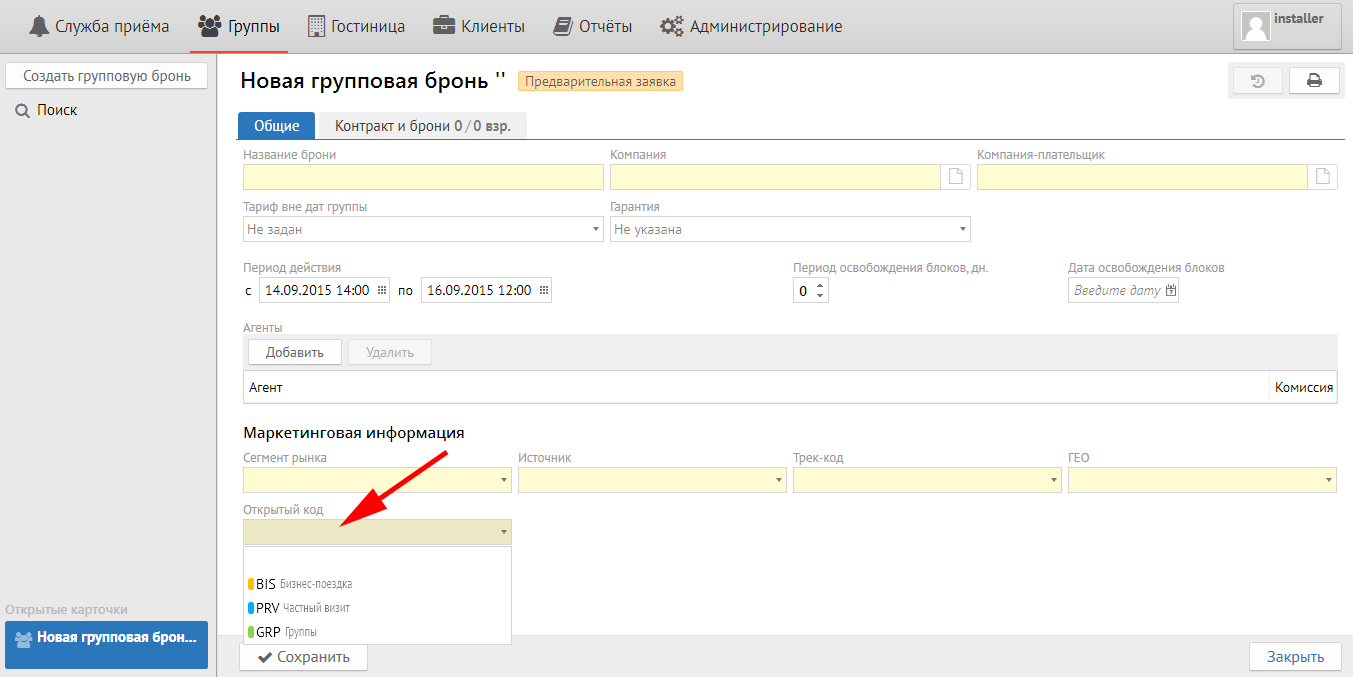
Open code - any information neccessary for hotel from Open code setup (purpose of visit, type of advertizing, company legal name, etc.):
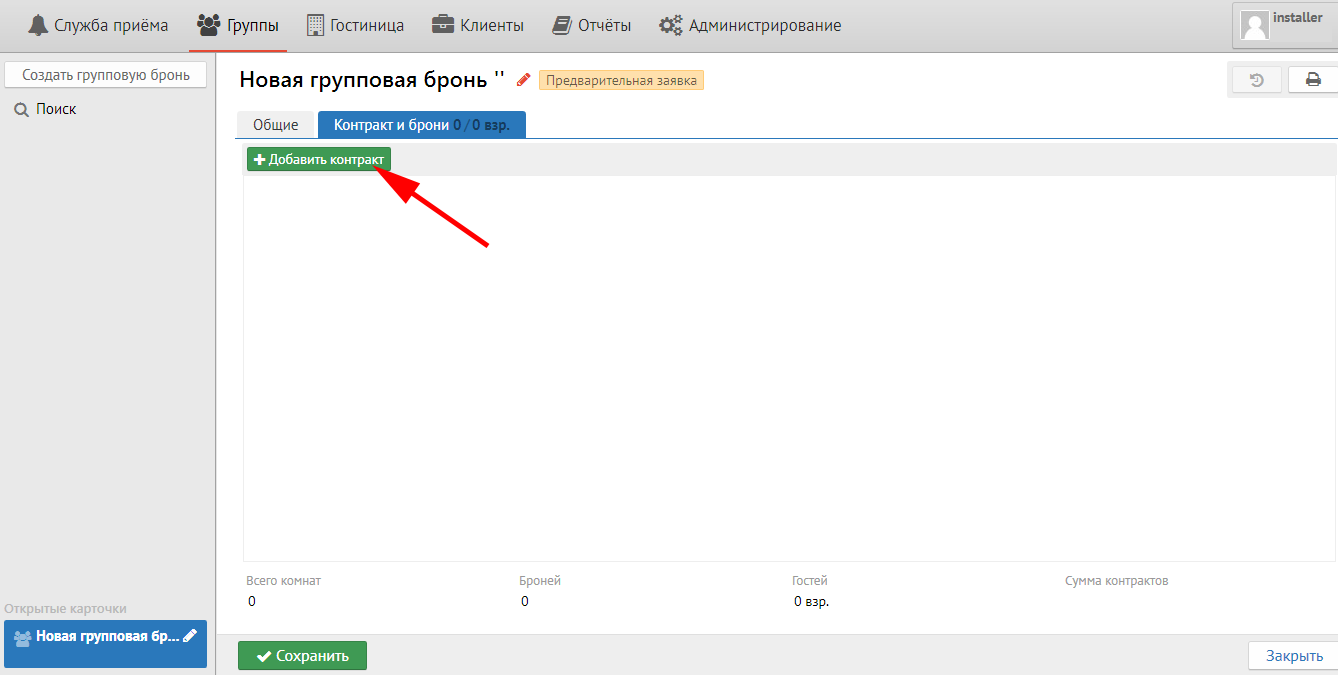
Вкладка «Контракт и брони»
Для того, чтобы добавить необходимый Вам контракт необходимо нажать кнопку "Добавить контракт"
Важно: сколько в группе вариантов размещения (даты, типы номеров, количество номеров), столько контрактов должно быть в группе.
После нажатия кнопки "Добавить контракт" у вас появится следующее окно:
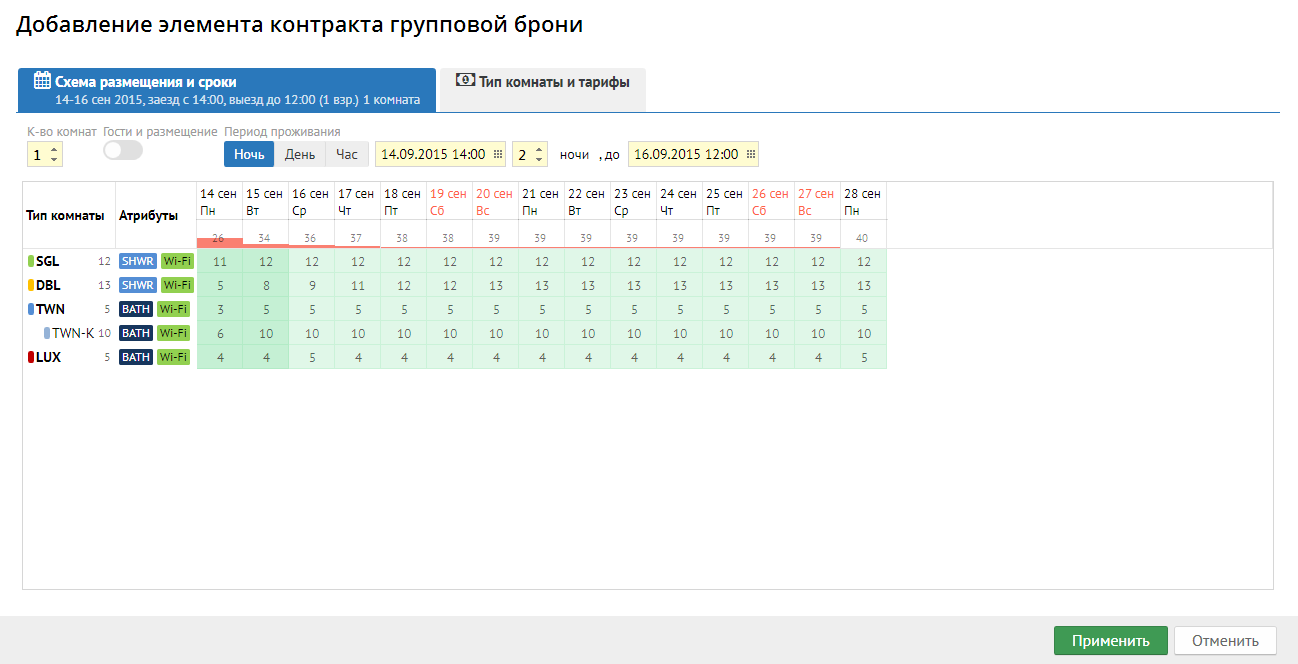
Во вкладке "Схема размещения и сроки":
К-во комнат - количество комнат, которые буду у вас в контракте.
Гости и размещение - количество гостей в каждой комнате. По умолчанию стоит та цифра, которая указана в настройке типа комнаты. При необходимости можно ее поменять, поменяв положение бегунка.
Период проживания - подтягивается из вкладки Общие (крайние даты). При необходимости данные можно поменять.
Во кладке "Типы комнаты и тарифы":
Тарифы и типы комнаты подтягиваются из настроек.
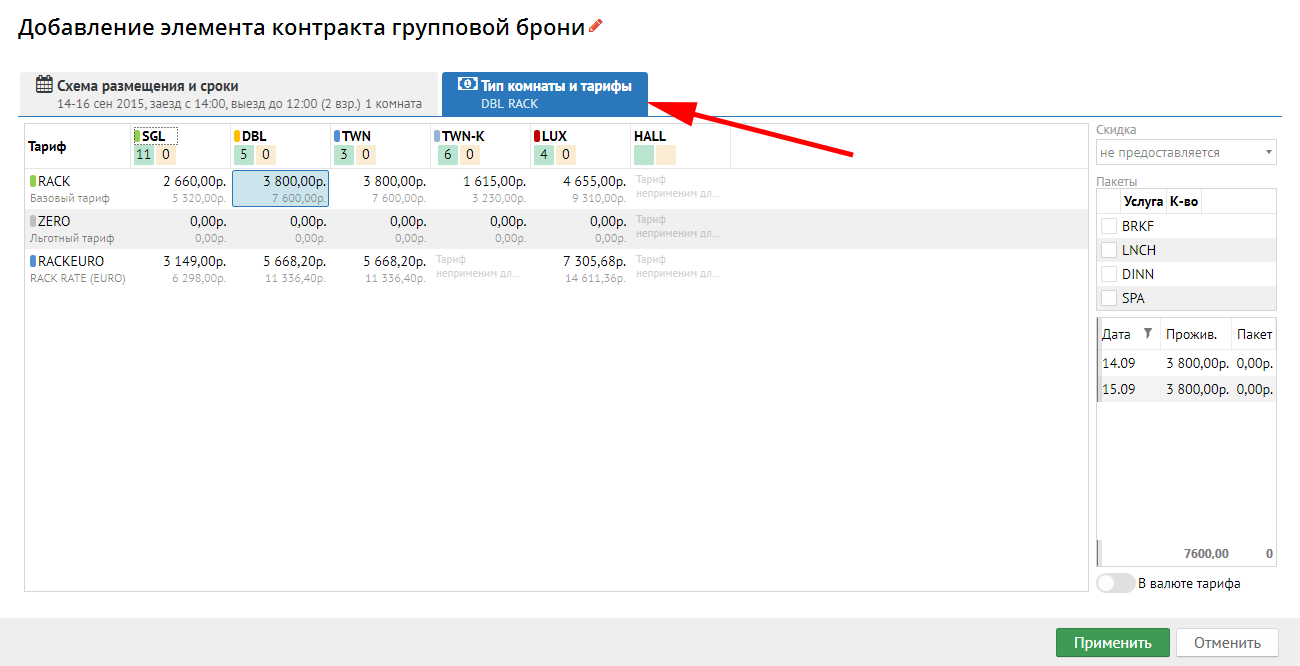
Далее нажимаем кнопку "Применить":
Появляется следующее окно, где появится ваш контракт:
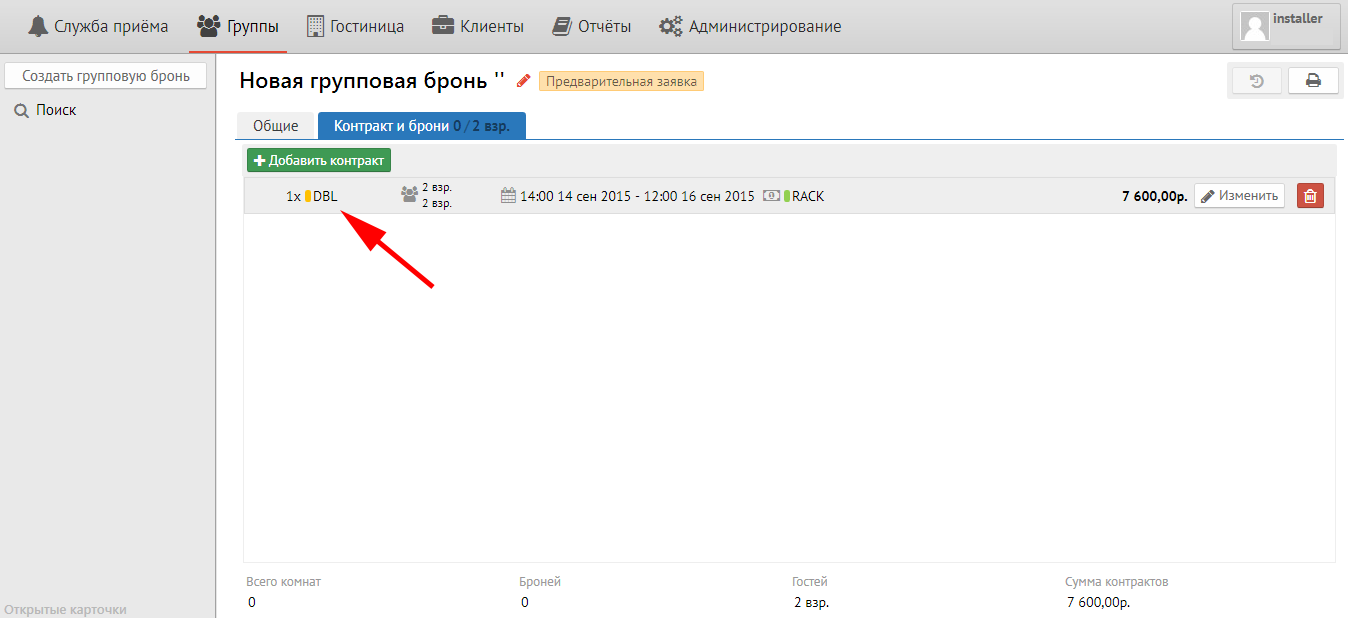
Кнопки:
Изменить - изменить существующий контракт.
 - удалить контракт.
После этого необходимо нажать кнопку «Сохранить».
Далее появятся еще 3 вкладки:
1) вкладка «Блоки»:
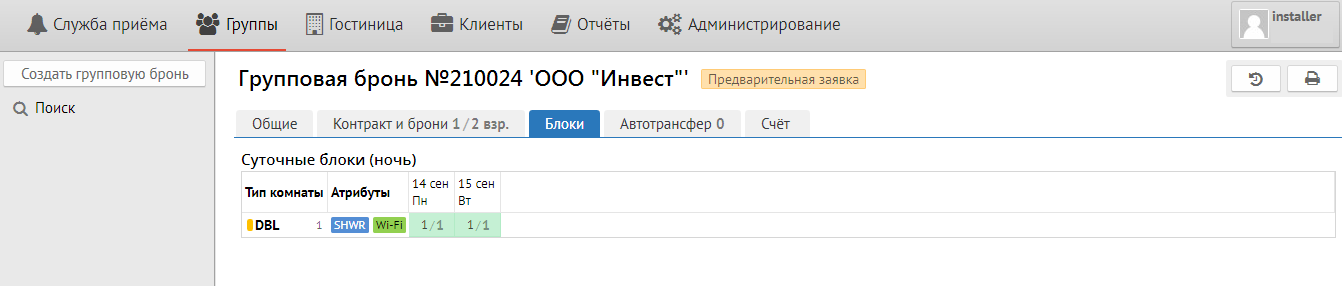
2) вкладка "Автотрансфер" - для добавления автотрансфера необходимо нажать кнопку "Добавить".
3) вкладка "Счёт" - групповой счет, где при настройке автотрансфера появляются начисления. Отличие от обычного гостевого счета - отсутствие кнопки «Прогноз».
Для того, чтобы контракт превратить в блоки, необходимо нажать кнопку "Подтвердить" внизу окна. После нажатия кнопки необходимое количество блоков будет заморожено из общего наличия комнат.
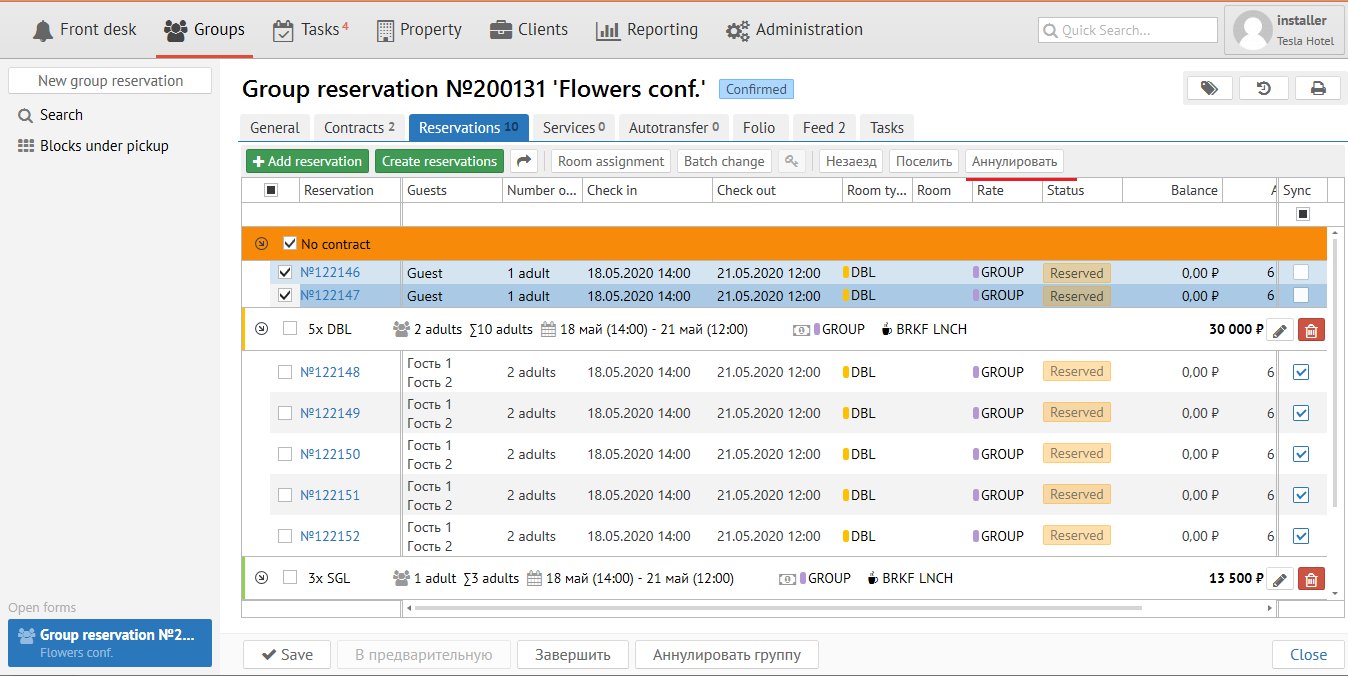
Чтобы превратить блок в бронь необходимо нажать кнопку "Создать брони". После этого появится следующая вкладка «Контракт и брони»:
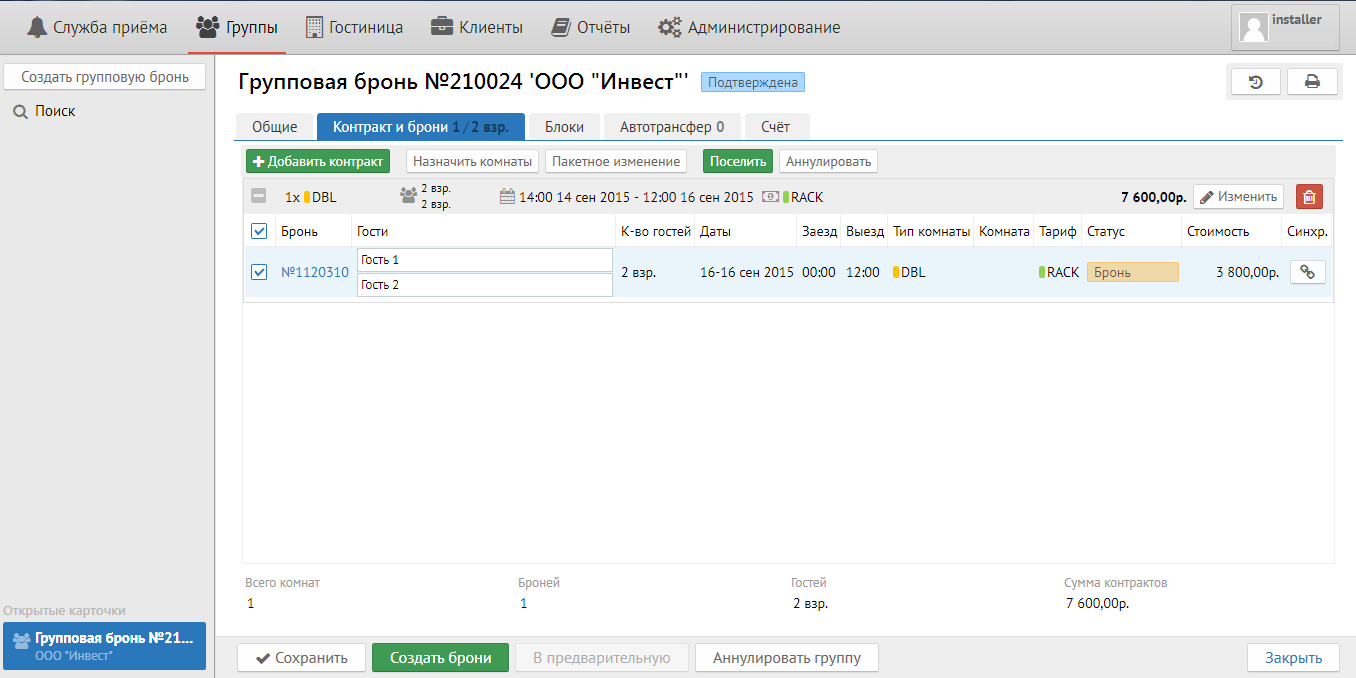
Кнопка "Добавить контракт " позволяет добавить новый контракт.
Кнопка "Назначить комнаты" дает возможность распределить полуавтоматом комнаты на групповые брони. При ее нажатии всплывает следующее окно:
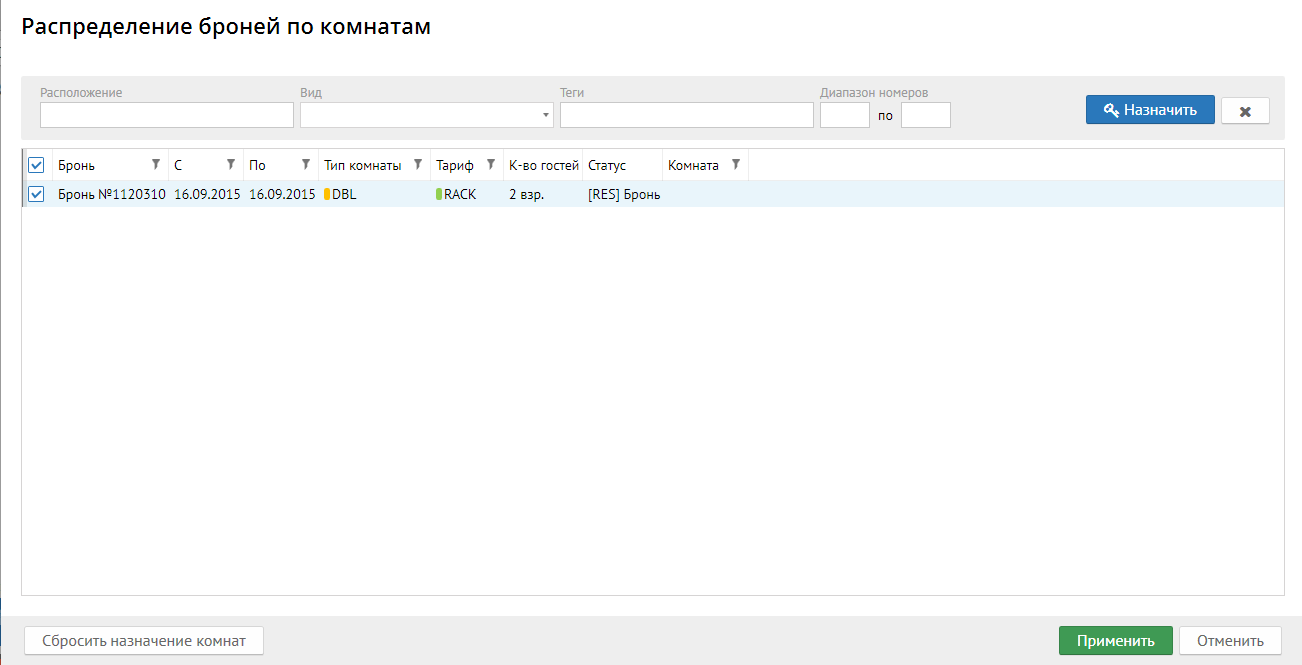
Поле "Расположение" - обозначает этаж и\или корпус.
Поле "Вид" - вид из окна комнаты.
Поле "Теги" - выводит необходимые вам теги.
Поле "Диапазон номеров" - позволяет назначить конкретный диапазон комнат.
Кнопка "Пакетное изменение" - при ее нажатии всплывает следующее окно:
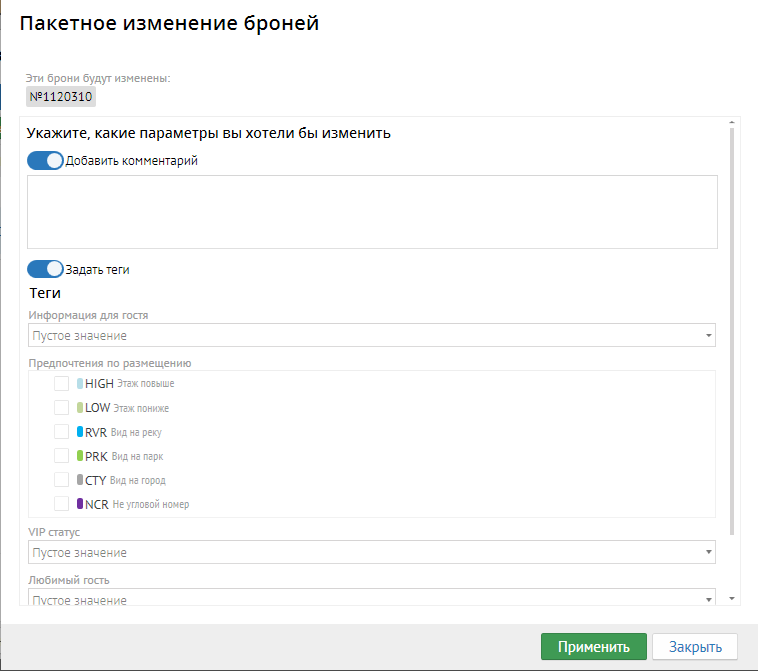
Кнопка "Добавить комментарий" - позволяет добавлять комментарий на выбранные (или все) брони.
Кнопка "Задать теги" - позволяет добавлять теги на выбранные (или все) брони.
Кнопка "Поселить" - позволяет поселить выбранные (или все) брони.
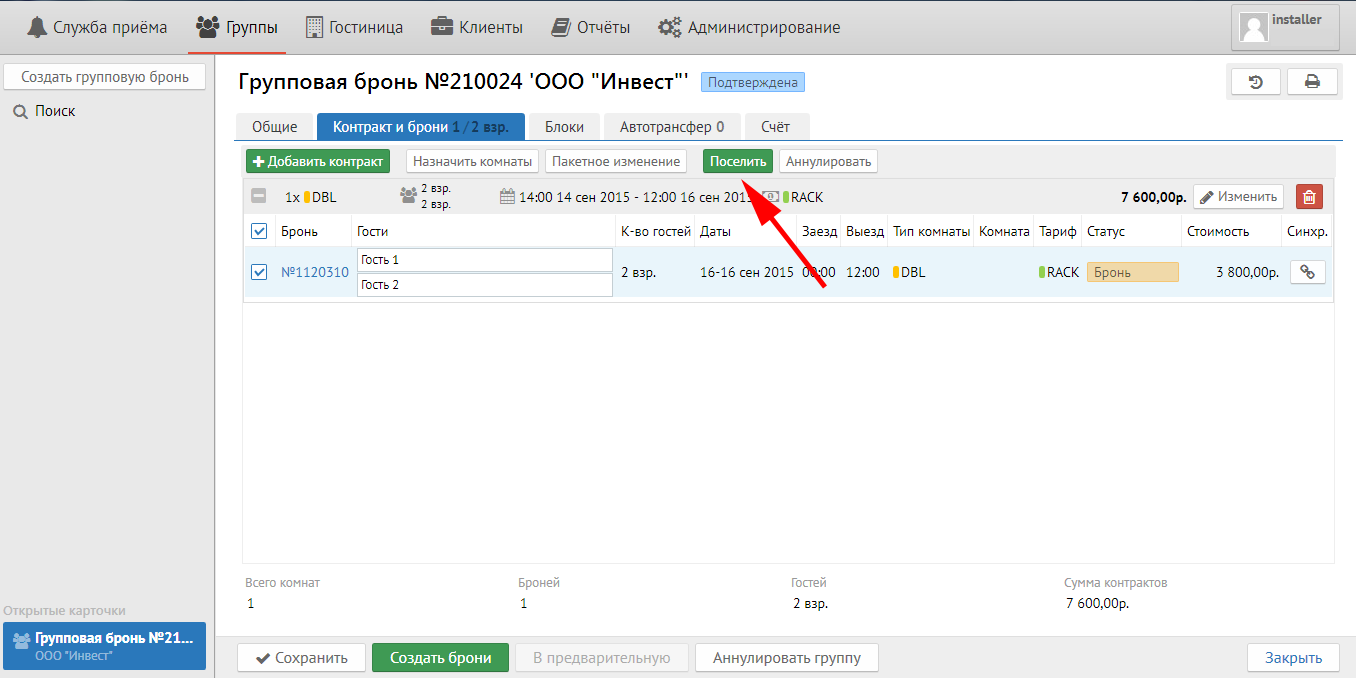
Кнопка "Аннулировать" - позволяет аннулировать выбранные (или все) брони.
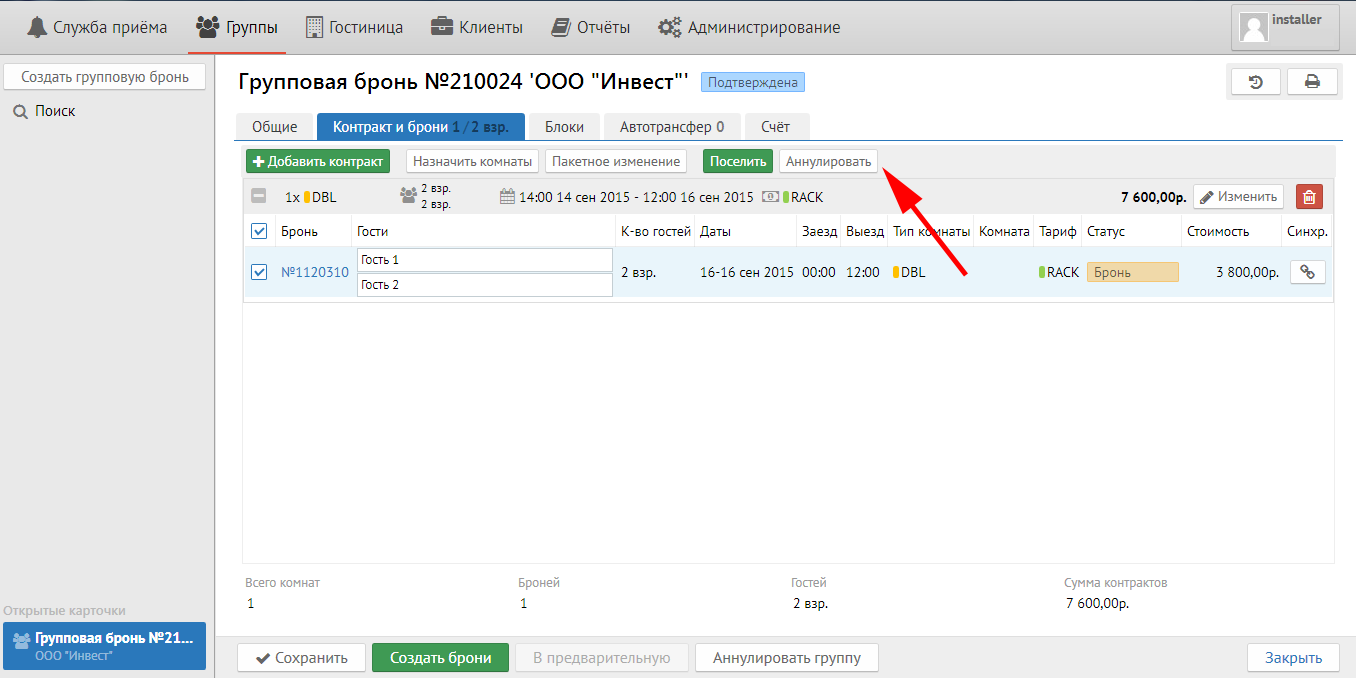
Contracts tab
Press "New contract" button for adding contract.
Important: quantity of accommodation variants is equal to quantity of contracts.
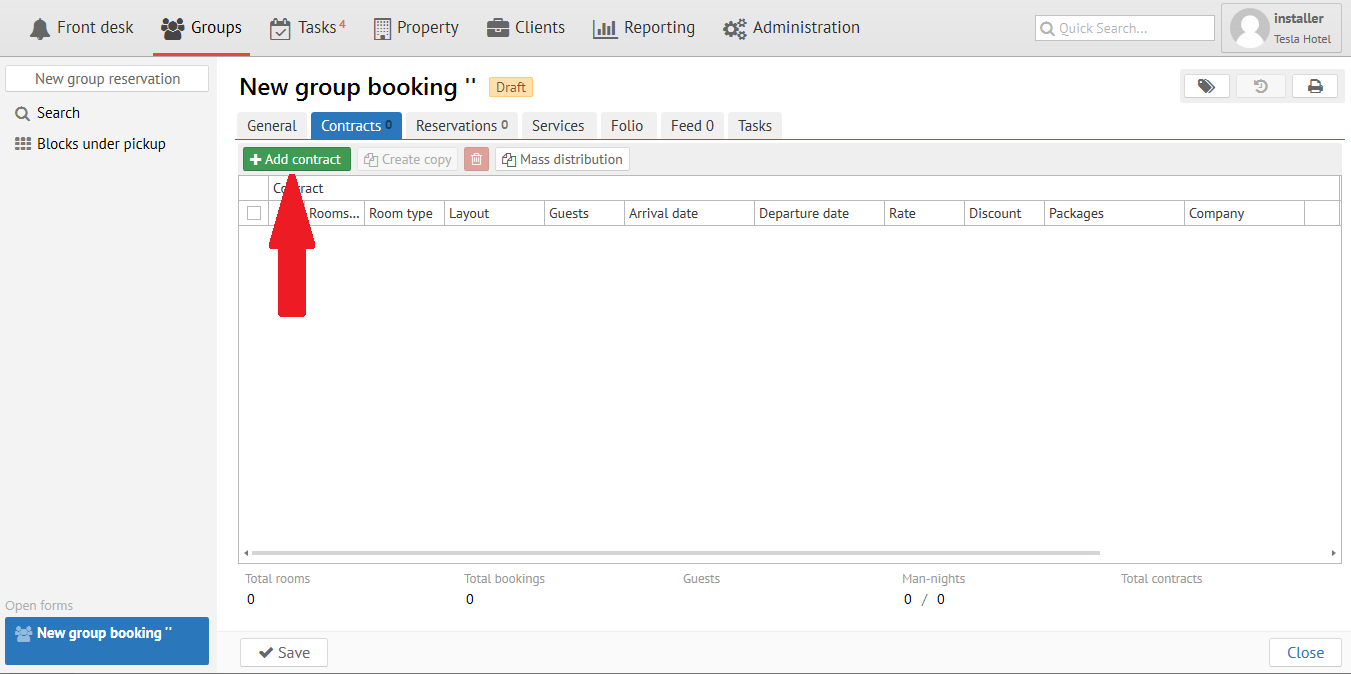
Then you will see the next sceen:
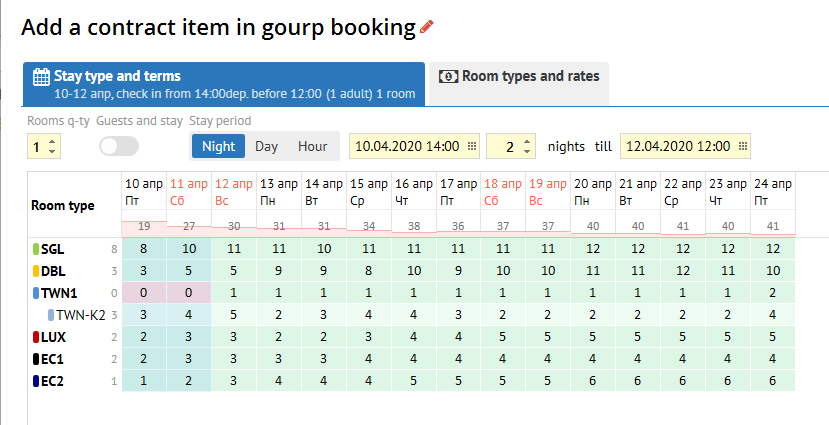
Stay type and terms tab:
Room q-ty - Quantity of rooms that will be in the Contract.
Guests and stay - Quantity of guests in each room.
Stay period - It is inherited from the General tab (first and latest dates) and it can be changed if it is necessary.
Room types and rates tab:
Room types and rates are inherited from Rate setup.
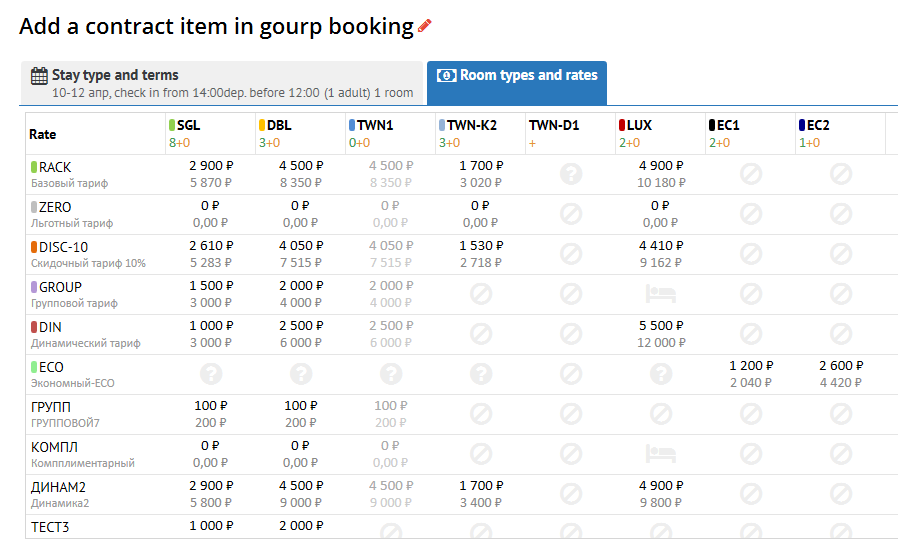
Then press "Apply":
Your contract will be added:
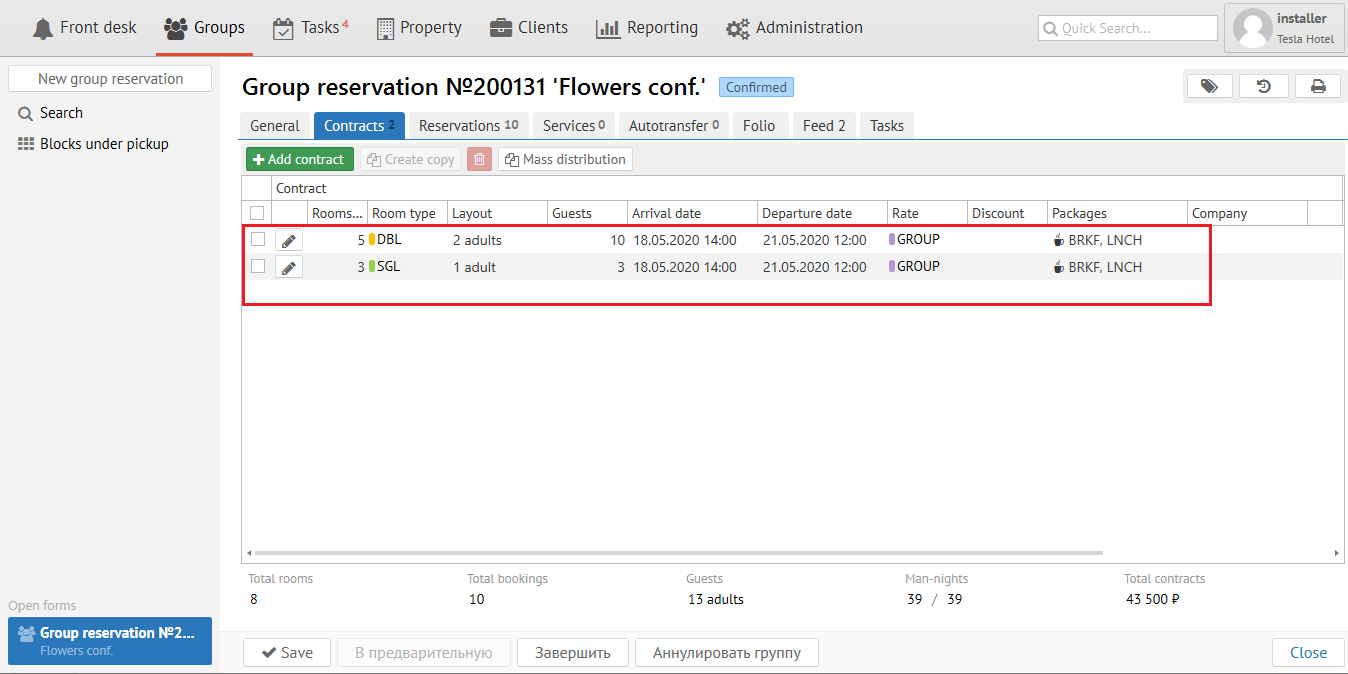
You can change contract if you click to  or highlight the contract
- delete the contract.
Then click «Save» button.
It is necessary to press "В предварительную" button for turning Contract to Block (change status for Confirm contract). After that necessary quantity of rooms (blocks) will be "frozen" for this Group.
"Add conract " button allows to add new contract.
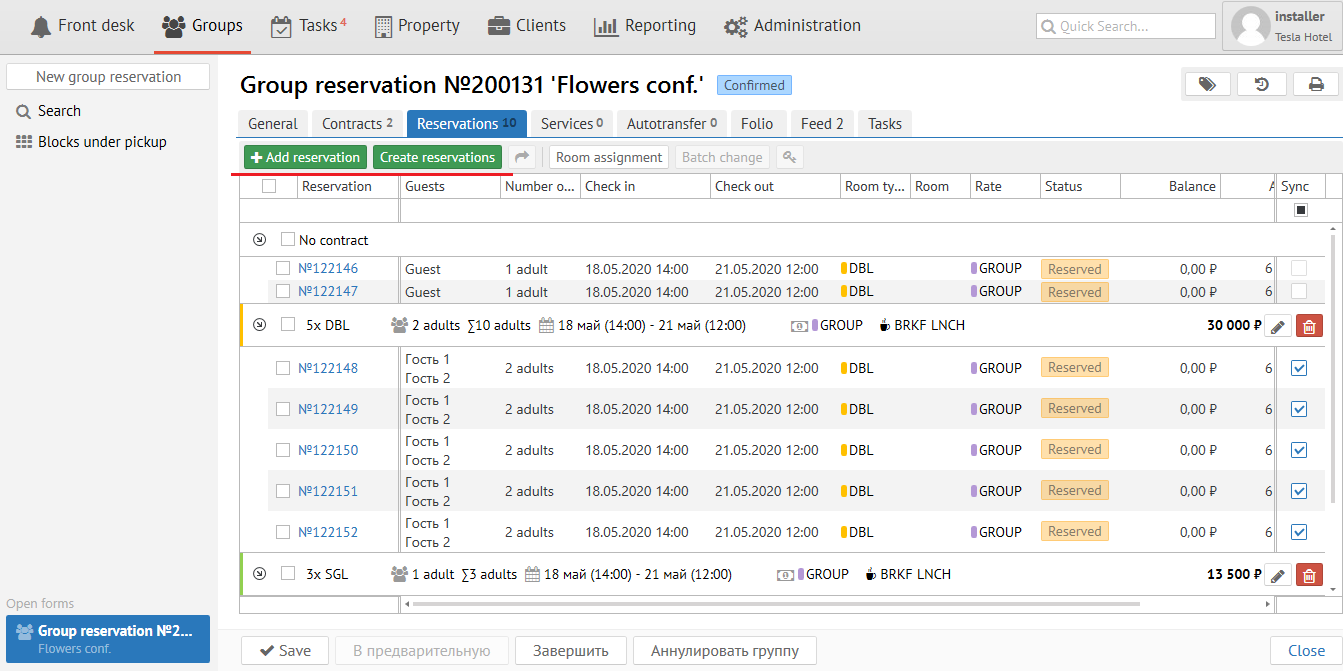
Reservations tab:
It is necessary to press "Add reservaton" to make new reservation.
It is necessary to press "Create reservaton" to turn block to reservation.
Services tab:
For add any new service click to "Add service" and you will see the next screen: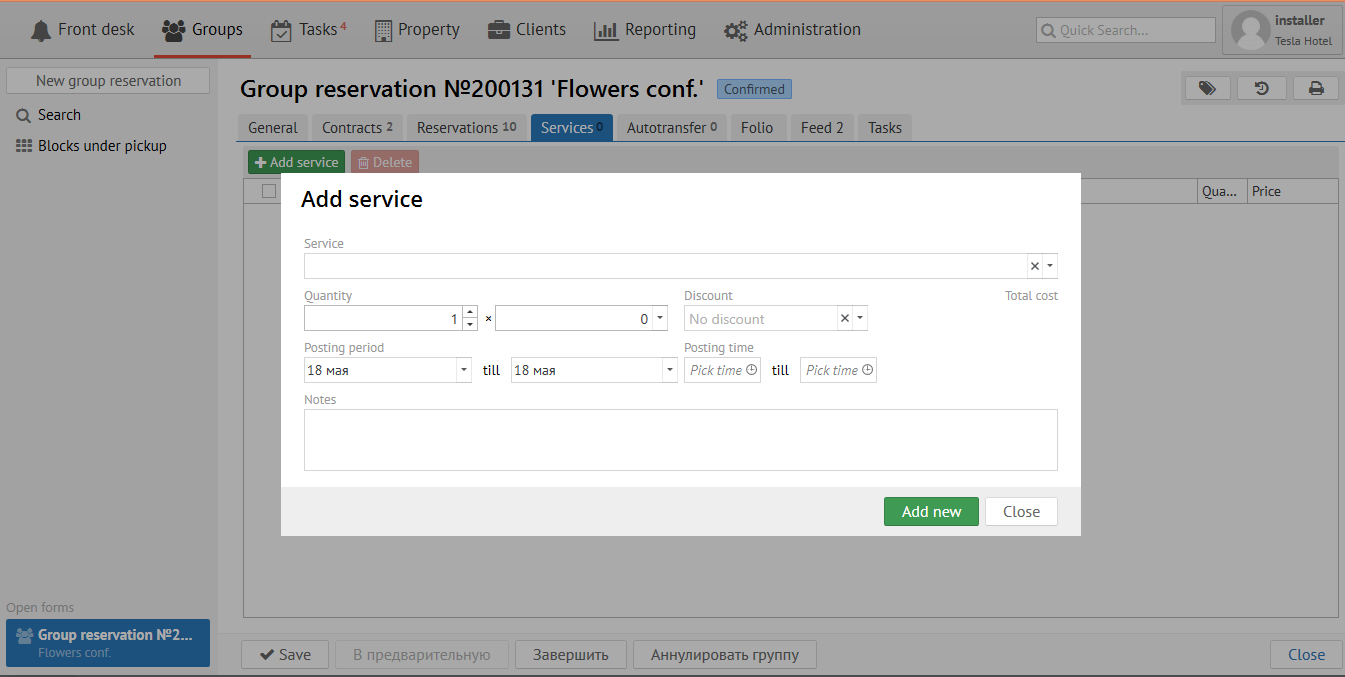
Choose any service from the list.
Autotransfer tab:
It is used for making instruction for posting any services for group folio (bill).
For adding autotransfer press "Add new" button and you will see the next screen:
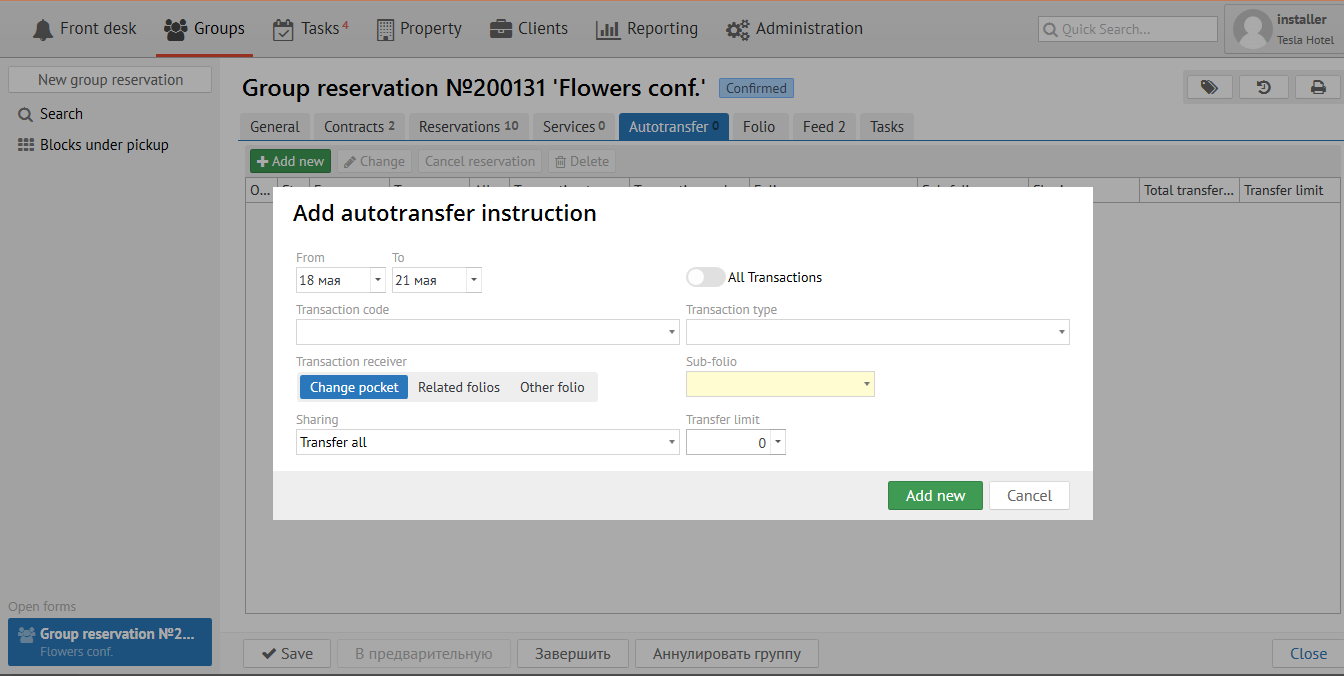
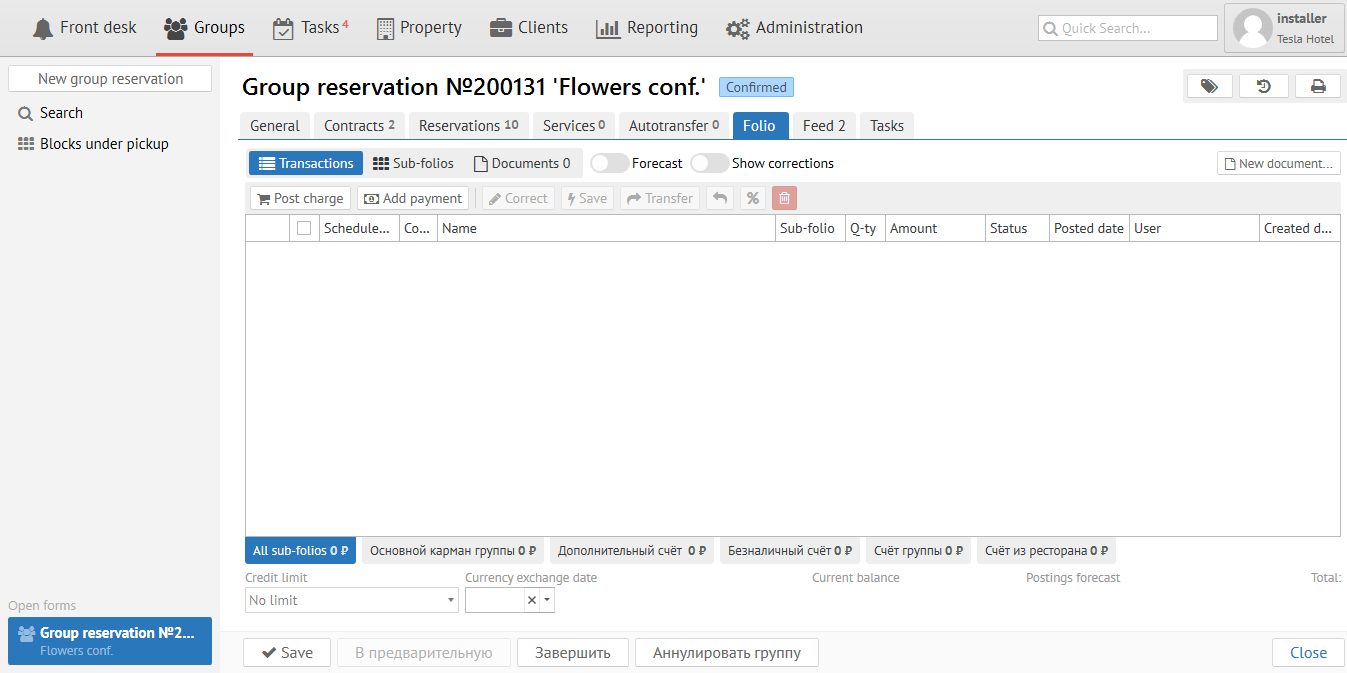
"Folio" tab - group folio (bill) where transactoins appear after Autotransfer setup.
Reservation tab
You can make reservations from contract here.
Press "Room assignment" button, then you will see the next screen:
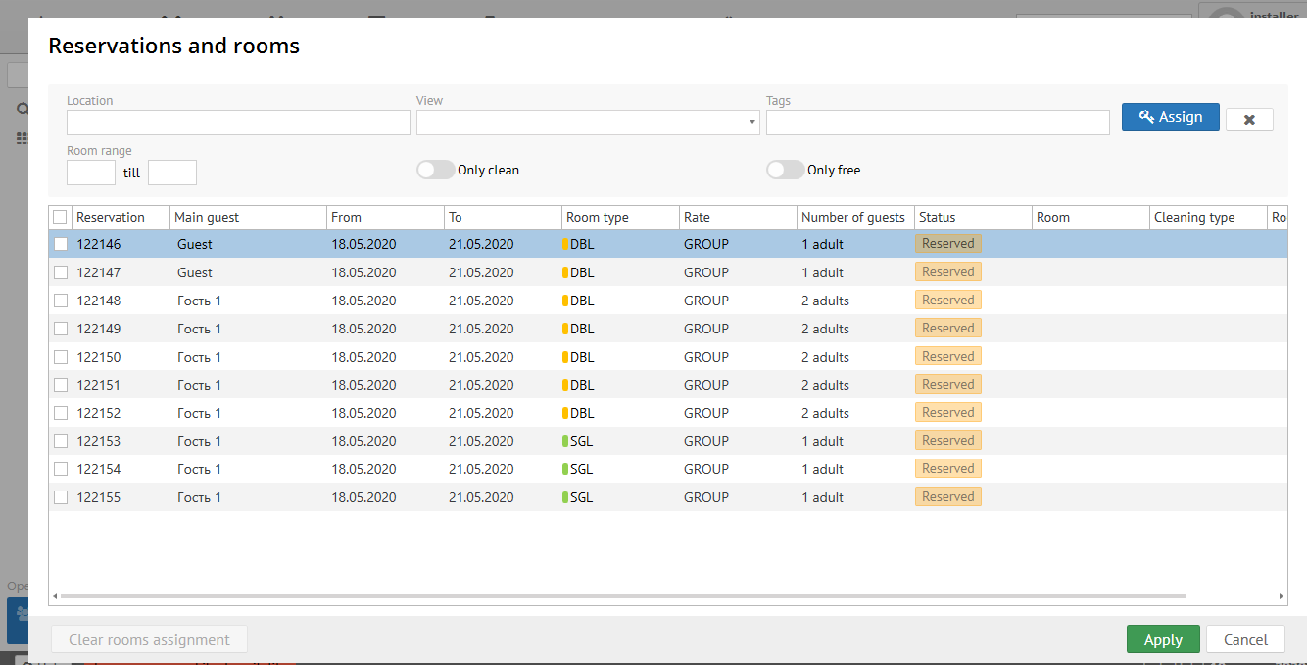
"Location" field- it is floor or building.
"View" field - Room view.
"Tags" field - Room's tags that important for room assignment.
"Room range" - allows to assign certain rooms.
"Batch change" button follows the next:
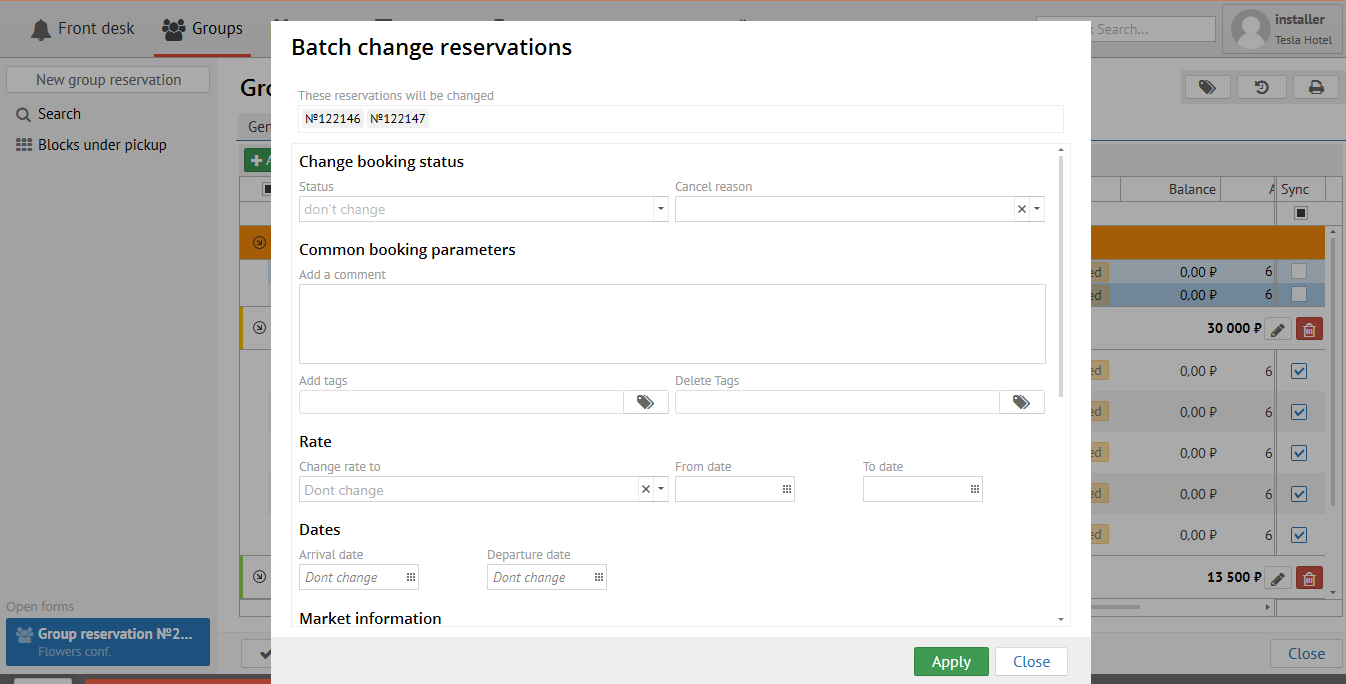
Change Booking status - allows to change booking status
Common booking parameters as is:
Add a comment -allows to add comment inselected/ all reservations
Add tags - allows to add tags in selected/ all reservations
Delete tags - allows to delete certain tags in selected/ all reservations
Rate - allows to change rate in selected/ all reservations
Dates - allows to change dates in selected/ all reservations
Market information - allows to change any market information in selected/ all reservations
Change price - allows to change price in selected/ all reservations (setting uniqe group price)
Create invoice - allows to create invoicein selected/ all reservations
Split reseravtion - allows to split selected reservations
"Check in" button - allows to check in selected/ all reservations.
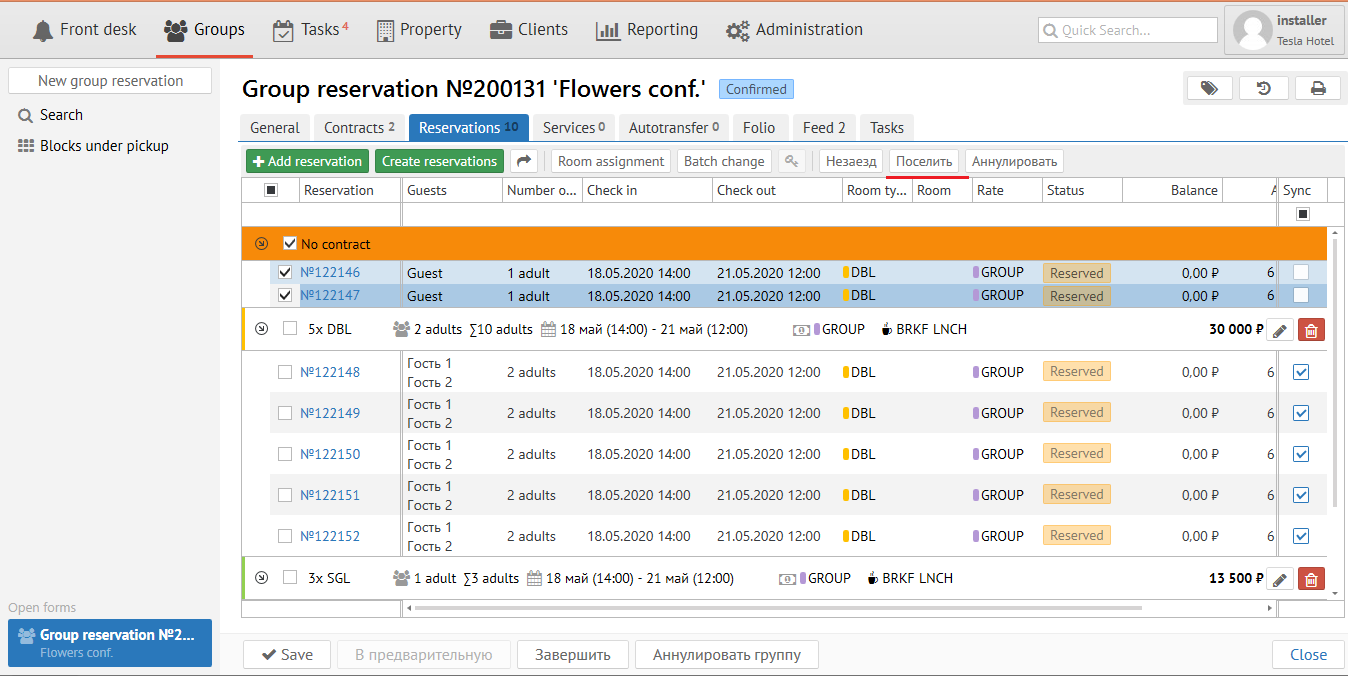
"Cancel" button - allows to cancel selected/ all reservations.
 Кнопка
  позволяет отключить бронь от синхронизации, то есть на эту бронь не не будут распространяться групповые изменения.