Click the Groups to start working with "Groups":
 After that from the left will be three buttons:
1) New group reservation
2) Search (This button follows to search group reservation with any status)
3) Blocks under pickup
To create a New group reservation
To make a new group reservation press the button "New group reservation". You will see the next screen:
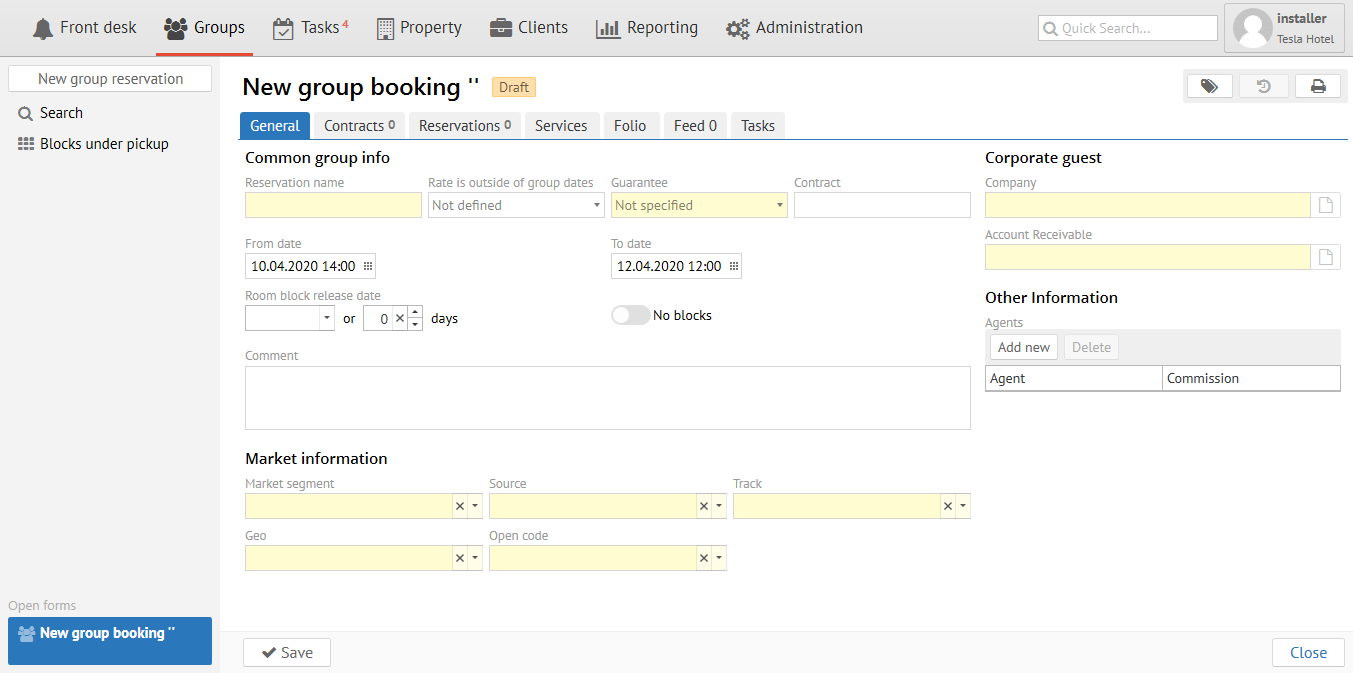
General tab
Main information is filling here
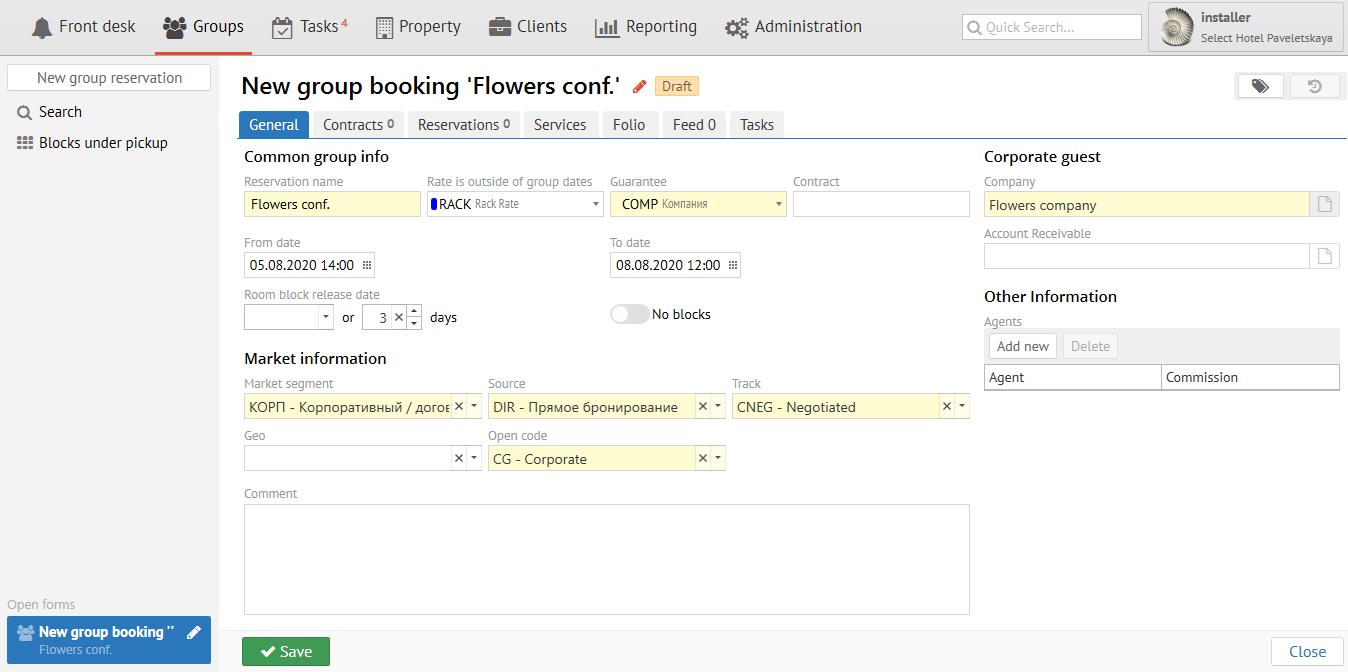
Field | Description |
|---|---|
| Reservation name | Any name for group identification |
| Rate is outside of group dates | Fill it in case of any guest will prolong its stay at the hotel after check out the group (choose the rate that will be used by guest after group check out) |
| Guarantee | Payment guarantee (Cash, Bank transfer, Bank card, etc.) |
| From date ..... To date .... | First date for check in of first guest from group ...... Last date for check out of last guest from group |
| Room block release date | Date or quantity of days for release unpickable rooms for sale |
| No blocks | Logus does not create blocks and reservations are made from the main quota of the hotel |
| Comment | Comment for all group |
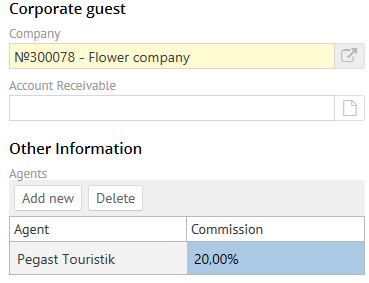
| Field | Description |
|---|---|
| Company | Guest's company |
| Account receivable | Choose company from the list if company pays by Bank transfer |
| Agents | Choose Travel Agency from the list if you should pay comission for group. |
Contracts tab
Сontract is a declaration of intent to book a certain quantity of rooms of a particular type for specific dates.
Contracts play the most important role in the early stages in planning of group arrivals while there is a preliminary calculation of the cost and they are also necessary for blocks.
Quantity of contracts is equal to quantity of accommodation variants
Group may contain a lot of contracts.
A lot of reservations with similar features are combined by one contract.
- Quantity of guests (It may be uncertain and in this case Logus is consider that room will be occupied as all main beds)
- Arrival and departure date
- Rate
- Packages
- Company
- Discount
You can use contracts to:
- To calculate preliminary cost
- To make blocks
- To make mass reservations and mass batch changes.
Attention
Quantity of contracts is equal to quantity of accommodation variants
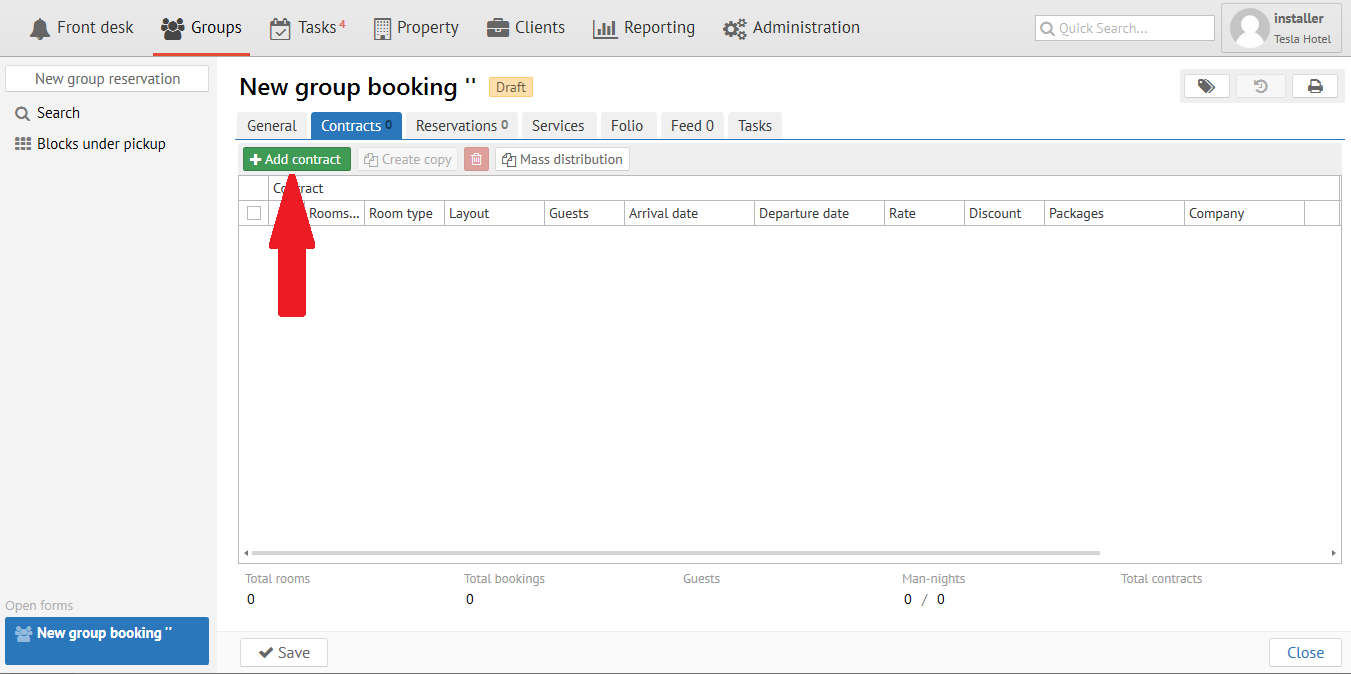
Press "Add new" button for new contract.
Stay type and terms
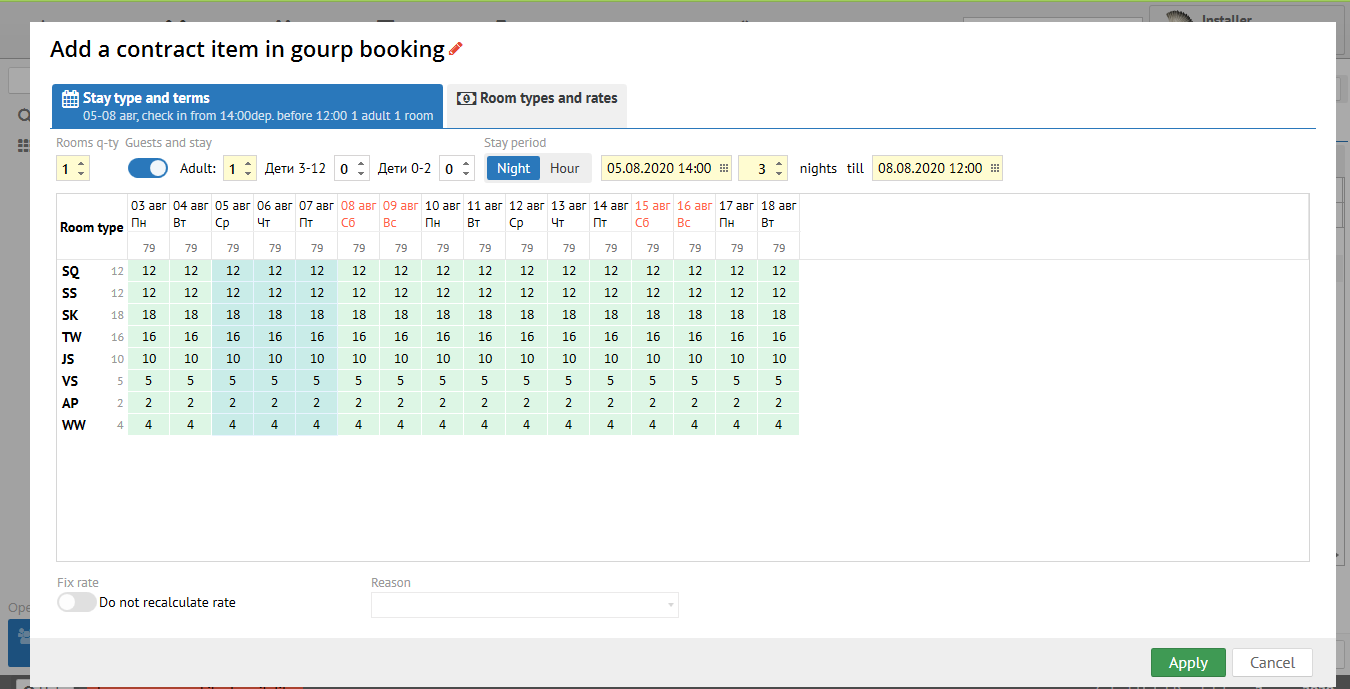
| Field | Description |
|---|---|
| Rooms q-ty | Rooms quantity |
| Guests and stay | Quantity of quests in one room (adults and children) |
| Stay period | Stay period: night/day/hour and arrival/ departure date. |
| Availability | Rooms type availability with due regard for Rooms q-ty, Guests q-ty and Stay period |
Room types and rates
There are field "Discount" and field "Packages" at the right side. You can add any personal discount from the list and choose package if it is necessary.
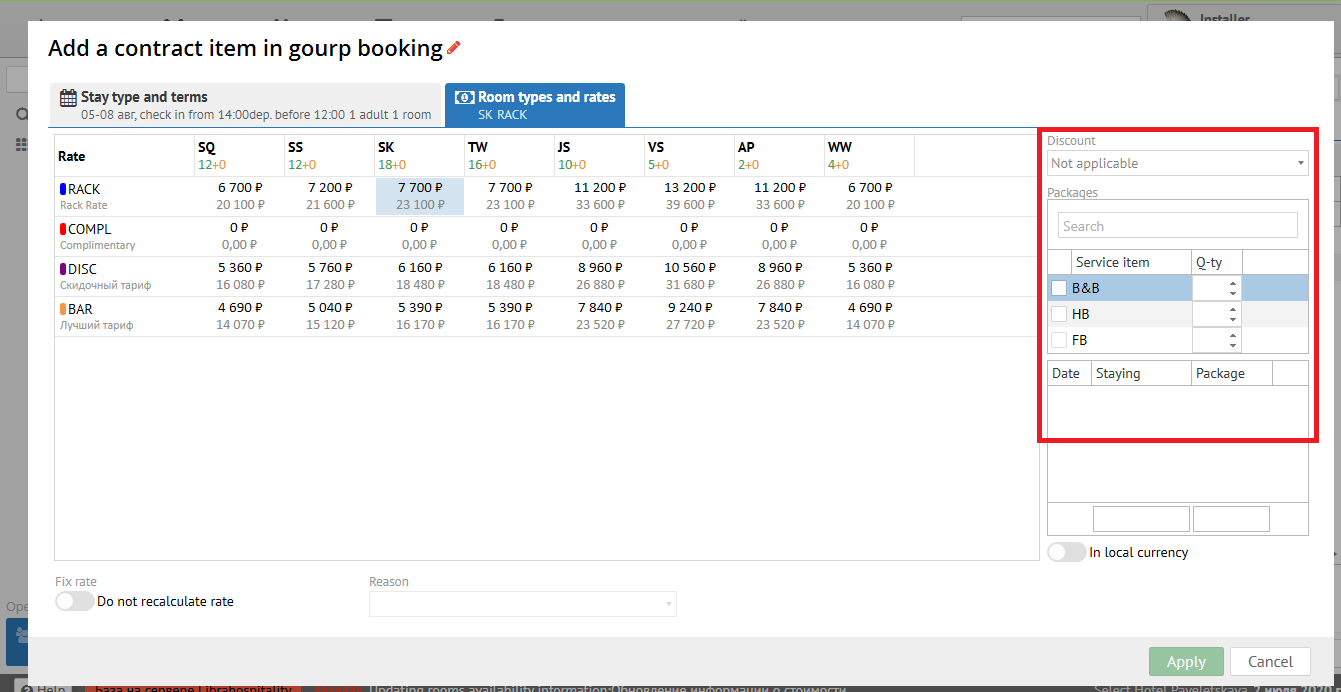
Press "Apply" button, then "Save".
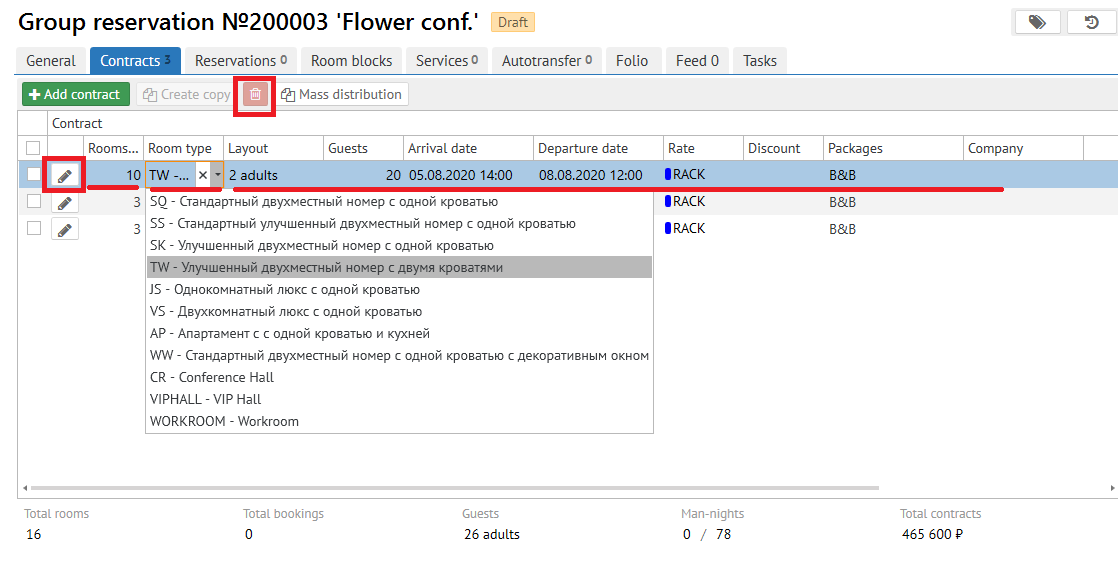
You can change contract if you click to  or highlight the contract
 - delete the contract.
Then click «Save» button.
To confirm the contract
It is necessary to press "Confirm" button for turning Contract to Block (change status for Confirm contract). After that necessary quantity of rooms (blocks) will be "frozen" for this Group.
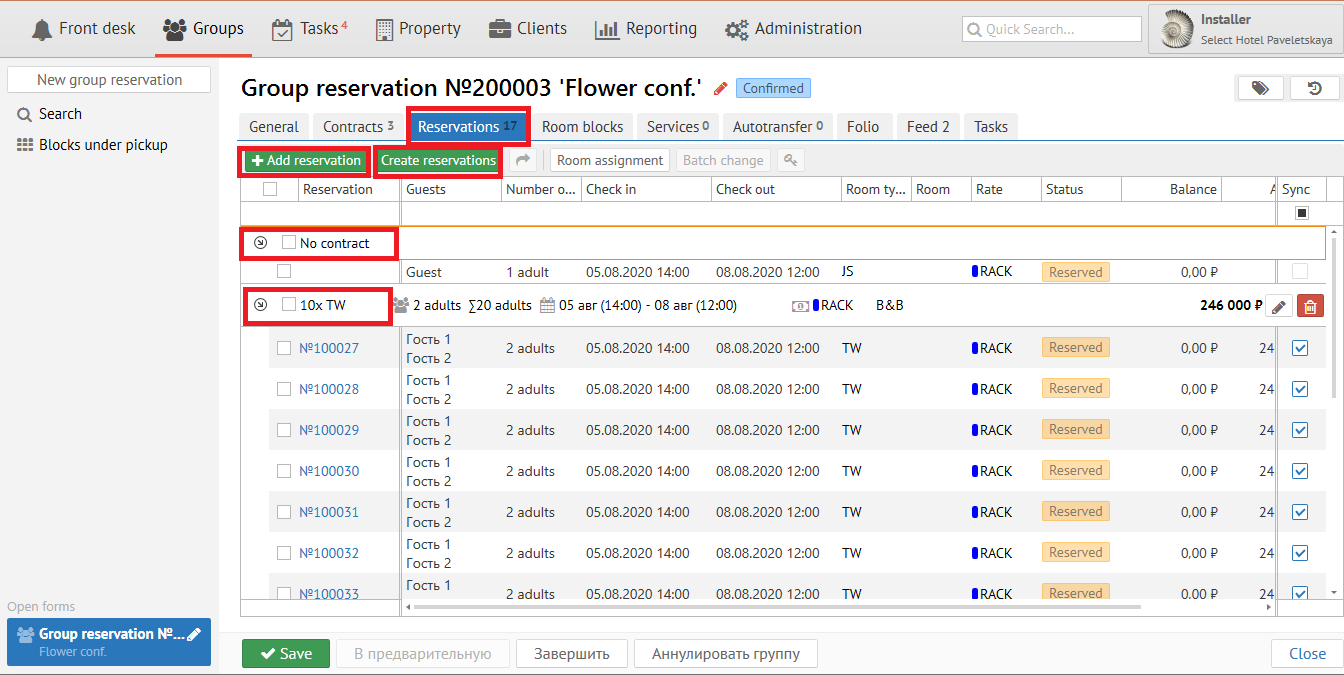
Reservations tab
Opportunity appears to make reservations when Contract became "Confirmed".
Also you can add reservations out of contract.
Attention
You should create reservations at the next cases:
- to pick up certain rooms (for example, on one floor for all group)
- to calculate the exact cost for complicated contracts
- if you have room list with guest's names
- if group will arrive soon (for example, 1-2 day before check in)
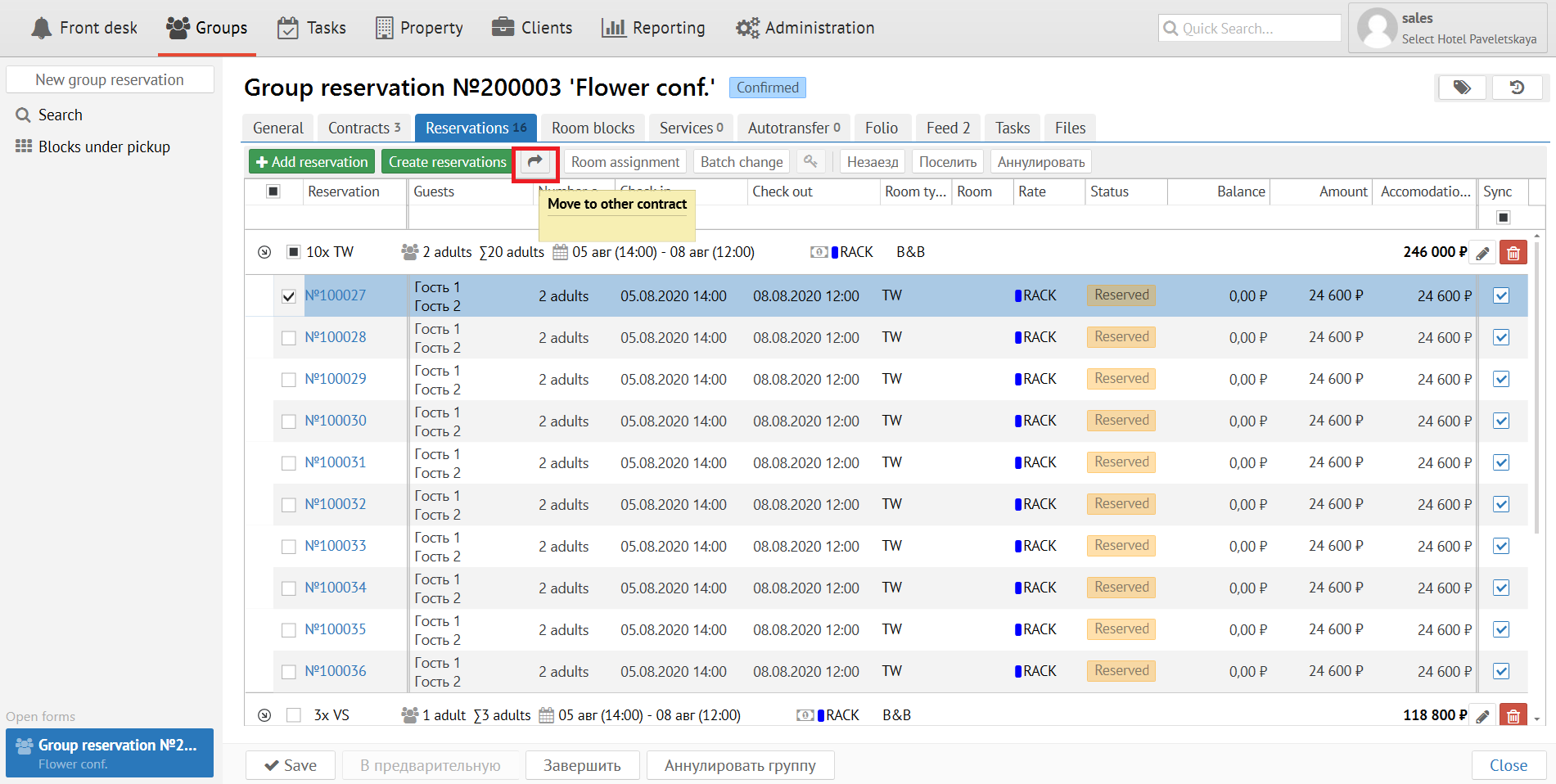
You can move reservation to other contract
"Room assignment" button allows to pick up the rooms.
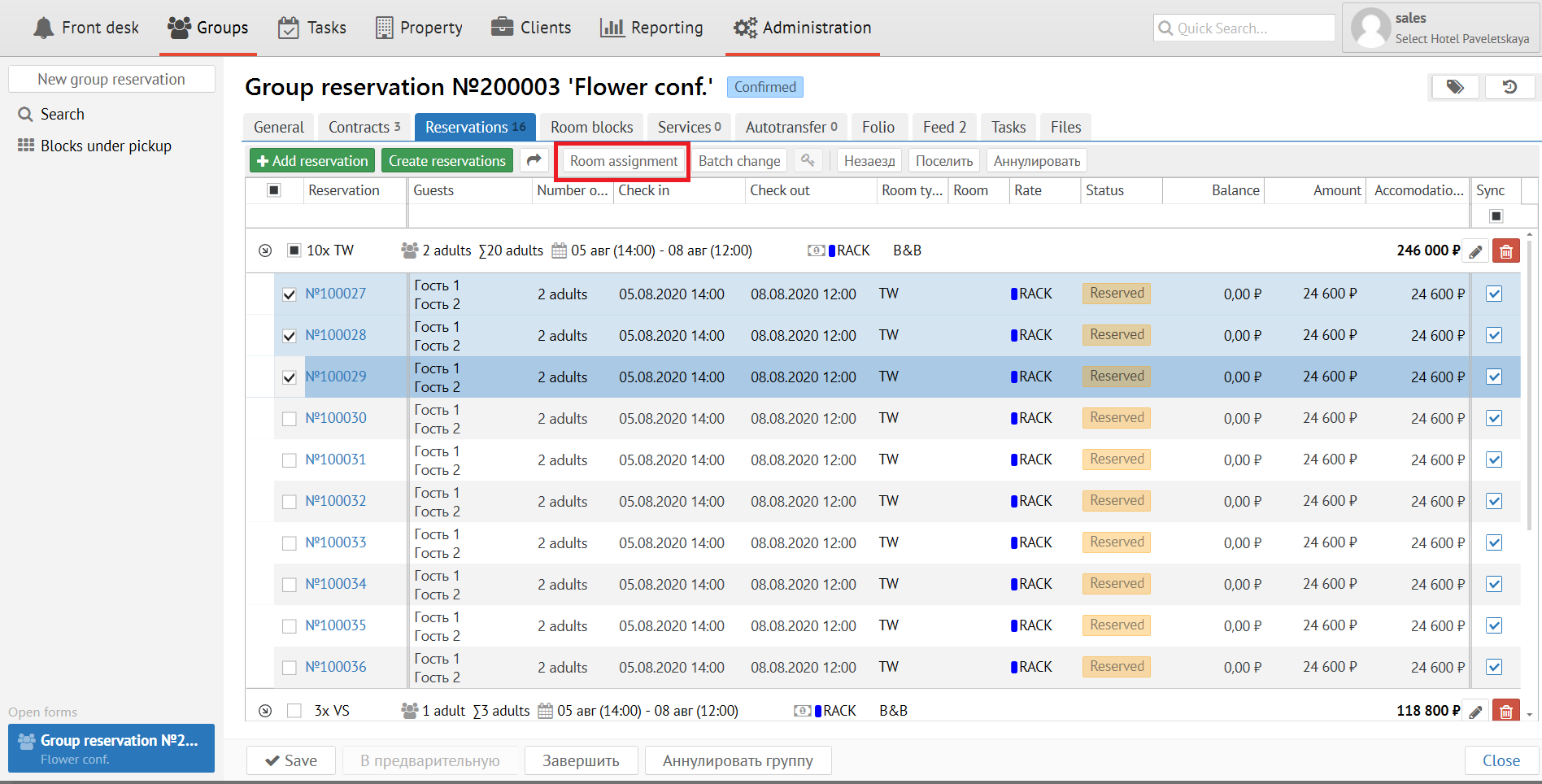
Press "Room assignment" button and you will see the next screen:
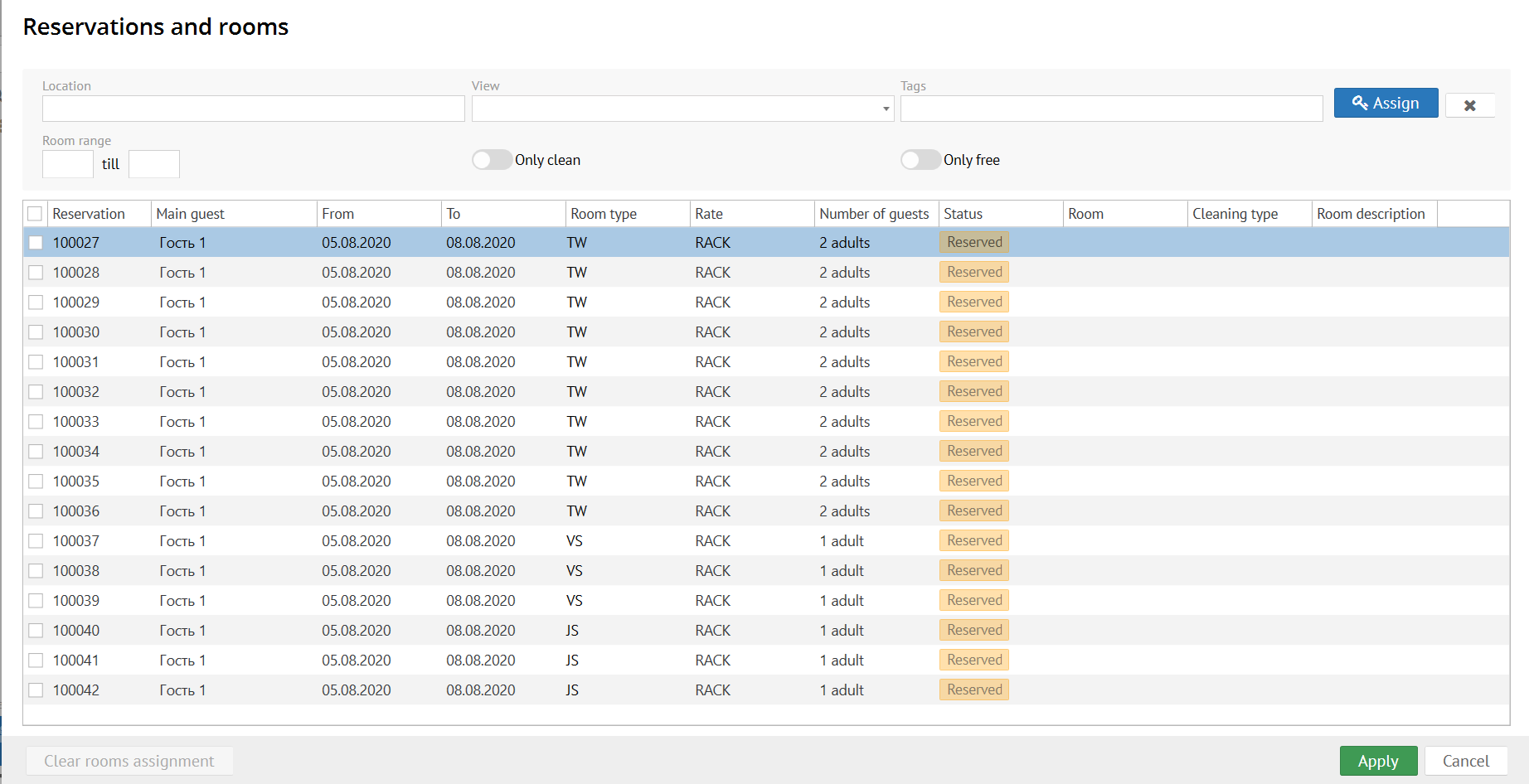
"Location" field- it is floor or building.
"View" field - Room view.
"Tags" field - Room's tags that important for room assignment.
"Room range" - allows to assign certain rooms.
"Only clean" - only clean rooms at present moment.
"Only free" - only free rooms at present moment.
"Batch change" allows the next:
- to change reservation status;
- to add comment for all reservations;
- to add/delete tags;
- to change market information;
- to change price;
- to create invoice;
- to split reservation.
Press "Batch change" button:
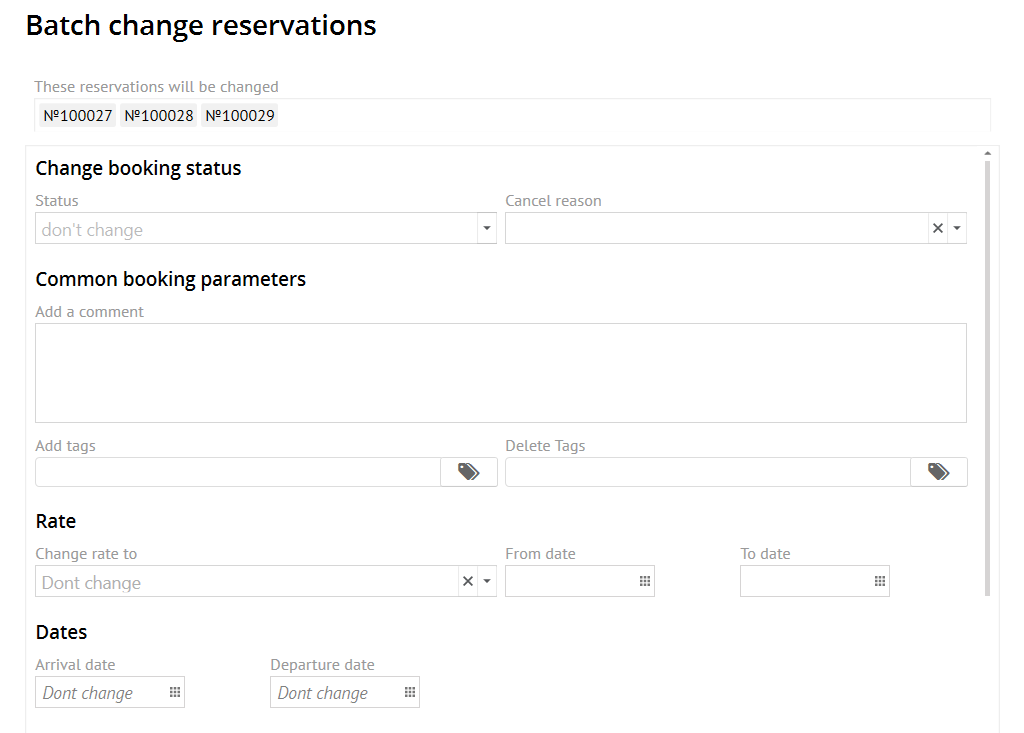
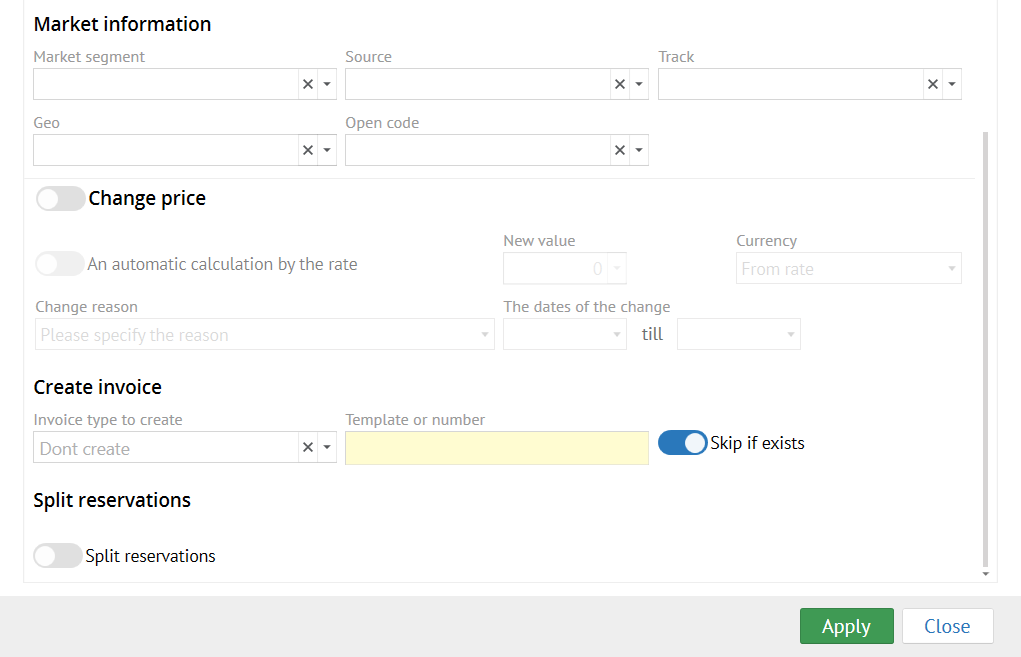
Change Booking status - allows to change booking status
Common booking parameters as is:
Add a comment -allows to add comment inselected/ all reservations
Add tags - allows to add tags in selected/ all reservations
Delete tags - allows to delete certain tags in selected/ all reservations
Rate - allows to change rate in selected/ all reservations
Dates - allows to change dates in selected/ all reservations
Market information - allows to change any market information in selected/ all reservations
Change price - allows to change price in selected/ all reservations (setting uniqe group price)
Create invoice - allows to create invoicein selected/ all reservations
Split reseravtion - allows to split selected reservations
Rooms in blocks are are equal to contracts at the beginning. After room reservation blocks could be not equal to contracts.
Quantity rooms in blocks can be other then quantity rooms in contracts in next cases only: block expansion and block release.
Attention
It is necessary to press "Confirm" button for turning Contract to Block (change status for Confirm contract). After that necessary quantity of rooms (blocks) will be "frozen" for this Group.
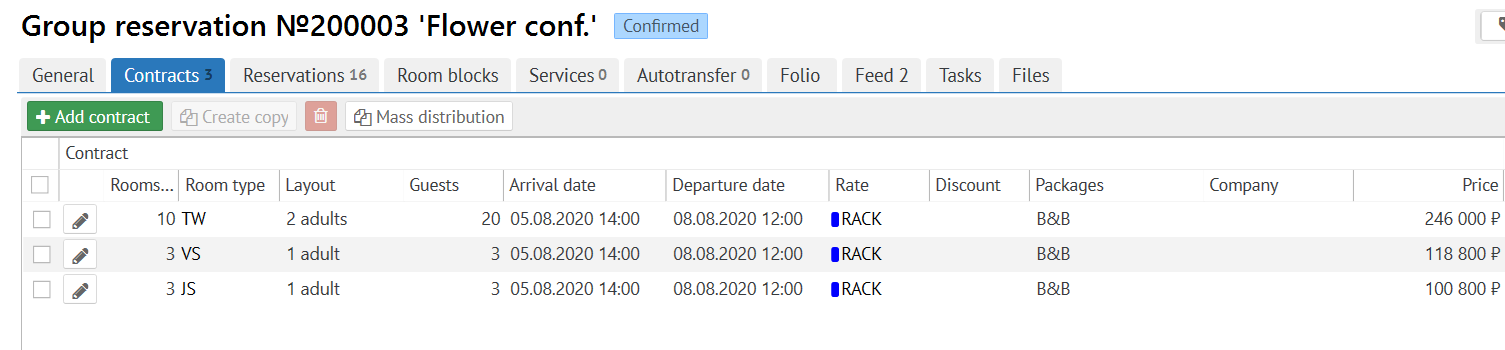
:
Attention
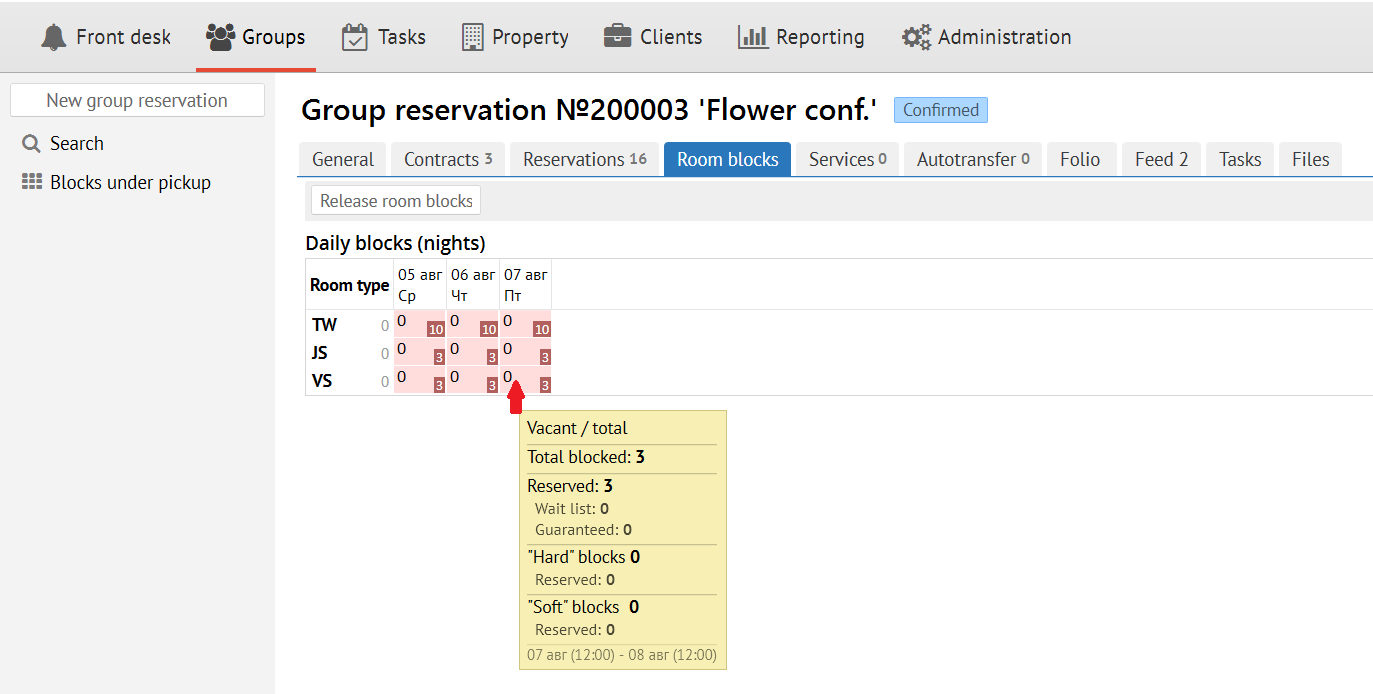
Quantity of rooms in blocks can be differ from quantity of rooms in contracts in two cases: expansion and release blocks.
Block expansion
Block expansion is adding rooms out of contract.
Reason of this could be the expansion reservation to out of dates of contract or moving reservaton from one room type to another room type that is absent in contract.
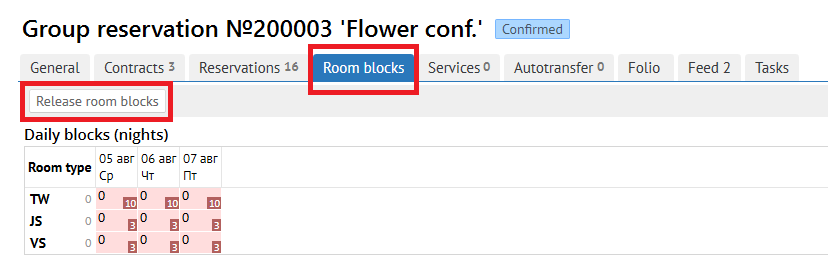
It is necessary to remember that blocks are not released automatic (for example, when accomodation period is reduced or resaervation is cancelled).
You can release blocks to press "Release room blocks" on Room blocks tab or set up release room blocks automatic.
Services tab
You can add or delete services for group from the list.
For add any new service click to"Add service"and you will see the next screen: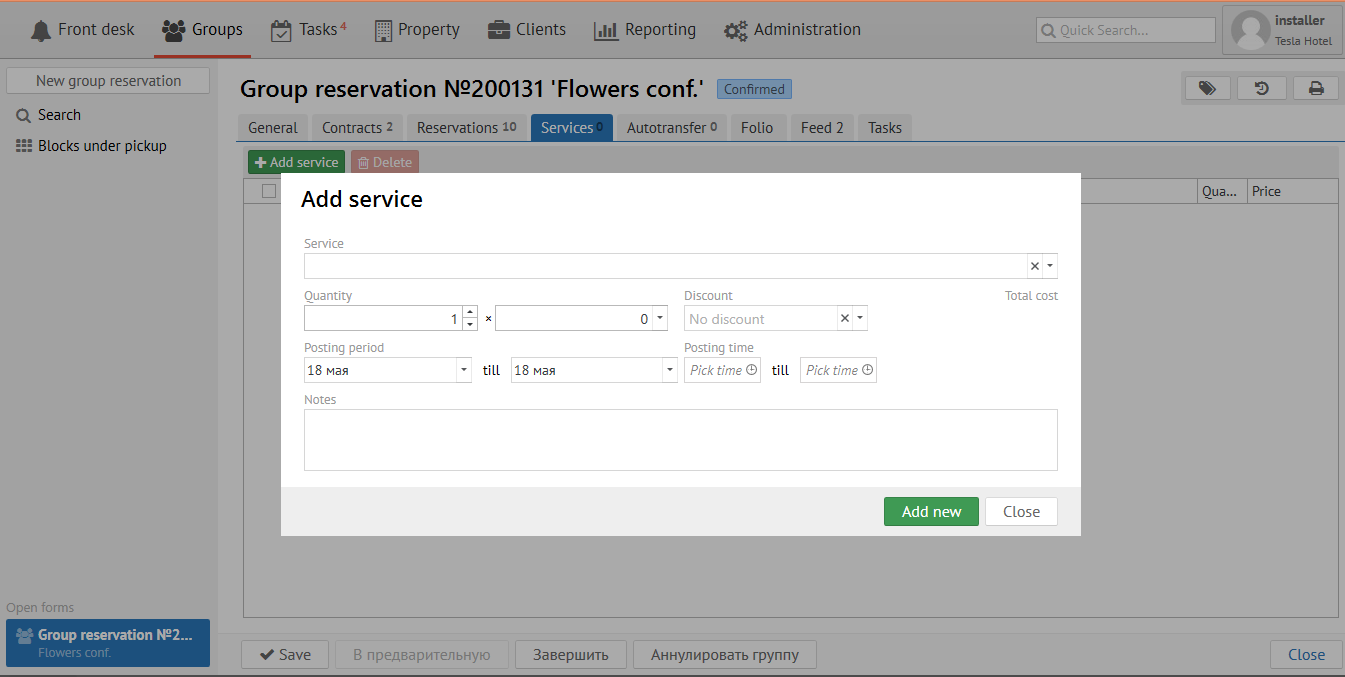
Autotransfer is used for automatically transfer transactions selected by code or type to another Logus card.
There are three variants of using "Autotransfer":
1. To transfer transactions to the "Group reservation" folio.
2. To transfer transactions to "Company payer" sub-folio.
3. To transfer transactions to another reservation.

To add autotransfer click the "Add" button. In the pop-up form, you need to fill in the following fields:
- Period of "Autotransfer" (in what dates to transfer)
- Transaction variant (what exactly to transfer, choose one):
- all transactions;
- transaction code;
- transaction type.
- Transaction receiver:
- change pocket (used for transferring transactions to another sub-folio in reservation.);
- related folios (related folios to your reservation: Group reservation, Guest profile or Company profile folios);
- other folios.
- Linked account - choose a related folios to your reservation: Group reservation, Guest profile or Company profile folios.
- Sub-folio - folio receiver of a transactions.
- Sharing:
- transfer all (all selected transactions are transfer by the "autotransfer");
- percentage (transfer percentage of the transaction, the percentage value can be specified in the "Value" field);
- flat amount (the amount specified in the "Value" field is transferred);
- flat amount in currency (the amount in currency specified in the "Value" field is transferred).
- Value - write the amount to be transfer, when you use "Sharing".
- Leave this sum - if you enable the "Leave this sum" switch, then the selected amount of the transaction leave in the original sub-folio, and the remaining amount is transferred by the autotransfer rule. If you disable the "Leave this sum" switch, then the selected amount is transferred by the autotransfer rule.
- Transfer limit - if necessary, write a "Transfer limit" to limit the amount of transaction transfer by the "Autotransfer".
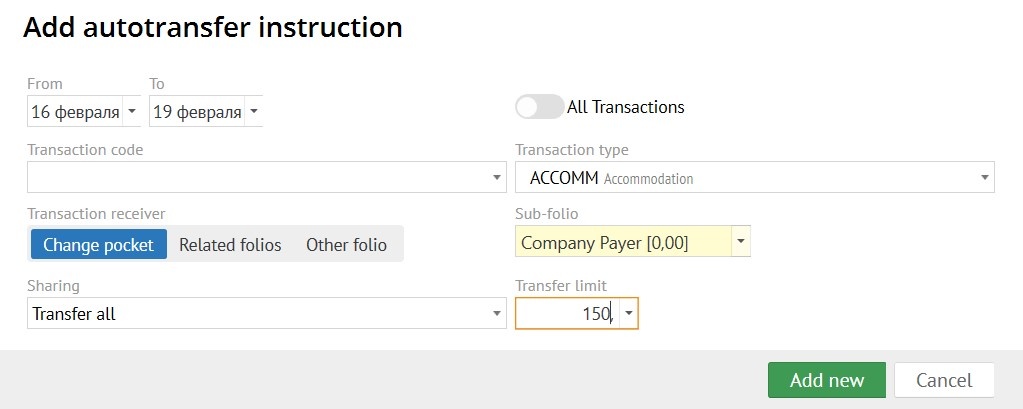
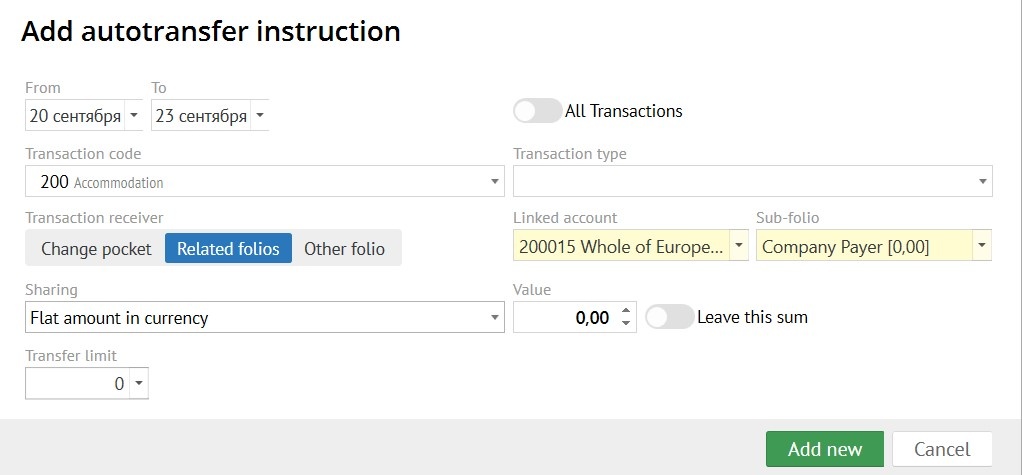
An "Autotransfer" created in a "Group reservation" will be applied to all individual reservation belonging to a group.
"Autotransfer" automatically generated when a "Account receivable" is applied.
For Folio see the next link -