"Out of Order" request creation
To create "Out of order" / Repair request for a room “create Out of Order” button need to be selected:
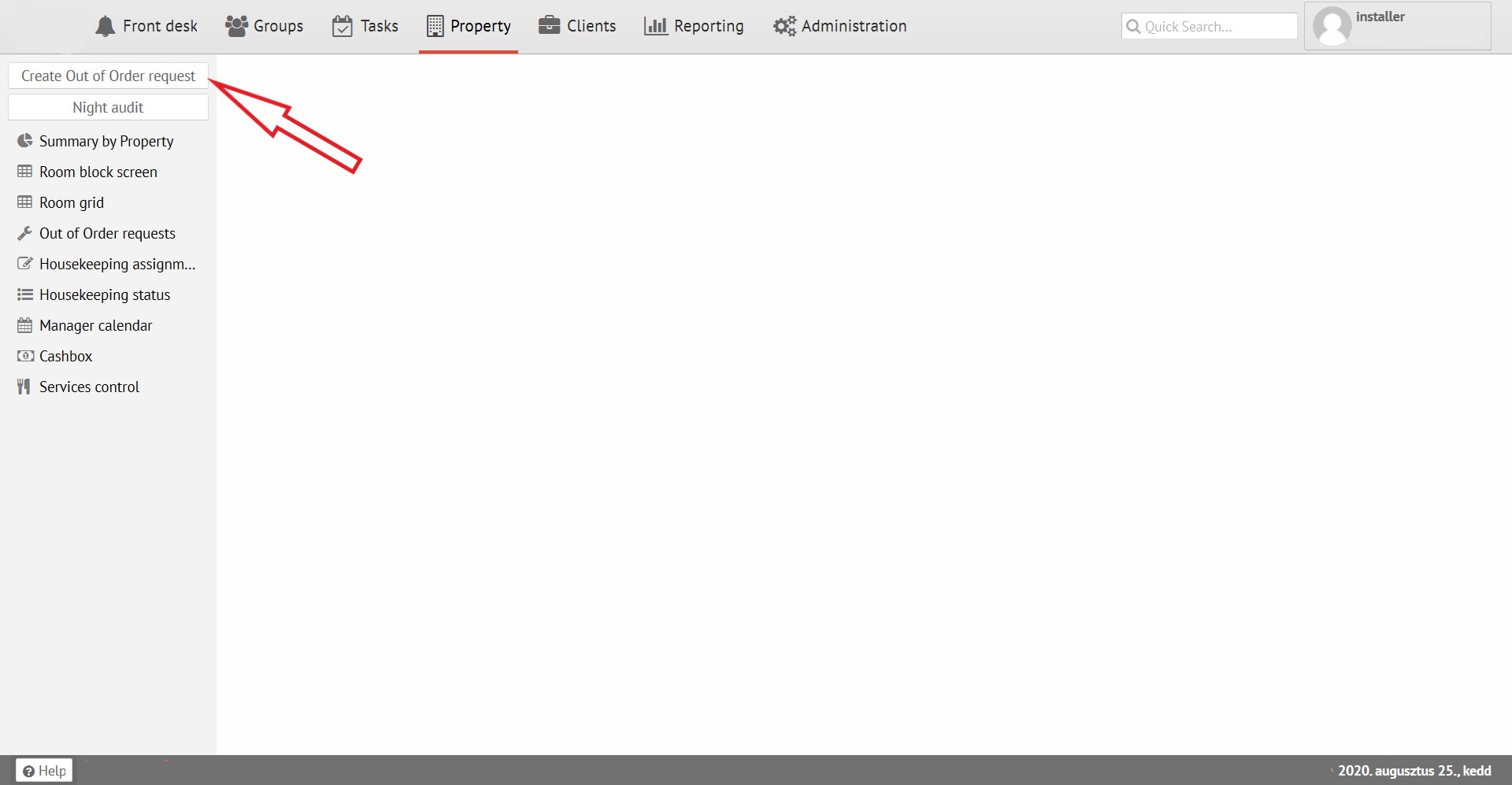
After that you will see the screen:
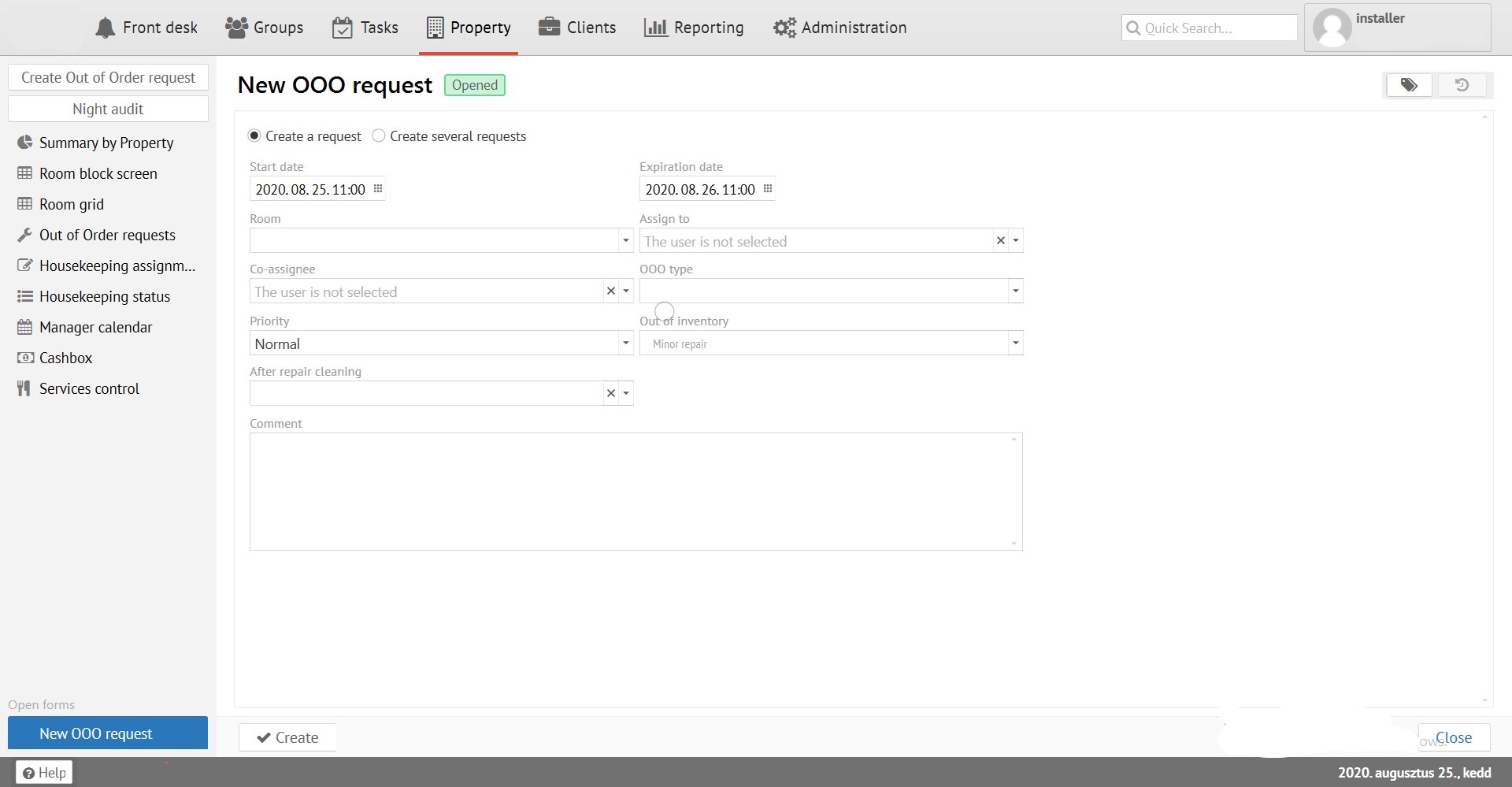
“Create one request” - button which allows you to choose one room for repair.
“Create several requests” - allows you to choose various rooms (or entire floor) for repair.
“Start date” - is date when repairs starts for the room.
“Expiration Date” - is the date when all repairs for the room will be done.
“Room” - room number you choose for repair.
“Assign to” - employee executor of the "OOO reauest". (linked with "Tasks" section)
“Co-assignee” - employee co-executor of the "OOO reauest". (linked with "Tasks" section)
“OOO type” - repair type you need (plumbing, electrical, furniture, etc.).
“Priority” - priority of the Task.
“Out of inventory” (automatically filled from settings)- room can either be withdrawn from availability, or from sale (in this case, the number of rooms by configuration will decrease in statistics).
“After repair cleaning” – cleaning type after "OOO request" had done.
“Description” - field for any comments on repair.
Searching and editing repair requests
To see/edit/delete repair requests you need “Out of Order requests” button need to be selected. There you can select/find required rooms for editing:
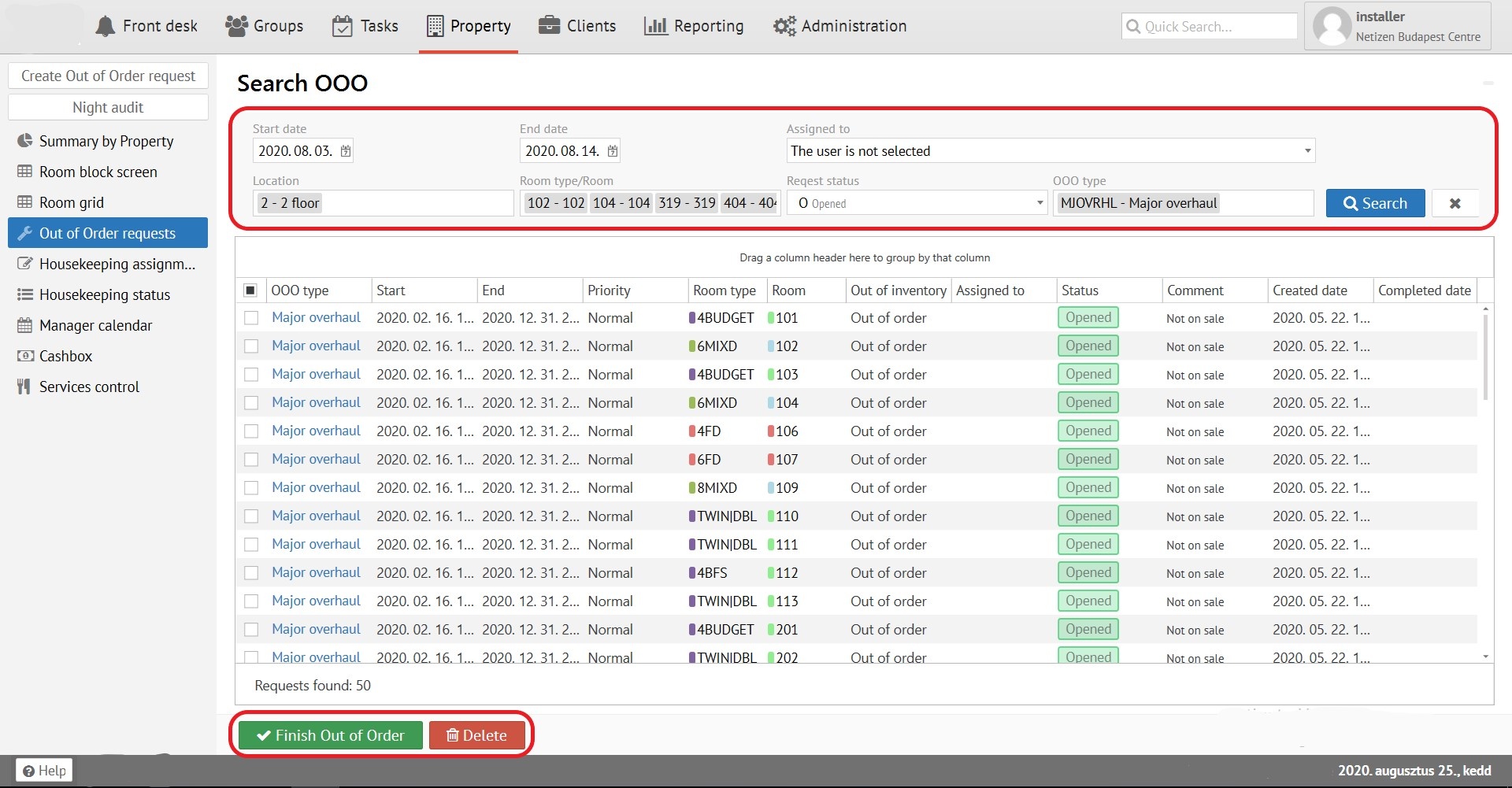
"Start/End date of repair" - fill beginning and end dates of repair work.
"Assigned to" - assign person from list responsible for this repair work.
"Location" - is filled in to search exact room location you need (1 building, main building, etc.).
"Room type / Room" - is filled in for searching by the room type (Single room, Double, etc.).
"Request status" - is filled in to search by the status of the application (Open, Closed).
"OOO type" - is filled in to search by the type of room repair (Redecorate, Major, etc.).
To close "OOO request", select one or several requests, press "Finish Out of Order" button, or "Delete" button if you whant to delete it.