|
Formatting (marking by colour) of columns of lists is available in the "Front desk" and "Clients" modules.
Consider this functional using the example of the list of reservation in the "Front desk" module.
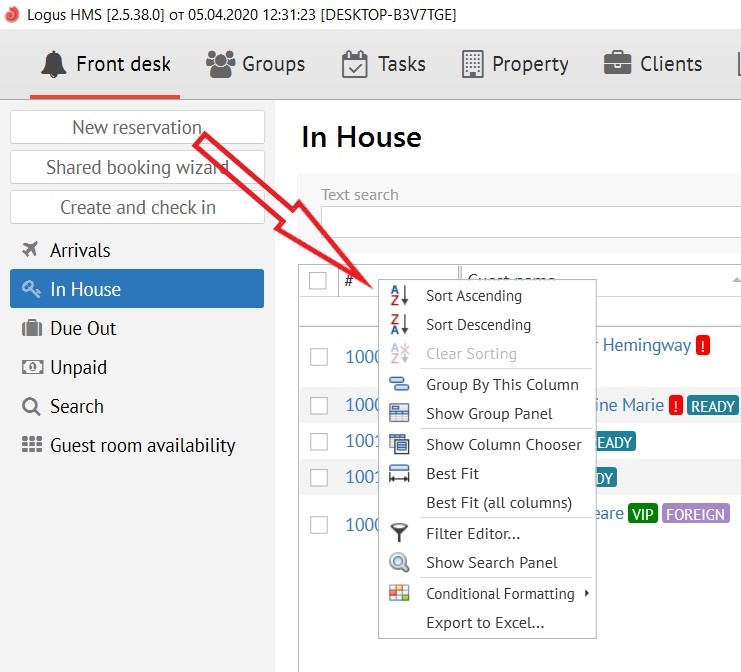
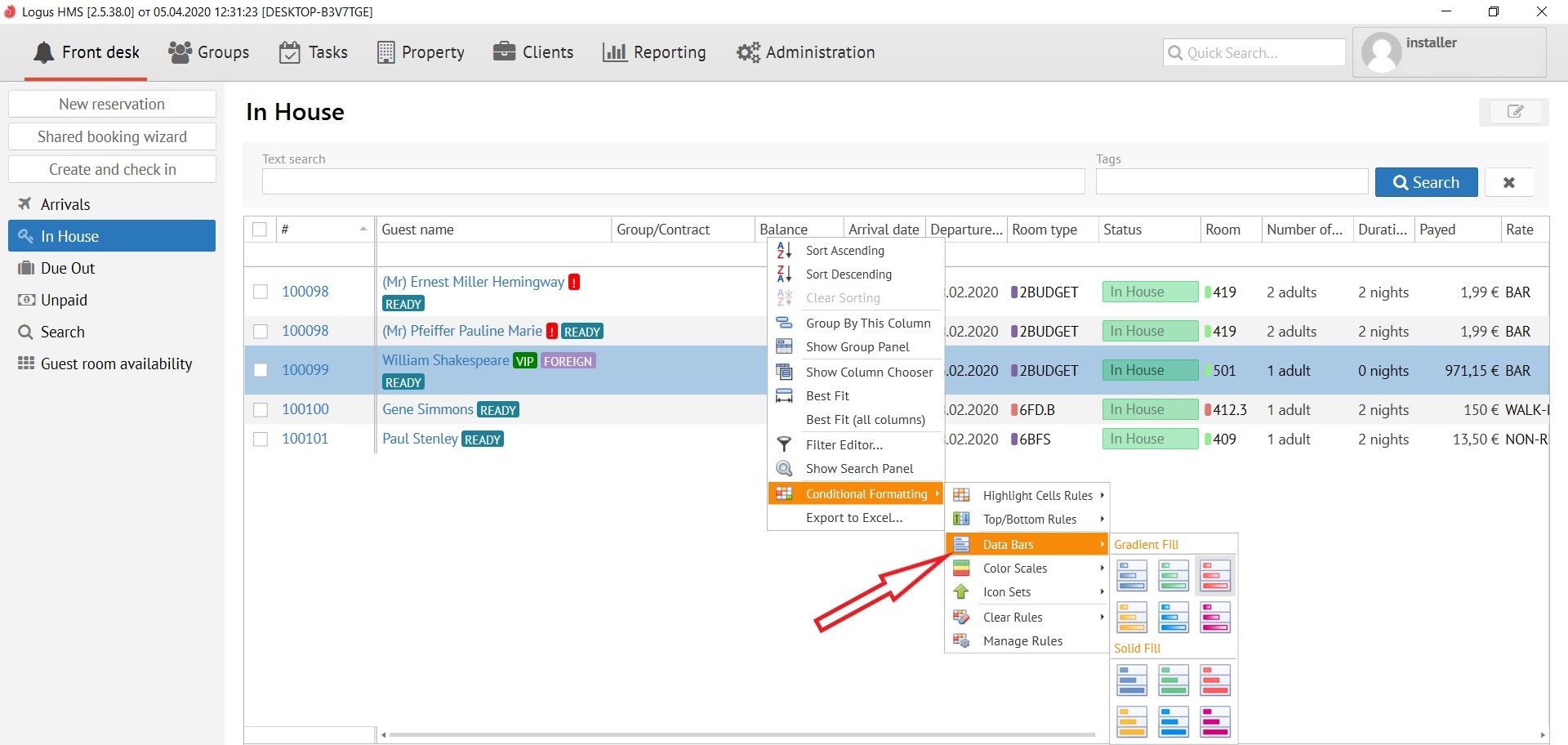
To open pop-up window with functions you need to right-click on any title of columns in the list, and the column you click on will be edited. You will see the following menu:
It's necessary to select the "Conditional Formating" line in the menu:
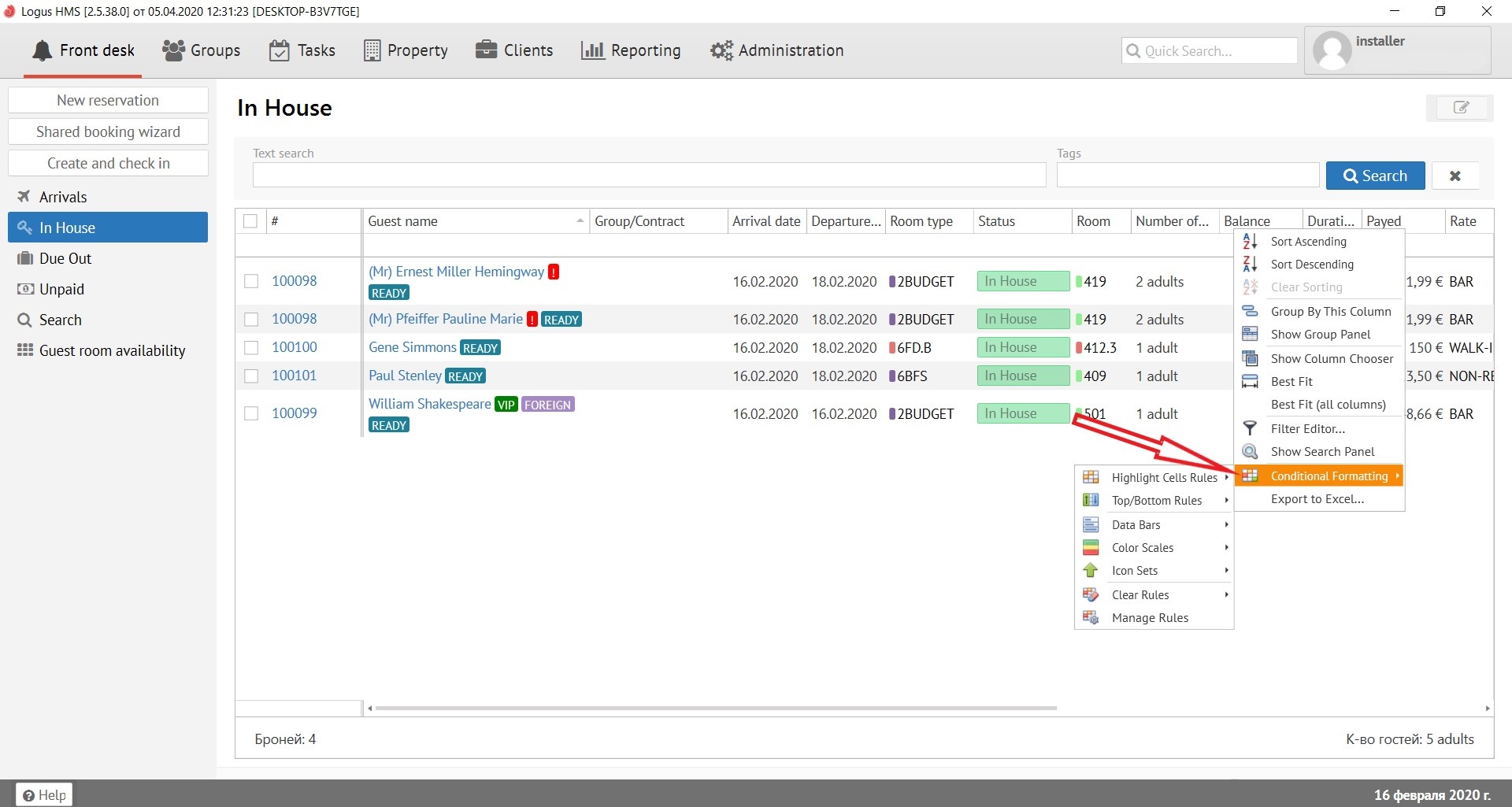
Description of pop-up menus:
Highlight cells rules - contains:
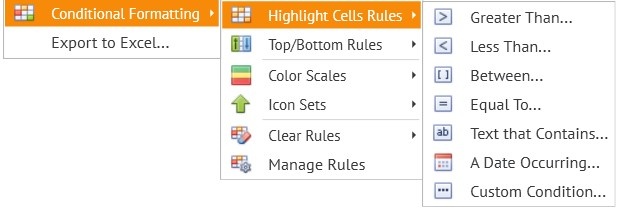
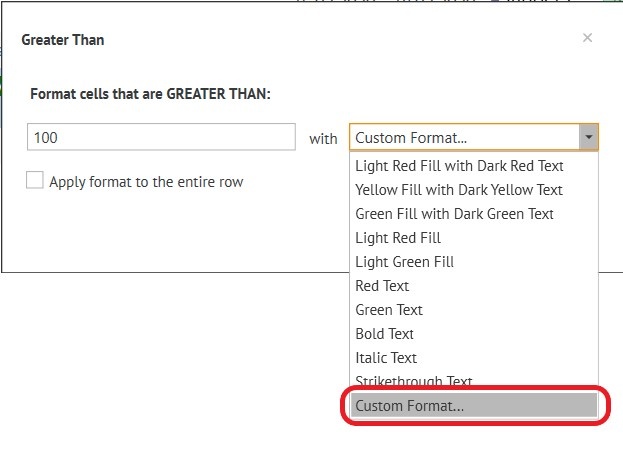
For example: on the “Balance” column, select "Greater Than"
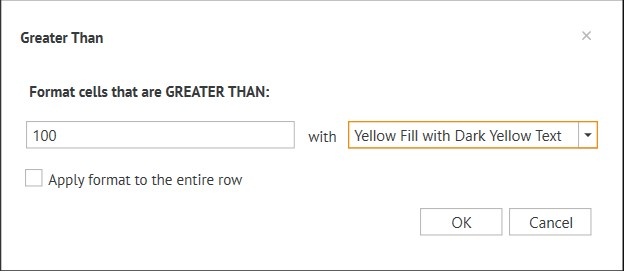
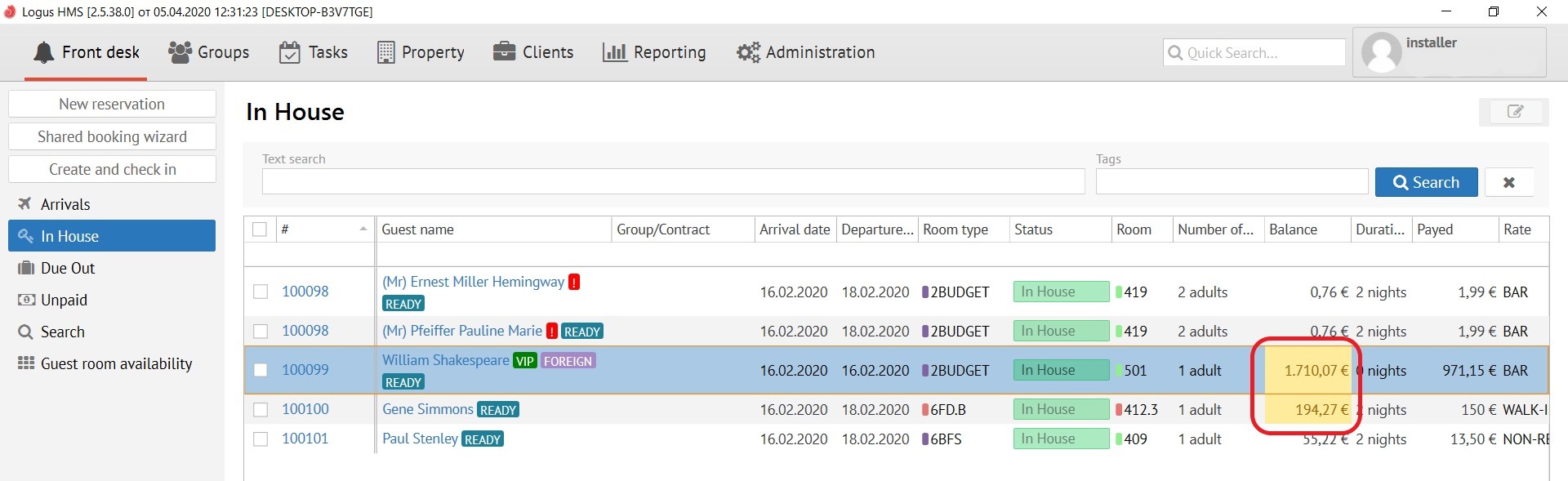
These parameters allow you to show by pale yellow colour reservations which balance is more than 100 euros :
Note:
Apply format to the entire row - if you need to colour all line.

When choosing Custom Format:
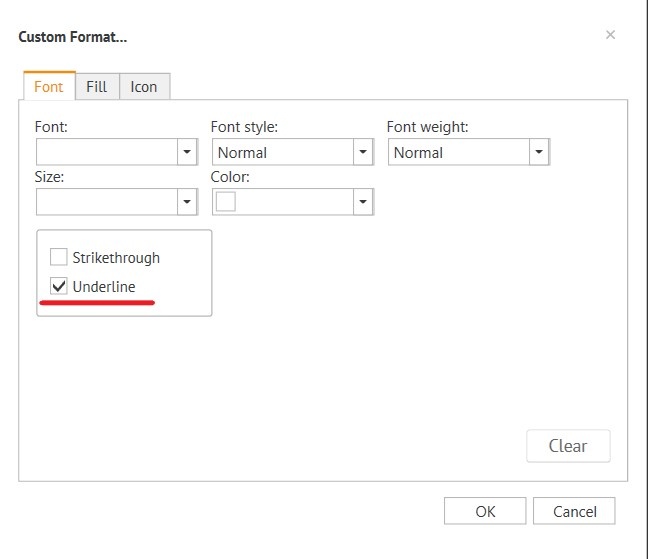
tabs appear:
Font editing:
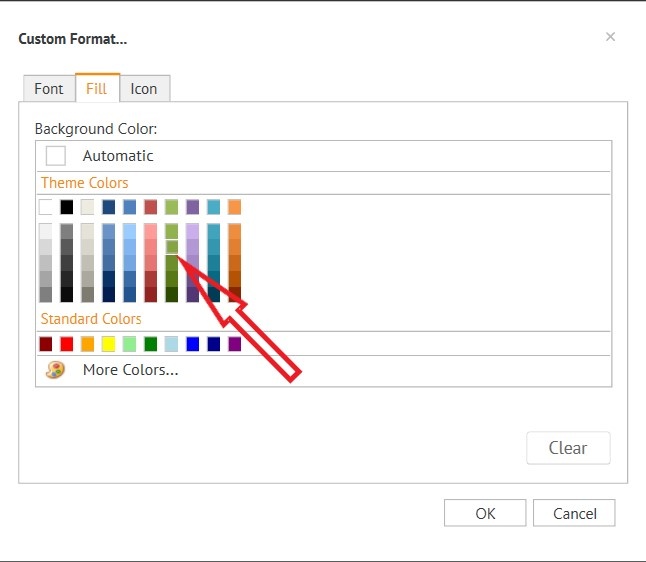
Fill editing:
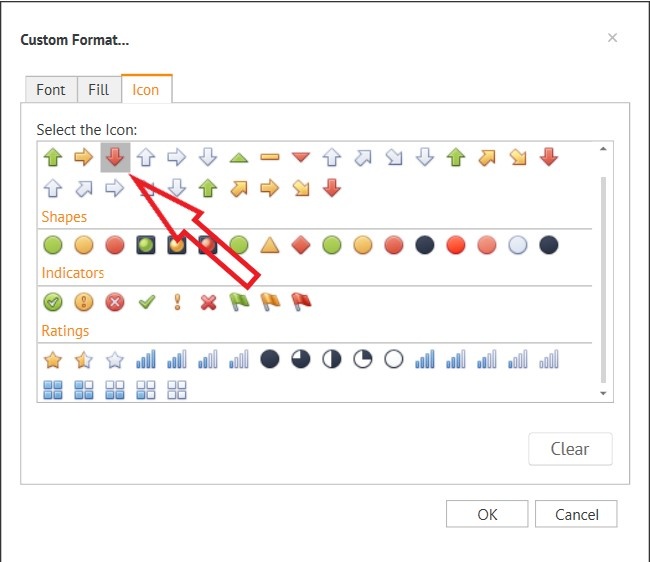
Icon editing:
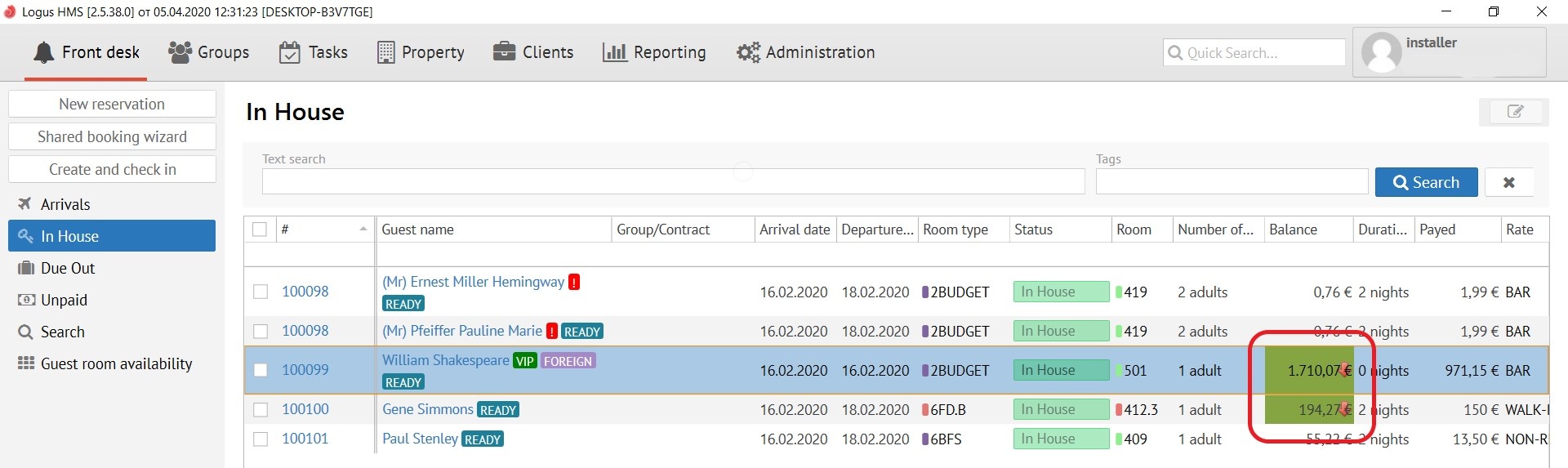
Result:
Top\Bottom Rules (rules for setting the top and bottom positions of the list):
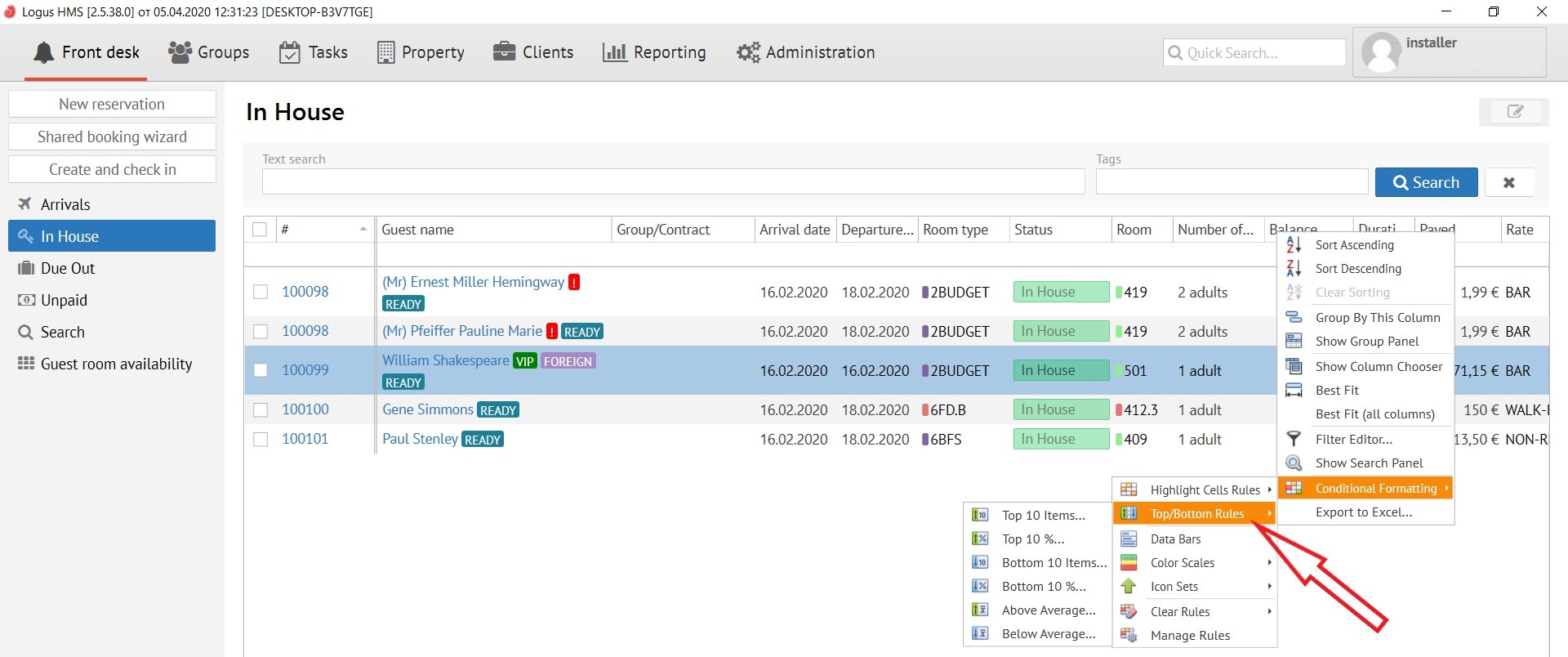
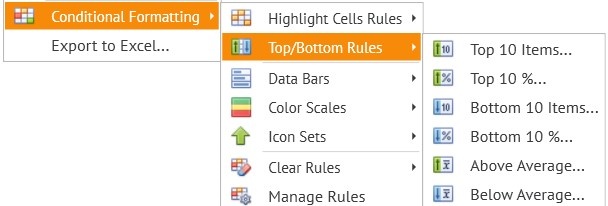
Description of pop-up menus:
Top\Bottom Rules - contains:
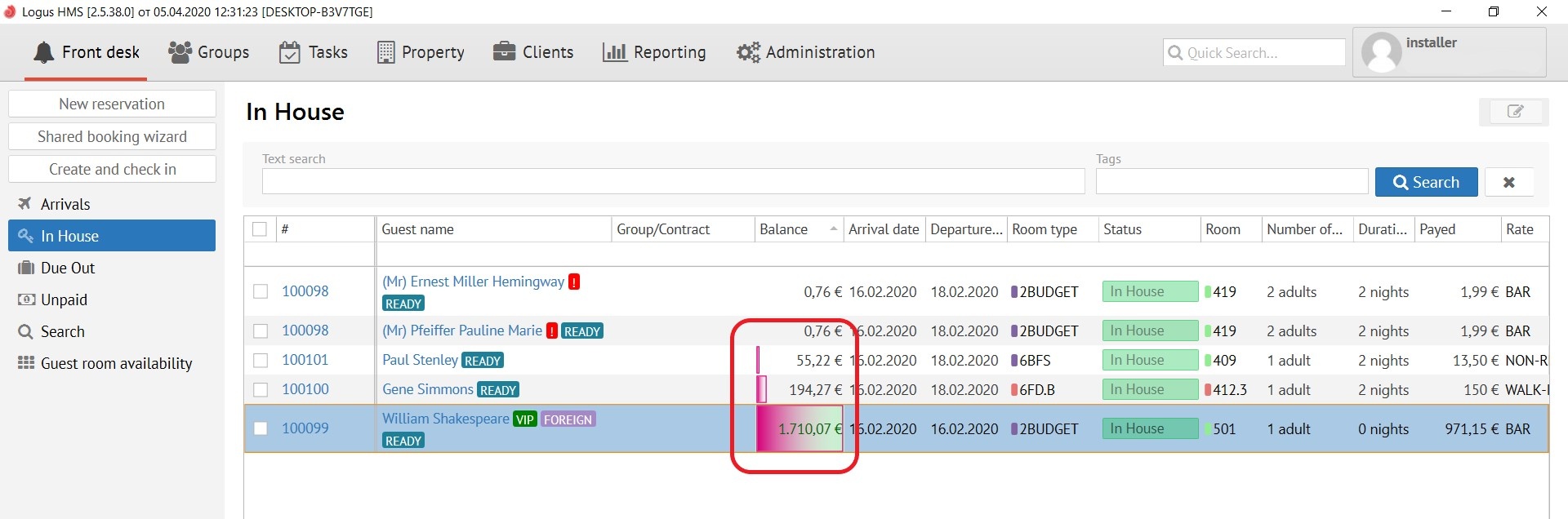
Data Bars:
This button applies colour schemes to already configured rules, for example:
Color Scales:
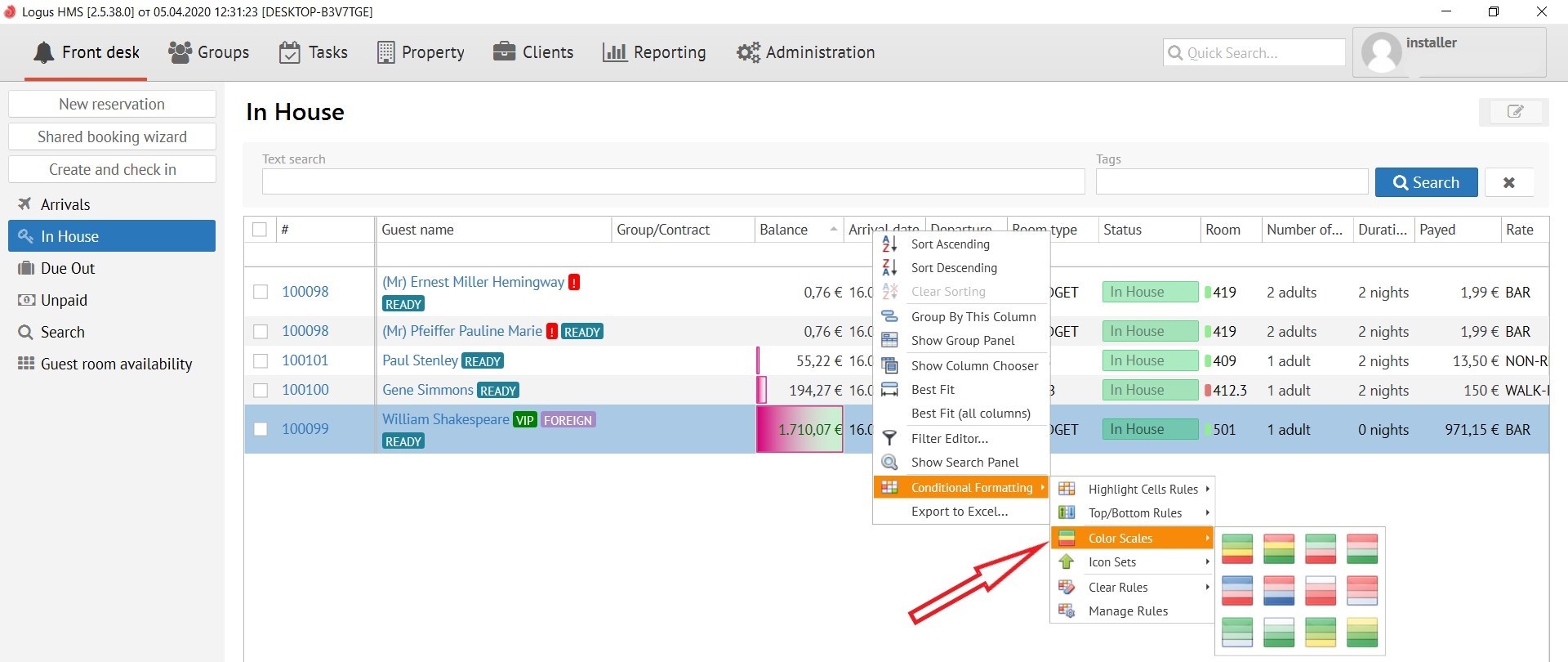
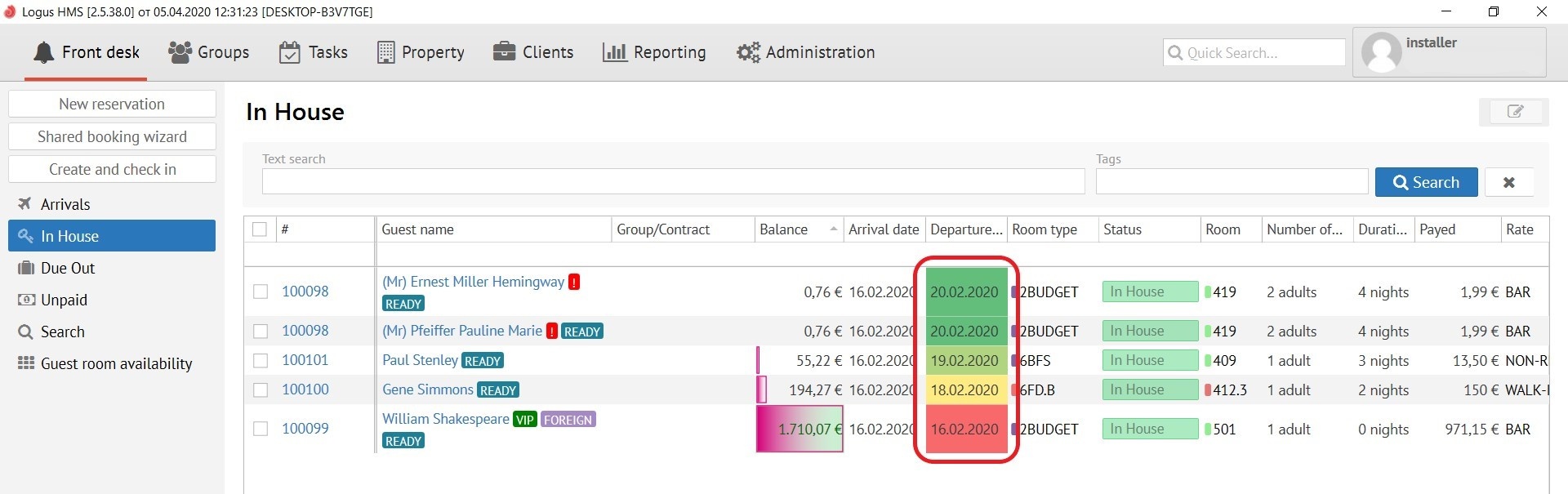
this button coloring different data in different colours:
Icon Sets:
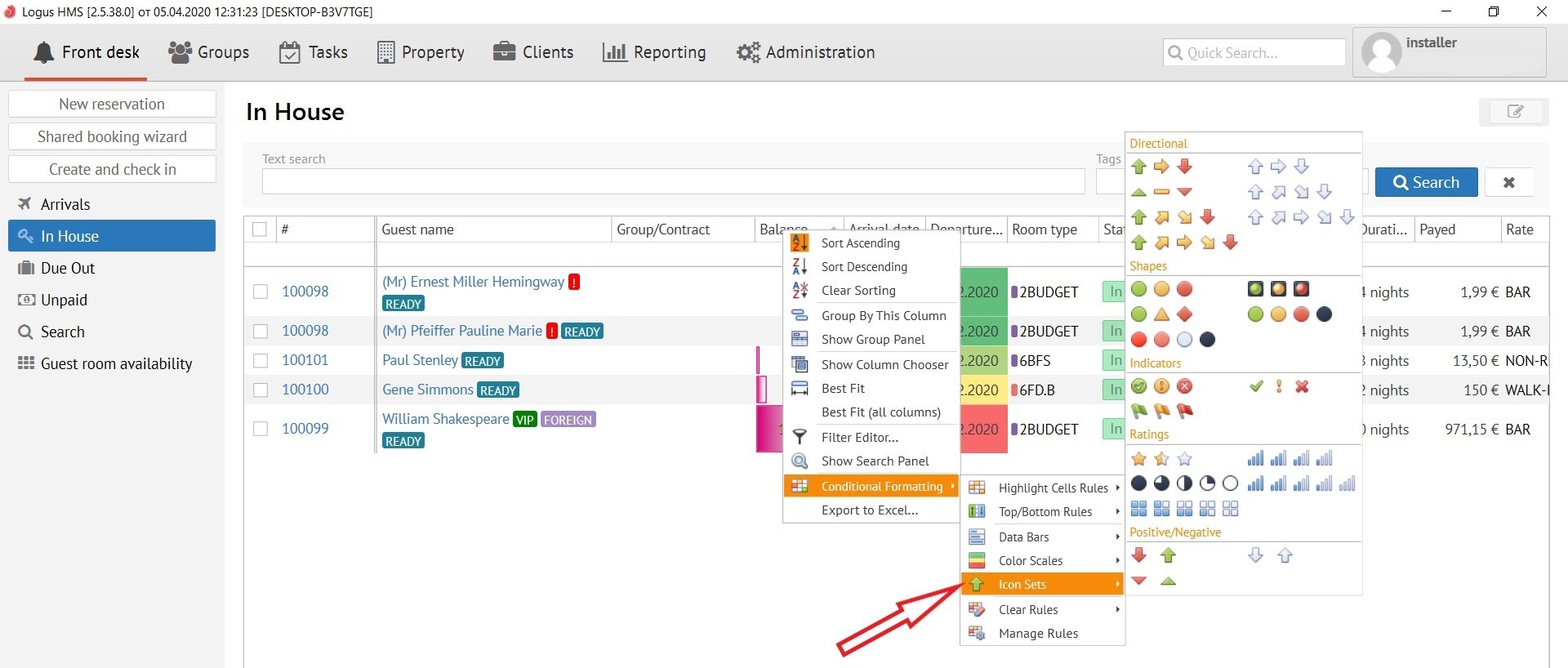
This button allows you to put an icon on the selected column, and mark it by different colour, for example: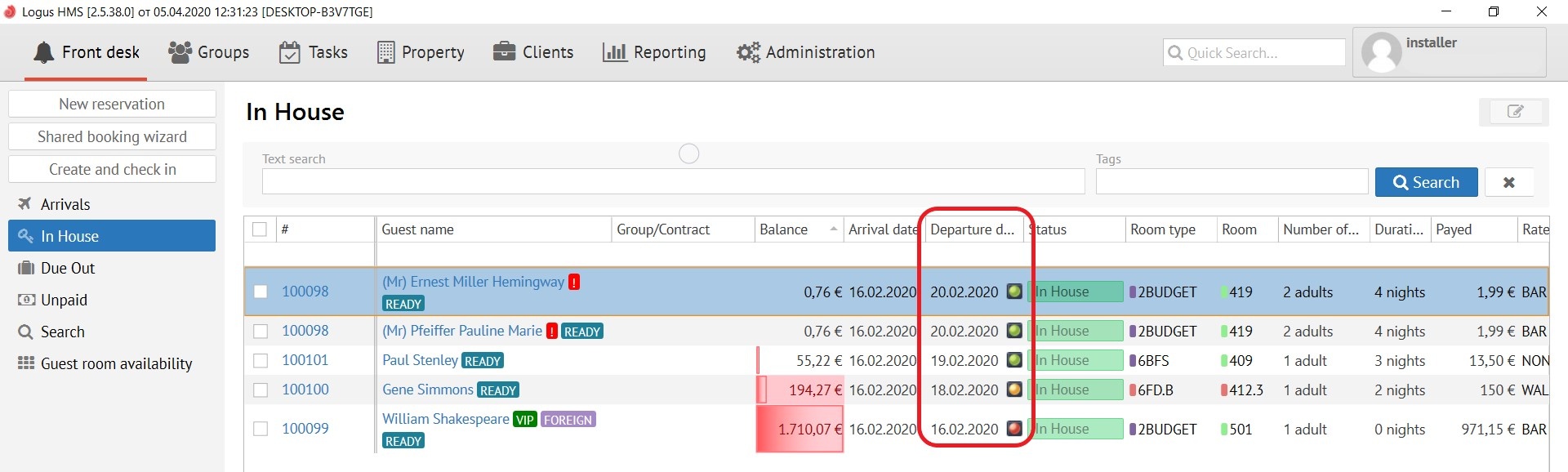
Clear Rules:
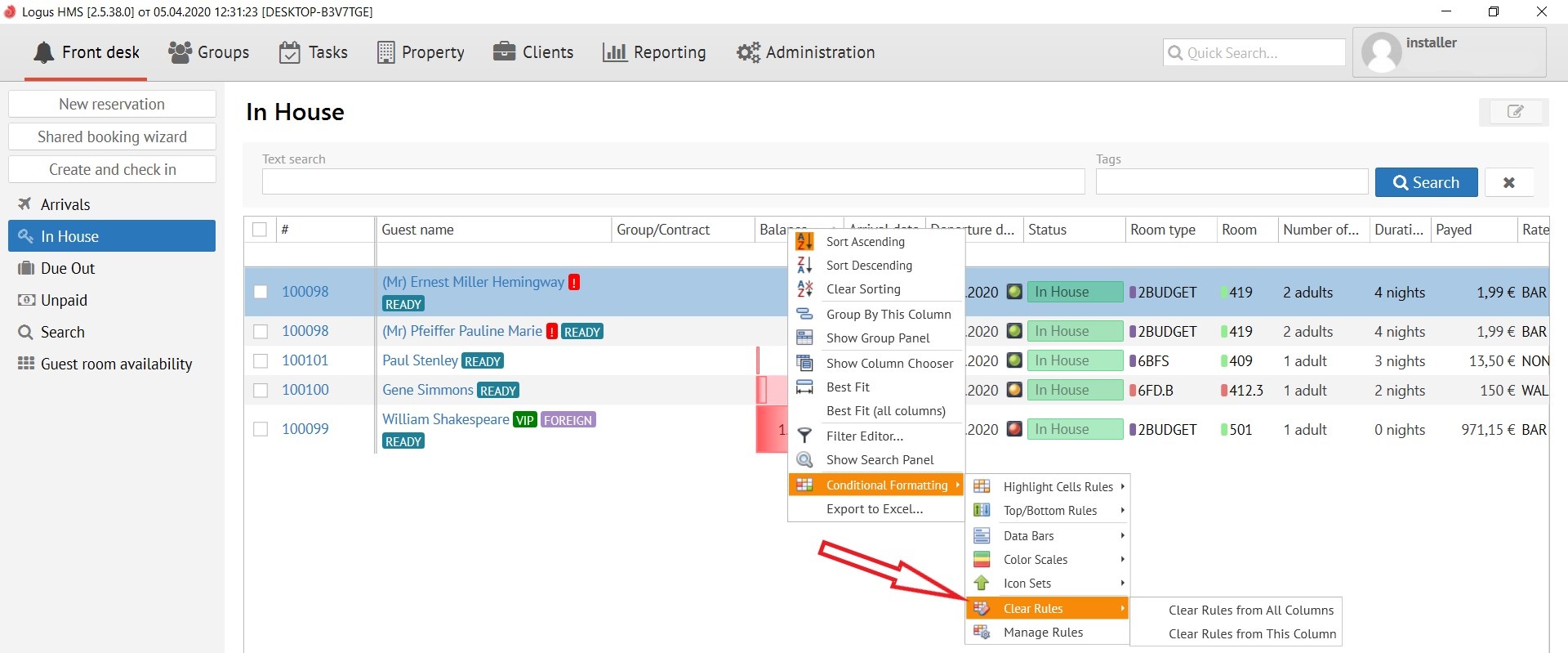
The button allows you to clear the rules:
Clear Rules from All Columns
Clear Rules from This Columns
Manage Rules:
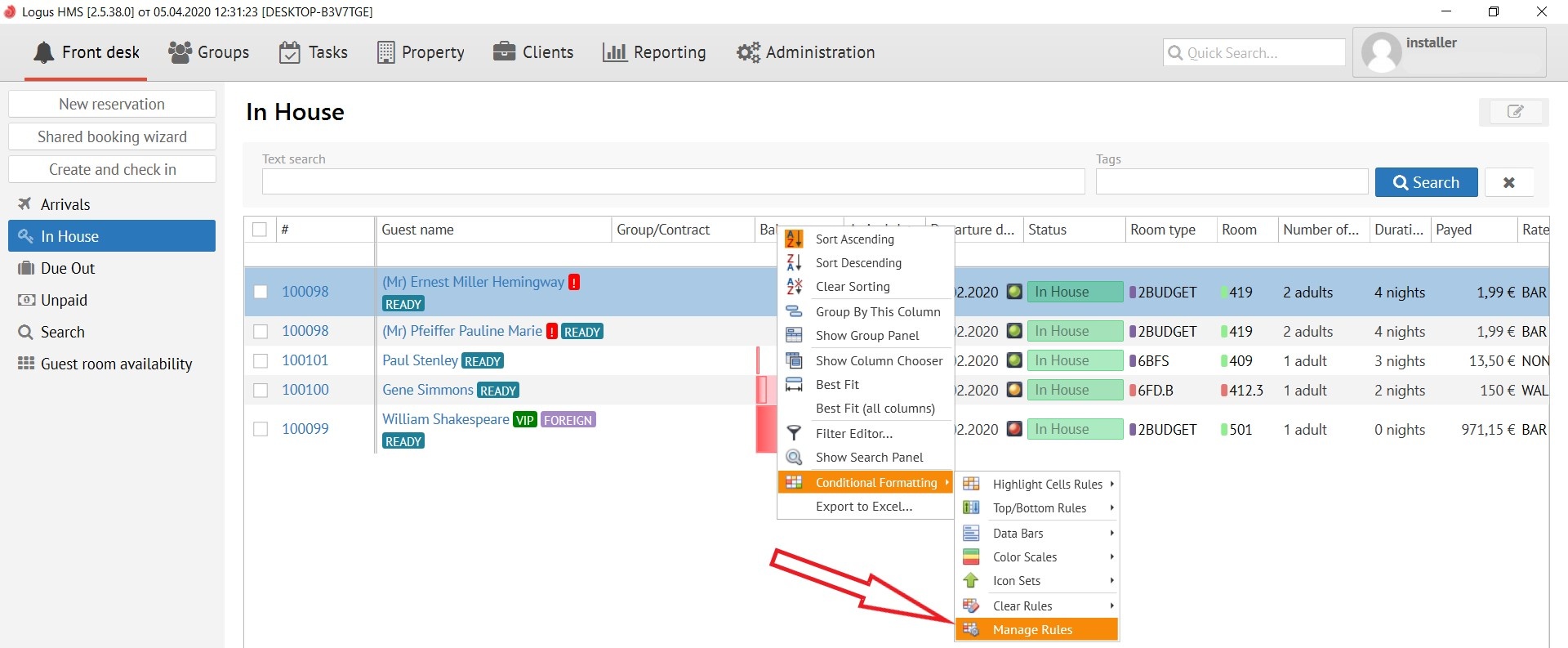
After clicking on this button, the following pop-up window appears:
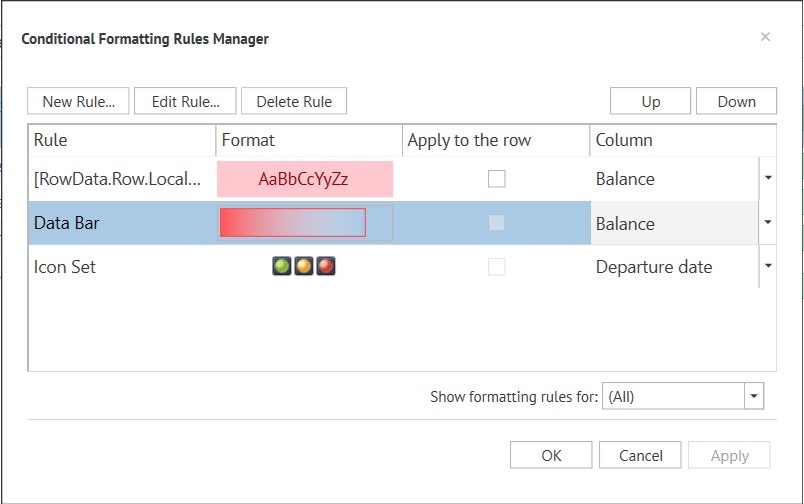
Here you can manage the rules for a columns:
Buttons:
New Rule - allows you to create a new rule on the selected column.
Edit Rule - allows you to edit an already created rule.
Delete Rule - allows you to delete the created rule.
Created rules section:
Rule - A name of a rule.
Format - format of the created rule (letters or icons).
Apply to the row
Column - A name of a column.
Bottom right Show formatting rules - allows you to select the columns you need from the list.