|
The reservation’s Folio - is the place where all settlements with the guest take place (payments, charging services, paying back, services correction).
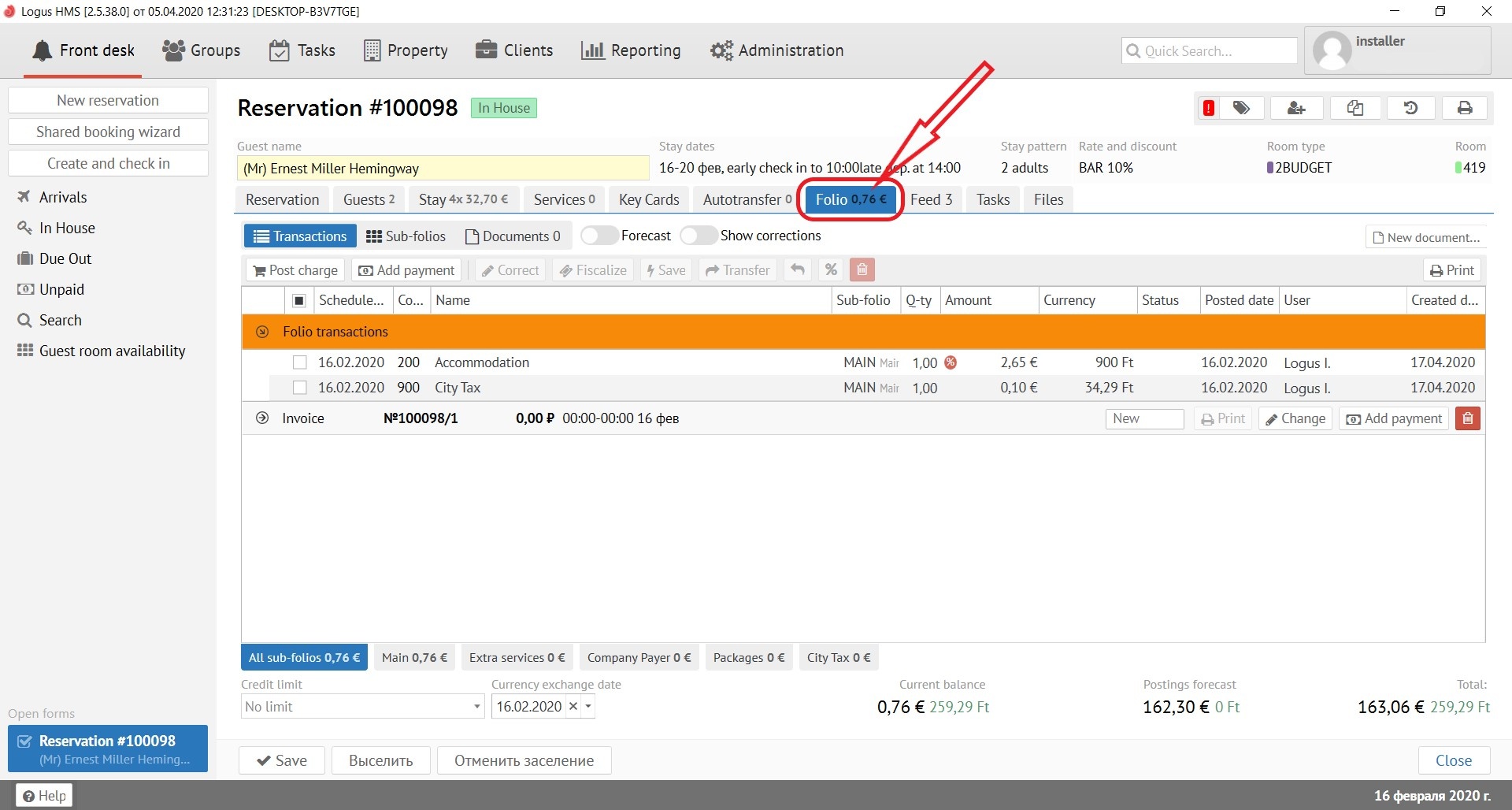
To get to the Folio, click on the “Folio” tab in the reservation card (the current guest balance will also be indicated directly on the tab):
Folio buttons:
Transactions - display the folio like a list of transactions.
Sub-folios - display the folio like different window. (each transaction have an own section/sub-folio. It's used to divide transactions by types/legal entities/types of revenue)
Documents - displaying a list of generated documents. (bills, acts, etc.)
Forecast - shows the transactions, scheduled for posting. (only an accommodation transactions from the rate, and services from "Services" tab)
Show corrections - shows the package components included in the rate at which the guest accommodate.
New Document - an ability to create new document such a bill for prepayment. It can be a printable form.

Post Charge - button for posting services.
Add payment - button for adding payment.
Correct - button for correction of already posted and saved services.
Fiscalize - additional payment fiscalization. (for example, in situation when the paper ran out in the fiscal printer and the cash register receipt did not automatically go out)
Save - the ability to post transactions from schedule list. (ONLY after clicking the "Forecast" button)
Transfer - the ability to transfer a posted service or payment to another sub-folios in the selected reservation folio. Transfer only a posted service (it is impossible to do this with payment) to the selected sub-folios to the account of another guest reservation (Guest profiles).
Revert posted transactions - the ability of canceling scheduled accrual transactions.
Add discount - the ability to make a discount to the posted transaction..
Delete - the ability to delete a posted service until the moment the reservation card was saved.
Print - printing guest folio invoice.

When you click the "Print" button, the following window pops up:
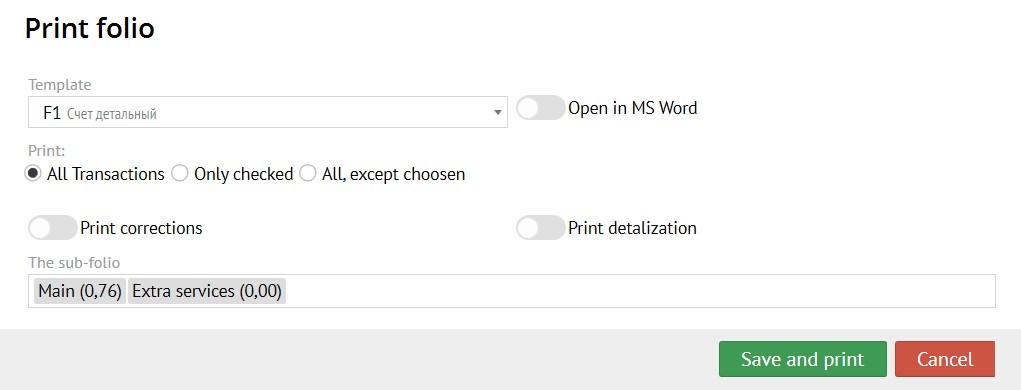
You can choose different template from pop-up window.
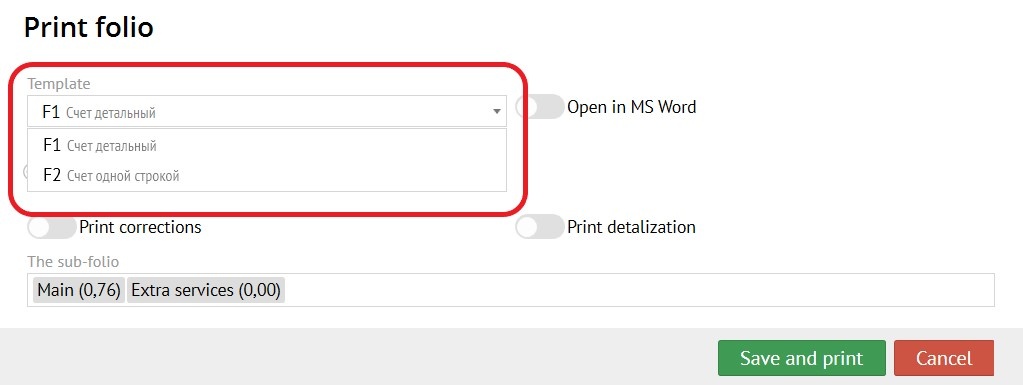
It can be detailed invoice, invoice with only one transaction, some special acts or etc.
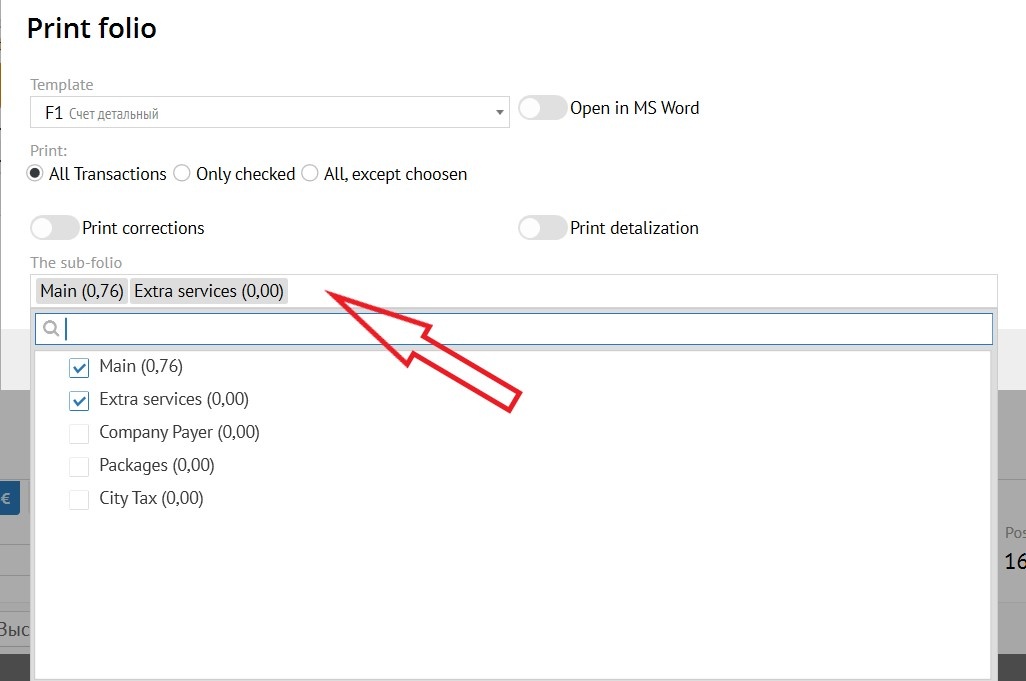
In another pop-up window you can choose required sub-folios to print.
Also in the "Print" tab there is a button "Open in MS Word", which allows you to open an invoice in Word:
You can choose what you want to print, for this you need to mark one of 3 points:
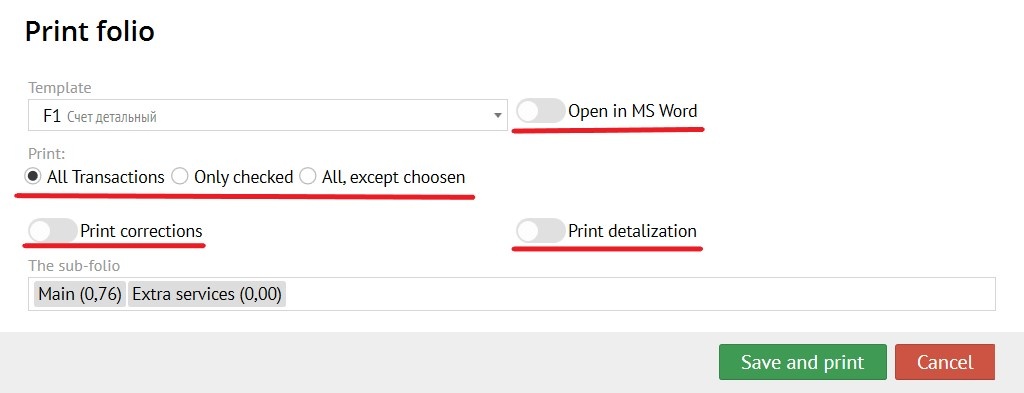
"Print corrections" button - prints invoice with corrections of services in it.
"Print detalization" button - prints an invoice with details of posted services (for example, with the positions of a minibar)
When you click the "Post Charge" button, the pop-up window appears:
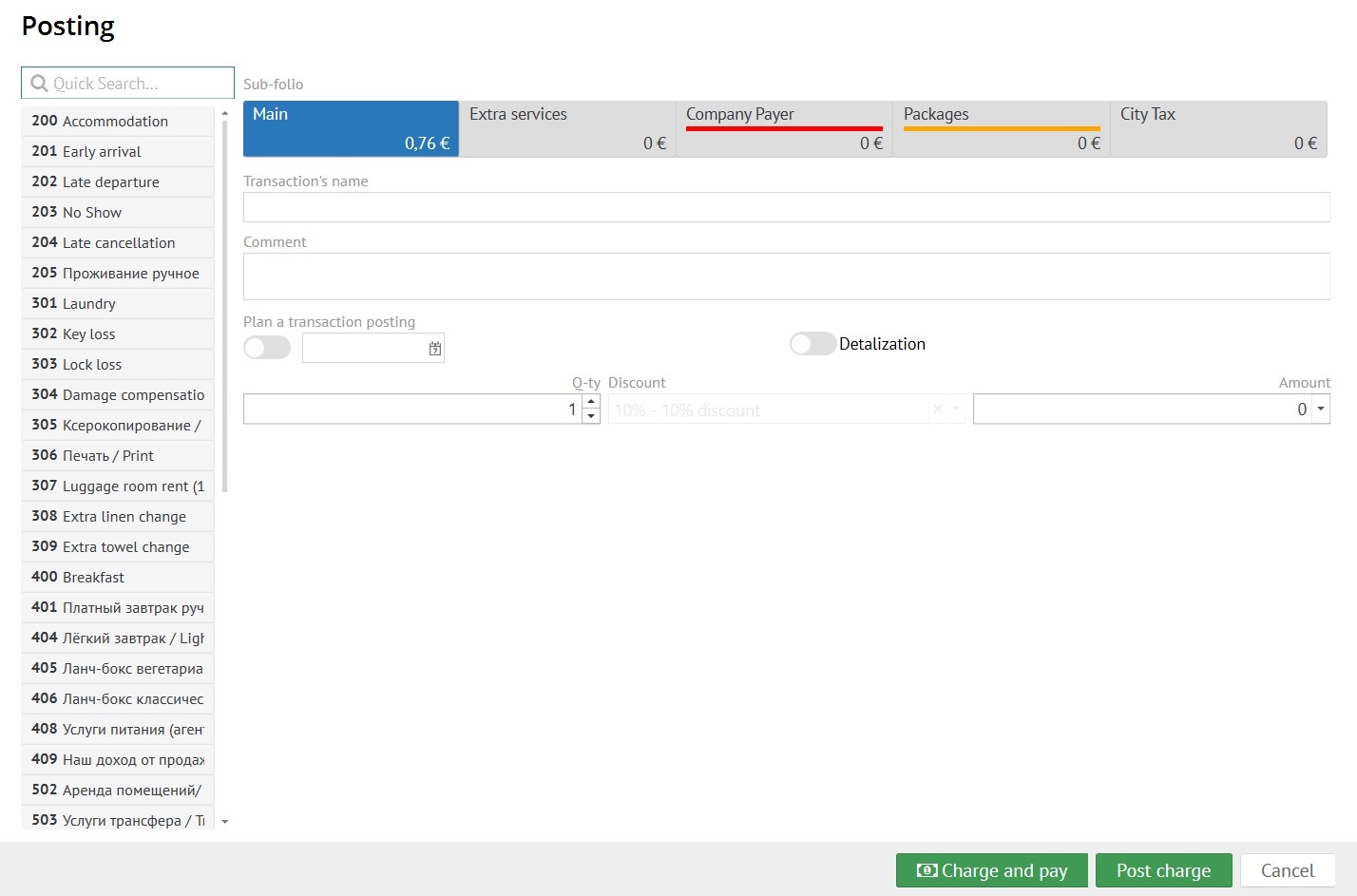
Transaction Code - unique transaction code to be posted.
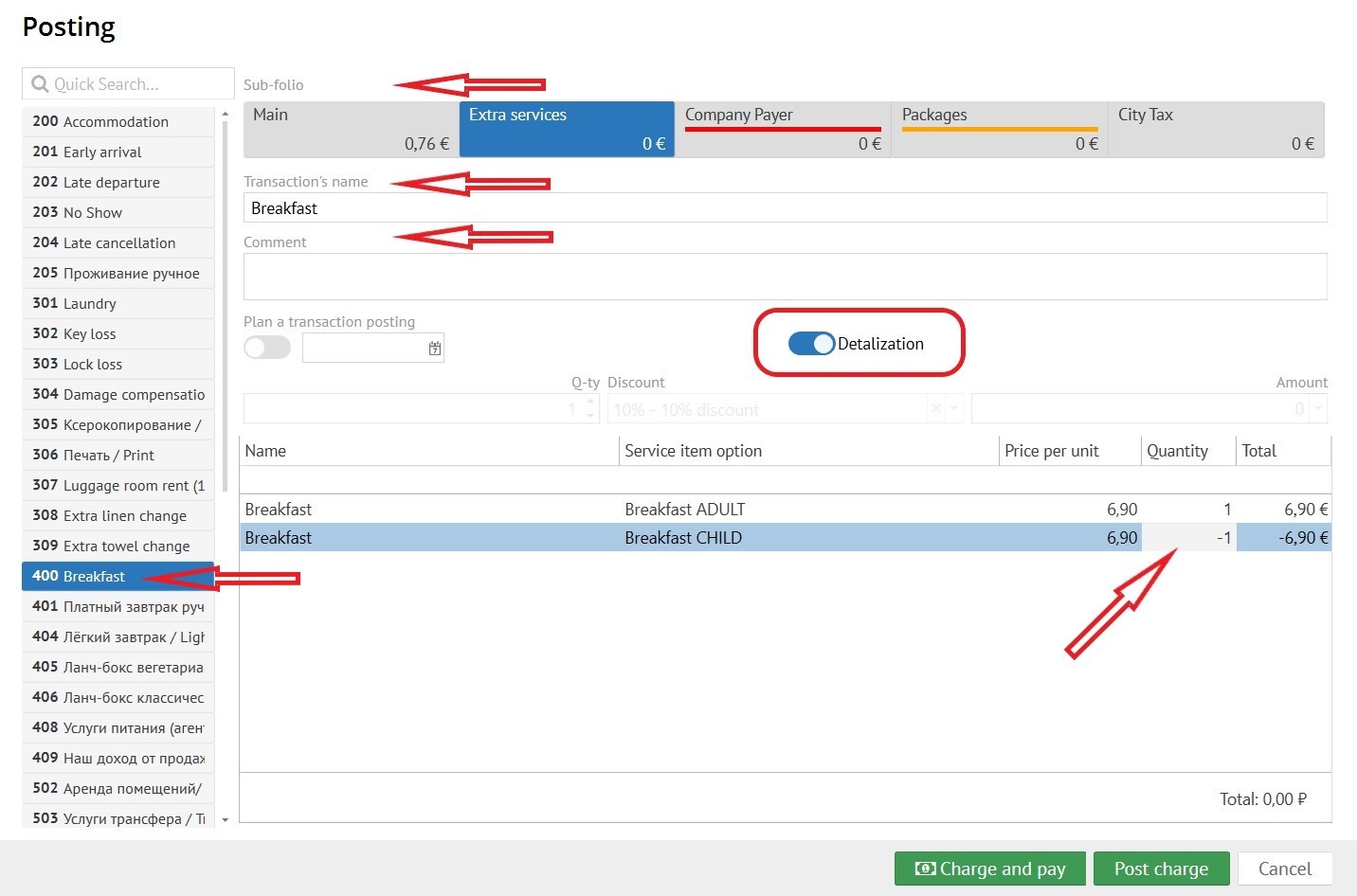
Sub-folio - choosing the right sub-folio for posting.
Transaction's name - filled in automatically after selecting "Transaction Code". (can be changed if needed)
Comment - here you can type the comments you need.
Detalization - Shows the services included in the transaction code (for example, the position of a mini-bar like crisps, snacks and etc.). You should choose quantity of services or write a correct amount in columns.
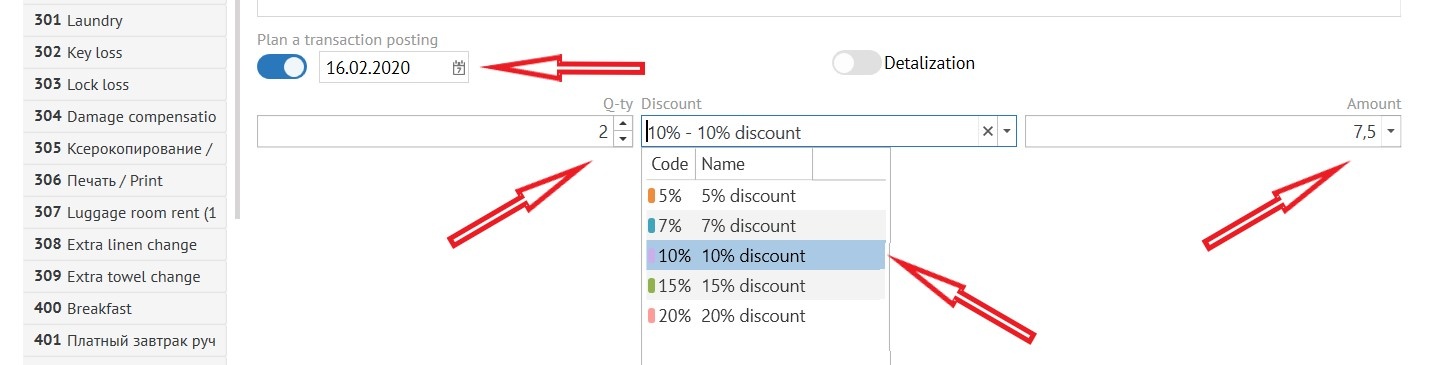
Plan a transaction posting - if you need the transaction to be posted on a certain date, you must click on this button and select a date (this option requires the user to have the “Post scheduled transactions" permission).
Quantity - quantity of posting transactions.
Discount - if you need to make a discount to this transaction click this gap and in pop-up window choose percent of discount.
Amount - in this gap, if it necessary, enter an amount or it will be automatically filled in from the settings.
To post the transaction click "Post charge"
To post and pay immediately click "Charge and pay"

Add payment
When you click the "Add payment" button, a pop-up window appears:
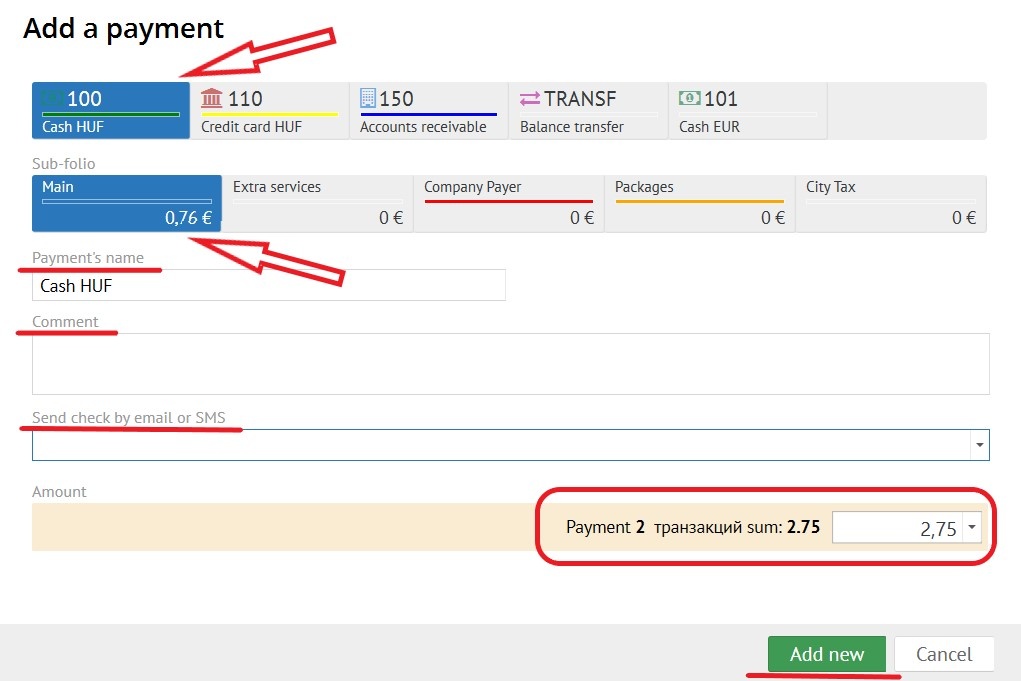
Type of payment - Choose the transaction code for payment (credit card, cash or etc.)а:
Sub-folio - choosing the right sub-folio for payment.
Payment's name - filled in automatically after selecting "Transaction Code". (can be changed if needed)
Send check by email or SMS - if you need to send a check by email or SMS choose the right one. Fill in from fields in "Reservation" card. (Optional!! Depends on tax law)
Comment - here you can type the comments you need.

Amount - if you pay without any marked transaction you should enter an amount. If you marked some transactions an amount and a quantity of it will automatically fill in (the posted transactions and payment should be ib one sub-folio).
To add payment press "Add new" button.
After a service or payment is added to the folio, the lines at the top become active:
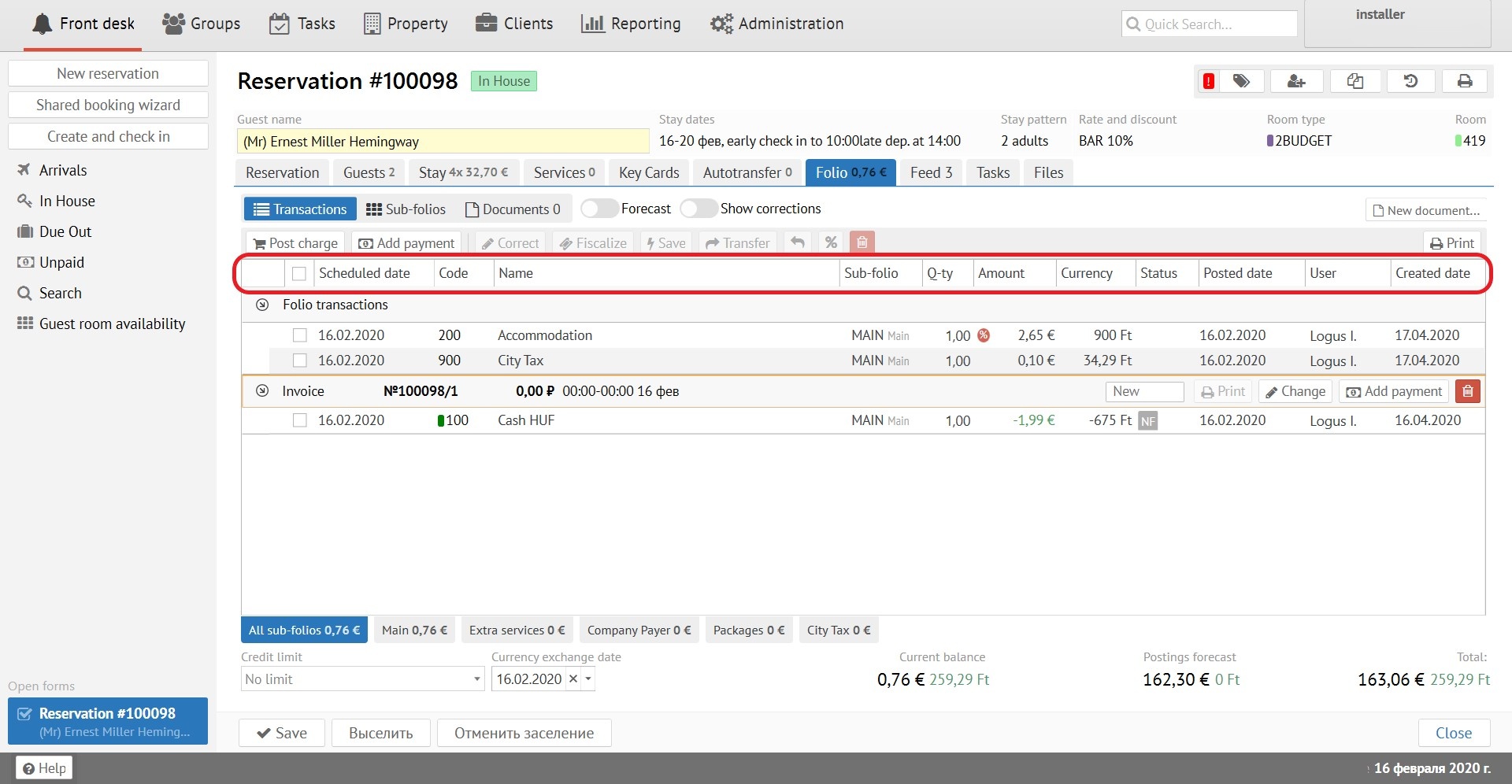
Scheduled date - scheduled transaction date
Code - unic code of transaction from "Administration".
Name - name of transaction from "Administration".
Sub-folio - sub-folio in which transaction posted.
Q-ty - quantity of services.
Amount - amount of services.
Currency - currency in which the transaction was posted.
Status - fiscal status of payment.
Posted date - date of transaction accrual.
User - user who post the transaction.
Created date - date of transaction created.
Limits, balance and forecast

Credit limit - возможность ухода в долг:
Currency exchange date - цhen making a reservation at a rate in currency, the exchange rate date is automatically set.
Current balance - reservation folio balance for the moment. (in different currencies)
Postings forecast - transactions that are scheduled to be post. (in different currencies)
Total: - total balance summarized current and forecast balances. (in different currencies)