|
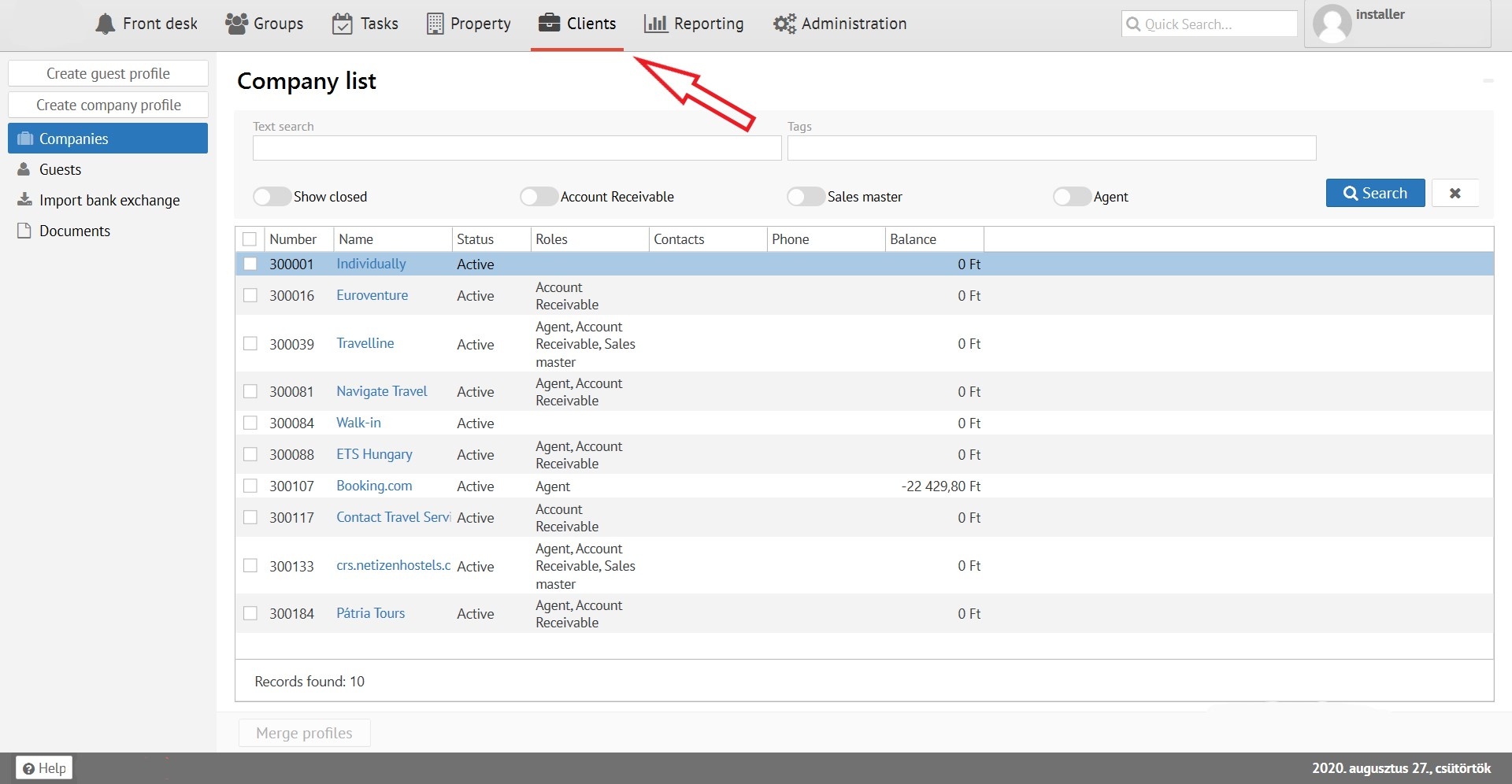
To see/create list of guests/companies “Clients” tad need to be selected:
“Create guest profile” – allows to create profile of new guest.
“Create company profile” – allows to create profile of new company.
“Companies” and “Guests” buttons are to switch between companies and clients lists.
Create company profile:
To create companies’ profile you’ll need to select “Create company profile” button. After that you will see the screen below:
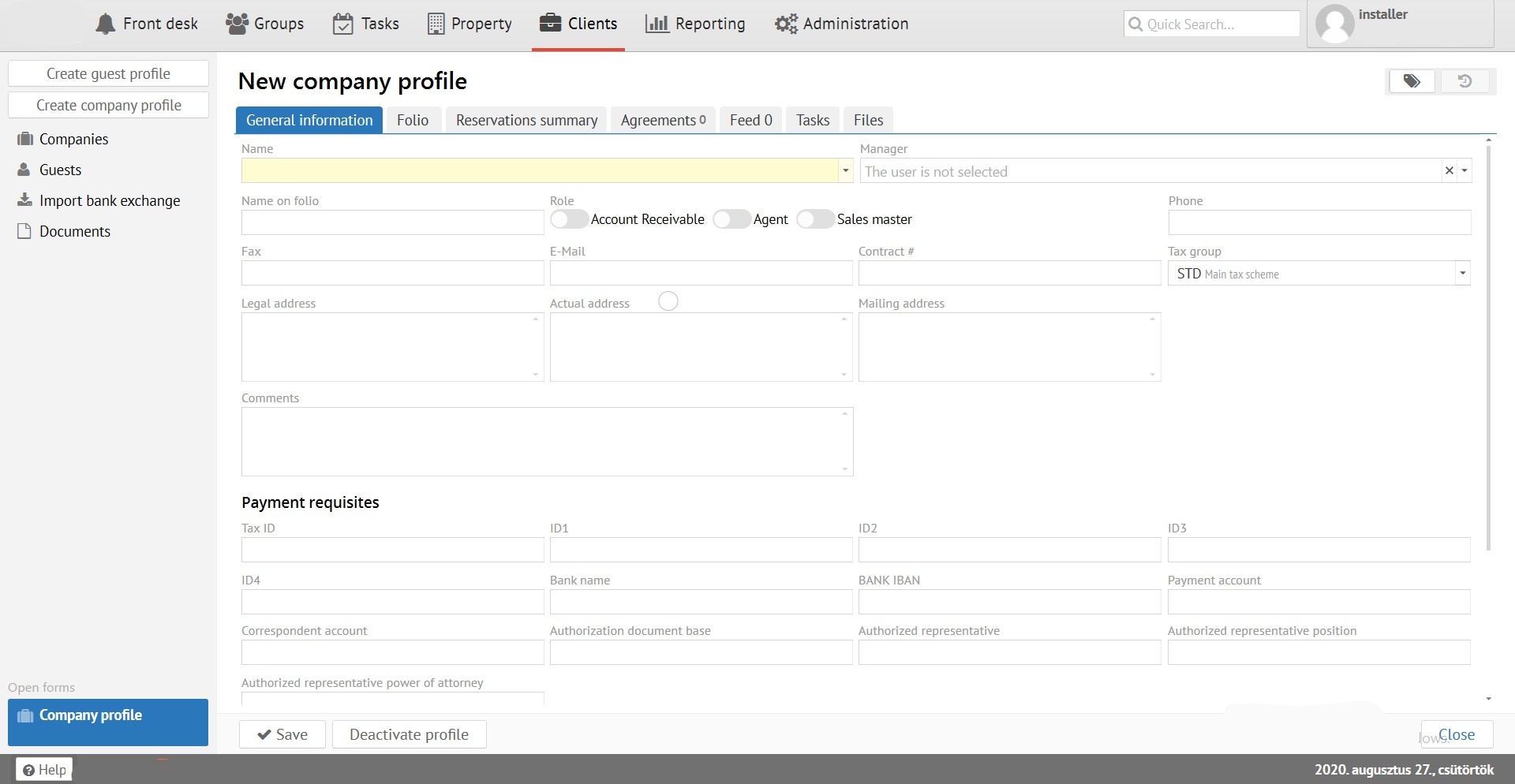
You need to set up all info in here.
Names and meanings of entries:
Name – company name.
Manager – responsible person for specific company.
Name on folio – legal company name.
Phone – companies’ contact number .
Fax - companies’ fax number
Legal address - companies’ legal address number.
Actual address - companies’ actual address number.
Mailing address – e'mail of company.
Tax ID - Companies’ tax code and etc.
Comments – space for your comments
Roles:
а) Account receivable – use when company perform a non-cash settlement. (Not in Logus The Box)
b) Agent – use when a financial incentive paid to a company. (Not in Logus The Box)
c) Sales Master – use when specific company has some quota (Travelline, Wubook).
Marketing information:
Market segment - global type of business choose.
Source – from where reservations are coming for this company.
Track - the purpose of the visit for this ompanies’quests.
Geo- from which region reservation comes.
Open code – purpose of the visit.
You can find more information how to fill marketing information in New reservation.
After all is done you can “Save” all information.
“Deactivate profile” button allows to switch companies status to closed.
"Company" search field:

“Text search” – allows to Search for text (reservation number, name).
“Tags” – allows to search using tags.
“Show closed” – allows to see all closed profiles of guests and companies.
“Account Receivable” - shows only account receivable companies. (Нет в Logus The Box)
“Sales Master” - shows only Sales Master companies (Travelline, Wubook).
“Agent” - shows only Agent companies. (Нет в Logus The Box)
Companies’ list:
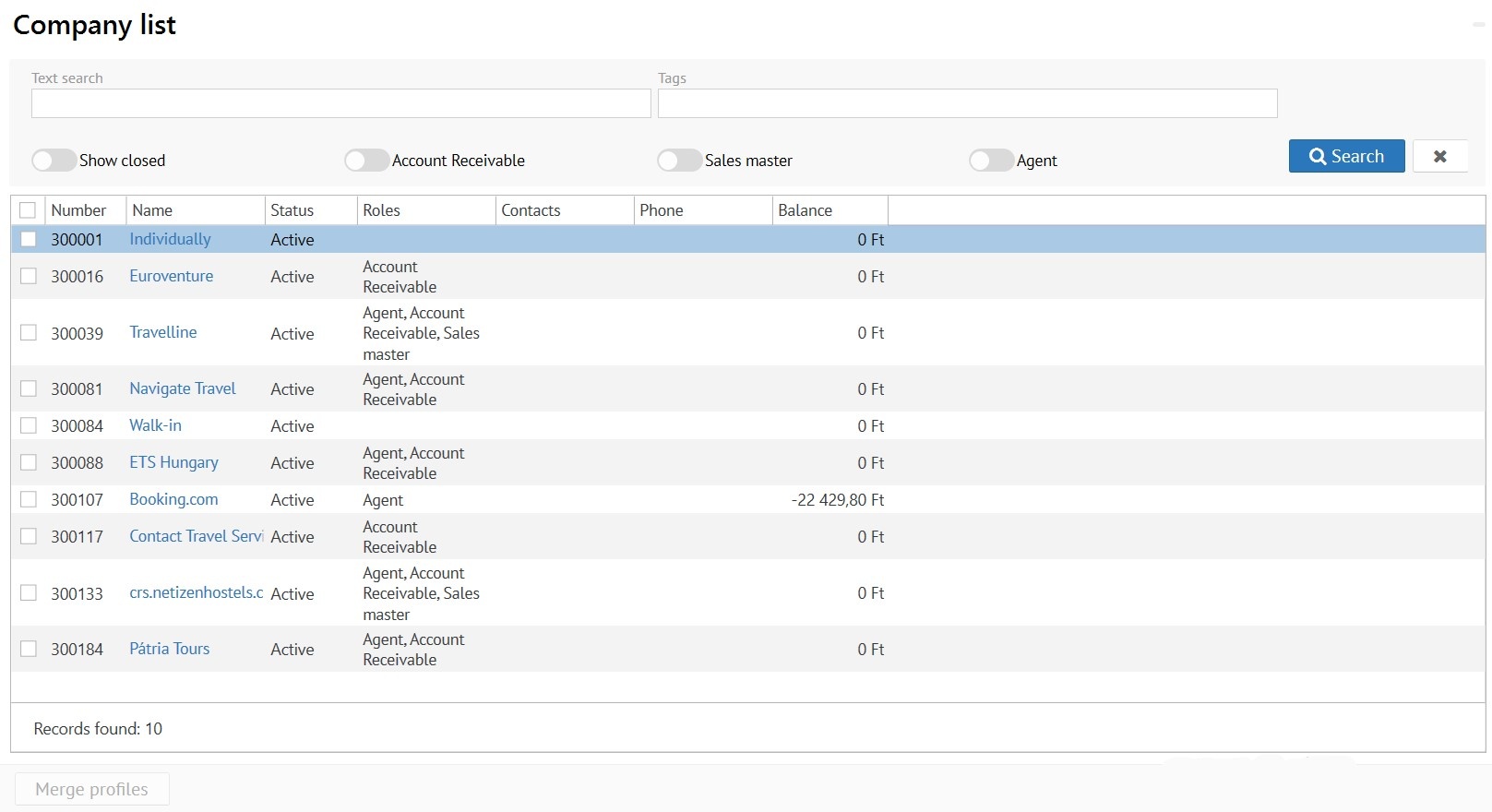
When choosing one of the companies you see:
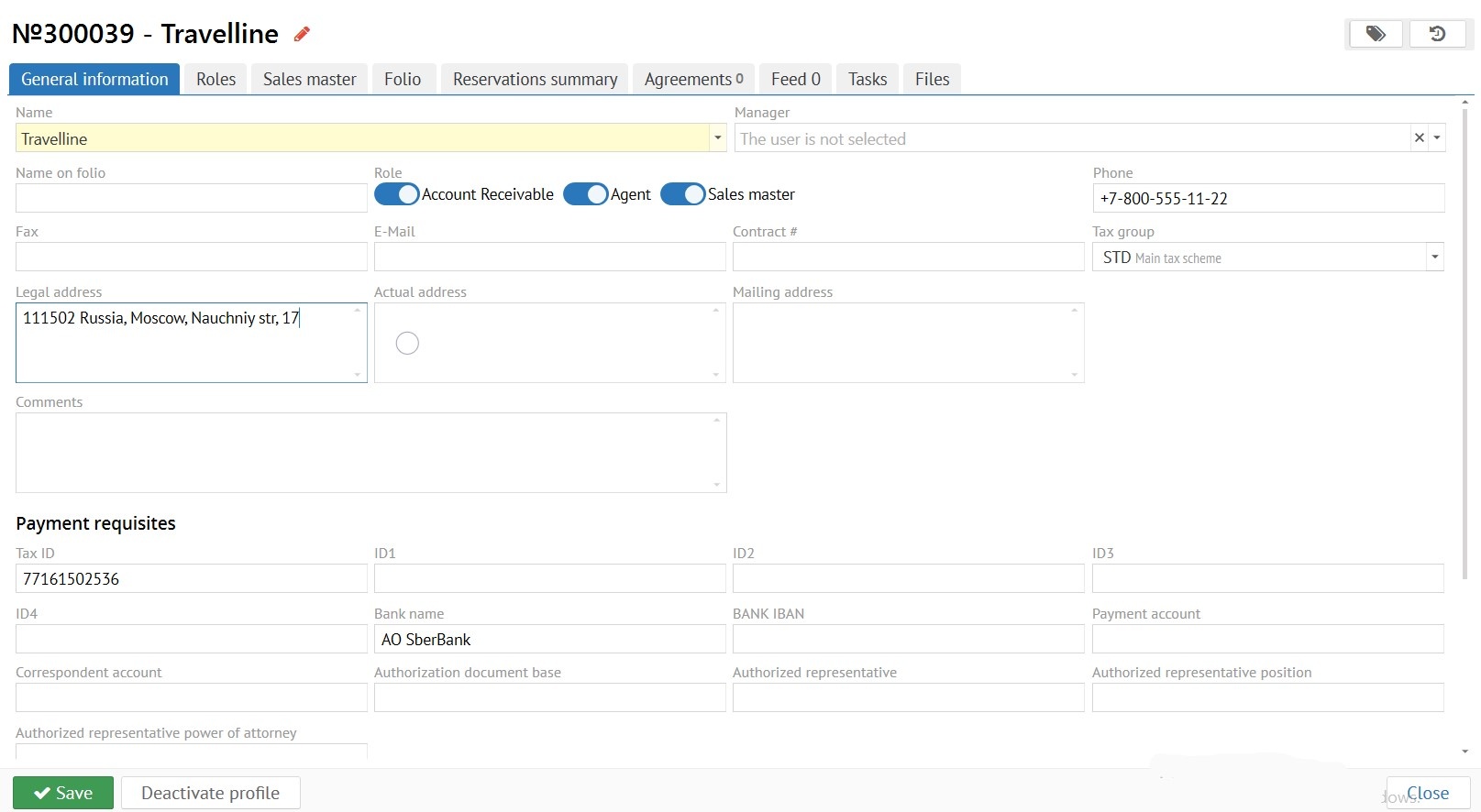
“General information” tab is used to edit companies profile
“Roles” Tab:
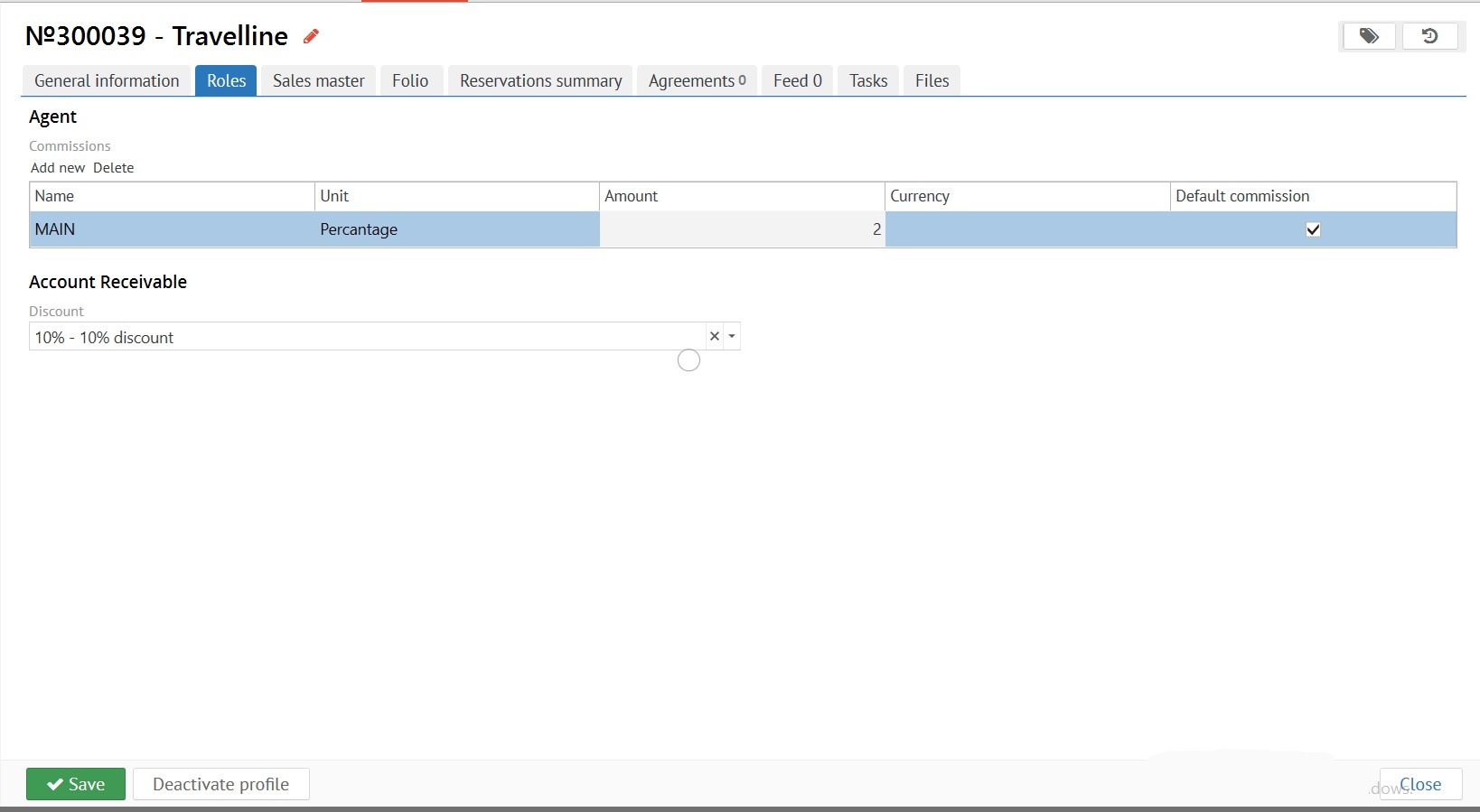
Agent. Commissions – specified an ammount of commission agreement with company.
Discount – fill if company has a discount
Tab "Folio":
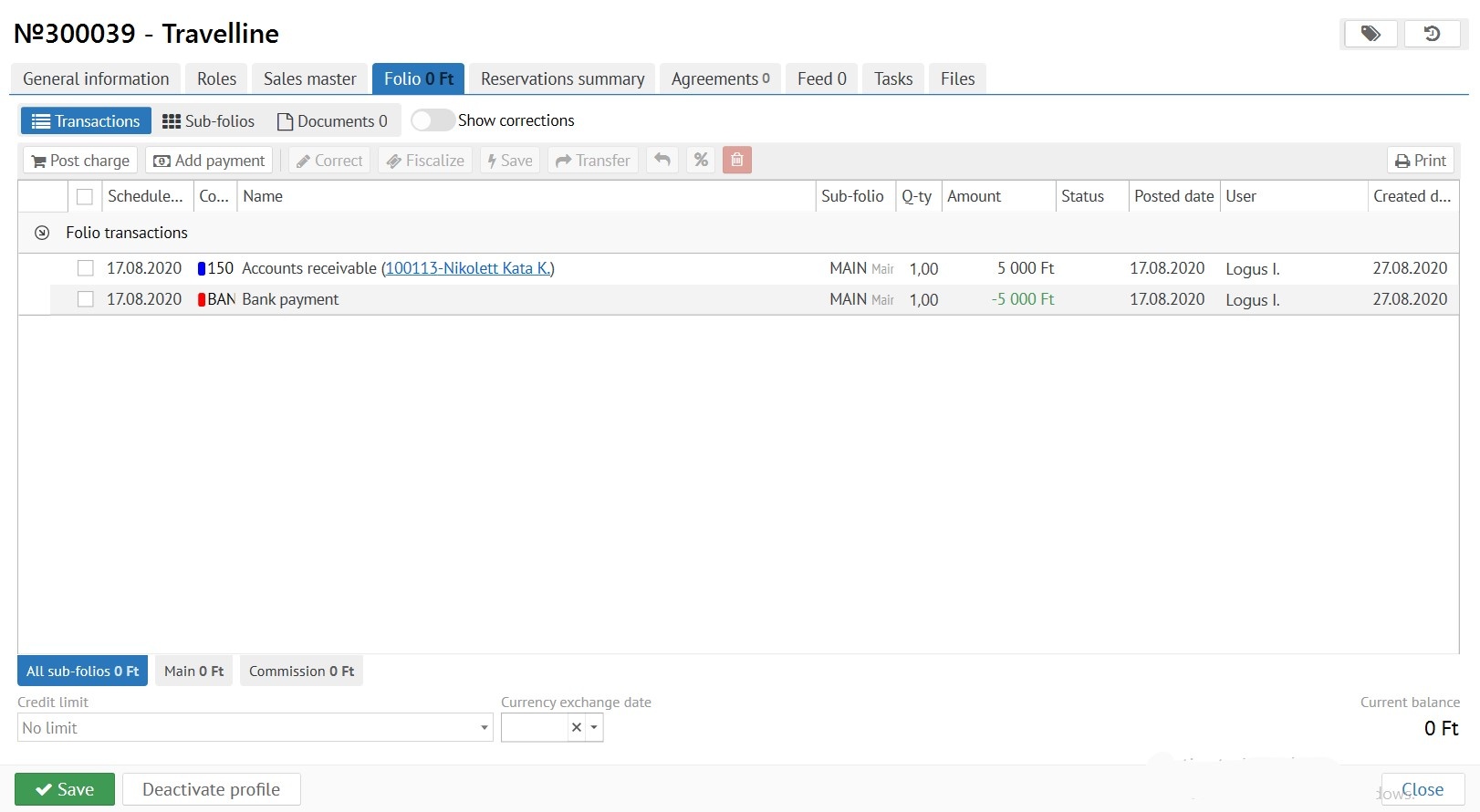
Invoice buttons:
"Transactions" / "Sub-folios" - displaying of invoice as a list of transactions or in different windows.
"Documents" - displaying a list of generated documents (mostly vouchers).
"Show corrections" - allows to see the tariff package components which the guest is staying on.
"Post charge" - button for charging services.
"Add payment" - button to add a payment.
"Correct" - button for already charged service correctins.
"Fiscalize" - compulsory payment fiscalization (for example, in a situation when fiscal printer is out of paper and check hasn’t automatically come out).
"Delete" - ability to delete service before invoice has been saved.
"Save" - ability to post transactions planned for accrual (after clicking the "Forecast" button. Optional! In reservation tab)
"Transfer" - the ability to transfer a service or payment to another sub-folio in the selected account, or transfer only the service (with payment this is not possible) to the selected sub-folio at the expense of another guest.
"Revert posted transactions" - ability to cancel execution of transactions scheduled for accrual.
"Print" - print company’s invoice.
“Reservations summary” tab:
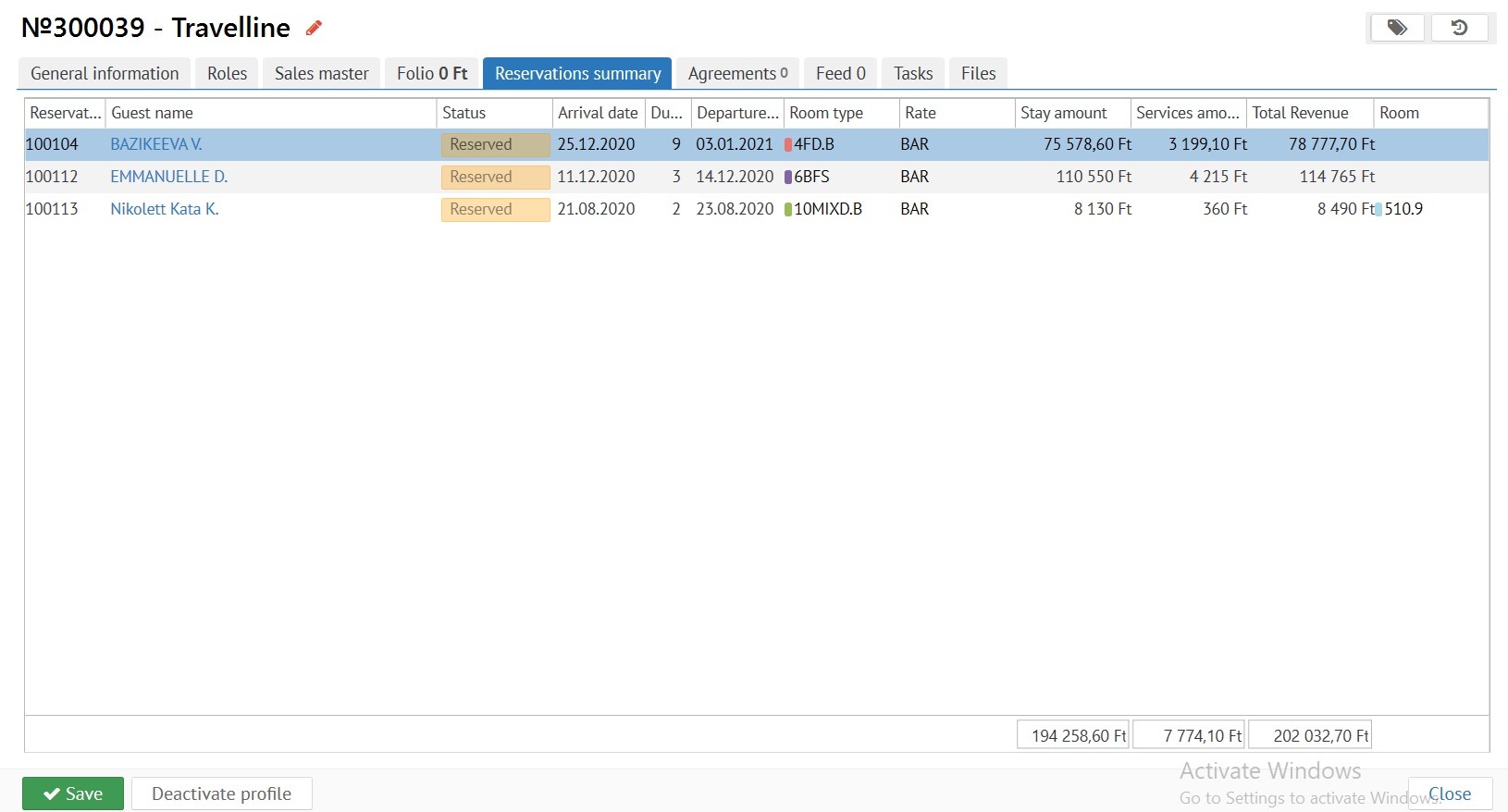
Buttons:
"Reservation number" – is for indicating guest's reservation.
"Guest name" - guest‘s name.
"Status" - reservation status.
"Arrival date" - the date of arrival.
"Duration" - the duration of the guest's stay in days.
"Departure date" - the date of the departure.
"Room type" - the type of room, in which the guest lives.
"Rate" - rate code.
"Stay ammount" - the amount of money that hotel earned just for the guest stay.
"Services ammount" - the amount of money that hotel earned for additional services.
"Total Revenue" - is the total income from the guest's reservation.
"Room" - the room number, in which the guest lives.
2. Гости
|
2.1. Создание профиля гостя:
Для создания профиля гостя необходимо нажать на кнопку "Создать профиль гостя". Далее у вас появится следующее окно:
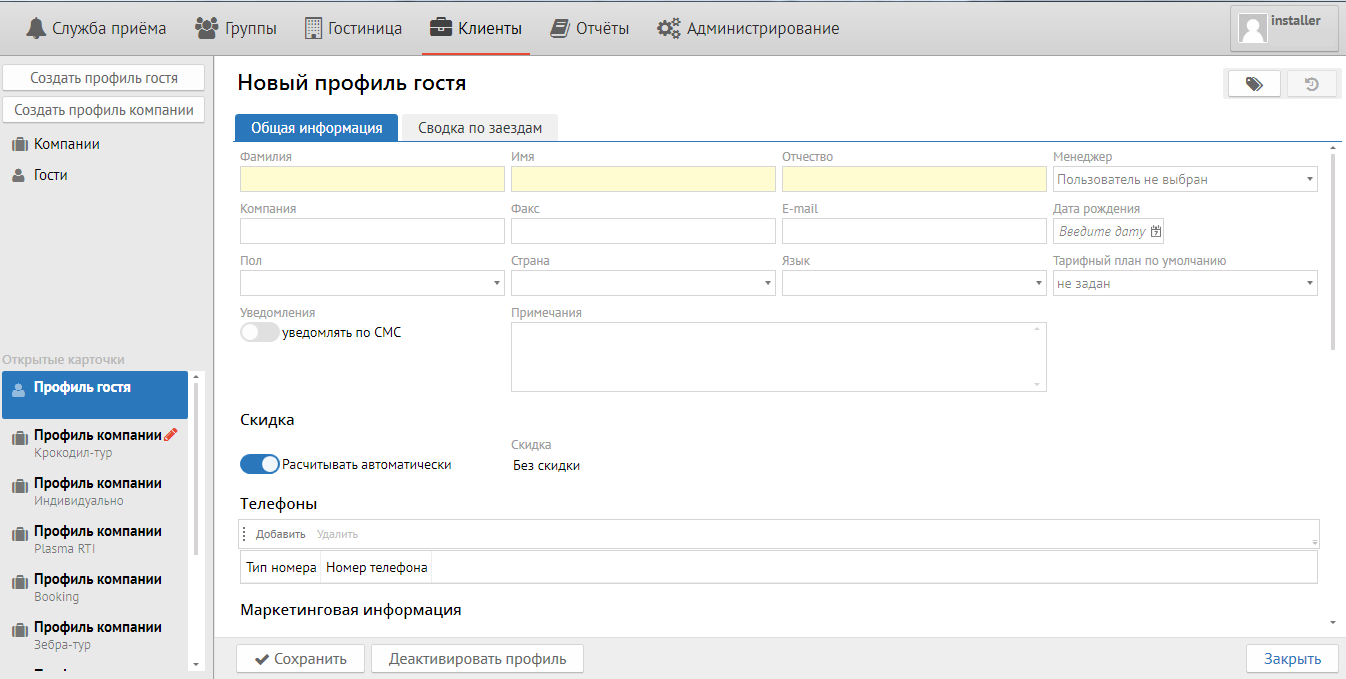
Здесь необходимо заполнить все необходимые поля.
Название и обозначение некоторых полей:
Компания - компания, от которой пришел гость.
Менеджер - ответственное лицо, которое будет работать с этим гостем.
Тарифный план по умолчанию - тариф, по которому по умолчанию будет жить гость.
Примечания - пожелания гостя.
Скидка - используется, если у гостя есть скидка.
Телефоны/Маркетинговая информация - заполняется аналогично как в компании.
2.2. Поле поиска по гостям:

Поле "Поиск по тексту" - позволяет искать по тексту (№ брони, буквенное название).
Поле "Компания" - позволяет искать по компаниям.
Поле "Теги" - позволяет искать по тегам.
Кнопка "Показать закрытые" - позволяет показывать закрытые профили гостей.
Кнопка "Нечеткий поиск" - позволяет искать по ключевым словам, если вы точно не помните, как пишется компания или имя гостя например.
2.3. Список гостей:
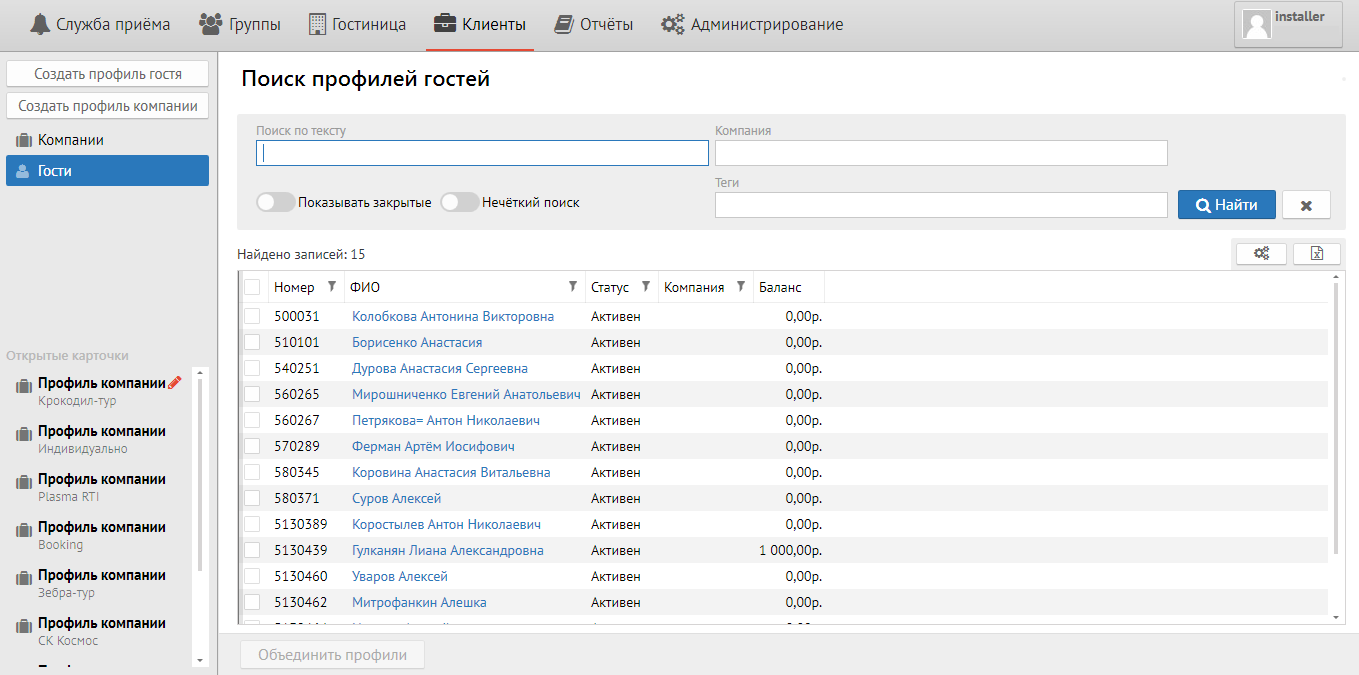
При выборе одного из гостей появляется следующее окно:
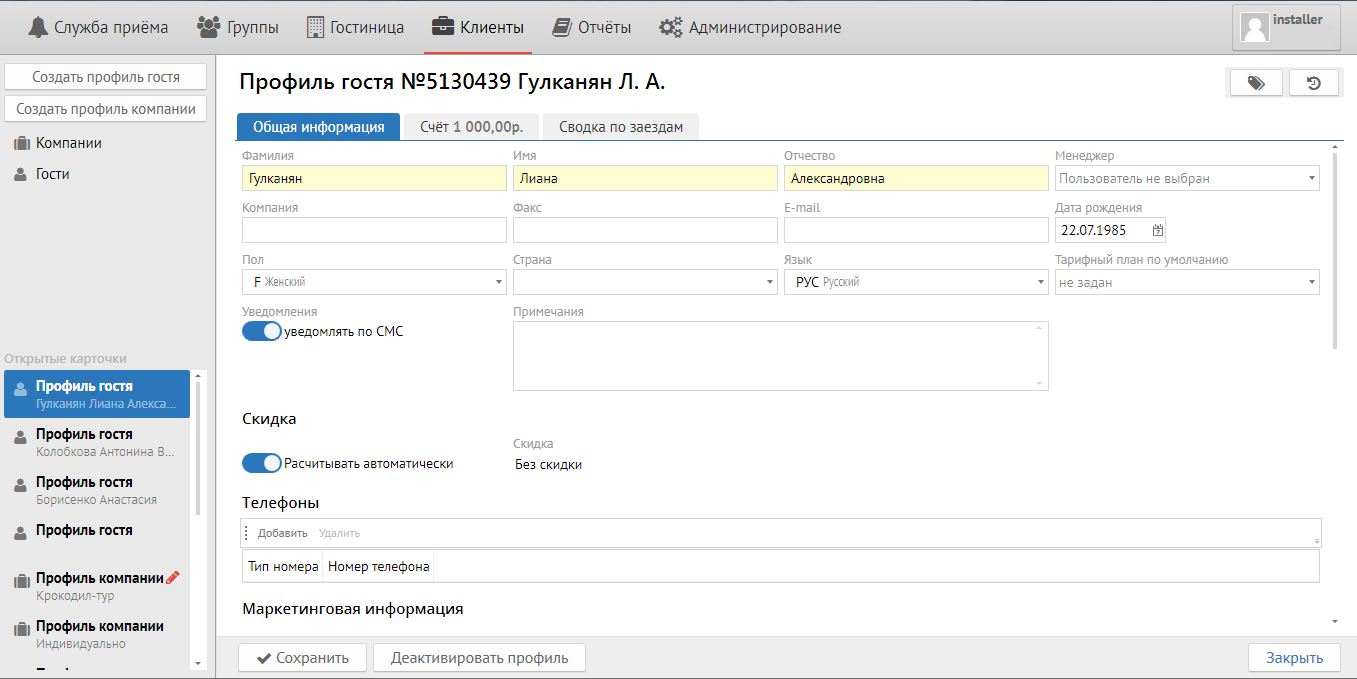
Во вкладке "Общая информация" можно редактировать профиль гостя.
Вкладка "Счет":
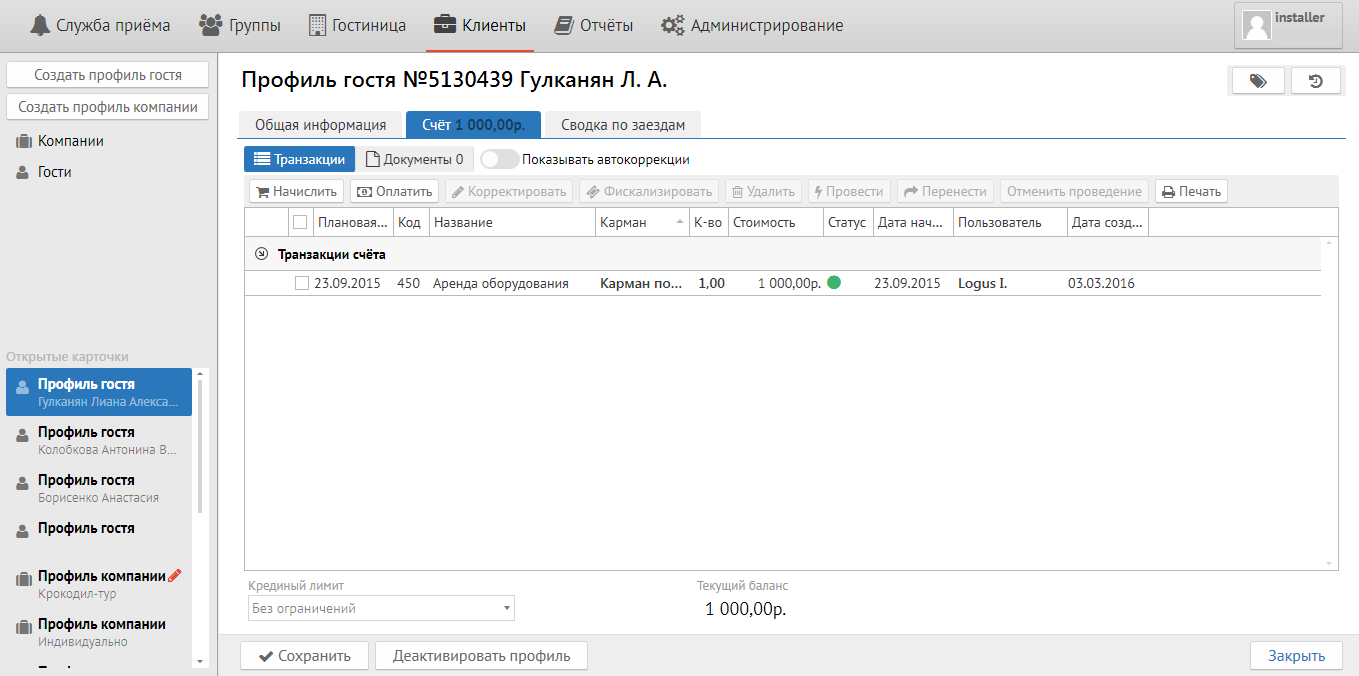
Кнопки Счета:
Транзакции - отображение счета в виде списка транзакций.
Документы - отображение списка сформированных документов (в основном это путёвки).
Показать автокоррекции - позволяет показать пакетные составляющие, включенные в тариф, по которому проживает гость.
Начислить - кнопка для начисления услуг.
Оплатить - кнопка для добавления оплаты.
Корректировать - кнопка для коррекции уже начисленной услуги.
Фискализировать - принудительная фискализация оплаты (например, в ситуации, когда в фискальном принтере кончилась бумага, а чек автоматически не вышел).
Удалить - возможность удаления услуги до того момента, как произошло сохранение счета.
Провести - возможность проведения запланированных к начислению транзакций (после нажатия кнопки «Прогноз»)
Перенести - возможность перенести услугу или оплату на другой карман в выбранном счете либо перенести только услугу (с оплатой это сделать не возможно) на выбранный карман в счет другого гостя.
Отменить проведение - возможность отмены проведения запланированных к начислению транзакций.
Печать - печать гостевого счета.
Более подробное описание работы со счетом можно посмотреть во вкладке "Работа со счетами"
Вкладка "Сводка по заездам":
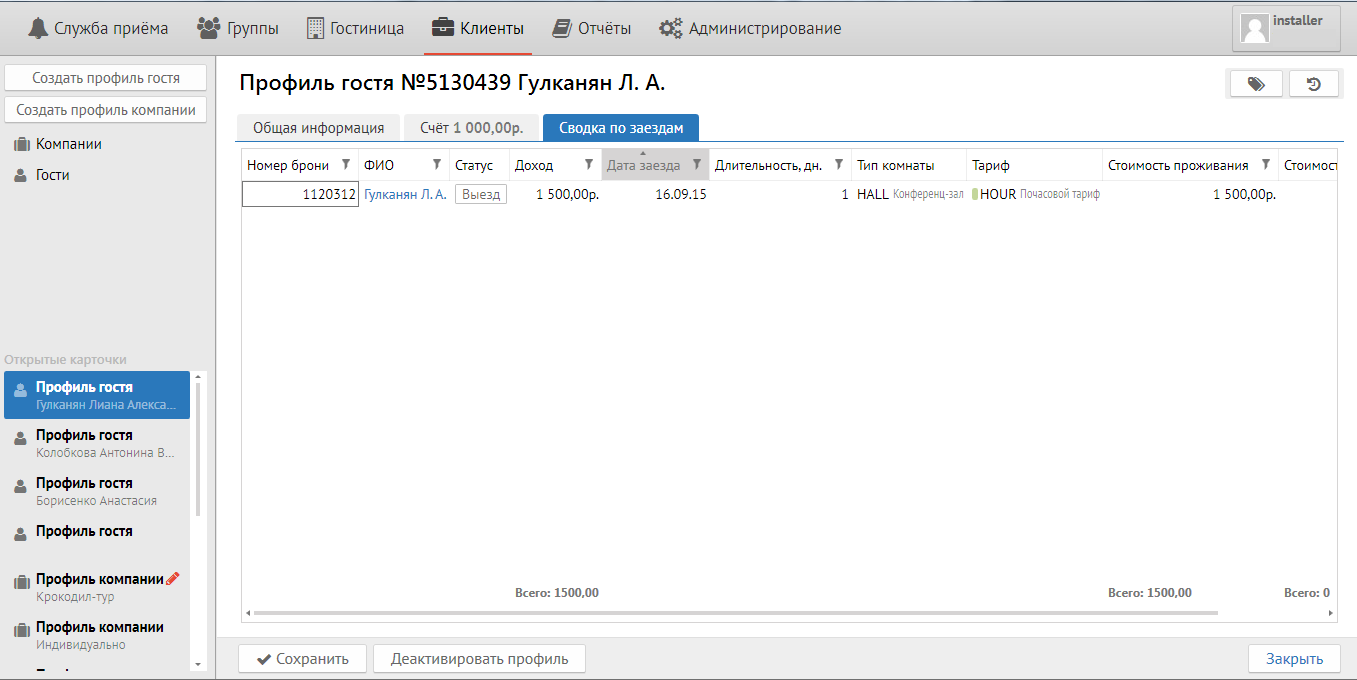
Колонки:
Номер брони - указывается номер брони гостя.
ФИО - имя гостя.
Статус - статус брони.
Доход - общий доход, который принес гость.
Дата заезда - дата заезда гостя.
Длительность, дн - длительность прибывания гостя в днях.
Тип комнаты - тип комнаты. в которой проживает гость.
Тариф - код тарифного плана.
Стоимость проживания - количество денег, которое заработала гостиница только за проживание.