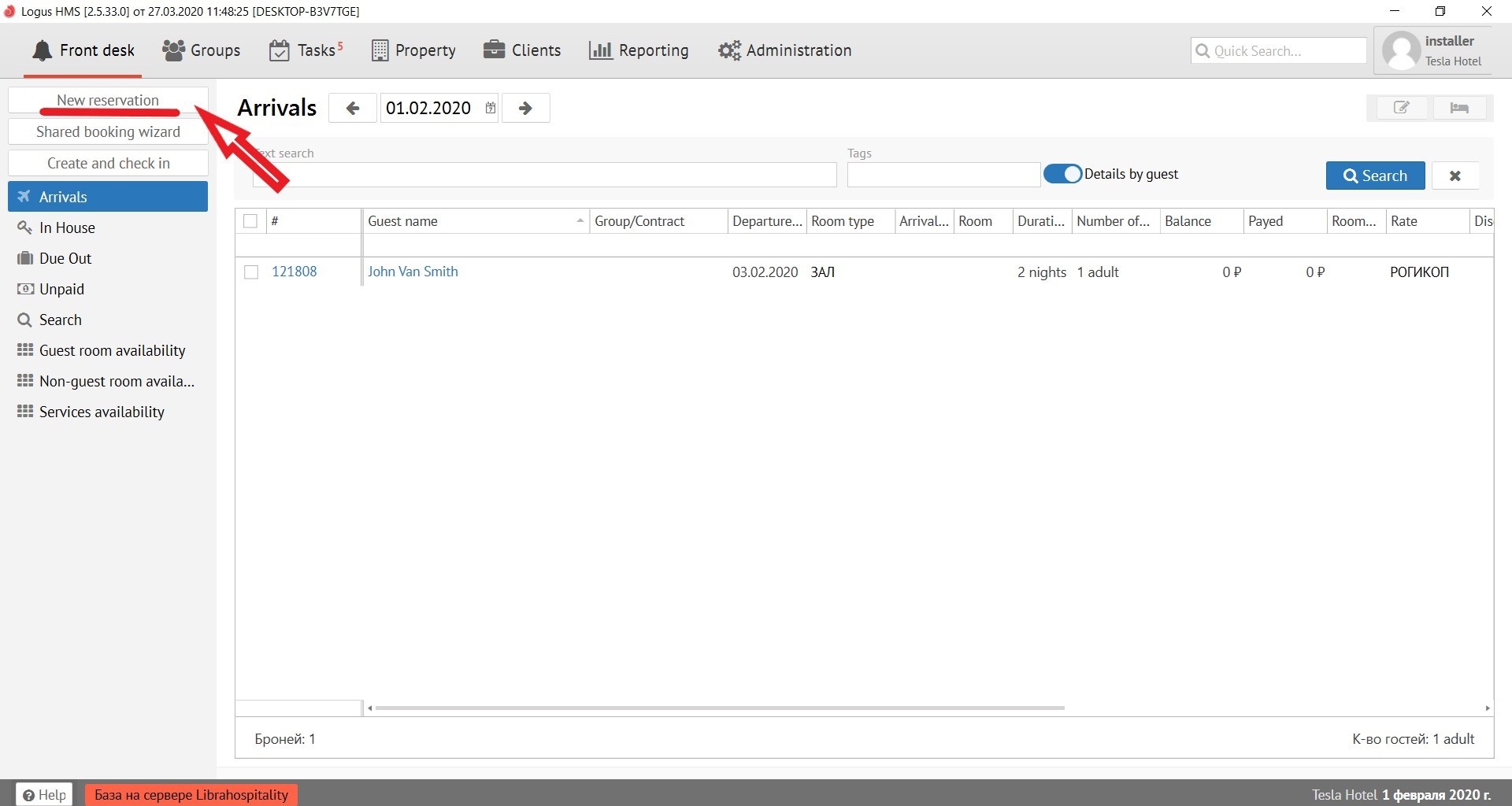
To make a reservation, click the "New reservation" button.
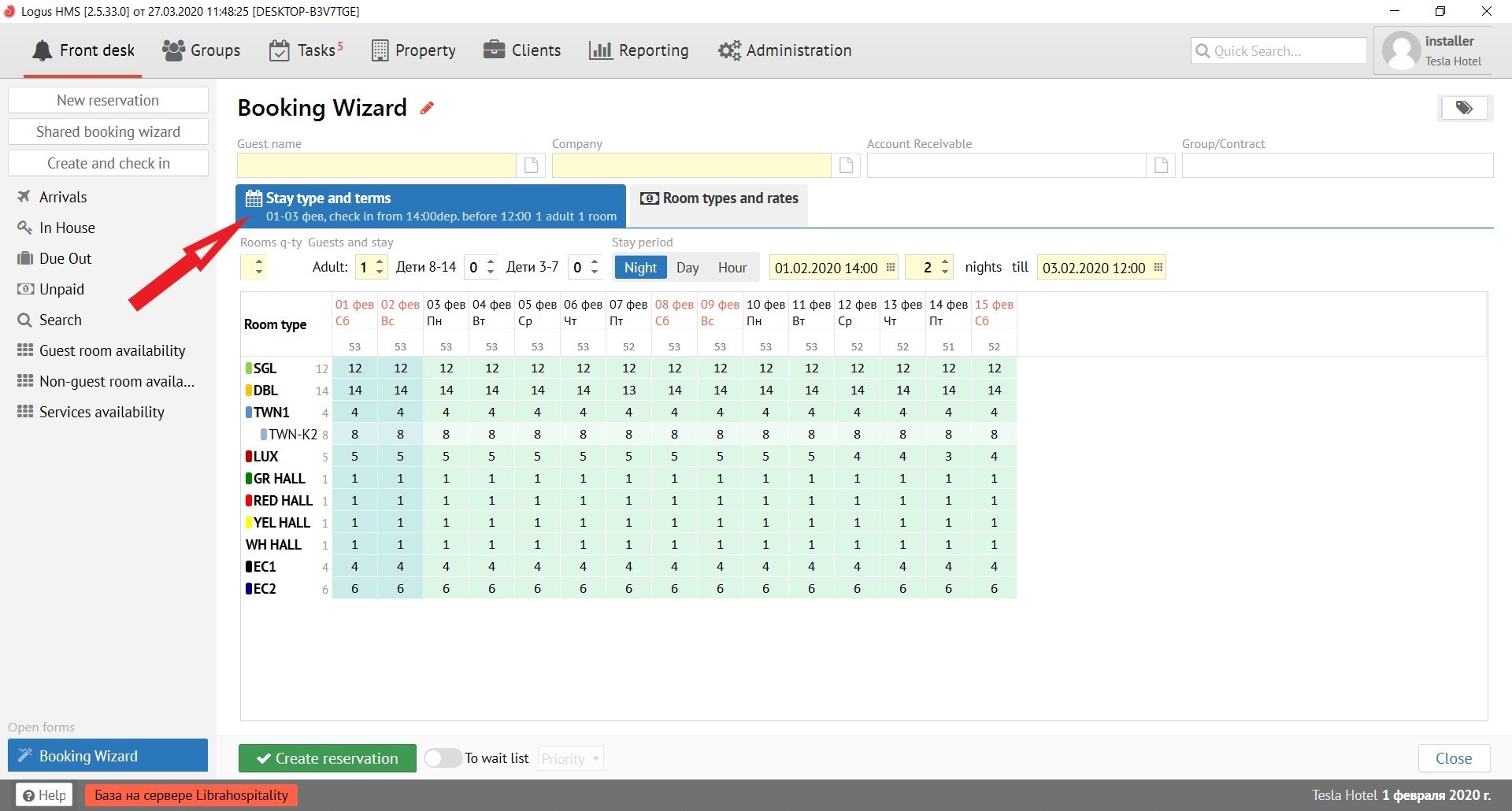
Booking Wizard
Step 1: "Layout and terms"
In the tab "Stay type and terms», it is necessary to fill in the information on the guest:
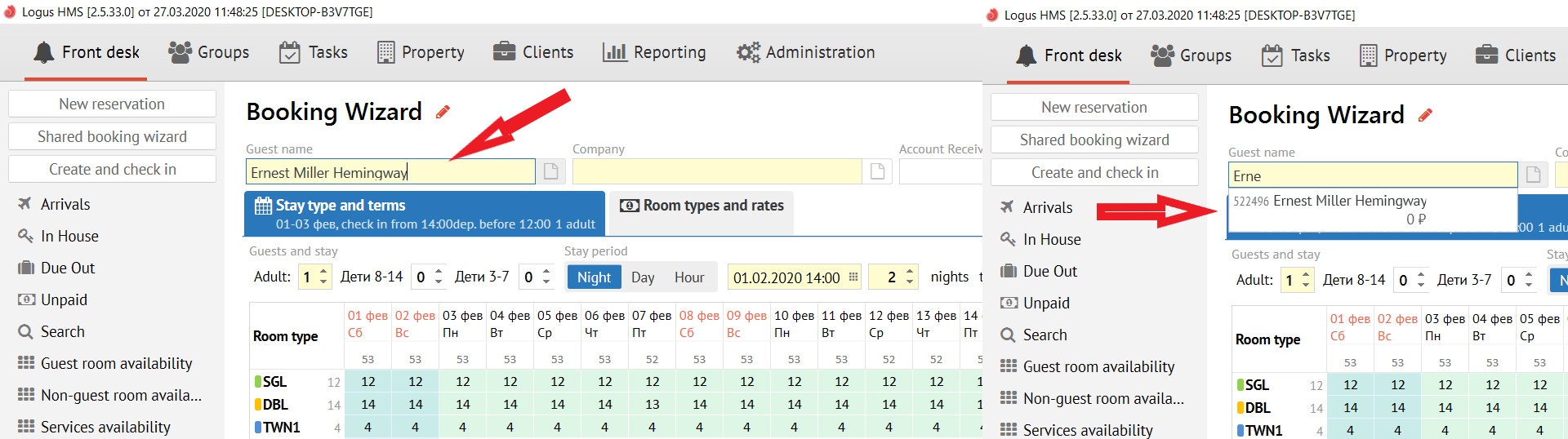
In the field "Guest name", it is necessary to type the name of the guest. If the guest has already lived in your property, a pop-up window will appear in the "Guest name" field with the name and surname of this guest. After clicking on it, all guest information will be automatically filled in to create a reservation.
In the "Company" field, you must select the Client-company from the pop-up menu, whom offered from the list. To do this, you need to start typing the first few letters of the company name and Logus HMS will offer you to choose an existing company from the "Clients" section by itself.
The field "Payer Company" is filled in when the reservation is prepaid by bank transfer. To do this, you need to start typing the first few letters of the company name and Logus HMS will offer you to choose an existing company from the "Clients" section by itself.
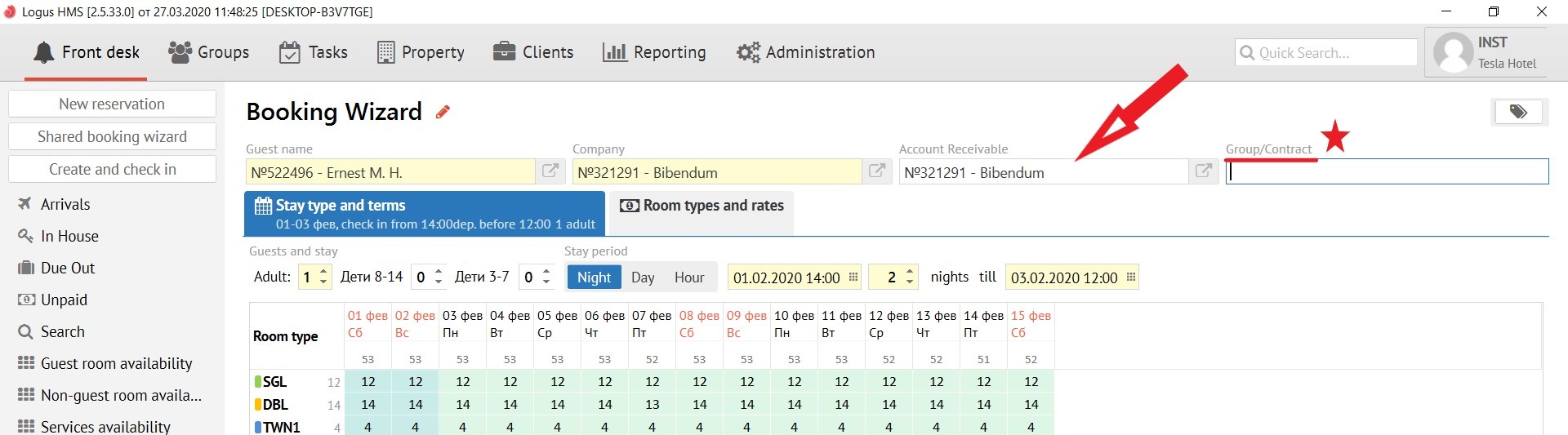
* The “Group/Contract” field is filled in if the reservation is made within the existing quota or if you want to add the reservation to an existing group.
Filling out the accommodation scheme in the column "Guests and stay" you must specify the number of adult guests and children. In addition, in the "Stay period" field, you must select the accommodation scheme option (Night/Day/Hour) and enter the reservation dates. For the convenience of entering reservation dates, you can use the calendar
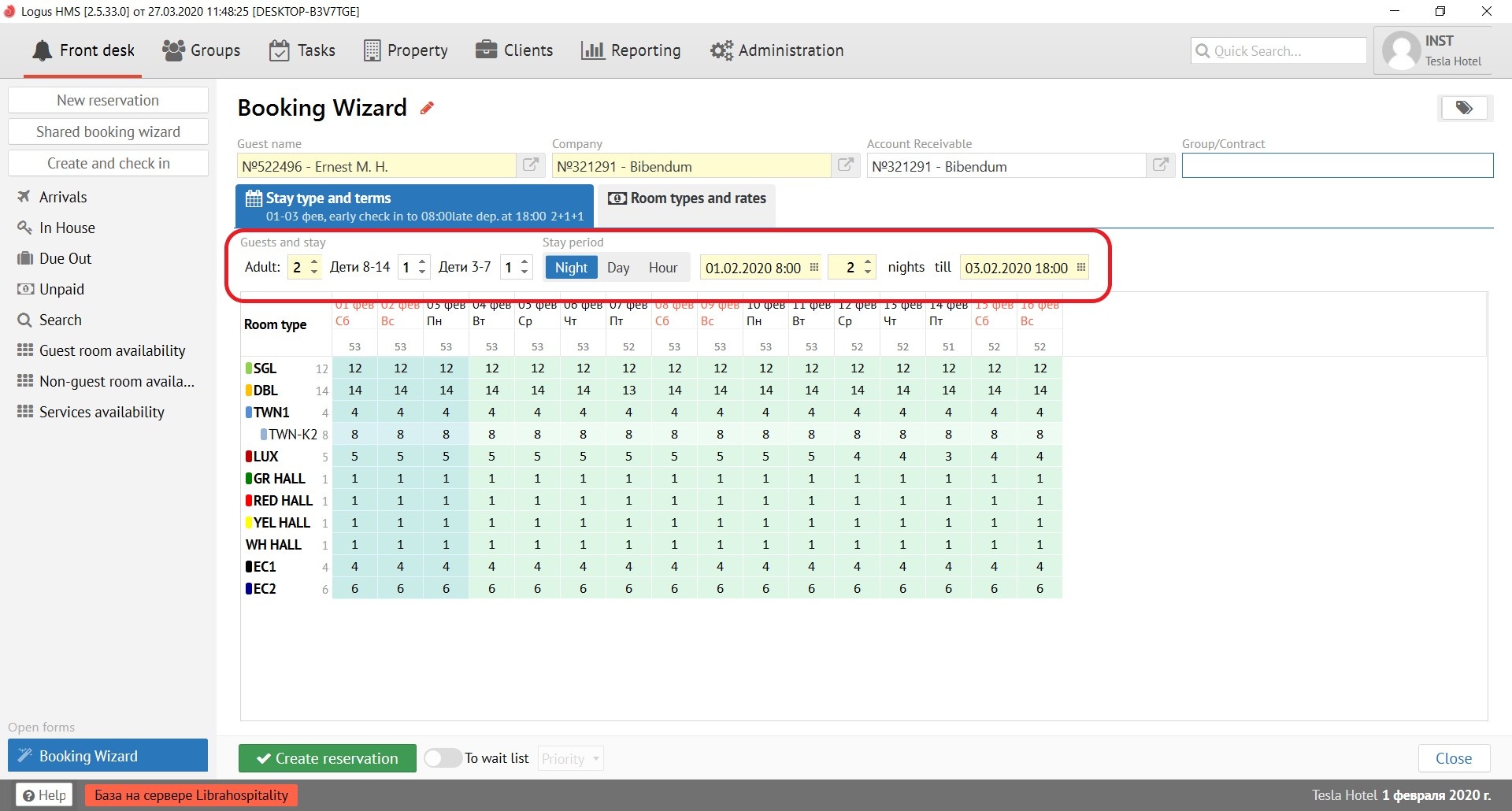
After entering all the necessary fields in the "Stay type and terms” tab, the Booking Wizard will show you a table of availability for the next period. To select the desired room type and rate, open the next tab, as shown in step 2.
Step 2. "Room Type and Rates"
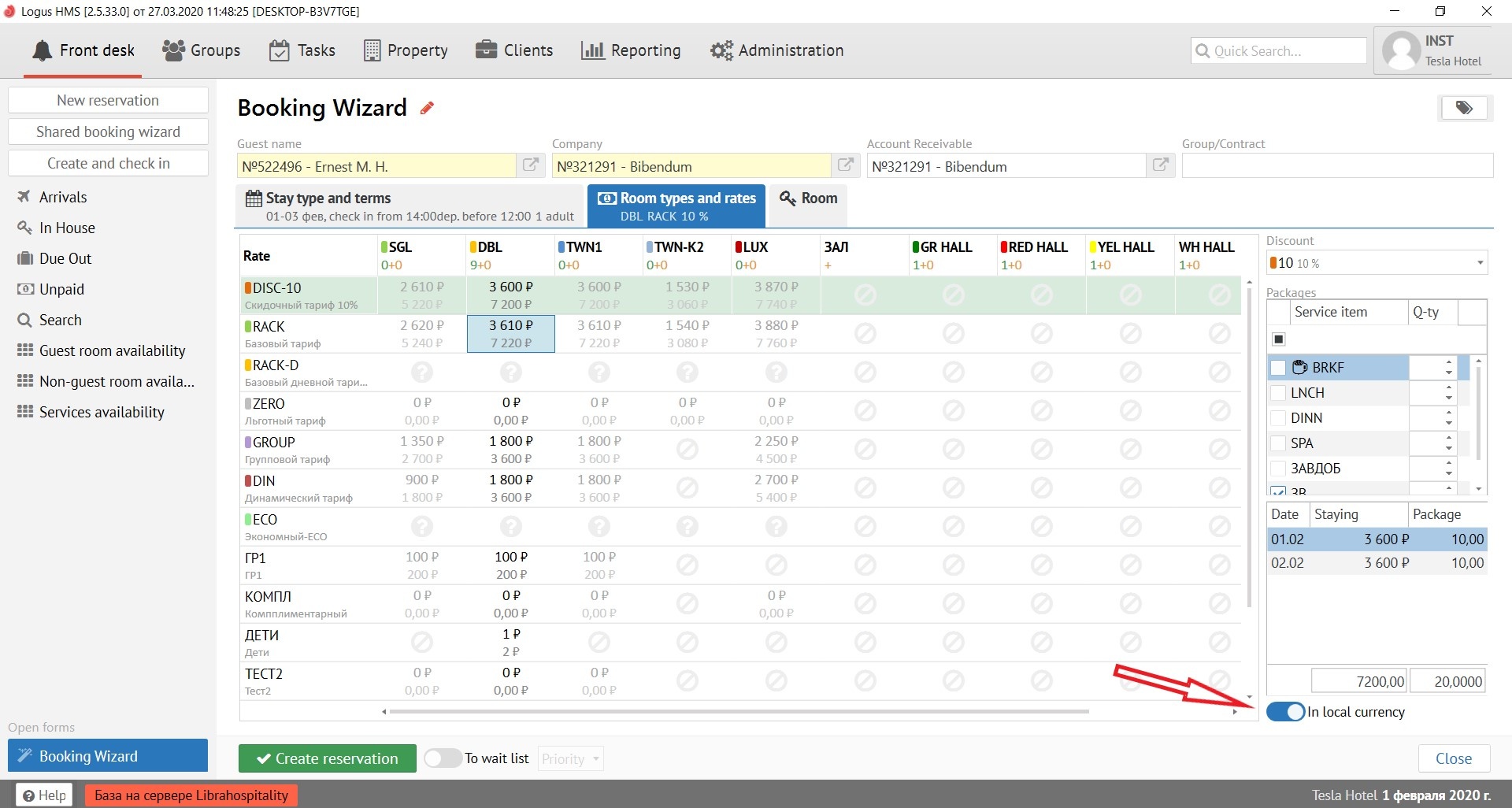
In the "Room Type and Rates" tab, press left mouse button in the cell at the intersection of the desired room type and the rate.
Note: the system highlights the rate recommended for the selected company.
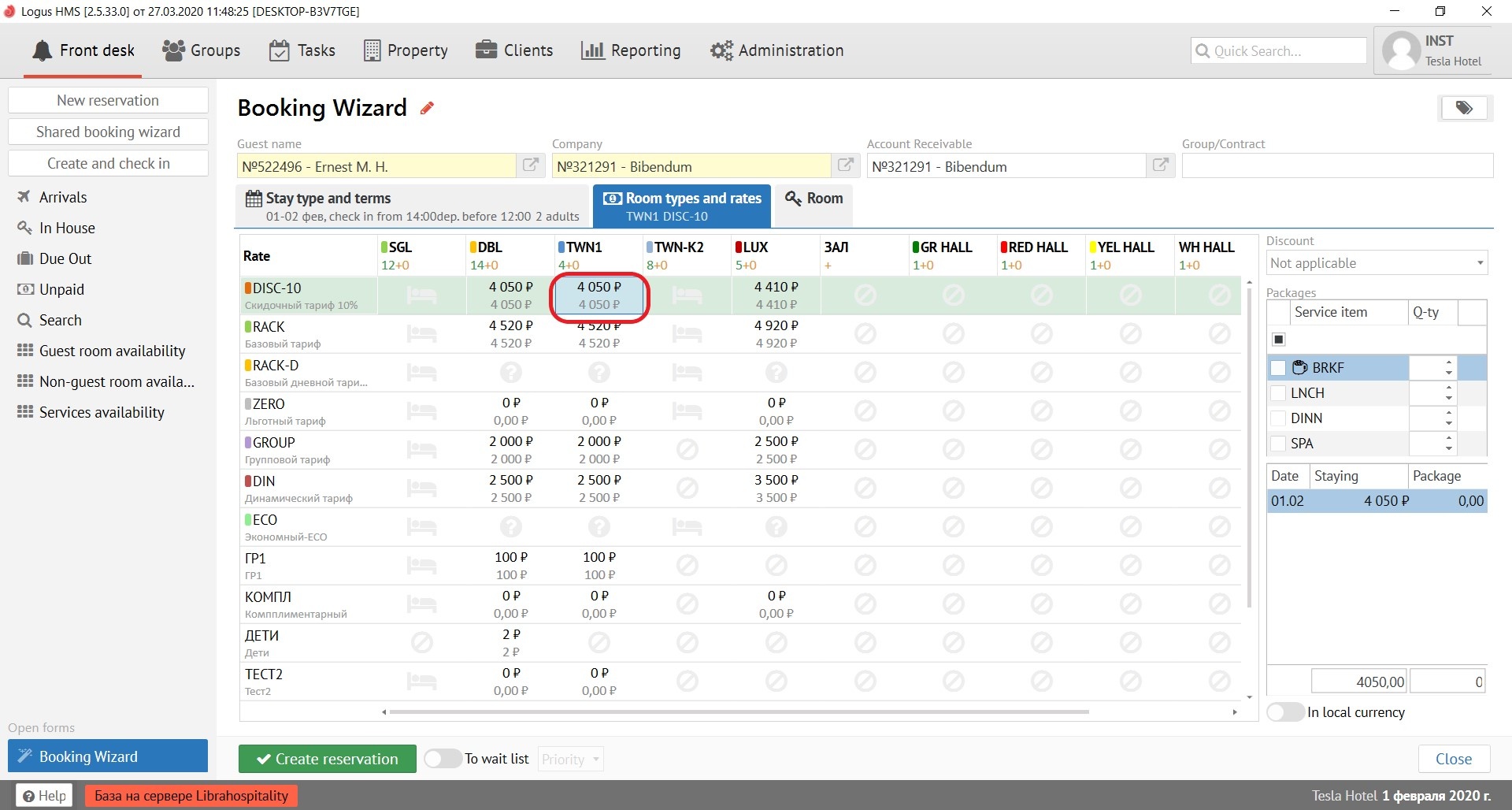
On the right side is the “Discount” field, where you can add a personal discount (5%, 10%, 15%, etc.), and the “Package” field, where you can choose a service (BRKF, LNCH, DINN, SPA, etc.). Logus will automatically calculate the total cost of the reservation based on changes in the rate.
* If you leave field "Quantity" in "Package" blank, Logus will count the quantity of packages according the number of adult guests and children in "Guests and stay". If not Logus will count the quantity of packages according the number in this field.
Two fields with prices show you the price of accommodation and the price for extra charge "Package"
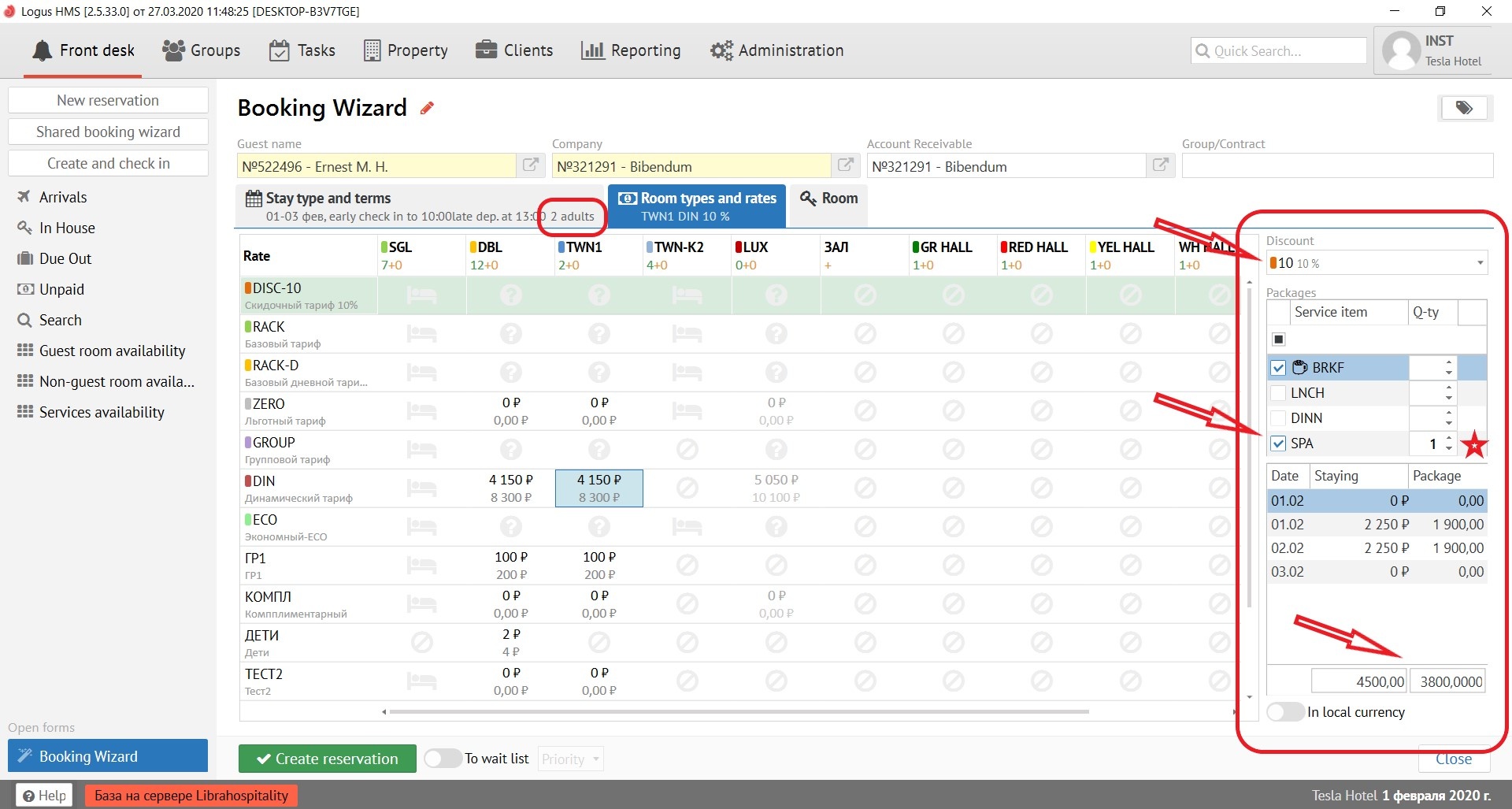
It is also possible to calculate the total cost of the reservation in currency by turning on the "In local currency" button.
Step 3. "Room"
In the "Room" tab, fill in the fields to assign a room to a guest. It’s recommend not to assign a room when booking. Assign it only immediately before checking in a guest!
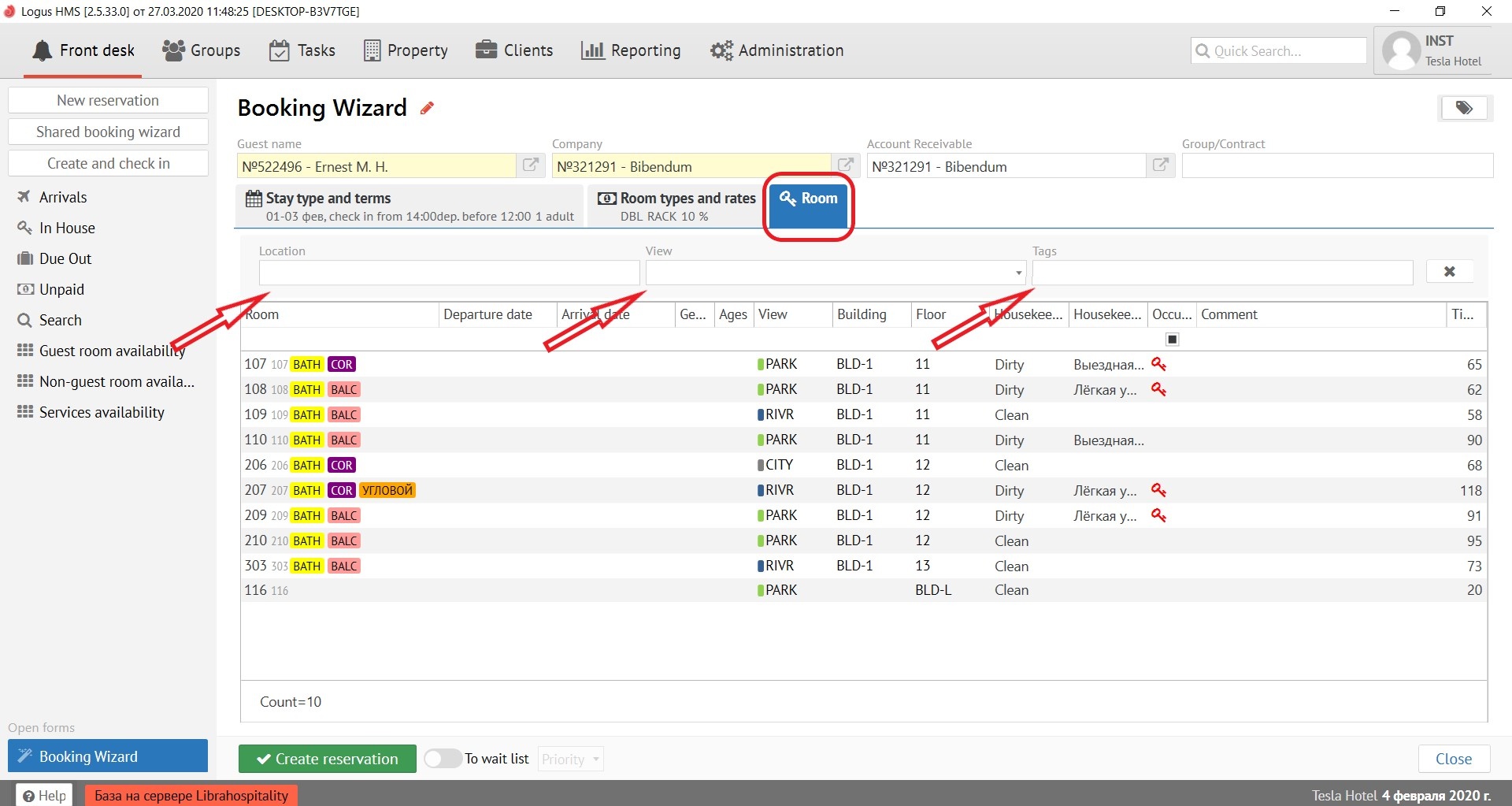
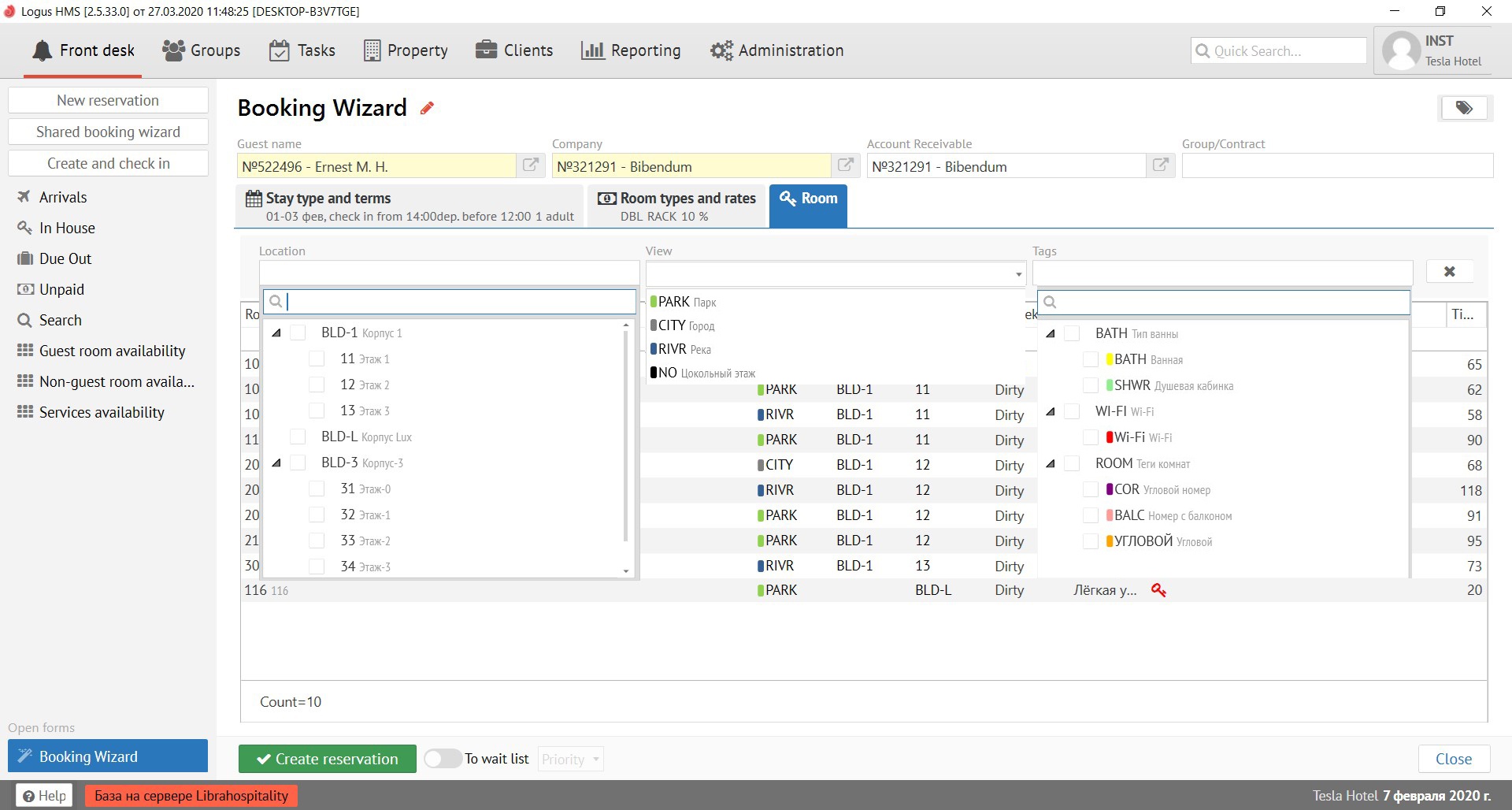
But if you still decided to assign it in advance, then in the "Location" field from the proposed options, you select the number your guest needs, for example, on the 3rd floor.
In the "View" field, you need to select the type of your guest’s view from the room’s window, for example, on the river.
In the "Tags" field, you need to select the room’s tags your guest needs, for example, bathroom.
If at the time of making the reservation you do not have a free room, or the guest is not sure whether he will be able to come to the hotel, we can put the guest on the waiting list by activating the "To wait list" button next to the "Create reservation" button, assigning him the necessary priority (high, medium).
To complete the reservation, click the "Create Reservation" button at the bottom of the screen.
Step 4. Additional Information
As soon as your reservation has a number - the reservation card is saved in the system.
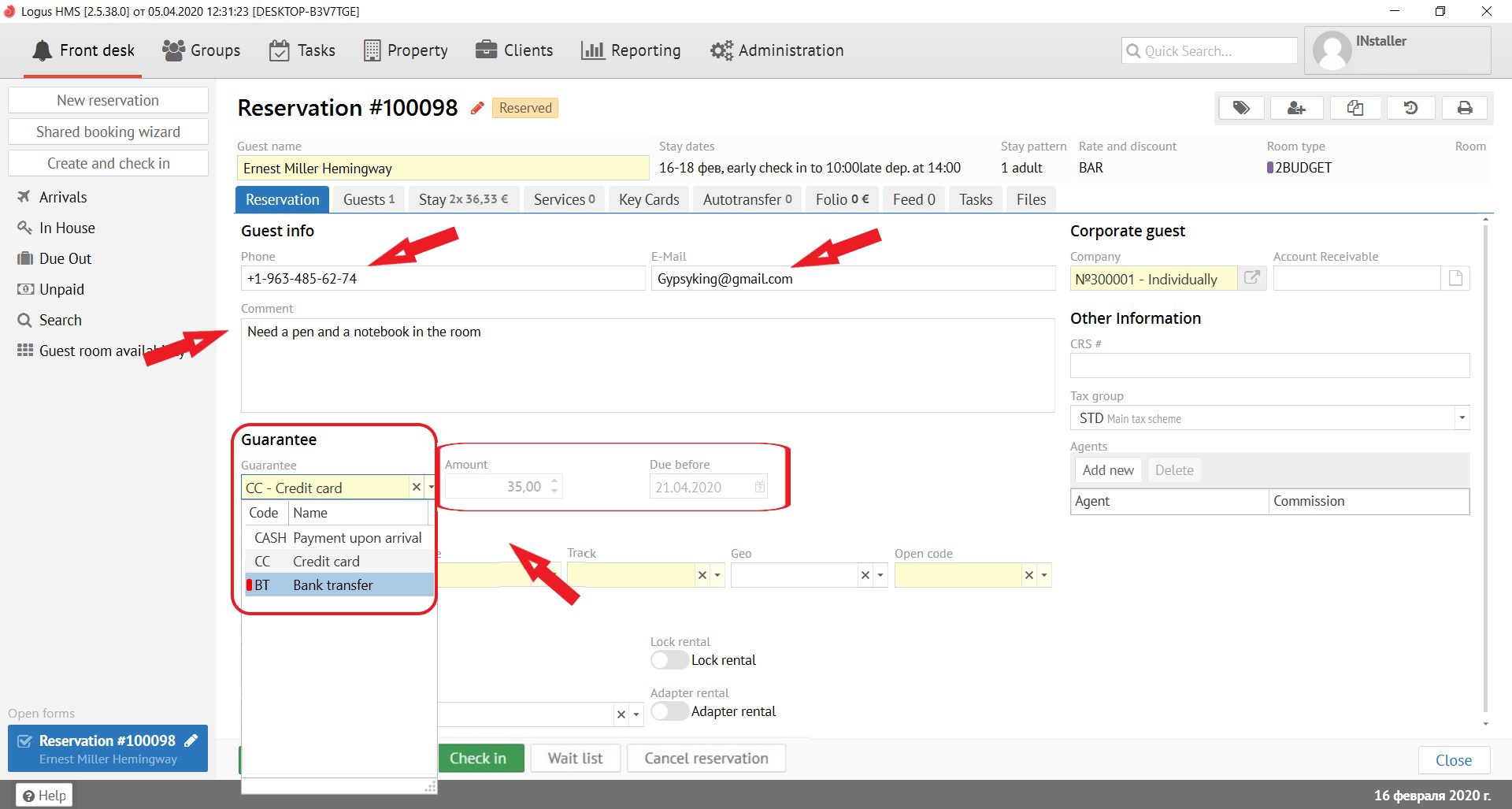
It is necessary to fill in the information about guest in the "Reservation" tab:
Phone - entered in any format.
E-mail - e-mail for communication with the guest.
Comment - additional information about guest.
Next, you need to select in the "Guarantee" field (guarantee of payment, means how the guest will pay for his stay) the method of payment you need (Credit card payment, cash payment, etc.):
Amount - deposit amount (depends on the type of guarantee).
Due before - date by which a deposit is due before (depends on the type of guarantee)
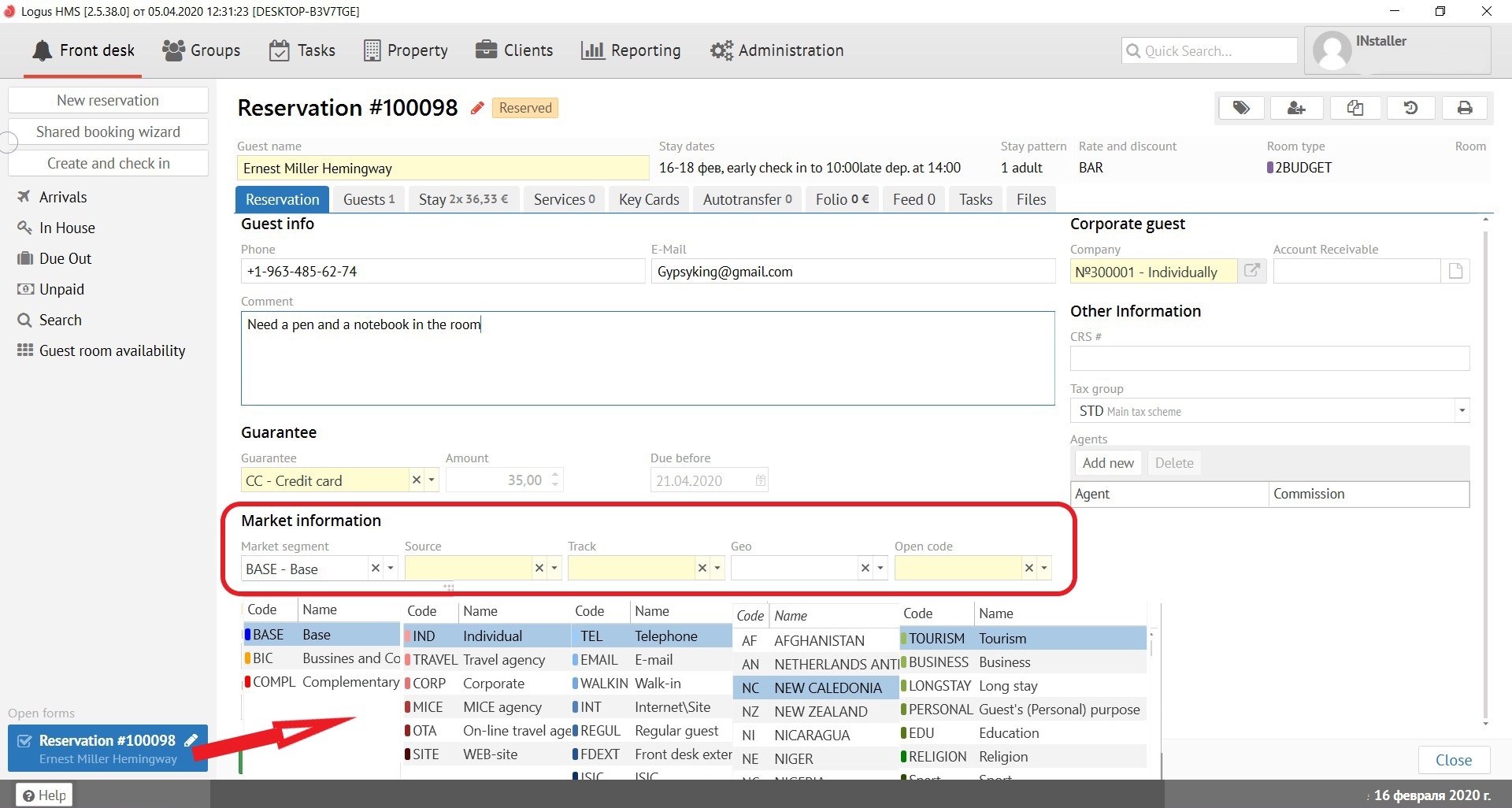
Market information:
Market segment - is a global type of business (it is almost never filled in the reservation, it is filled in the rate setting).
Source - the source of the reservation, displays where the reservation came from.
Track - information show how the guest found out your hotel (another use of the code is possible, for example, a specific type of advertising - newspaper, website, Facebook, etc.).
GEO - geography, shows where your guest from (country, region, city, etc.).
Open code - the purpose of the guest's visit to the hotel.
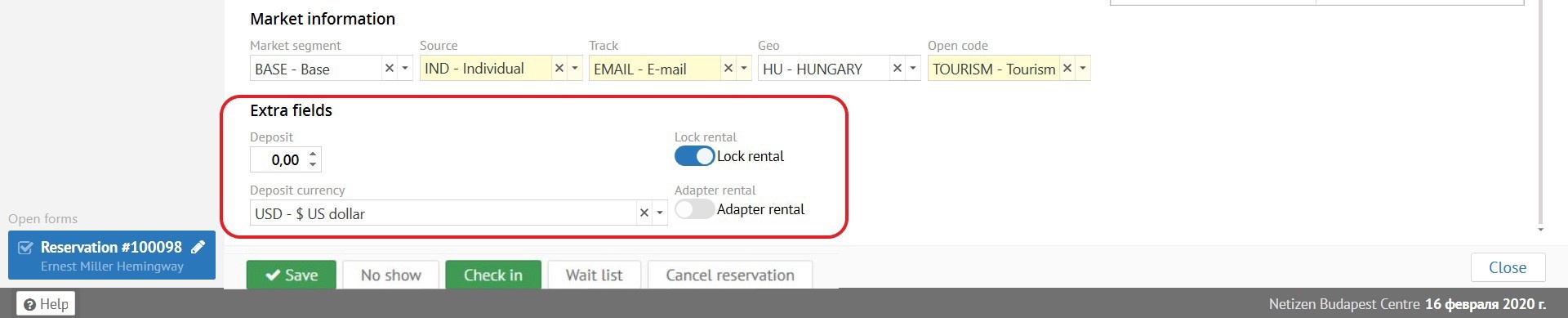
Extra Fields:
Extra fields are entered upon request of the Hotel staff. It is possible to display field's data in a report.
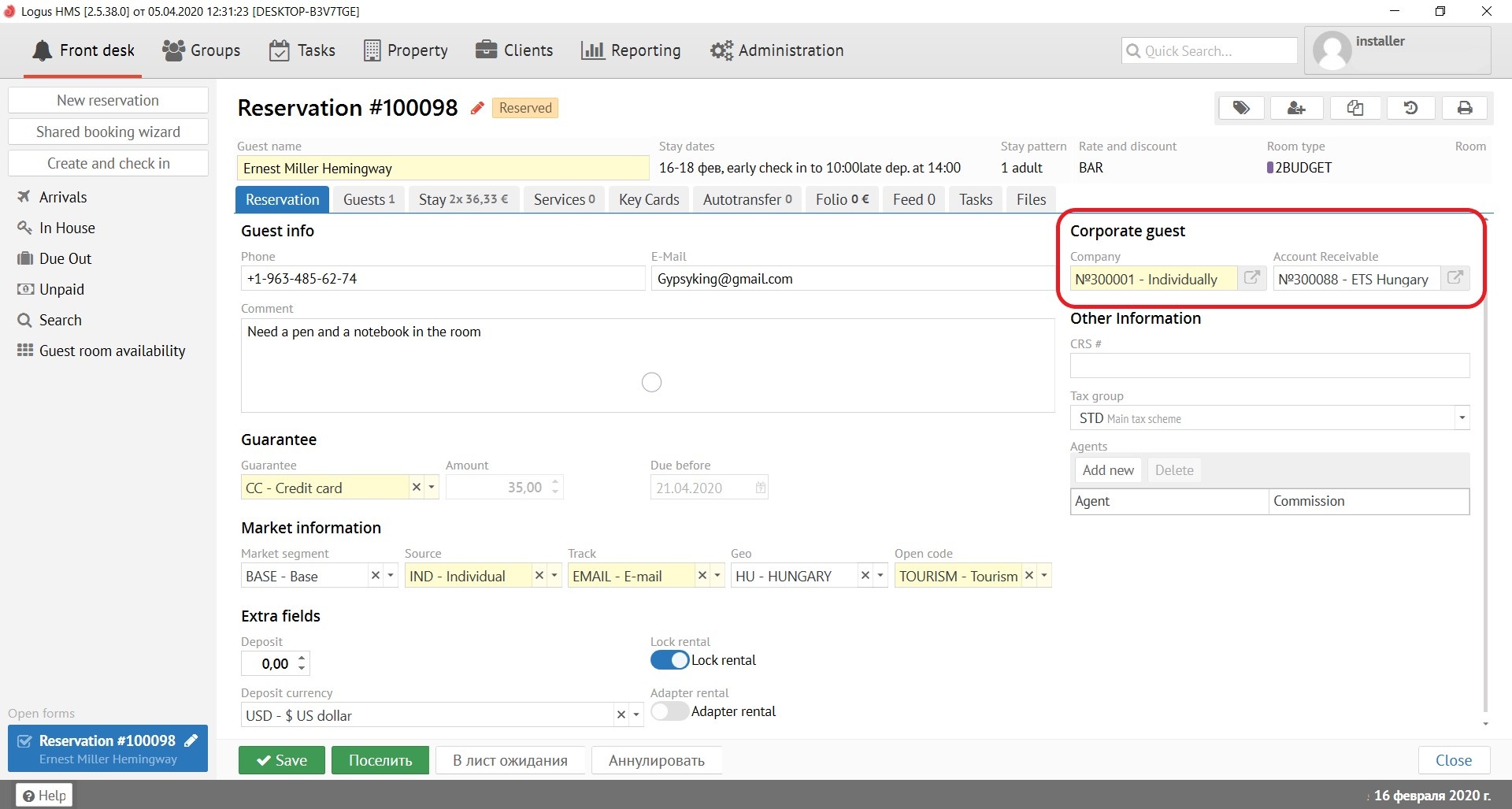
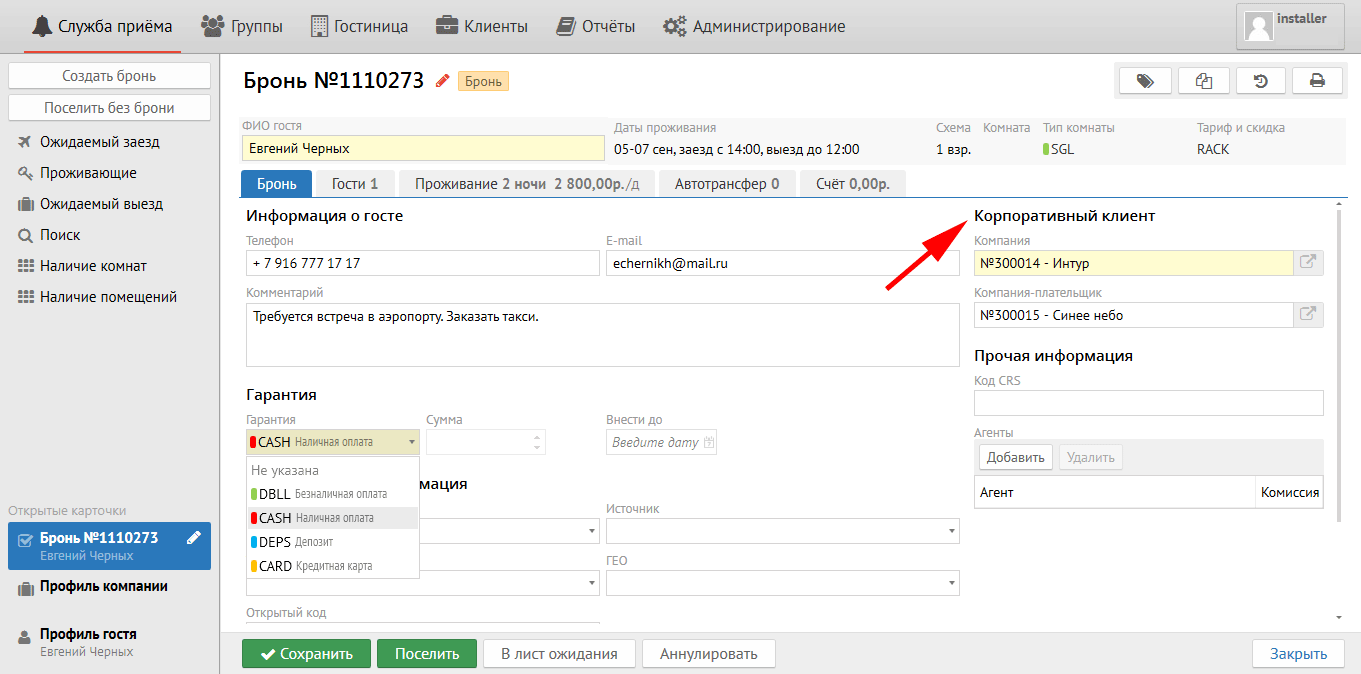
Корпоративный клиент (панель справа):
Компания - название и № компании от которой приехал гость.
Компания-плательщик - заполняется только для броней с безналичным расчетом. (Нет в Logus The Box)
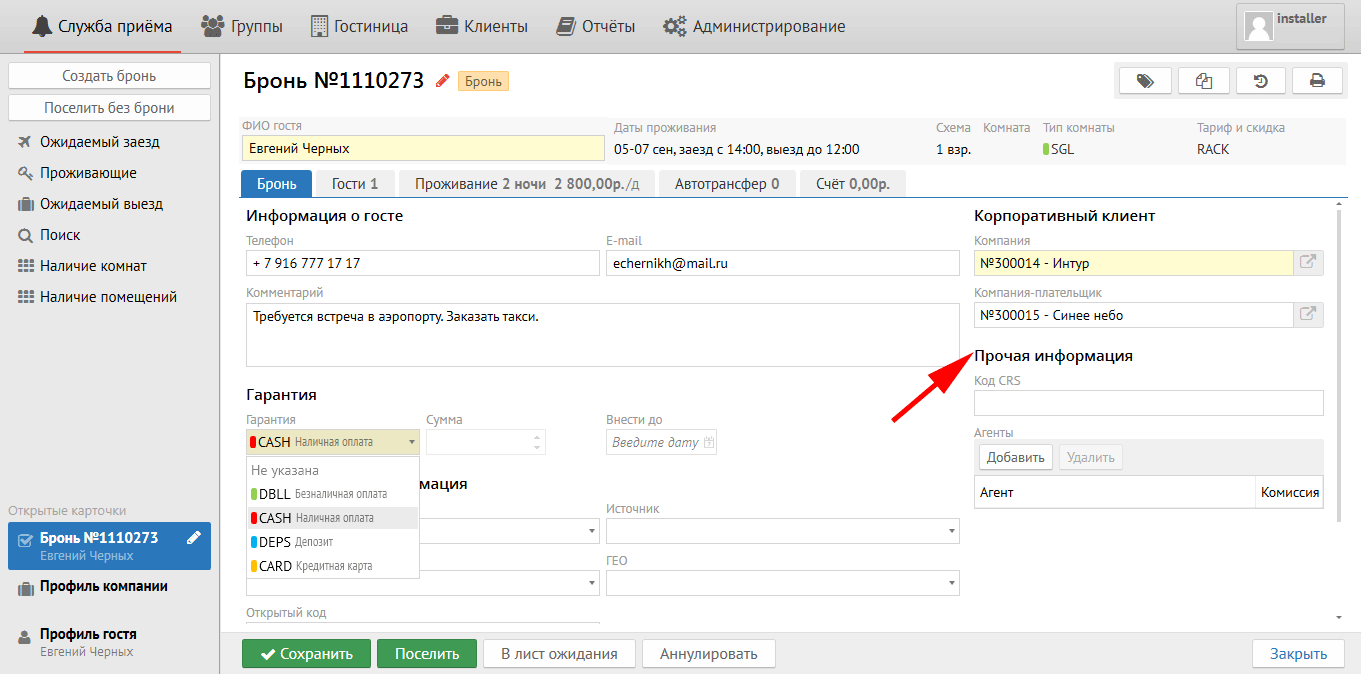
Прочая информация:
Код CRS - заполняется автоматически в бронях, которые пришли к Вам онлайн.
Агенты - заполняется в том случае, если с данной брони необходимо выплатить комиссию. (Нет в Logus The Box)
Внизу находятся несколько кнопок, которые работают в любой вкладке карточки брони:
Кнопка "Сохранить" - сохраняет все сделанные изменения в брони. Если нажать кнопку "Сохранить", удерживая SHIFT на клавиатуре, карточка бронирования не закроется автоматически.
Кнопка "Поселить" - поселяет бронь (поселить бронь можно ТОЛЬКО если дата заезда брони совпадает с датой в программе (внизу справа). В противном случае дата заезда будет изменена на текущую.
Кнопка "В лист ожидания" - переводит бронь в лист ожидания.
Кнопка "Аннулировать" - отменяет бронь (бронь невозможно аннулировать, если после поселения уже прошёл ночной аудит)
Кнопка "Выселить" - выселяет гостя (выселить бронь можно ТОЛЬКО если дата выезда брони совпадает с датой в программе (внизу справа). В противном случае будет предложено скорректировать сроки проживания.