Autotransfer is used for automatically transfer transactions selected by code or type to another Logus card.
There are three variants of using "Autotransfer":
1. To transfer transactions to the "Group reservation" folio.
2. To transfer transactions to "Company payer" sub-folio.
3. To transfer transactions to another reservation.
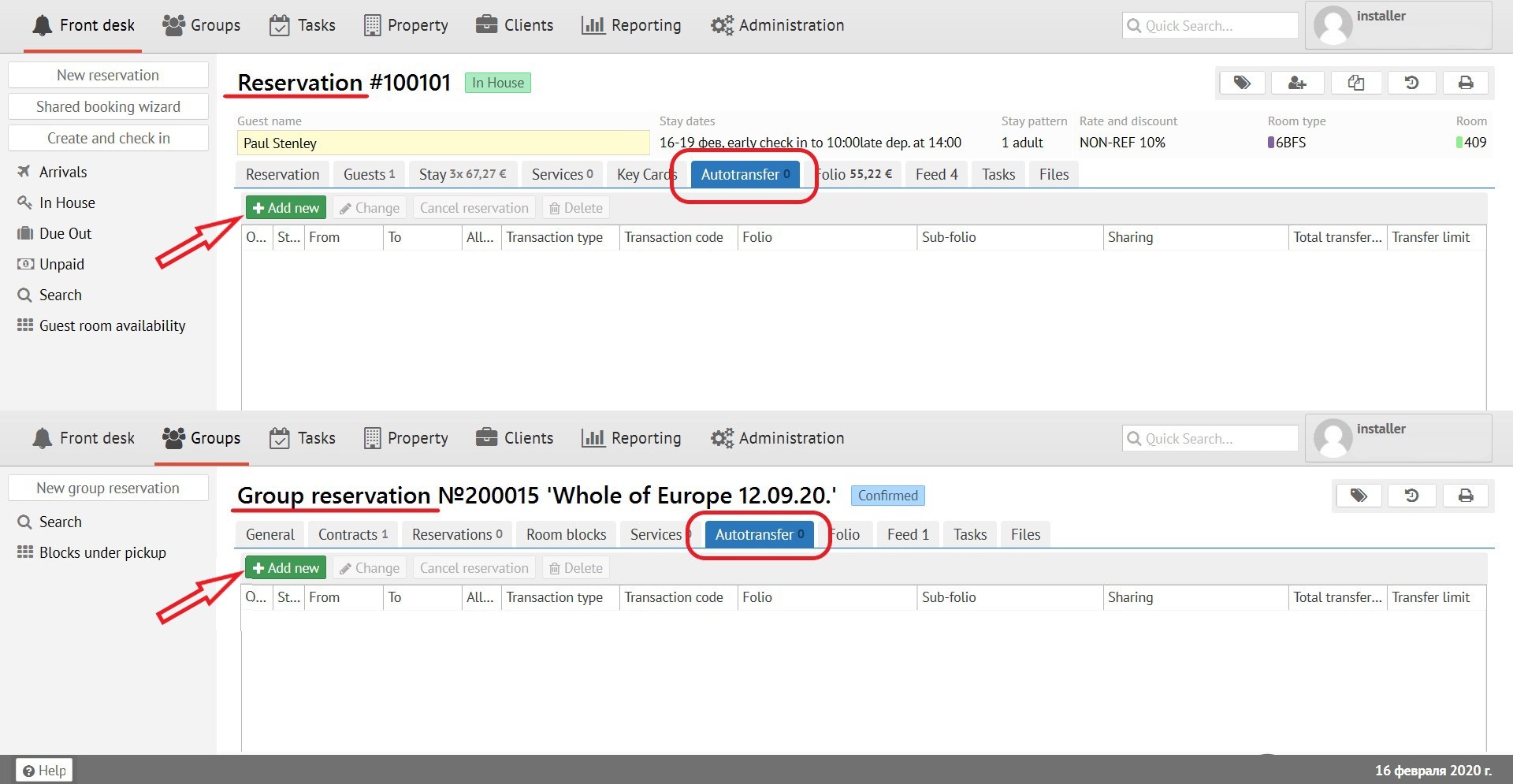
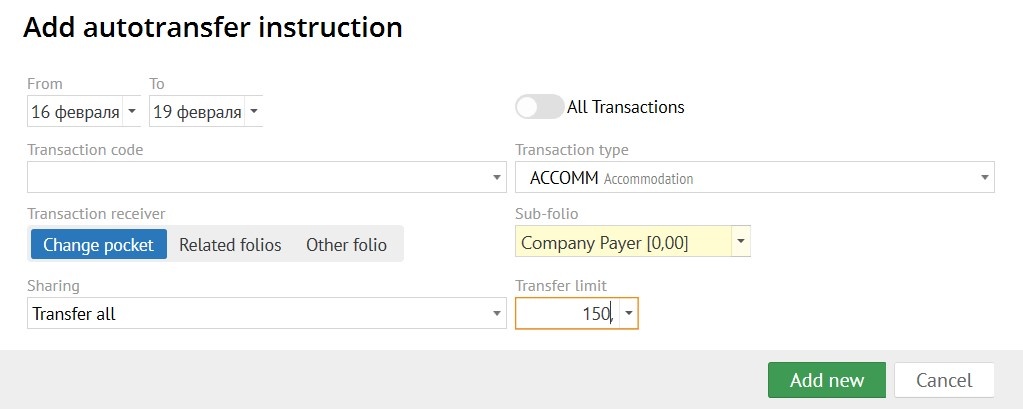
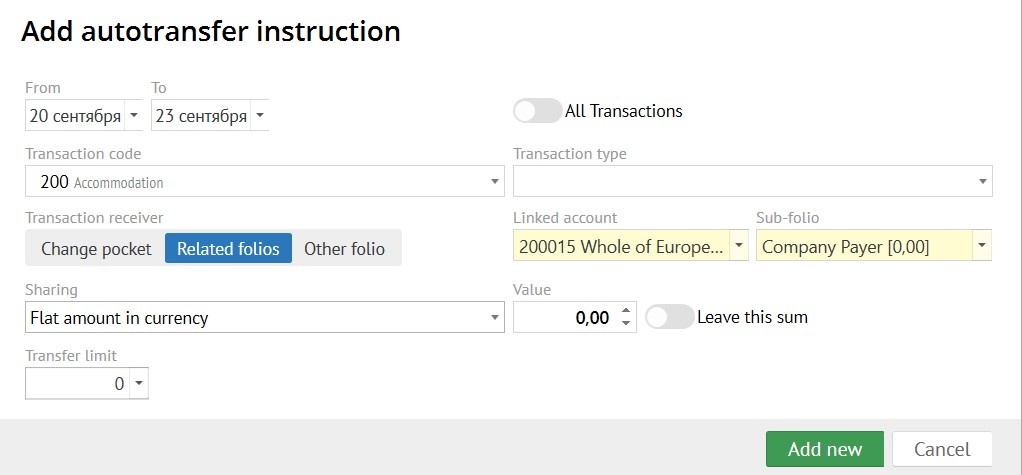
To add autotransfer click the "Add" button. In the pop-up form, you need to fill in the following fields:
- Period of "Autotransfer" (in what dates to transfer)
- Transaction variant (what exactly to transfer, choose one):
- all transactions;
- transaction code;
- transaction type.
- Transaction receiver:
- change pocket (used for transferring transactions to another sub-folio in reservation.);
- related folios (related folios to your reservation: Group reservation, Guest profile or Company profile folios);
- other folios.
- Linked account - choose a related folios to your reservation: Group reservation, Guest profile or Company profile folios.
- Sub-folio - folio receiver of a transactions.
- Sharing:
- transfer all (all selected transactions are transfer by the "autotransfer");
- percentage (transfer percentage of the transaction, the percentage value can be specified in the "Value" field);
- flat amount (the amount specified in the "Value" field is transferred);
- flat amount in currency (the amount in currency specified in the "Value" field is transferred).
- Value - write the amount to be transfer, when you use "Sharing".
- Leave this sum - if you enable the "Leave this sum" switch, then the selected amount of the transaction leave in the original sub-folio, and the remaining amount is transferred by the autotransfer rule. If you disable the "Leave this sum" switch, then the selected amount is transferred by the autotransfer rule.
- Transfer limit - if necessary, write a "Transfer limit" to limit the amount of transaction transfer by the "Autotransfer".
An "Autotransfer" created in a "Group reservation" will be applied to all individual reservation belonging to a group.
"Autotransfer" automatically generated when a "Account receivable" is applied.
...
Для добавления инструкции автотрансфера необходимо нажать кнопку "Добавить". В открывшейся форме необходимо заполнить следующие группы полей:
- период действия и коды/типы транзакций, на которые будет действовать автотрансфер. Выбрать счет/ карман для переноса транзакций:
- сменить карман - перенос будет осуществлен в рамках текущей брони
- связанные счета - перенос транзакций будет осуществляться на связанные счета: профиль гостя, компания, компания плательщик. указанные в брони.
- другой счет - любой другой счет брони, профиля или компании
- Указать разделение:
- переносить целиком - все выбранные транзакции переносятся автотрансфером
- проценты - перенести процент от транзакции, величину процента можно указать в поле "Величина",
- если включить переключатель "Оставить эту сумму", то выбранный процент от суммы транзакции остается на изначальном кармане, а остальной процент переносится правилом автотрансфера.
- если переключатель "Оставить эту сумму" отключен, то выбранный процент от суммы транзакции переносится правилом автотрансфера
- фиксированная сумма - переносится сумма, заданная в поле "Величина"
- если включить переключатель "Оставить эту сумму", сумма, выбранная в поле "Величина", остается на текущем счете и кармане, а оставшаяся разница переносится правилом автотрансфера.
- При необходимости установить лимит переноса - для ограничения суммы переноса транзакций автотранфером.
Автотрансфер, созданный на групповой брони, будет применен во всех индивидуальных бронях, относящихся к группе.