...
For example: on the “Balance” column, select "Greater Than"
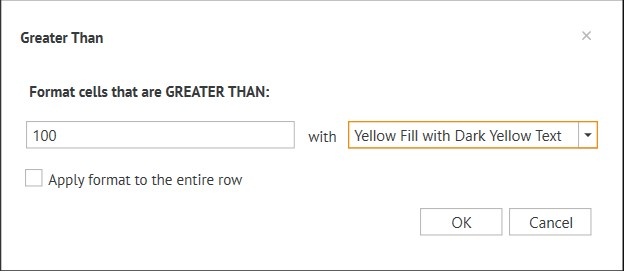
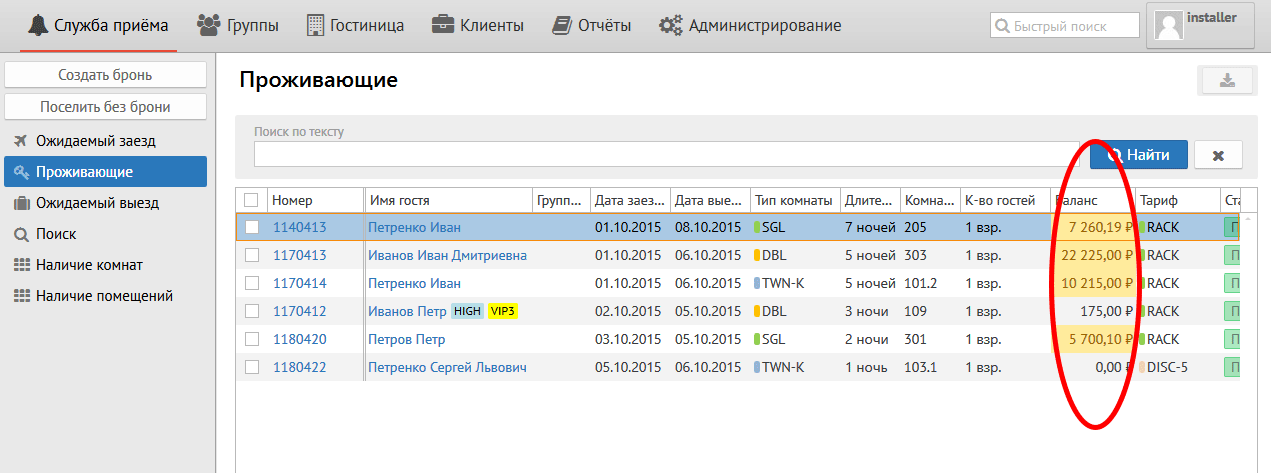
Эти параметры позволяют показывать бледно жёлтым гостя, баланс которого больше 1000 руб. :
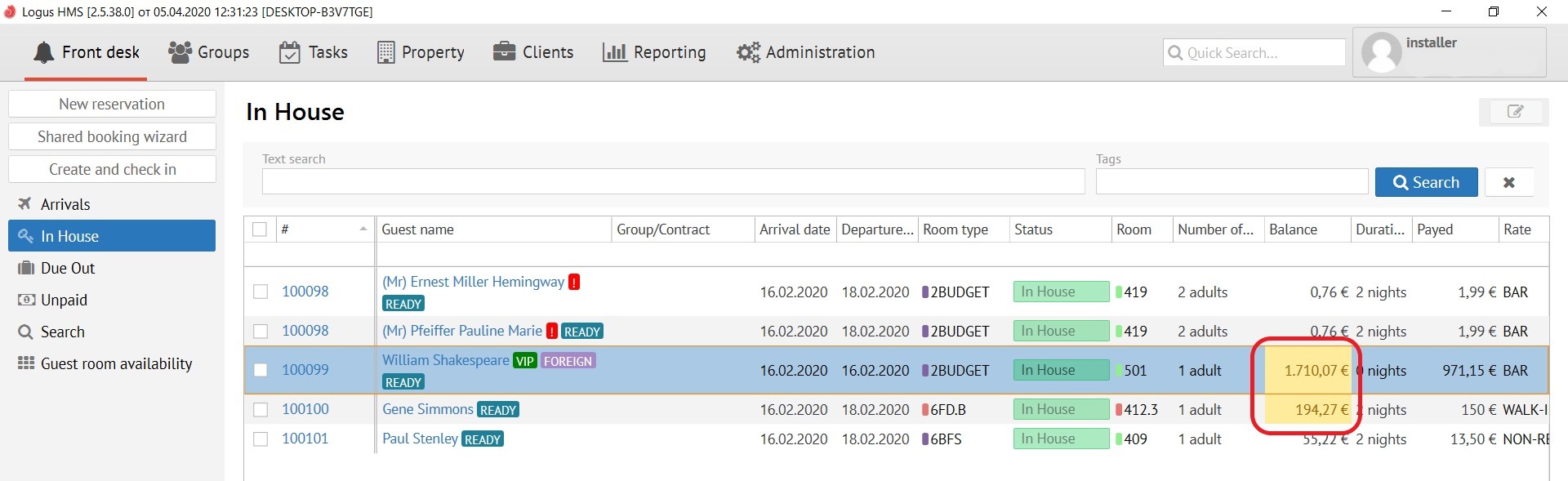
These parameters allow you to show by pale yellow colour reservations which balance is more than 100 euros :
NoteПримечание:
Apply format to the entire row - применять формат ко всей строке if you need to colour all line.

When choosing При выборе Custom Format: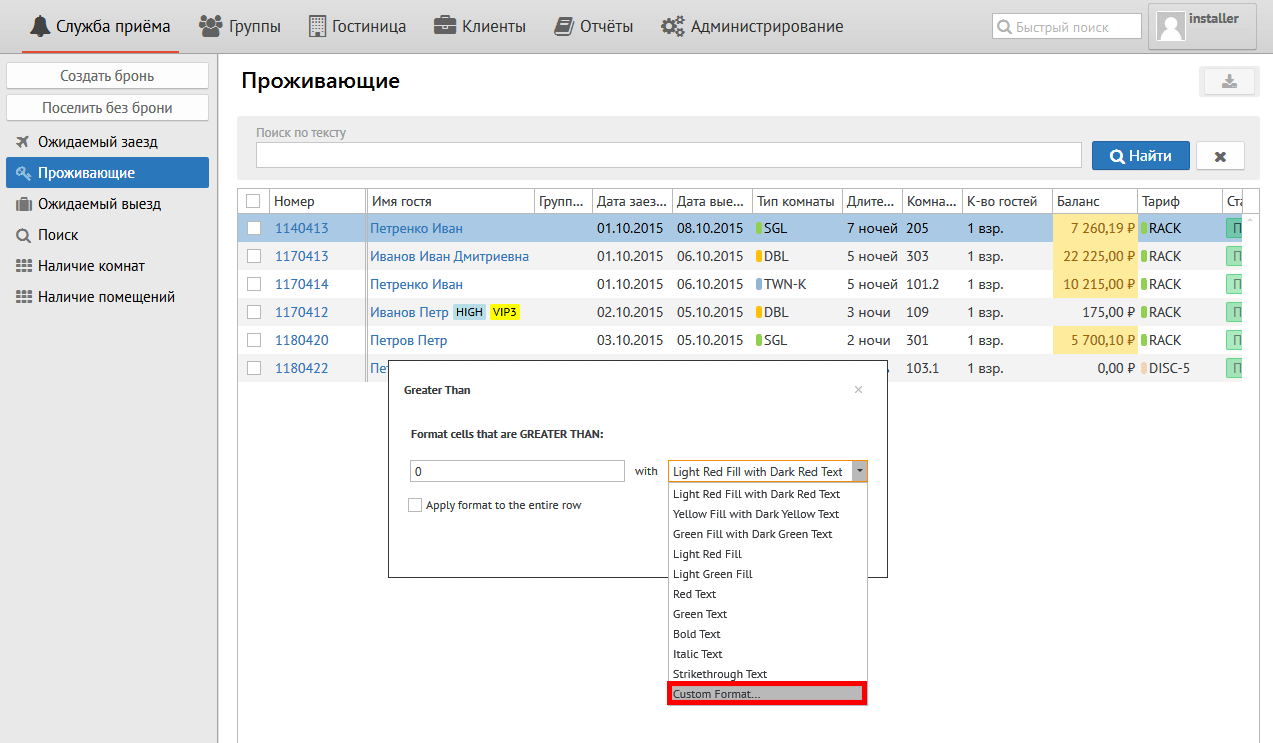
появляются вкладки:
Редактирование стиля:
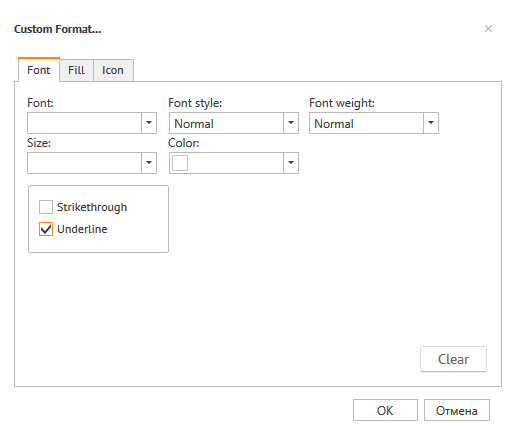
Редактирование стиля:
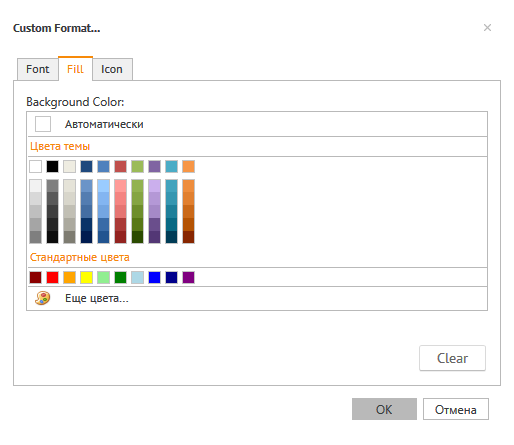
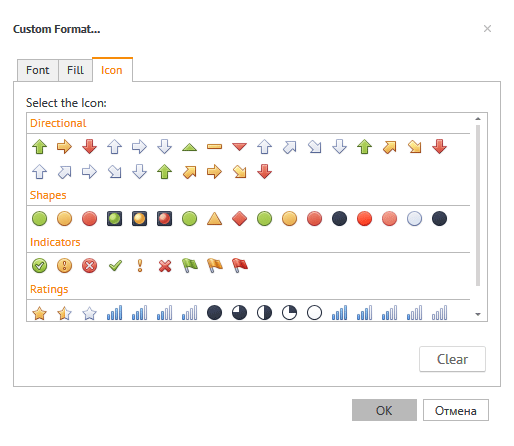
Добавление новой иконки:
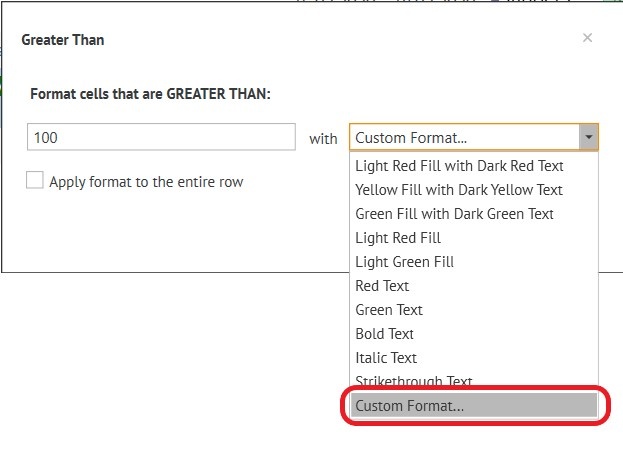
tabs appear:
Font editing:
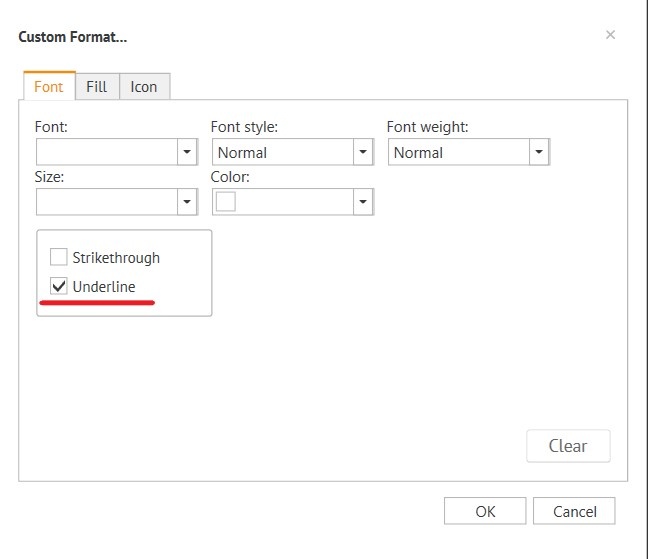
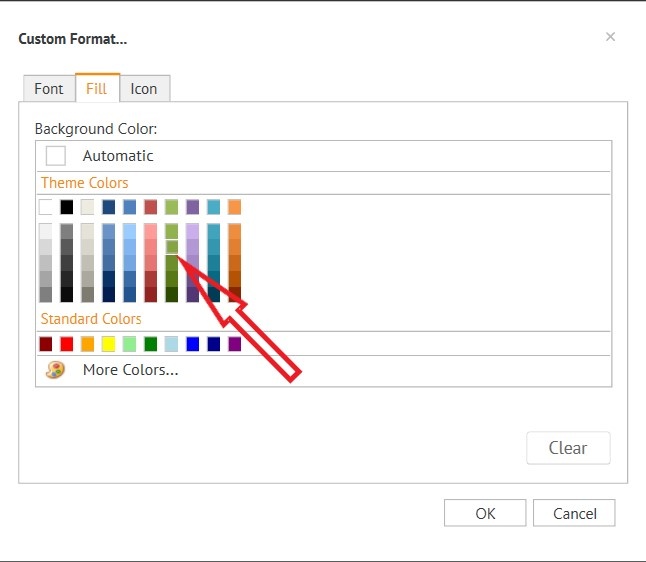
Fill editing:
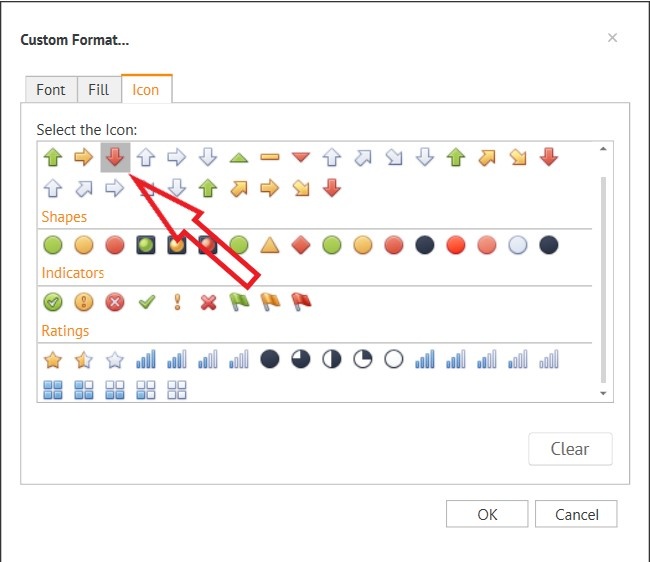
Icon editing:
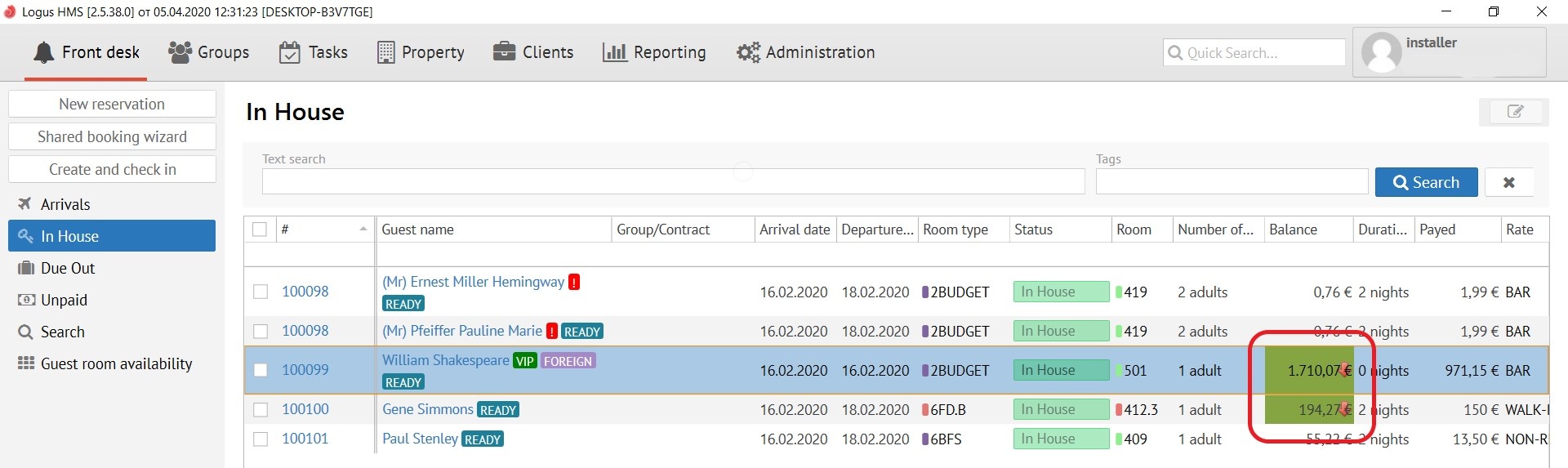
Result:
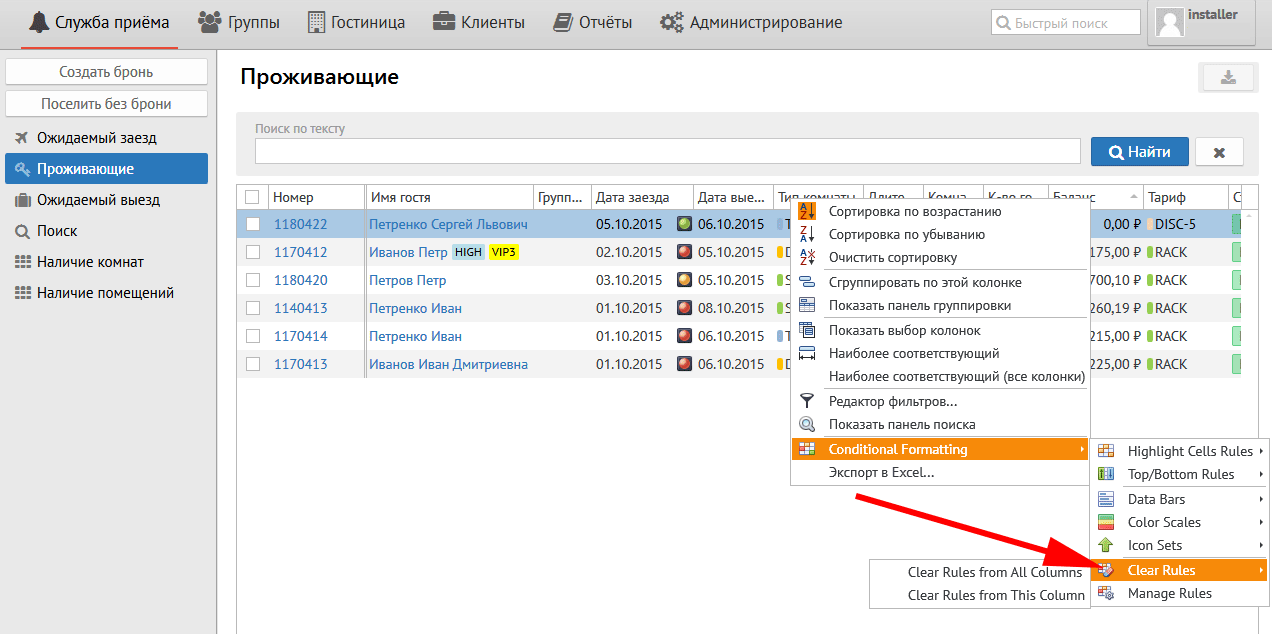
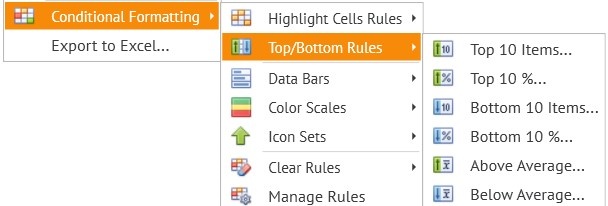
Top\Bottom Rules (рус. правила настройки высших и низших позиций спискаrules for setting the top and bottom positions of the list):
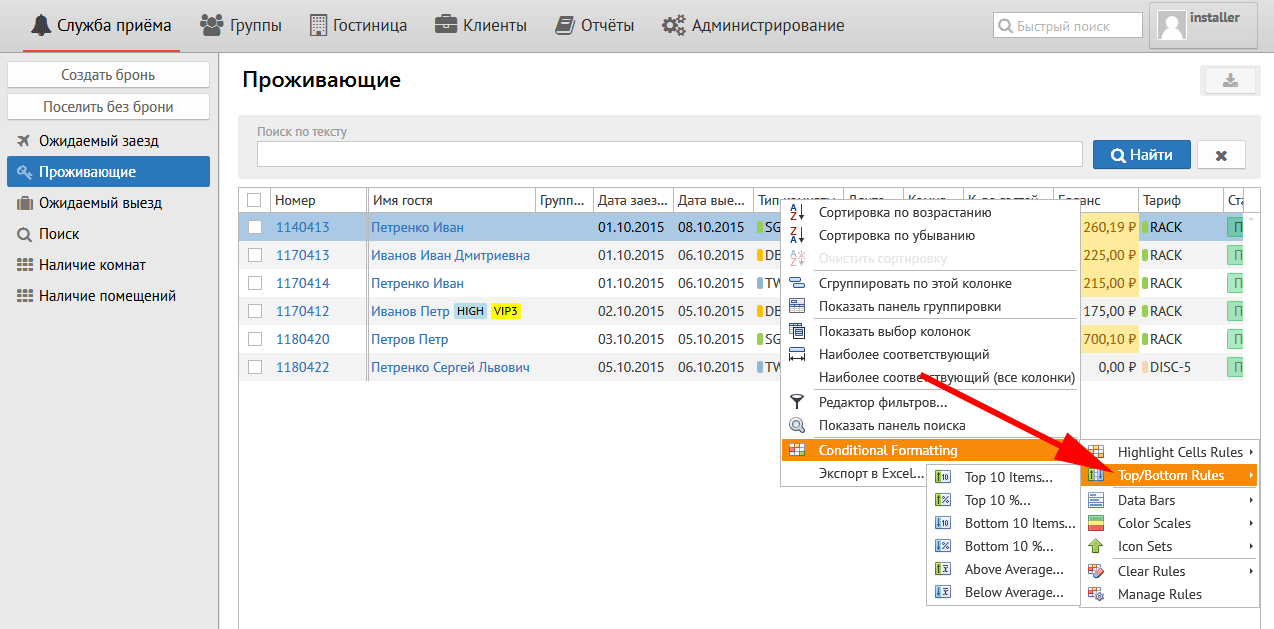
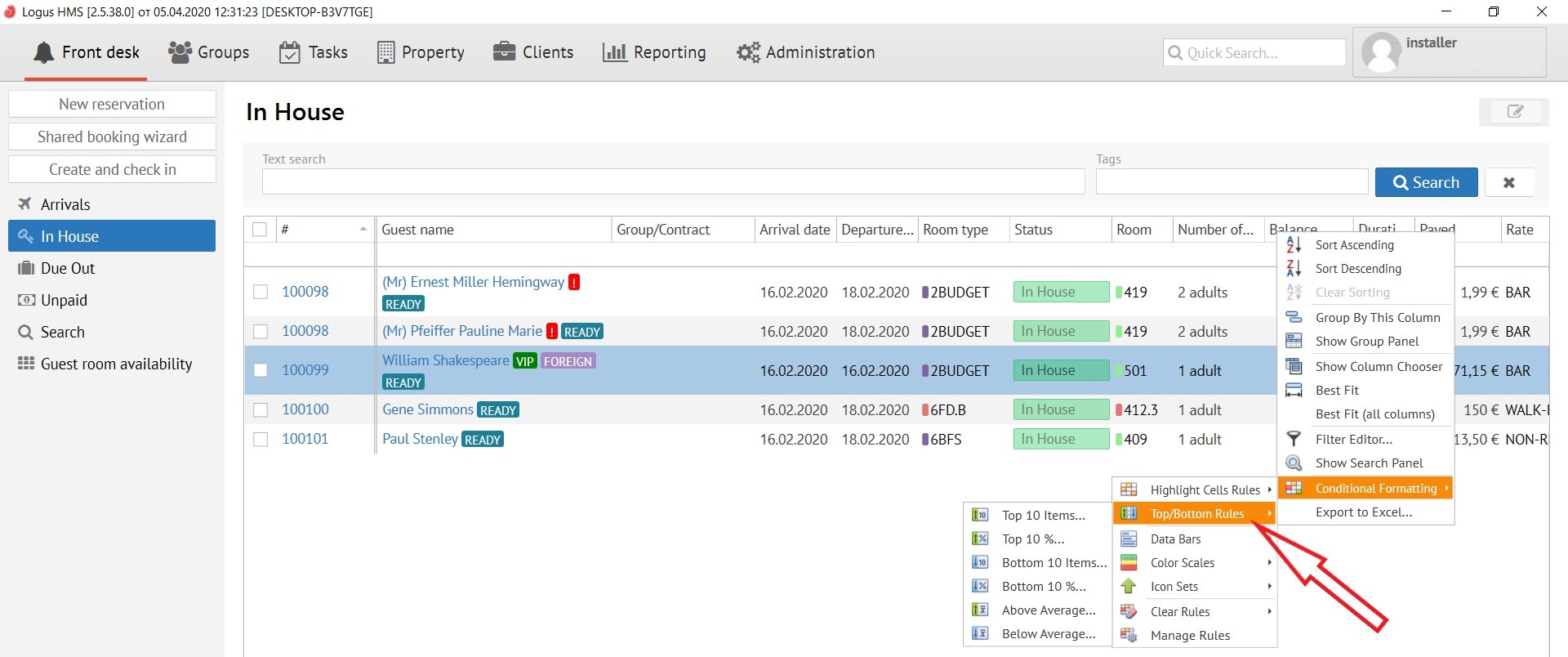
Description of pop-up menusПеревод кнопок меню:
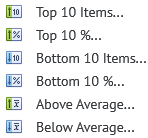
Top 10 Items - Верхние 10 пунктов
Top 10 % - Верхние 10% пунктов
Bottom 10 Items - Нижние 10 пунктов
Bottom 10 % - Нижние 10% пунктов
Above Average - Выше среднего
Below Average - Ниже среднего
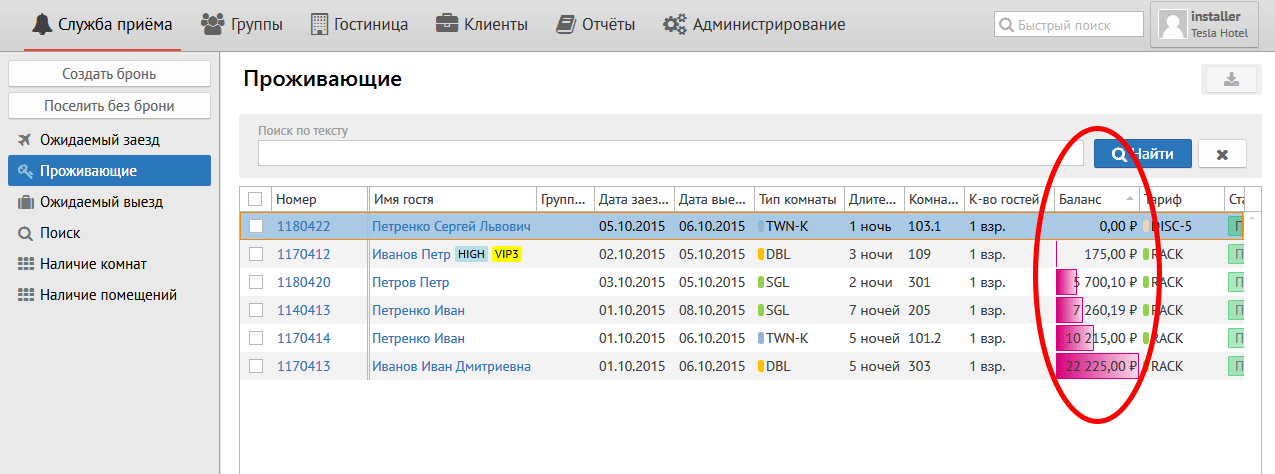
Data Bars (рус. панели данных):
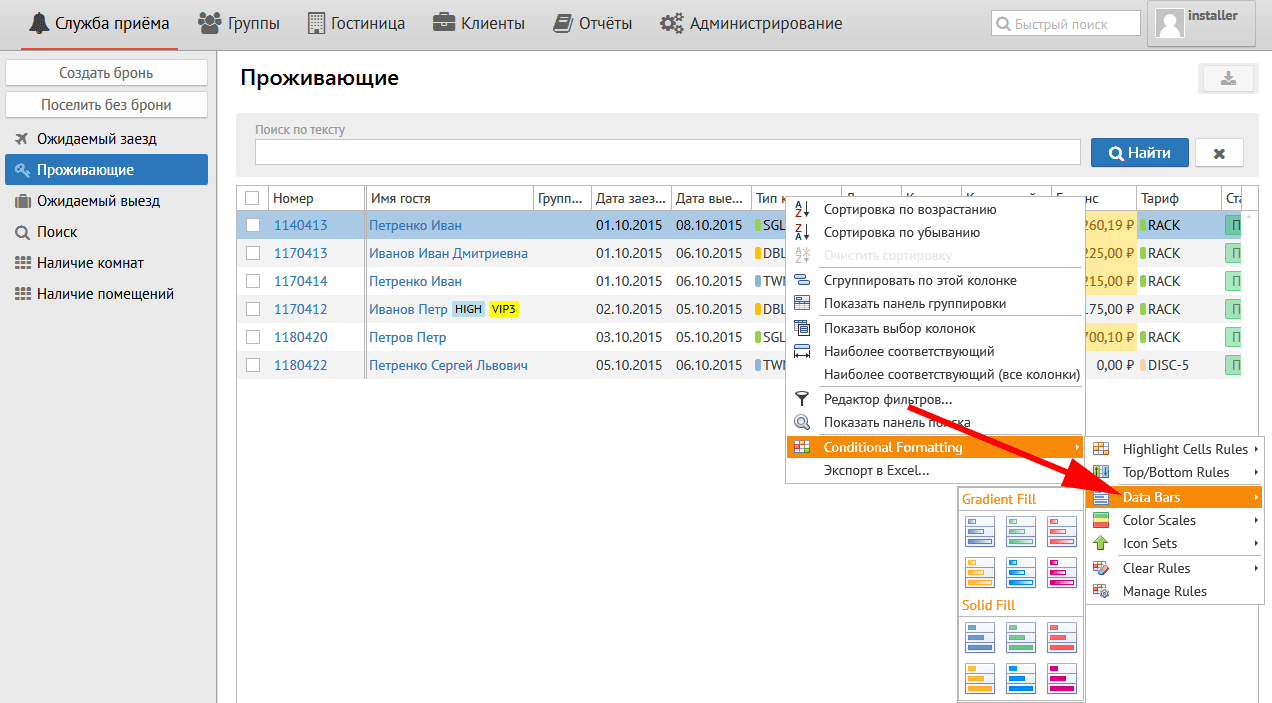
Данная кнопка применяет к уже настроенным правилам цветовые гаммы, например:
Color Scales ( рус. цветовые схемы):
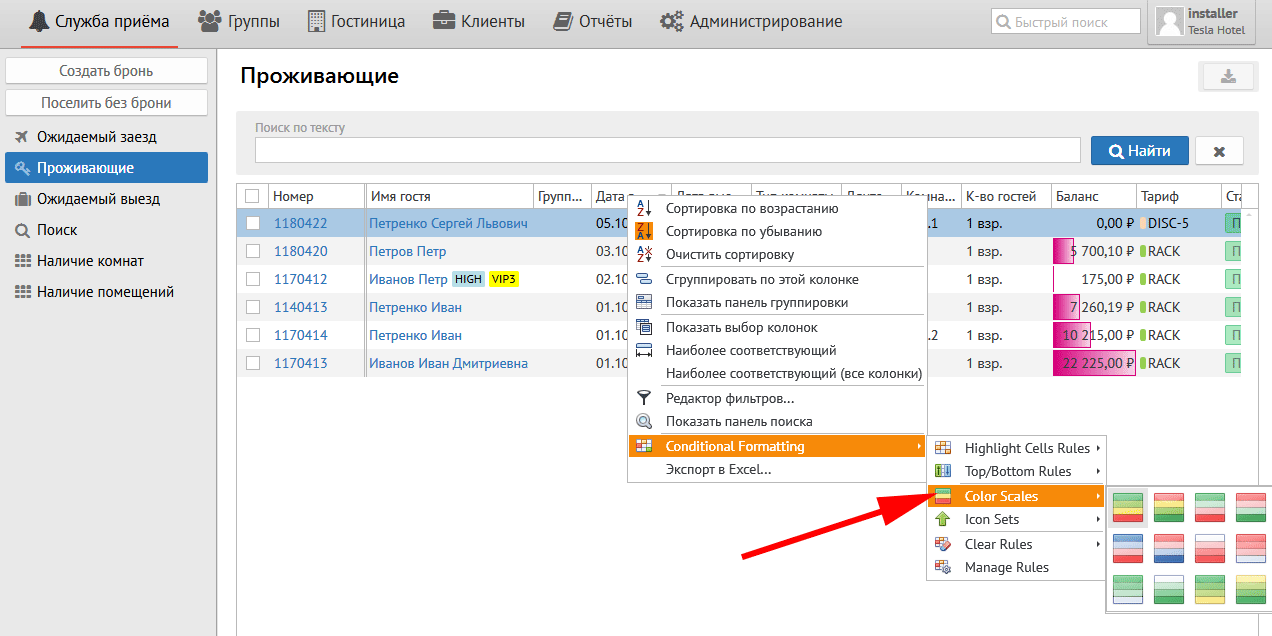
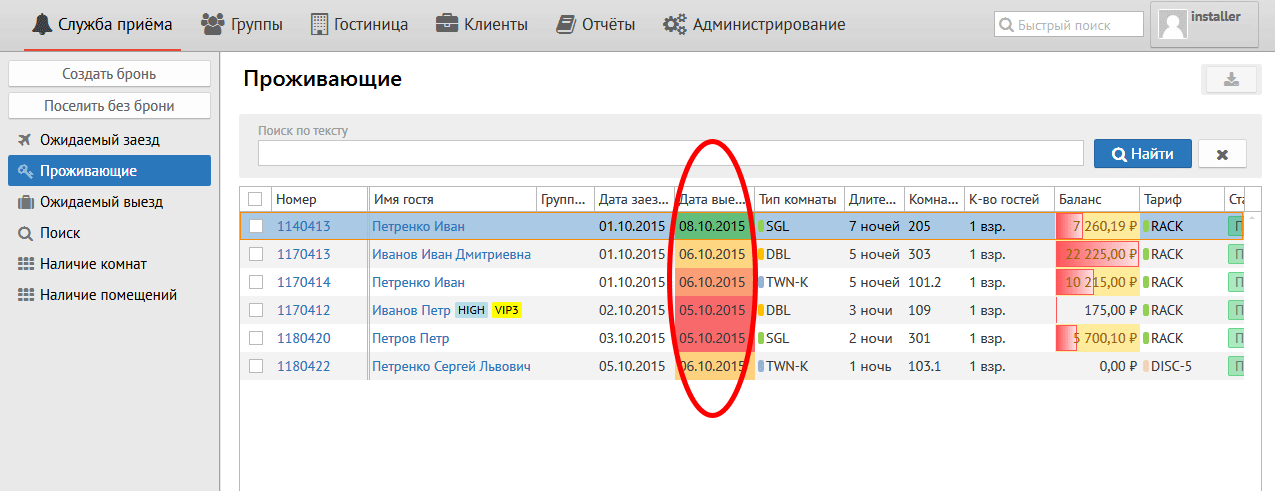
Данная кнопка выравнивает по нескольким цветам колонки, например:
Icon Sets (рус. иконки):
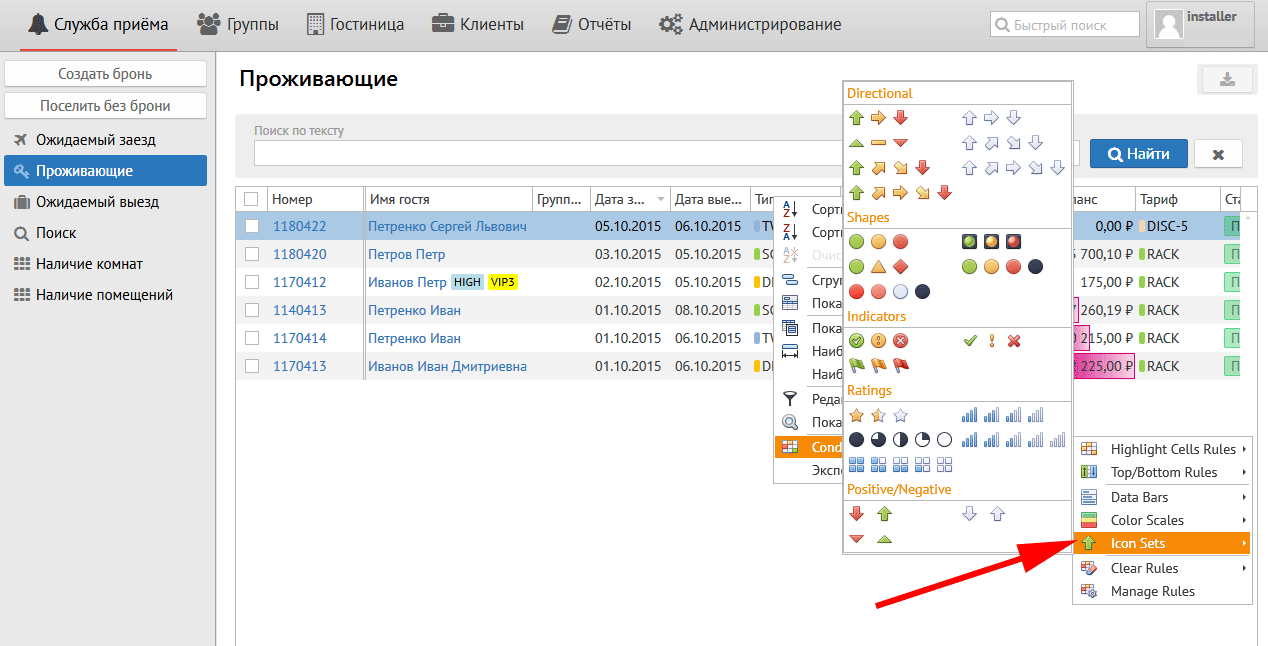
Данная кнопка позволяет поставить на выбранную колонку иконку, например:
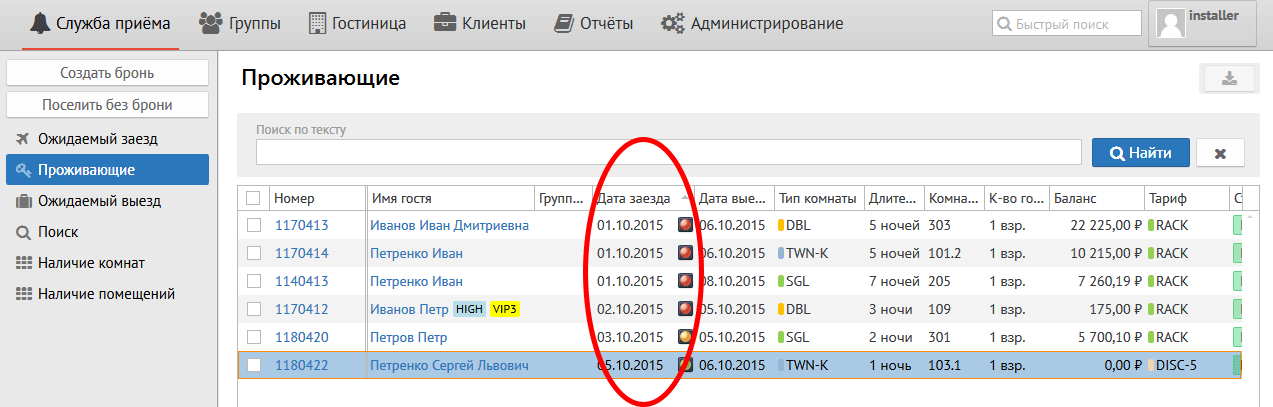
Clear Rules (рус.очистить правила):
Top\Bottom Rules - contains:
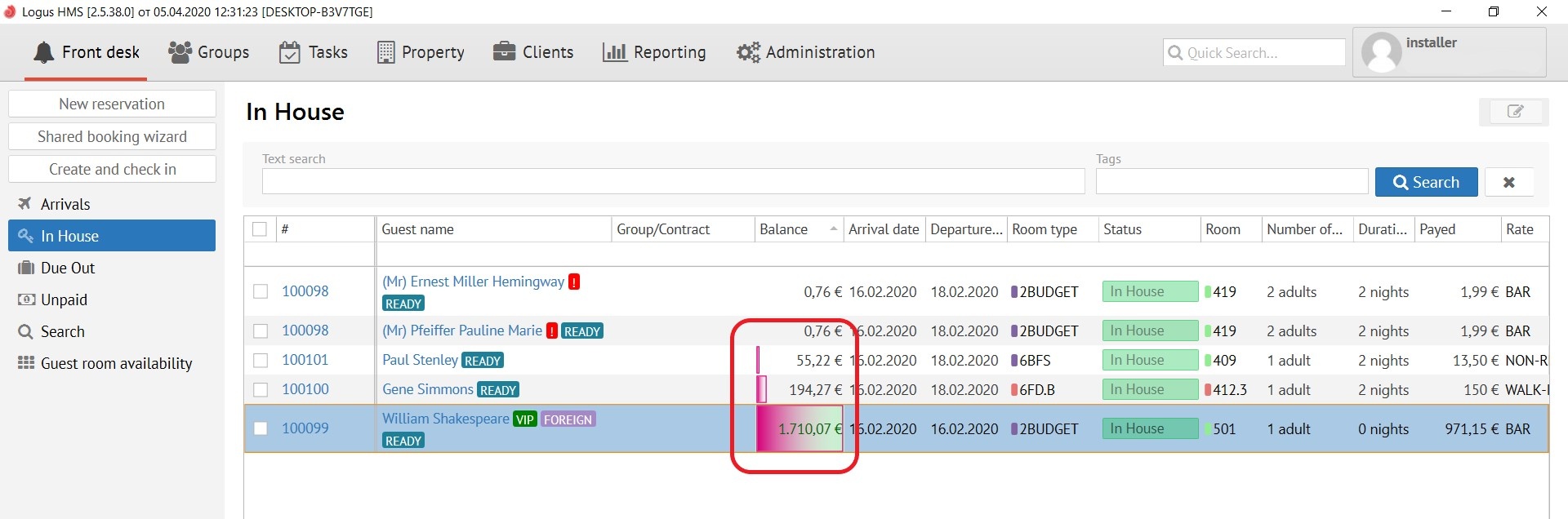
Data Bars:
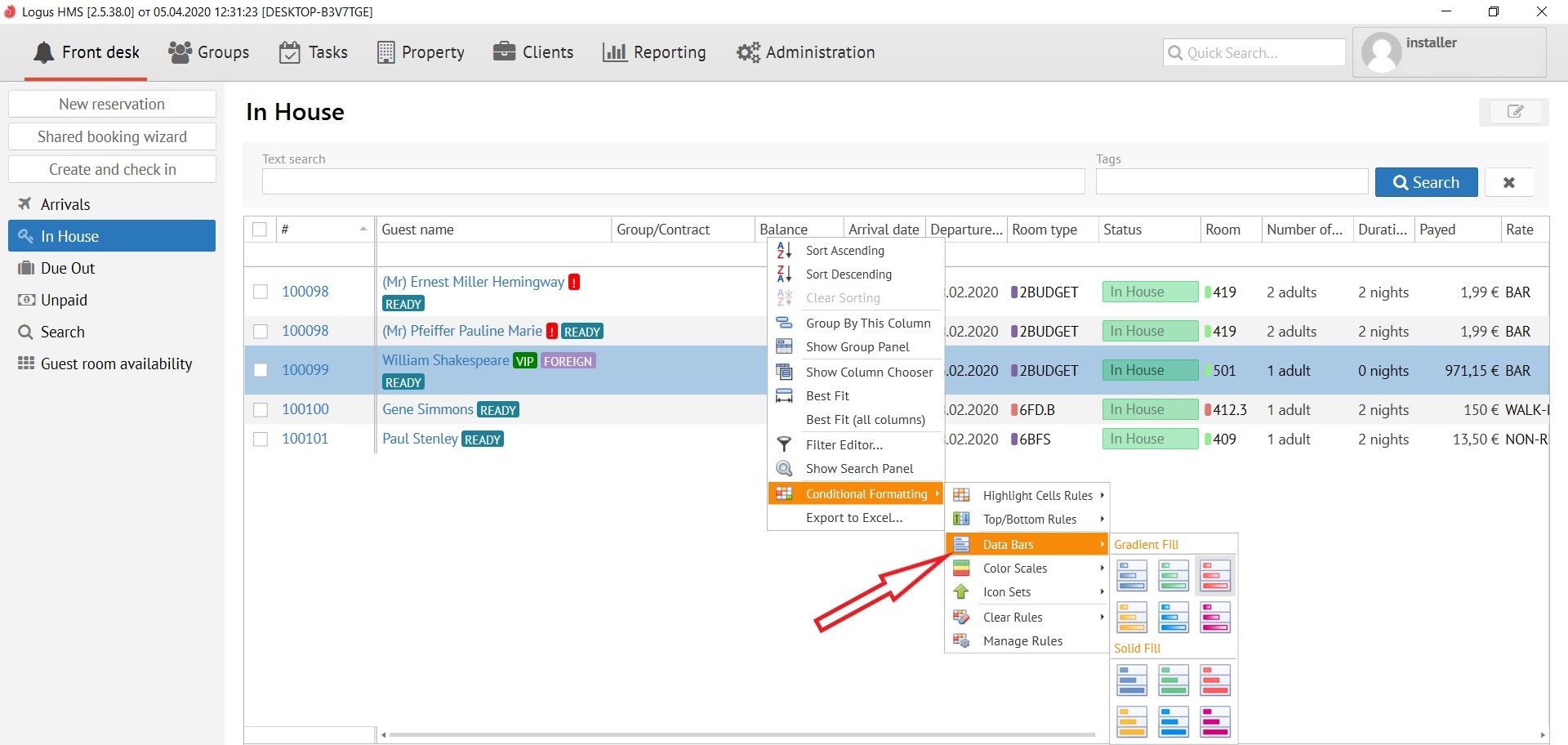
This button applies colour schemes to already configured rules, for example:
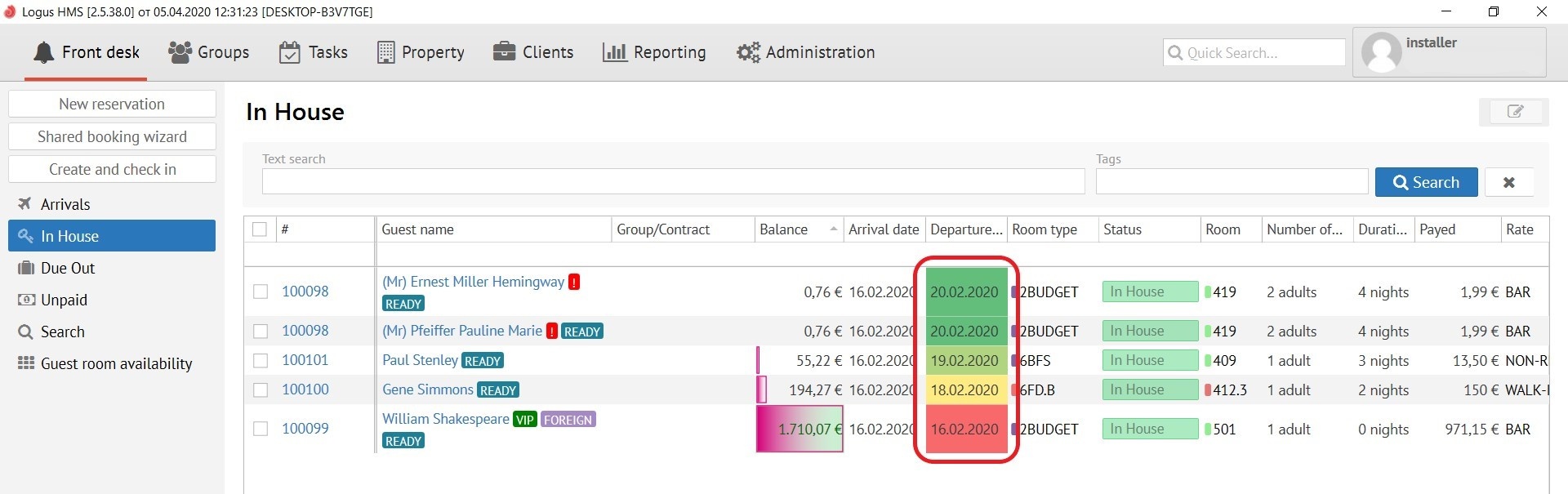
Color Scales:
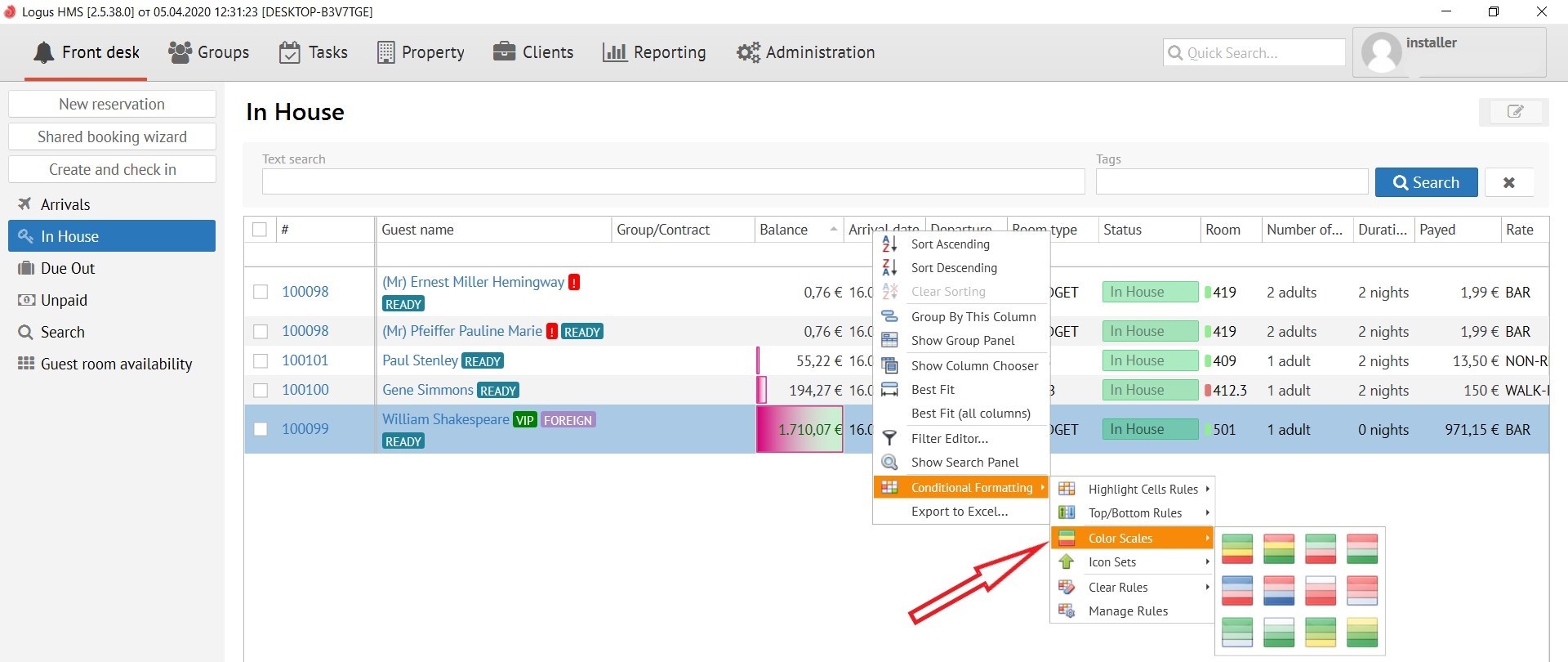
this button coloring different data in different colours:
Icon Sets:
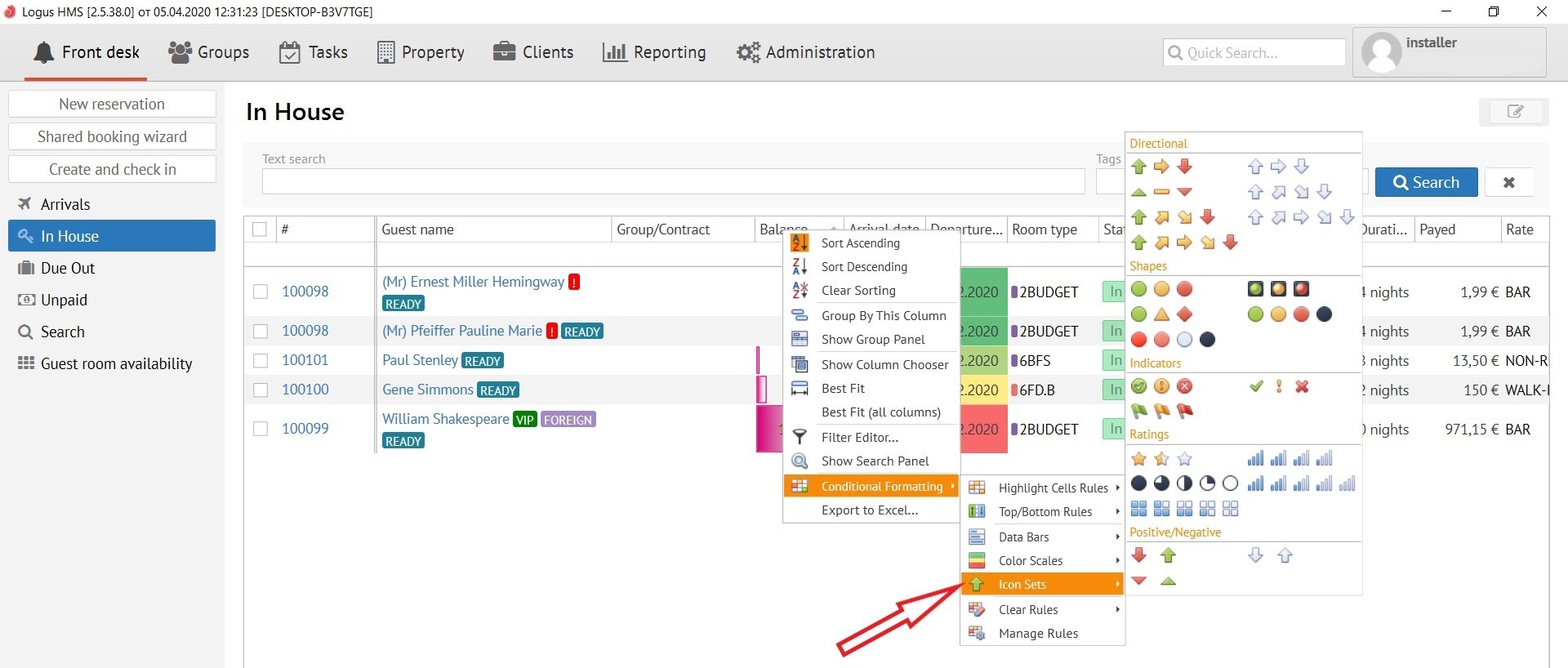
This button allows you to put an icon on the selected column, and mark it by different colour, for example: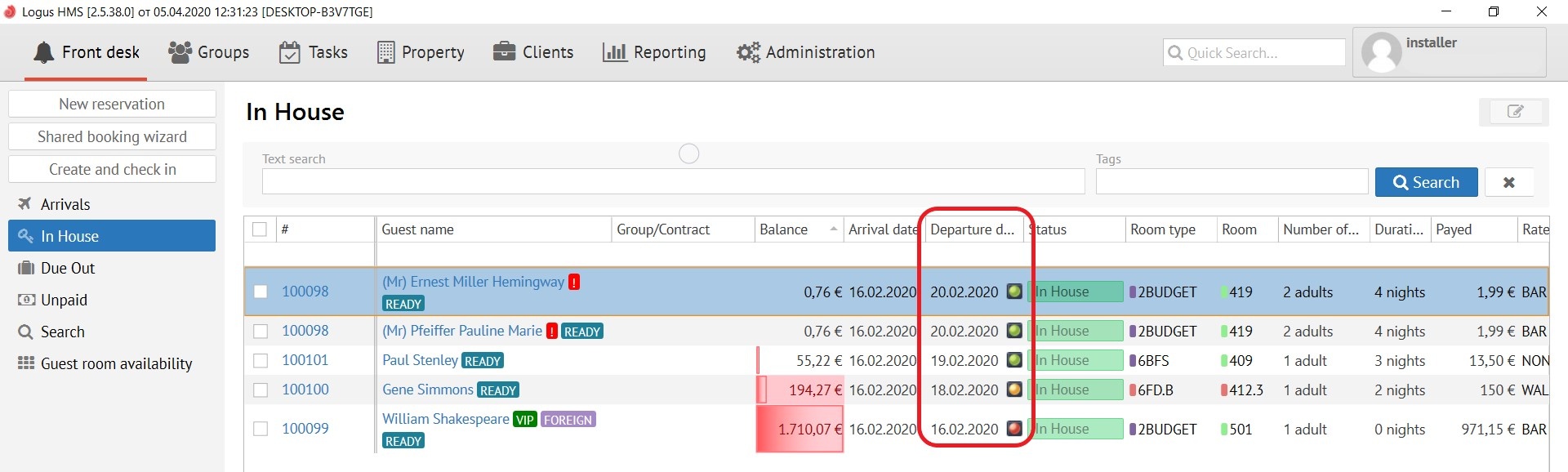
Clear Rules:
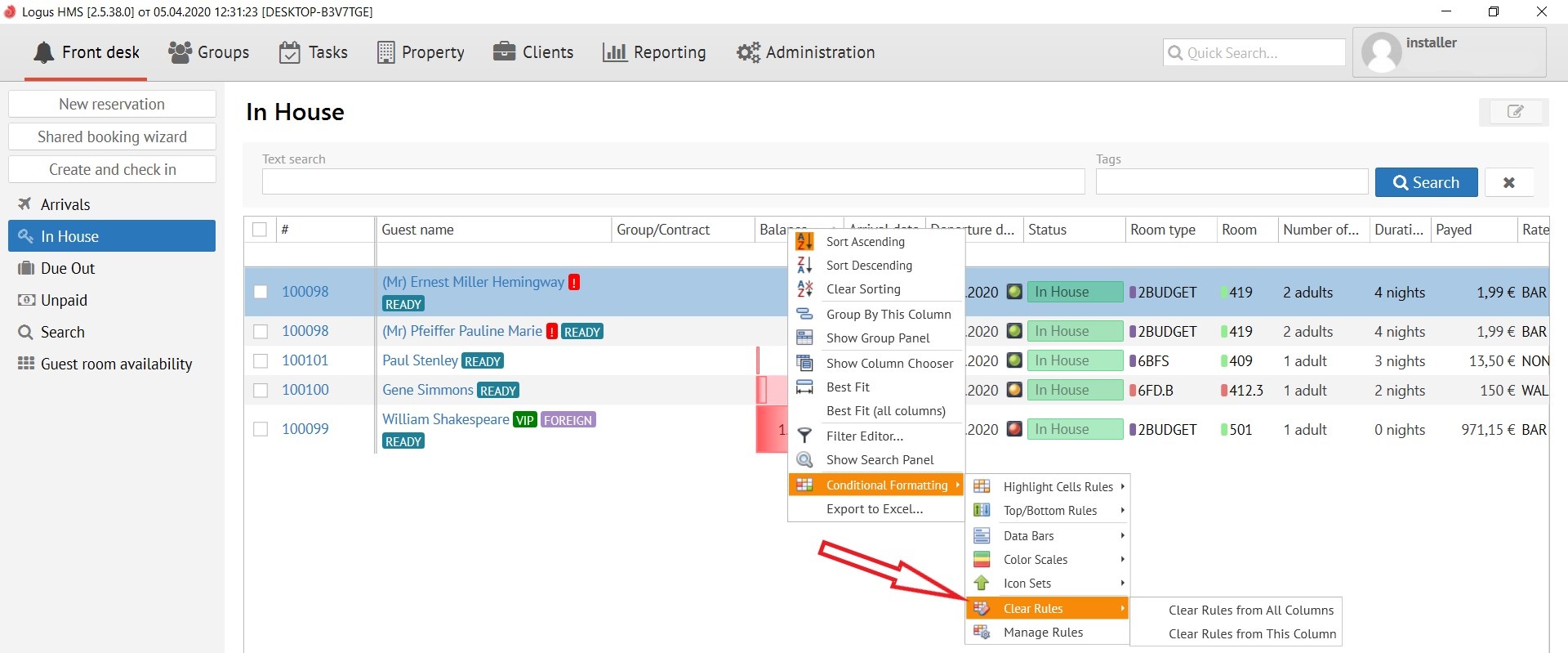
The button allows you to clear the rulesКнопка позволяет очистить правила:
Clear Rules from All Columns - очистить правила со всех колонок
Clear Rules from This Columns - очистить правила с этой колонки
Manage Rules (рус.управление правилами):
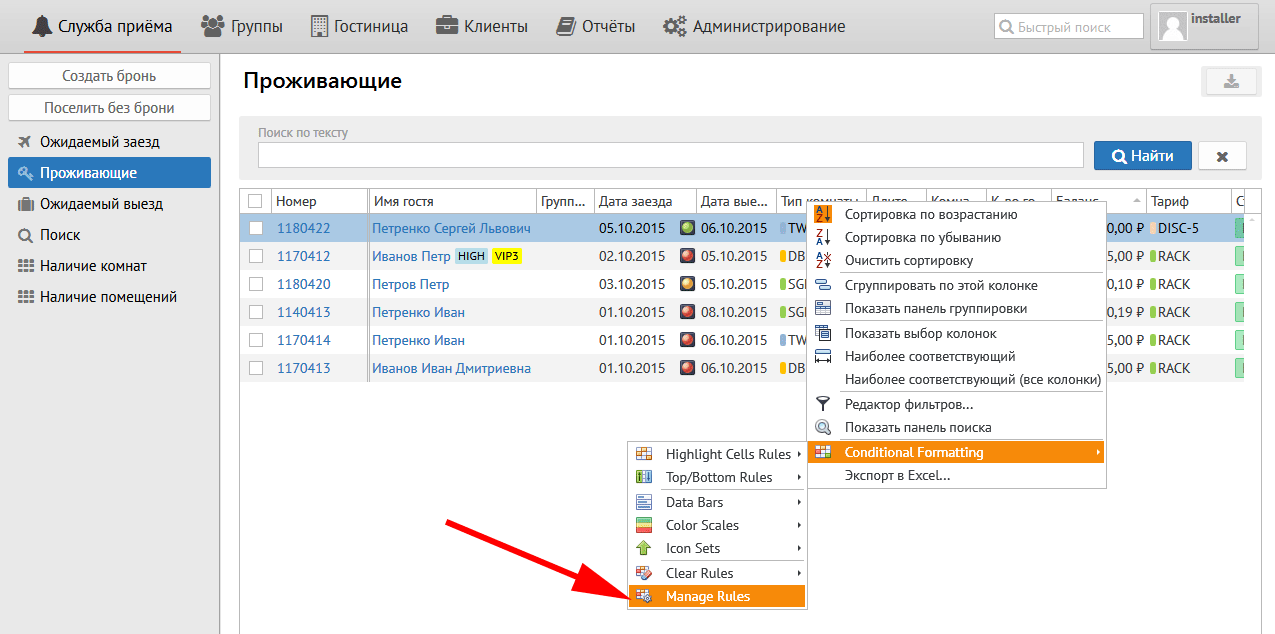
После нажатия на эту кнопку появляется следующее окно:
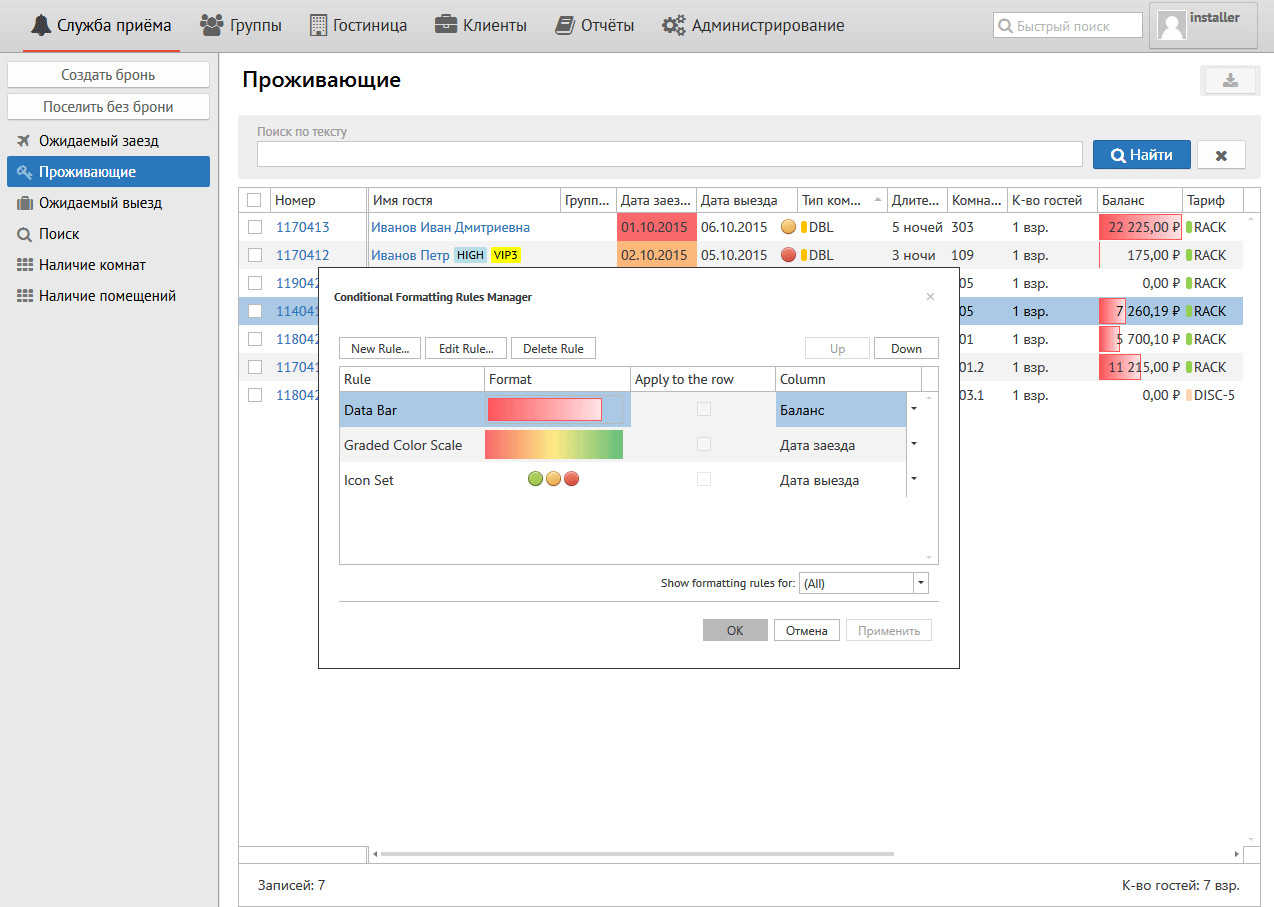
Здесь Вы можете управлять колонками:
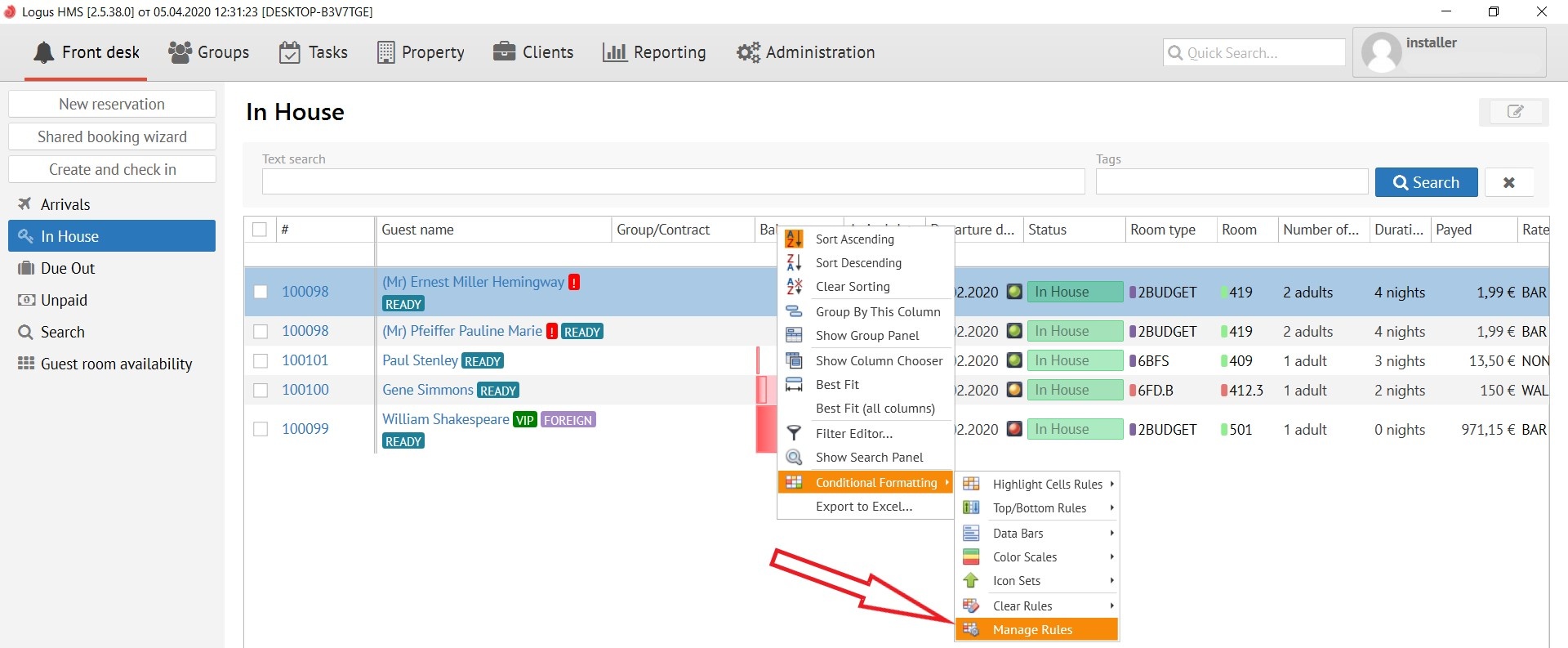
After clicking on this button, the following pop-up window appears:
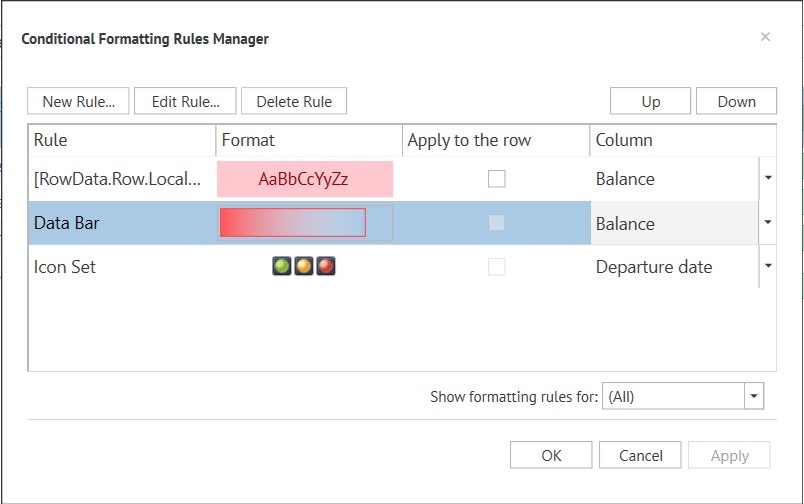
Here you can manage the rules for a columns:
ButtonsКнопки:
New Rule (рус. новое правило) - позволяет создать новое правило на выбранную колонку- allows you to create a new rule on the selected column.
Edit Rule (рус. редактировать правило) - позволяет отредактировать уже созданное правило - allows you to edit an already created rule.
Delete Rule (рус. удалить правило) - позволяет удалить созданное правило.
Окно созданных правил:
Rule (рус. правило) - название правила.
- allows you to delete the created rule.
Created rules section:
Rule - A name of a rule.
Format - format of the created rule (letters or icons)Format (рус.формат - буквы или значки) - формат созданного правила.
Apply to the row (рус. применять к строке)
Column (рус. Колонка) - название колонки.Внизу справа Show formatting rules (рус. Показать правила форматирования) - возможно выбрать необходимые Вам колонки из списка - A name of a column.
Bottom right Show formatting rules - allows you to select the columns you need from the list.