...
"Print detalization" button - prints an invoice with details of posted services (for example, with the positions of a minibar)
Начисление
При нажатии кнопки "Начислить" выпадает окно со следующими полями:
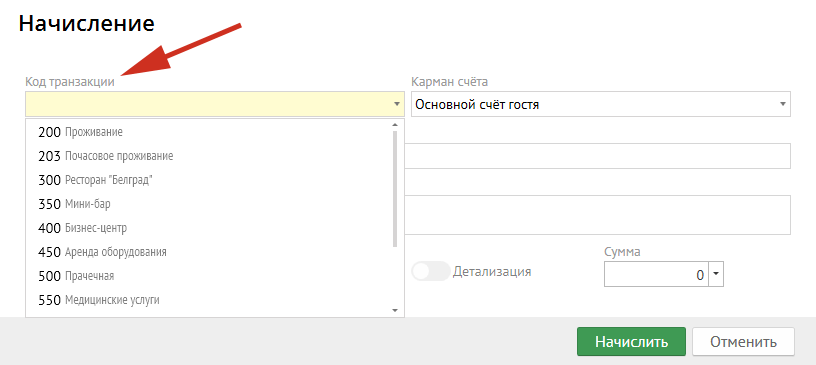
Код транзакции - уникальный код из настройки, который нужно выбрать из выпадающего списка:
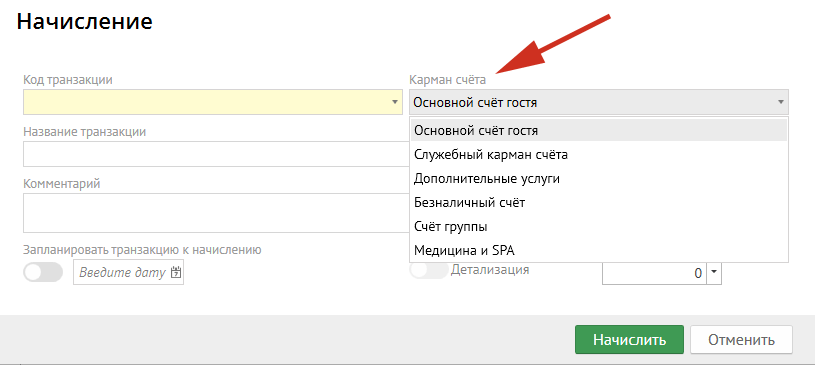
Карман счета - после нажатия этой кнопки необходимо выбрать из меню нужный Вам карман:
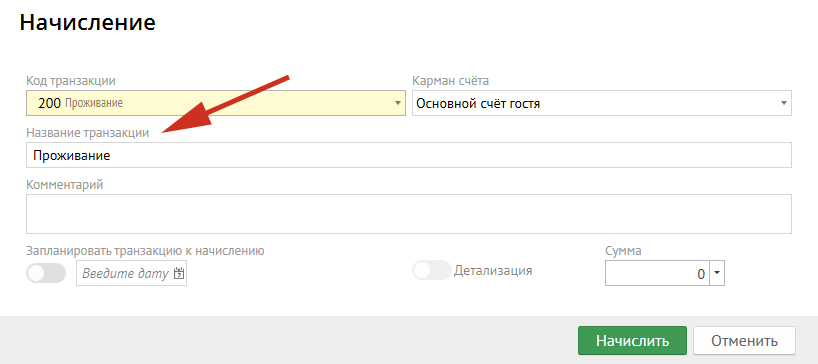
Название транзакции - заполняется автоматически после выбора "Кода транзакции":
Комментарий - сюда можно вписать необходимые Вам комментарии.
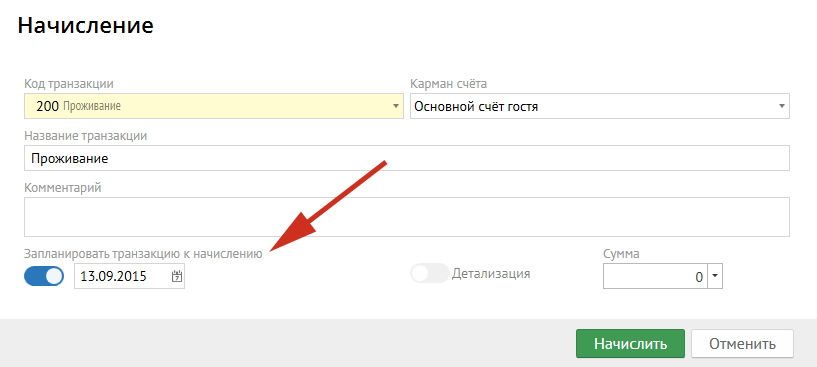
Запланировать транзакцию к начислению - если Вам необходимо, чтобы транзакция начислилась в определенную дату, необходимо нажать на эту кнопку (эта возможность требует наличия у пользователя права "Начислять запланированные транзакции"):
Детализация - показать услуги с детализацией (например, позиции мини бара).
Сумма - в это поле необходимо вбить сумму либо она автоматически будет заполнена из настройки.
Далее необходимо нажать кнопку "Начислить" и услуга будет начислена.
Оплата
При нажатии кнопки "Оплатить" выпадает окно со следующими полями:
Код транзакции - уникальный код платёжной транзакции, который нужно выбрать из выпадающего списка:
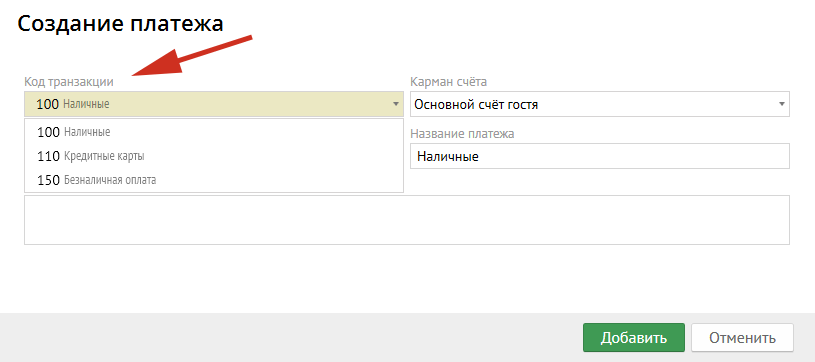
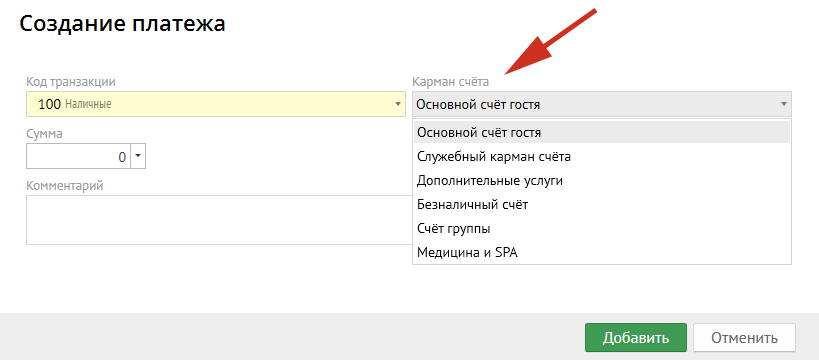
Карман счета - после нажатия этой кнопки необходимо выбрать из меню нужный Вам карман:
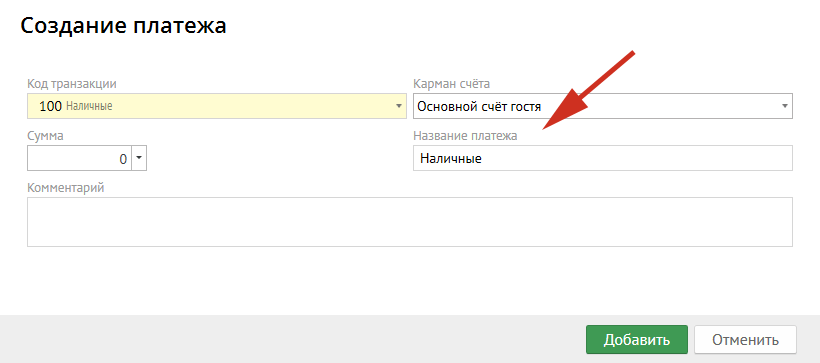
Название платежа - заполняется автоматически после выбора "Кода транзакции":
Сумма - в это поле необходимо вбить сумму либо она автоматически будет заполнена из настройки.
Комментарий - сюда можно вписать необходимые Вам комментарии.
Далее необходимо нажать кнопку "Добавить" и услуга будет оплачена.
После того, как в счет добавлена услуга или платеж, вверху становятся активными строчки:
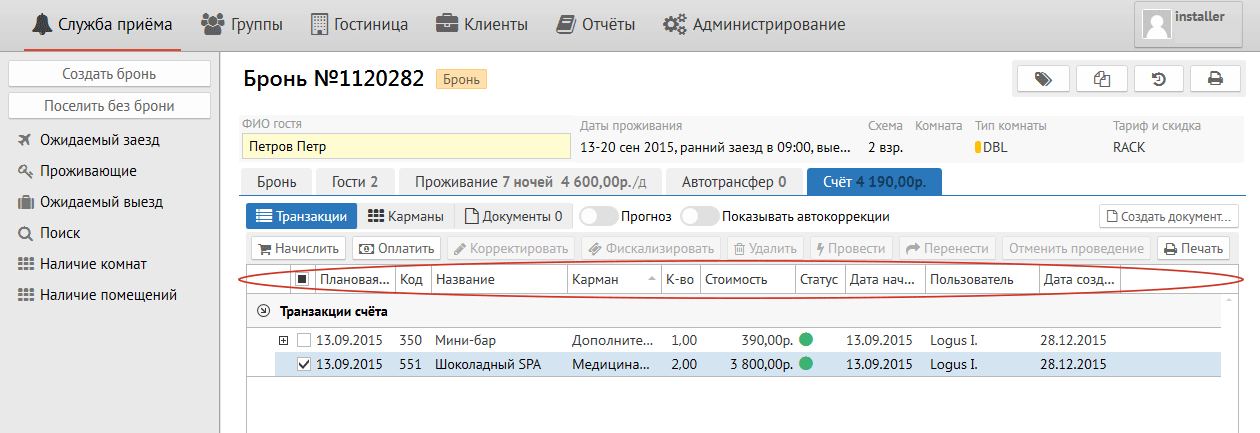
Плановая дата - дата оказания услуги.
Код - код из настроек.
Название - название услуги.
Карман - карман начисления.
К-во - количество услуг.
Стоимость - стоимость услуги.
Статус - начислена или скорректирована.
Дата начисления - дата начисления услуги.
Пользователь - тот, кто начислил услугу.
Дата создания - дата добавления услуги.
Кредитный лимит - возможность ухода в долг:
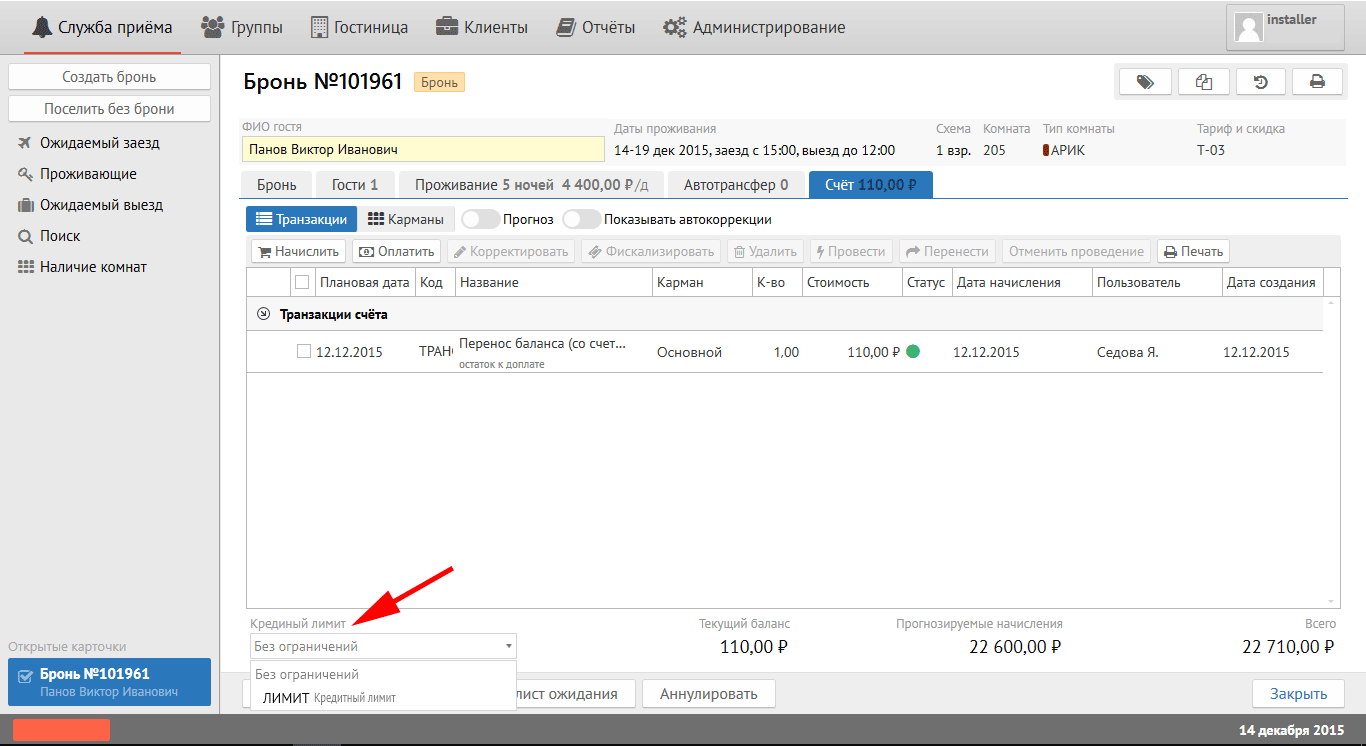
Текущий баланс - баланс гостя на данную минуту.
Прогнозируемые начисления - начисления, которые планируется начислить.
Post Charge
When you click the "Post Charge" button, the pop-up window appears:
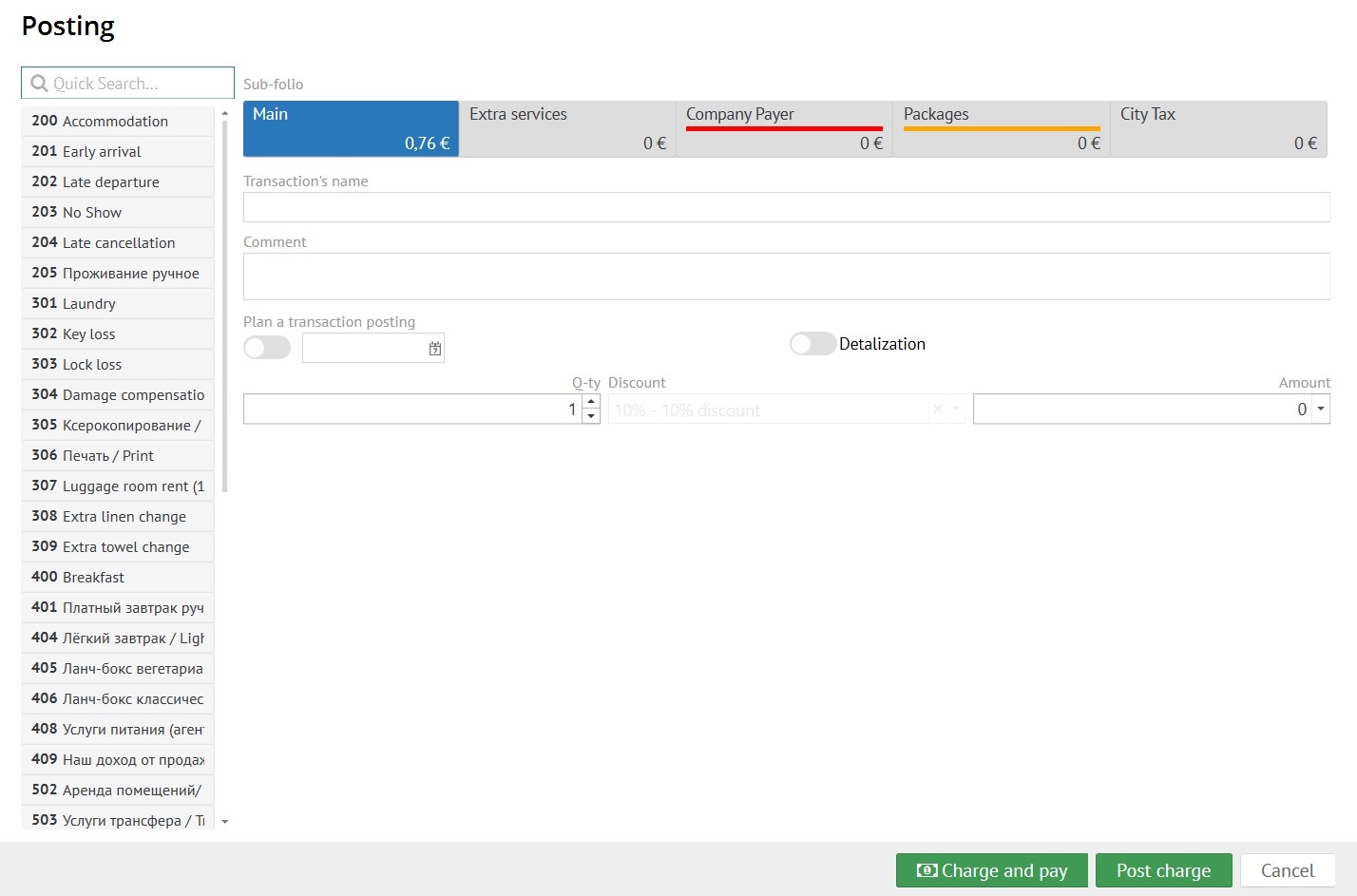
Transaction Code - unique transaction code to be posted.
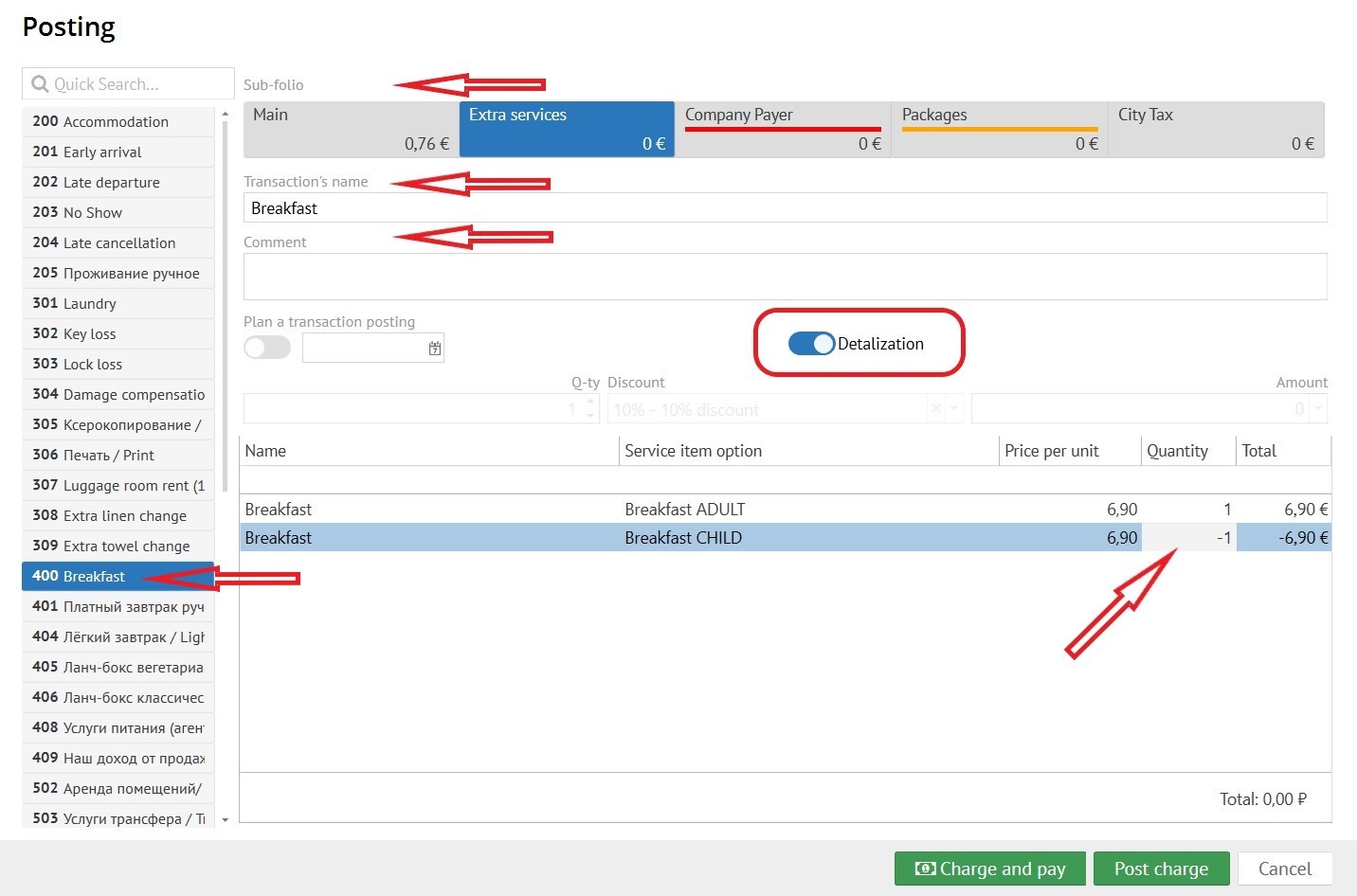
Sub-folio - choosing the right sub-folio for posting.
Transaction's name - filled in automatically after selecting "Transaction Code". (can be changed if needed)
Comment - here you can type the comments you need.
Detalization - Shows the services included in the transaction code (for example, the position of a mini-bar like crisps, snacks and etc.). You should choose quantity of services or write a correct amount in columns.
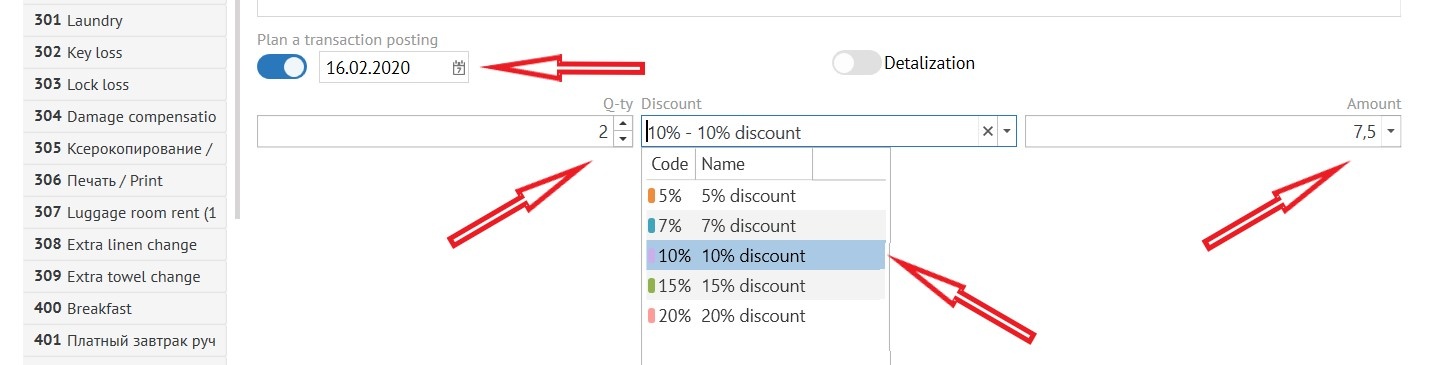
Plan a transaction posting - if you need the transaction to be posted on a certain date, you must click on this button and select a date (this option requires the user to have the “Post scheduled transactions" permission).
Quantity - quantity of posting transactions.
Discount - if you need to make a discount to this transaction click this gap and in pop-up window choose percent of discount.
Amount - in this gap, if it necessary, enter an amount or it will be automatically filled in from the settings.
To post the transaction click "Post charge"
To post and pay immediately click "Charge and pay"

Add payment
When you click the "Add payment" button, a pop-up window appears:
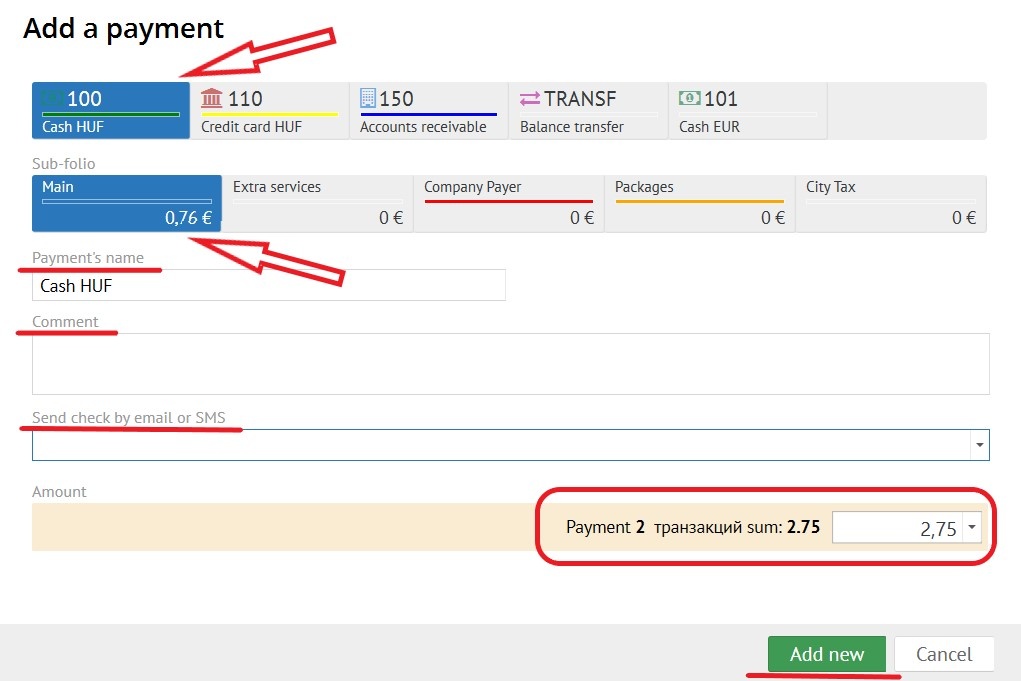
Type of payment - Choose the transaction code for payment (credit card, cash or etc.)а:
Sub-folio - choosing the right sub-folio for payment.
Payment's name - filled in automatically after selecting "Transaction Code". (can be changed if needed)
Send check by email or SMS - if you need to send a check by email or SMS choose the right one. Fill in from fields in "Reservation" card. (Optional!! Depends on tax law)
Comment - here you can type the comments you need.

Amount - if you pay without any marked transaction you should enter an amount. If you marked some transactions an amount and a quantity of it will automatically fill in (the posted transactions and payment should be ib one sub-folio).
To add payment press "Add new" button.
After a service or payment is added to the folio, the lines at the top become active:
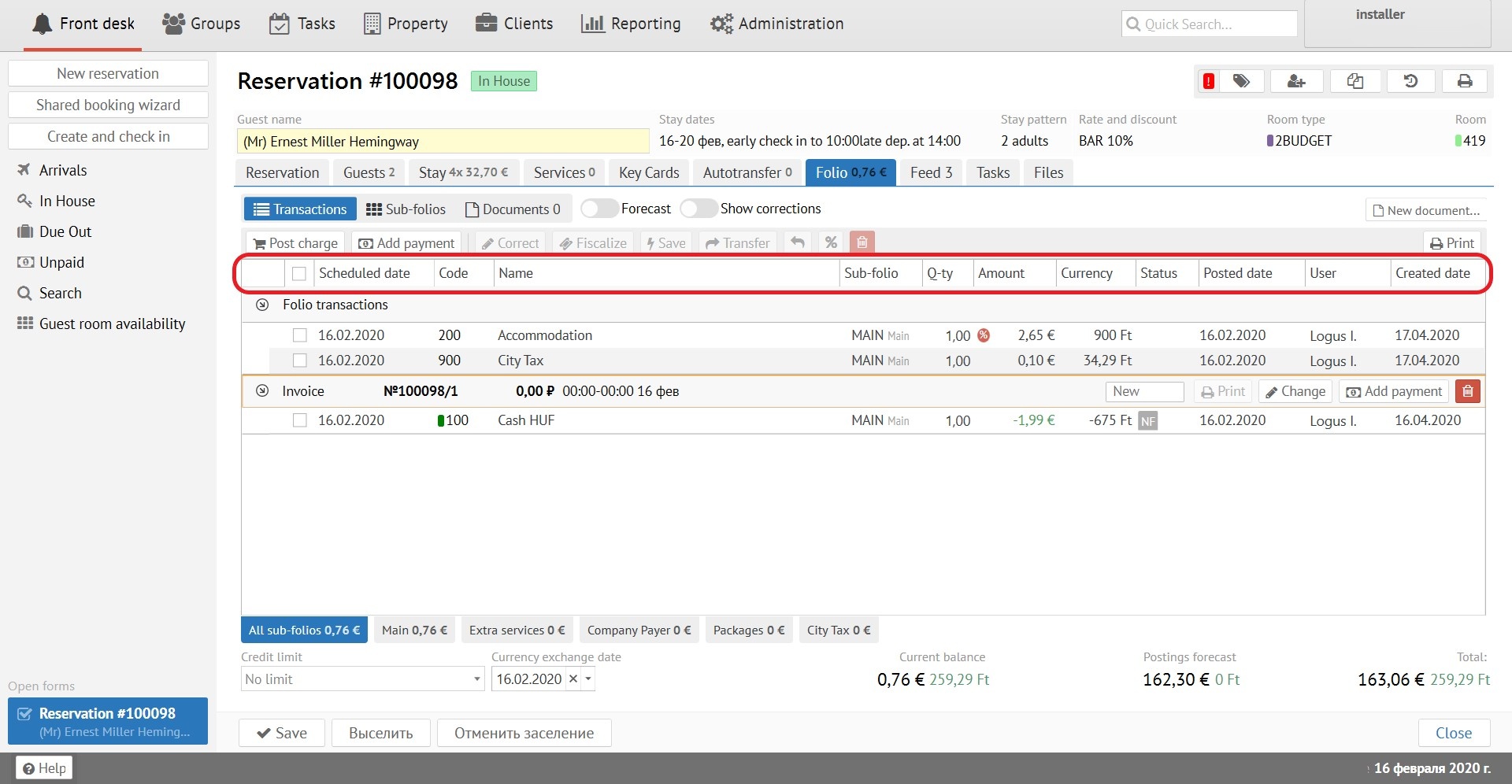
Scheduled date - scheduled transaction date
Code - unic code of transaction from "Administration".
Name - name of transaction from "Administration".
Sub-folio - sub-folio in which transaction posted.
Q-ty - quantity of services.
Amount - amount of services.
Currency - currency in which the transaction was posted.
Status - fiscal status of payment.
Posted date - date of transaction accrual.
User - user who post the transaction.
Created date - date of transaction created.
Limits, balance and forecast

Credit limit - возможность ухода в долг:
Currency exchange date - цhen making a reservation at a rate in currency, the exchange rate date is automatically set.
Current balance - reservation folio balance for the moment. (in different currencies)
Postings forecast - transactions that are scheduled to be post. (in different currencies)
Total: - total balance summarized current and forecast balances. (in different currencies)Всего - общий баланс