| Release | 2.5 |
| Logus The Box | Yes |
General setting
Create a Travel Line company profile in the "Clients" section.
To configure the joining, enable the "Sales master" role for the company.
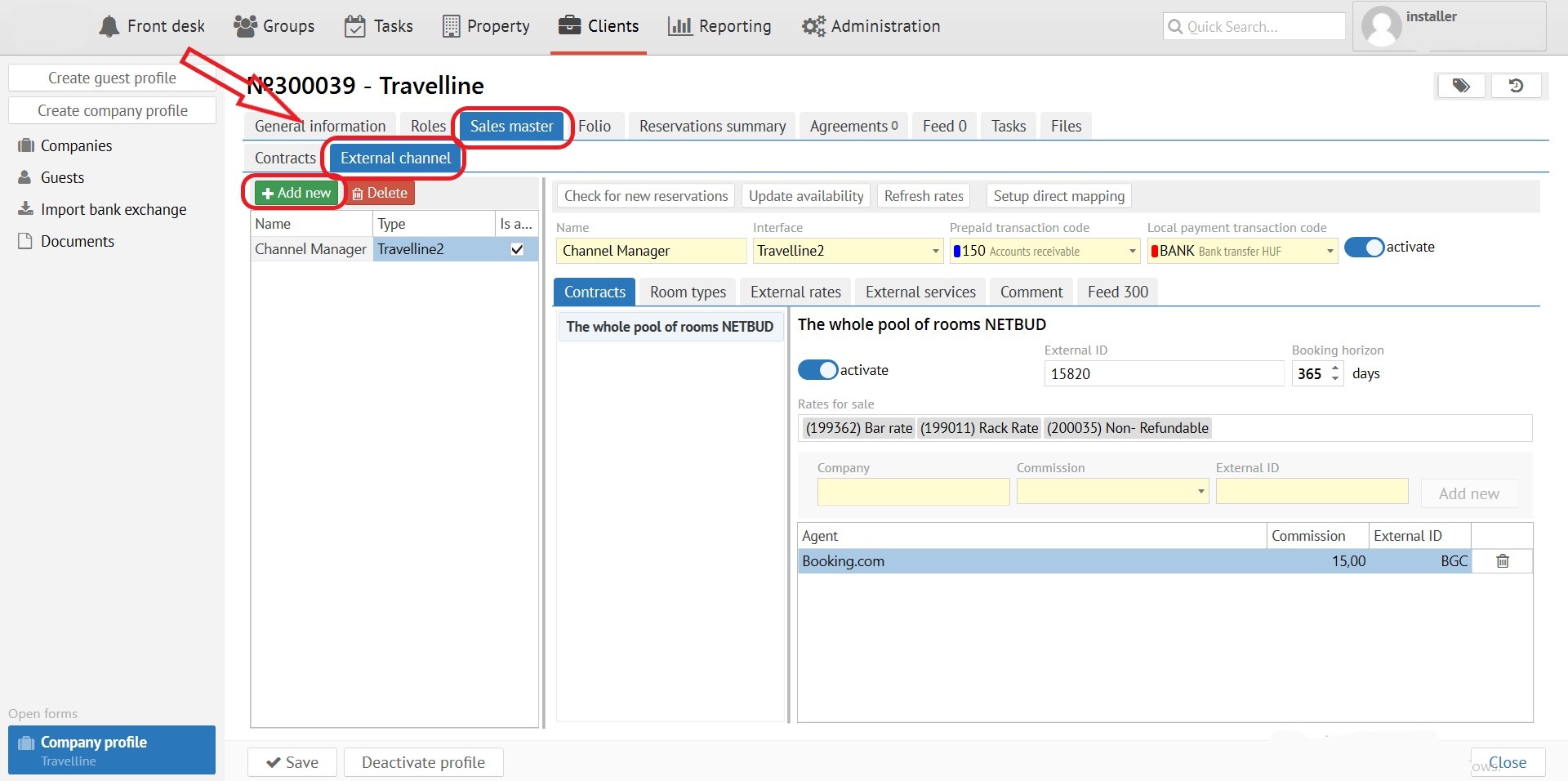
Use correct prepaid transaction codes for non-cash payments (from agents) and for direct payments via hotel acquiring (if such is connected in Travel Line).
Acquiring hotel payment can’t be non-cash – such reservations will come without payer company and 150 code could not be used. Payment code “Payment by hotel acquiring” should not be non-cash – for this type “Bank” or “External” type of payment must be used.
Important!!! HotelCode, Which is shown on TL website can differ from external hotel code we use in configuration. If not sure, please clarify with technical support of client.
With “Add new’ button create External sales channel.

| Tab name | Description |
|---|---|
| Contracts | Reservation rooms contracts. Usually used for the whole pool of MAIN rooms |
Room types | Room types for booking |
| External rates | Rates, set up in your TL account |
| External services | External services codes |
| Comment | External API descriptions, got from TL |
| Feed | General changes / operations |
Make sure kids categories in Logus and TL are similar – age must me the same to get into a correct category
Rate setting
- Go to "External rates" tab.
- Select a rate plan from list.
- If rate contains some services packages, link the required package (You can find below how to link several packages at the same time).
- Specify the external rate code (API code) from TL (rate codes can be viewed in your personal account or on the Comment tab)
- Click "Add new"
- Go to the "Contracts" tab
- In the "Rates for sale" pop-up menu activate required rates.
Each rate can be added in a separated lines. One rate in LOGUS can be compared with different rates codes from TL. For example, if TL rates from personal account set up as lined and prices do not downloading from LOGUS.
In cases where more than one package must be linked with tariff, you need to add separated line for each package. On tab “External rates” you need to specify the same external identification as you can see on screen.
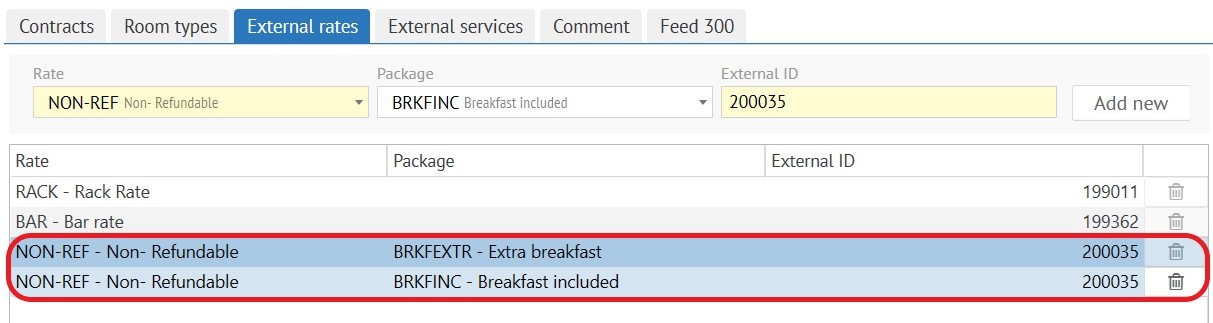
In case when reservation comes with external code 200035, tariff with "NON-REF" reservation and 2 packages will be created.
Attention! One of the reason why reservations with set up rates don’t displayed in Logus – rate is not available for reservation
- Go to the "Contracts" tab
- Activate the required rates in ""Rates for sale" pop-up menu.
Room type setting
- Go to "Room types" tab.
- Select the room type.
- Specify the external code / API (codes can be viewed in your TL account or on the Comment tab).
Services setting
- Go to "External services" tab.
- Select an additional service.
- Specify an "Variants".
- Specify the external code / API of the additional service from the TL (the codes can be viewed in your account or on the Comment tab)
- When use “rate + package” combination in the rate settings, it is not necessary to indicate service codes already used in this rate.
- Not all external channels can share service ID, so in case when additional service ID is not transmitted by the channel, it is necessary to add a service with ID "EXTRA_SERVICE", previously configure the universal service in Logus.
- 1.
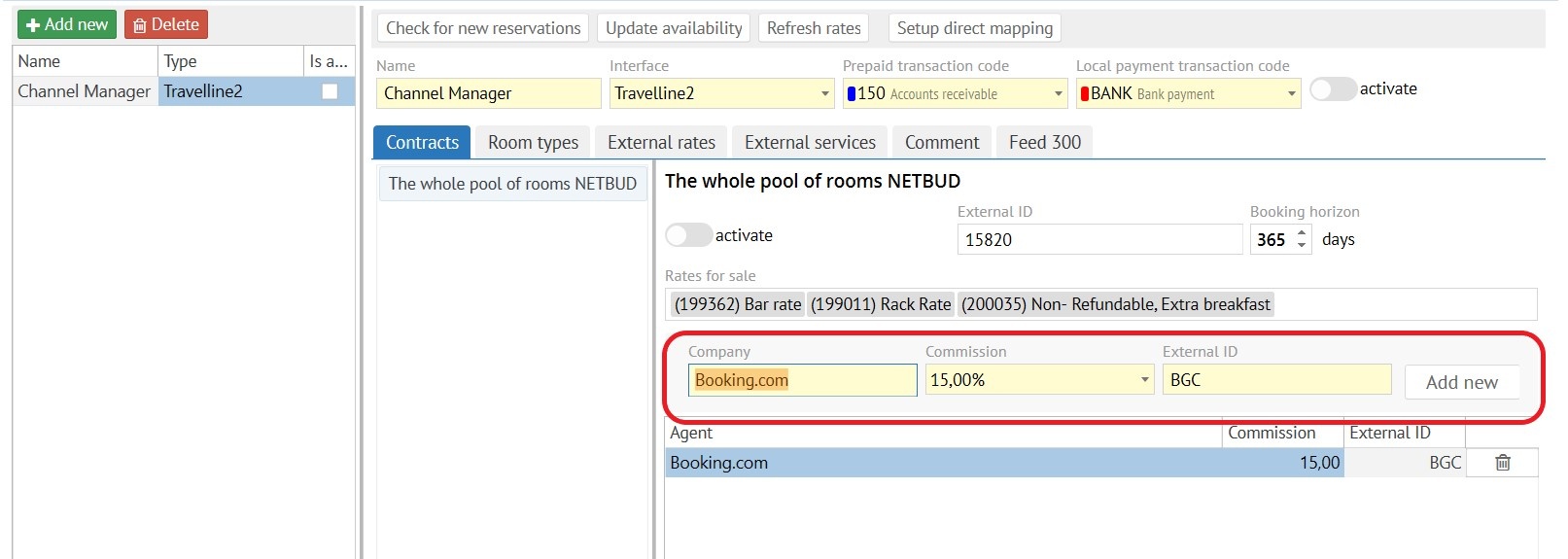
- 2. Add sales channels as shown in first screenshot.
- 3. If the agent code is missing from the link below, then contact TL.
Contracts setting
Attention! Each Client with the "Agent" role must have a default commission set.
- Go to "Contracts" tab.
- Add sales channels as shown on screenshot below.
- Add TL code of external channel. If the agent code is missing from the link below, then contact TL.
Page with all codes of sales channels - https://docs.travelline.ru/pages/viewpage.action?pageId=14549221
BGC booking.com
EXP expedia.com *
HRS HRS
HBS Hotelbeds.com *
HUS Hotusa.com
ARB Airbnb
HSC HostelsClub
* IMPORTANT!!! Channels/website with asterisks can work with hotel on a FREE SALE conditions, in this case LOGUS data with room availability can be ignored
Rate updates and rooms availability:
When “Refresh rates” button is selected, prices from Logus to TL is unloaded.
Important
Attantion! Please consult with your Travel Line manager before this action.
If you see error log “Price integration is disabled”, when unloading prices, it means Travelline doesn’t include price sync for tariffs.
Force availability update
To force the update of room availability, click the “Update Availability” button
